

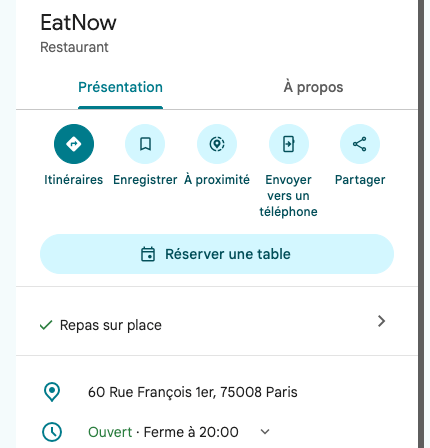
The two modes
Choose Business Link if you take deposits, card imprints or prepayment, if you sell formulas or extras with the booking, or if your restaurant is in Morocco. Choose E2E when you want the shortest path for the guest and your shifts can be booked without a payment.
Both modes record Reserve with Google as the reservation source, so you can follow Google bookings in your lists, statistics and segments. The source does not tell the two modes apart: only one mode is active at a time.
Who can use it
Any restaurant with a Google Business Profile (the listing that appears on Search and Maps), connected to EatNow.- Business Link works in every country.
- E2E is not available in Morocco: Google does not offer end-to-end booking there. The option is greyed out for restaurants located in Morocco; use Business Link instead.
Turn it on
1
Connect your Google listing
Go to Settings → Integrations and connect the Google My Business card with the Google account that manages your listing. See Reputation integrations for the details of the connection.
2
Open Manage
Once connected, the card shows the current Reserve with Google mode. Click Manage.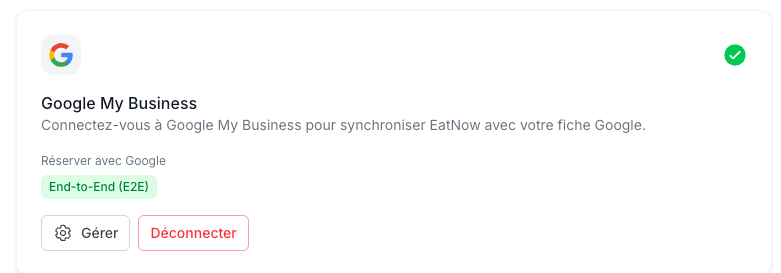
3
Choose a mode and update
Pick Disabled, Business Link or End-to-End (E2E), then click Update.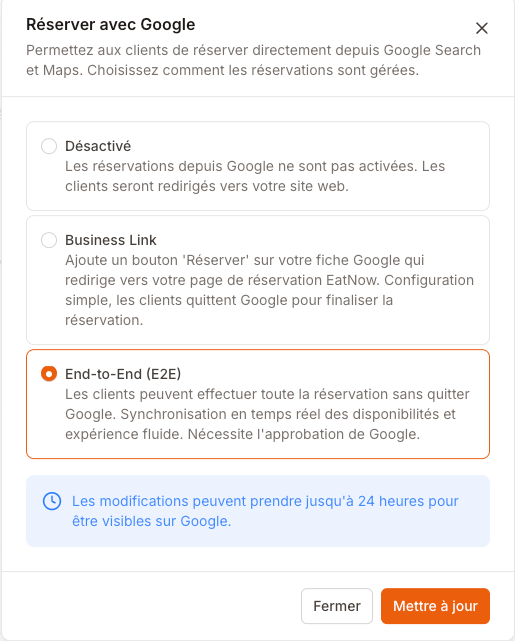
When the button appears
EatNow sends your restaurant to Google every morning, and Google then matches it with your listing using the name, address, phone number and website entered in Settings → Restaurant. Keep them identical to your Google listing.- A change of mode takes up to 24 hours to show on Google. A first activation can take longer, while Google matches the restaurant with its listing.
- Disabled removes the EatNow button from your listing within the same delay. The listing keeps its other buttons (website, phone, directions).
- If the button still does not appear after a few days, or appears on the wrong listing, contact EatNow support: the match is checked on Google’s side.