
The Cockpit reads from the same data as your floor plan and list. Any change made elsewhere (status update, table assignment, new booking) updates the grid in real time.
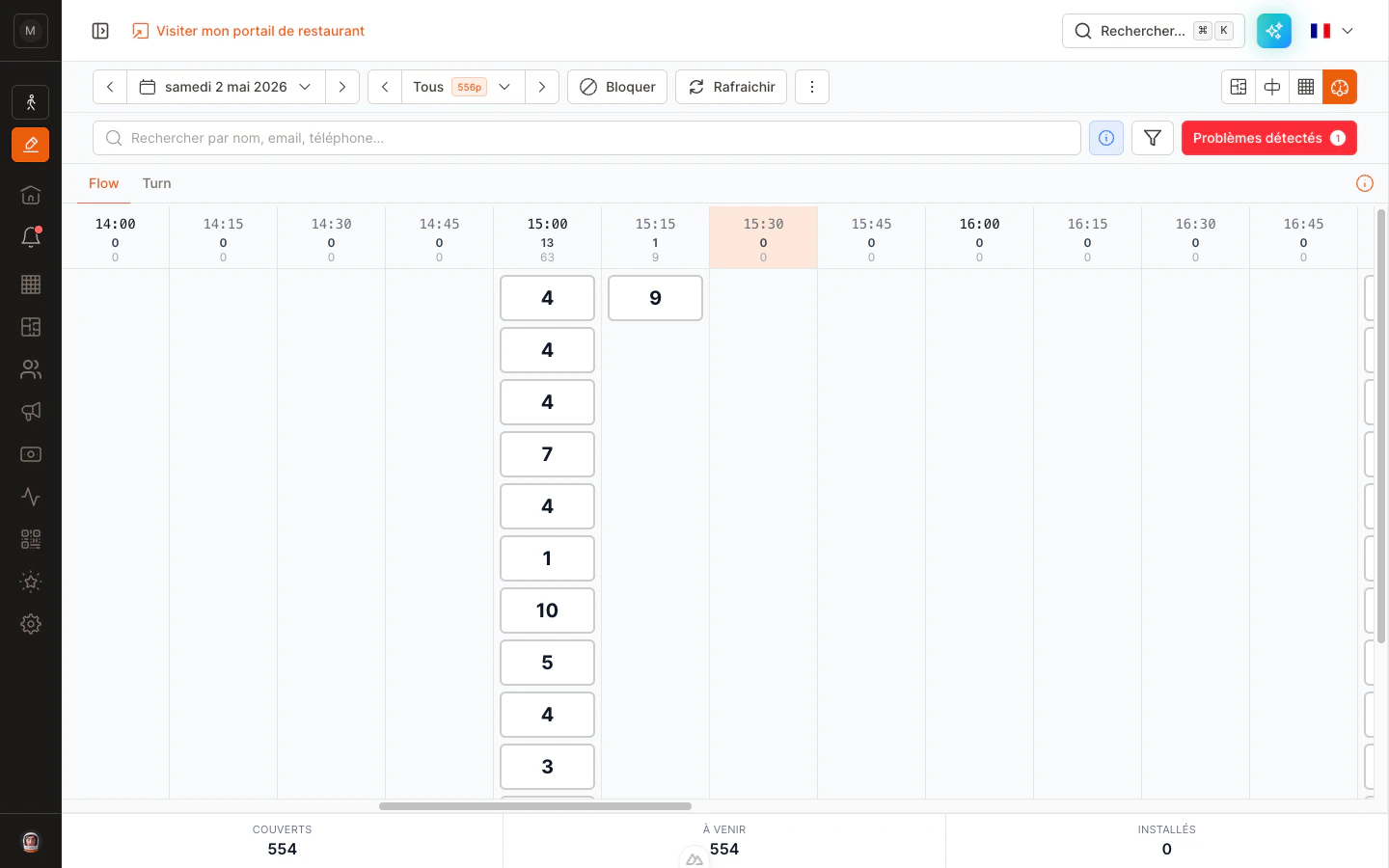
Cockpit Flow tab — each column is a 15-minute slot, each card a reservation.
Opening the view
- Open the Reservations page.
- Make sure you are on the right date and that the relevant shifts are selected.
- Switch to the Cockpit:
- On desktop, click the Cockpit icon in the view selector at the top right of the page (next to floor plan, planning, table).
- On mobile and tablet, tap the view dropdown in the header and pick Cockpit.
- Two tabs appear at the top of the panel: Flow and Turn. Tap the one you need.
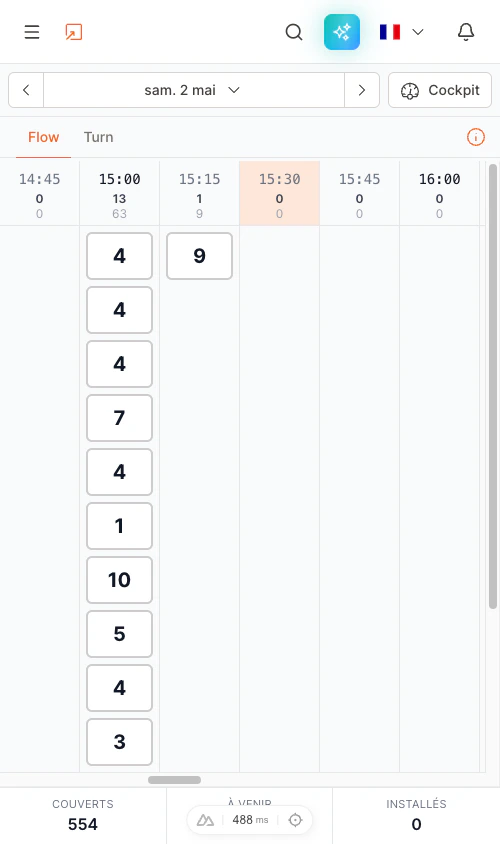
Cockpit on mobile — the view dropdown in the header reads Cockpit when you're on this view.
Flow tab — pre-service briefing
The Flow tab is the one to use before service starts, during your pre-shift briefing with the team.What you see
Each column is a 15-minute slot. The header of each column shows two numbers:- Top number — the count of reservations for that slot
- Bottom number — the total number of covers for that slot
- The big number on the card is the party size (e.g.
4means a party of 4). - The card’s color is the reservation status (pending, confirmed, seated, etc.).
- A colored corner on the card means the reservation has at least one flag:
If a reservation has more than one flag, the corner color shows the highest-priority one (VIP > allergies > server).
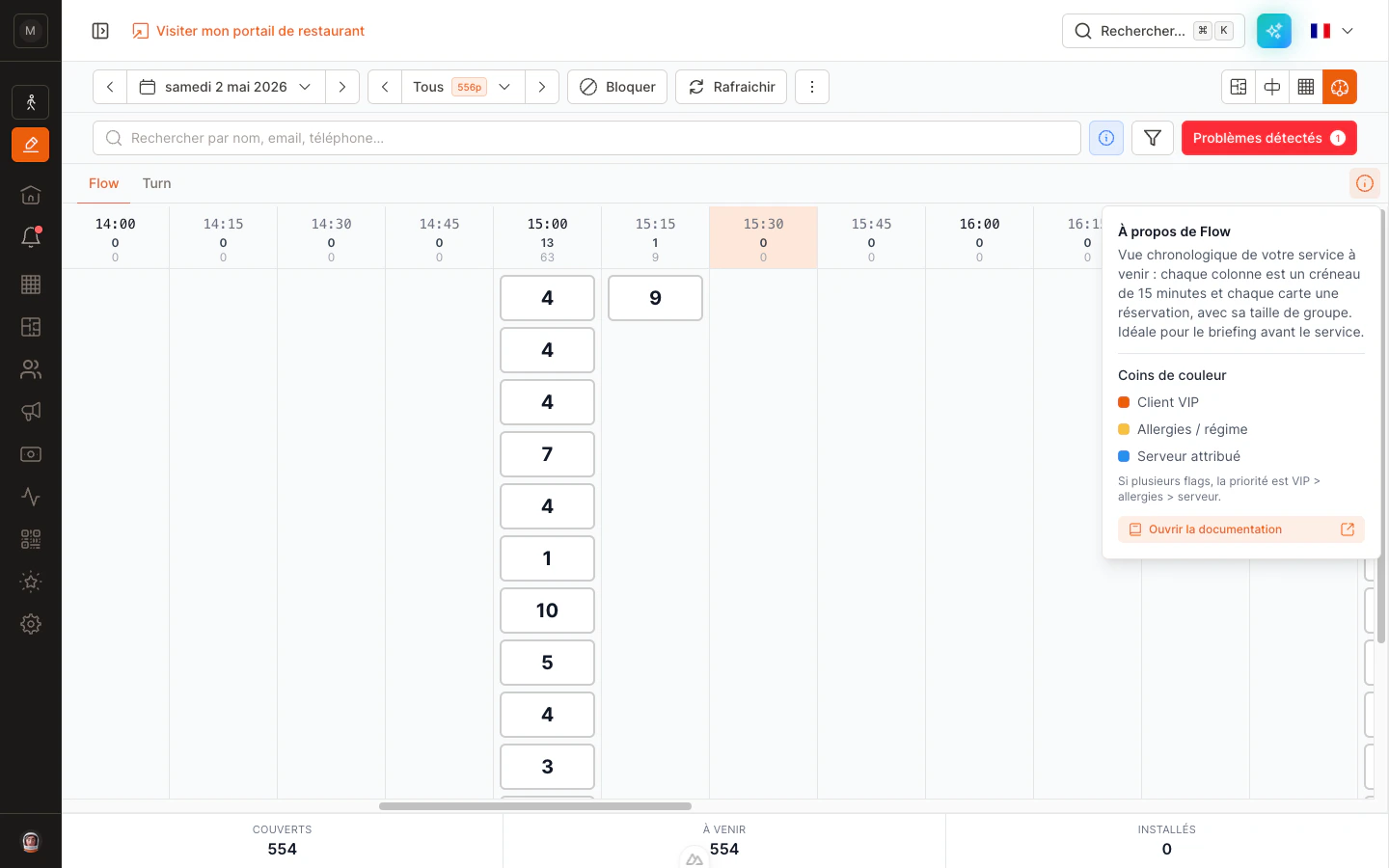
The (i) popover on the Flow tab reminds you of the corner colors and links back to this page.
Typical use cases
- 🎯 Briefing — In one glance you spot the busiest slots, the big parties, the VIPs and the allergies. No more printed sheets.
- 📊 Service shape — See immediately if a slot is over-packed or empty before you open bookings.
- 👀 Sanity check — Make sure every reservation has a status before service starts.
Turn tab — live service view
The Turn tab is built for during service. It answers a different question than Flow: when will each table be free? Each card represents one reservation placed in the column matching its expected end of meal (booking time + average duration for the party size).What you see
Same time-grid layout as Flow. Each card in a column shows a table number, not a party size:- The card shows the table name (or number).
- The colored underline matches the reservation’s status — whether the party is currently seated or expected to arrive.
- The same table can appear in several slots during the day — once per booking. A table that’s booked at 13:00, 17:00 and 21:00 shows up at 15:00, 19:00 and 23:00 (each end of meal).
Alerts
When a table needs your attention, two things happen:- A red dot appears in the corner of the card, and the card border turns red.
- A number badge appears at the top of the column header, telling you how many tables in this slot have an alert.
- The seated party is overrunning — they’ve been at the table longer than the expected duration.
- The next party is late — their booking time is past, but they haven’t been seated yet.
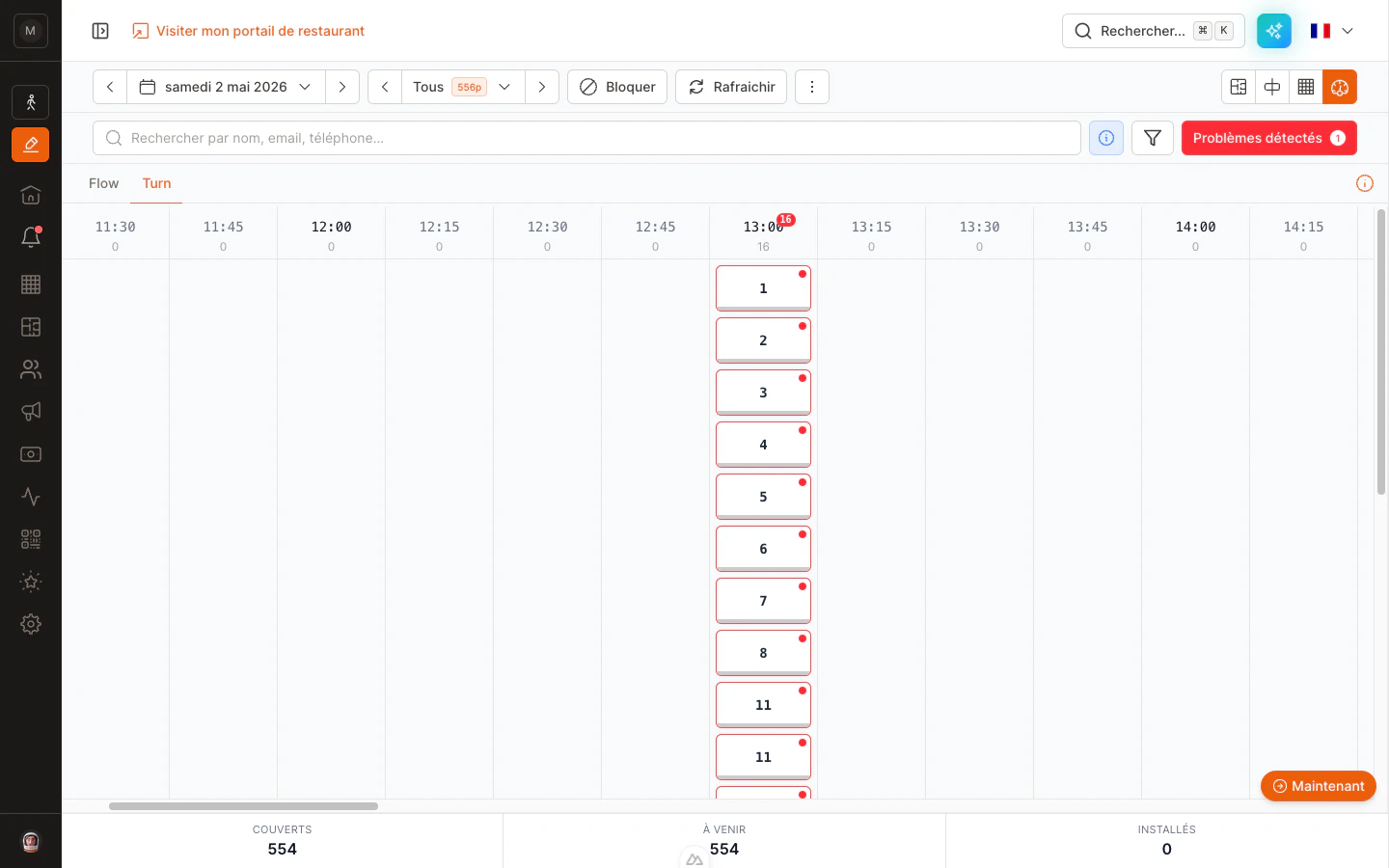
Turn alerts — every flagged table has a red border and a red dot, and the column header counts them.
Typical use cases
- ⏱ Anticipate turns — See in 30 seconds which tables you can promise to walk-ins.
- 🚨 Spot problem tables — Red borders and column badges tell you immediately where to follow up to keep service on track.
- 🪑 Coordinate with the floor — A second screen for your floor plan: where Flow tells you “who is coming”, Turn tells you “what is freeing up”.
The Turn tab updates automatically as you change reservation statuses (Seated, Done…) on any device, and it re-evaluates the alert flags every 30 seconds so a late table lights up on its own.
Bottom stats bar
A stats bar pinned at the bottom of the screen gives you the totals at a glance. It stays visible while you scroll the grid.
These three numbers are the same on Flow and Turn — they describe the whole day, not just the active tab.
Tips for mobile and tablet
- Horizontal swipe to navigate the time slots — the grid snaps slot by slot.
- Sticky header — column counters stay visible while you scroll the cards.
- Sticky bottom bar — the Covers / Upcoming / Seated totals stay visible too.
- Pinch-to-zoom is disabled intentionally — the layout is sized for fast scanning during service.