
When to use this view
EatNow gives you three ways to look at your reservations. Each has its job:
Switch between them via the three icons in the top-right of the Reservations page.
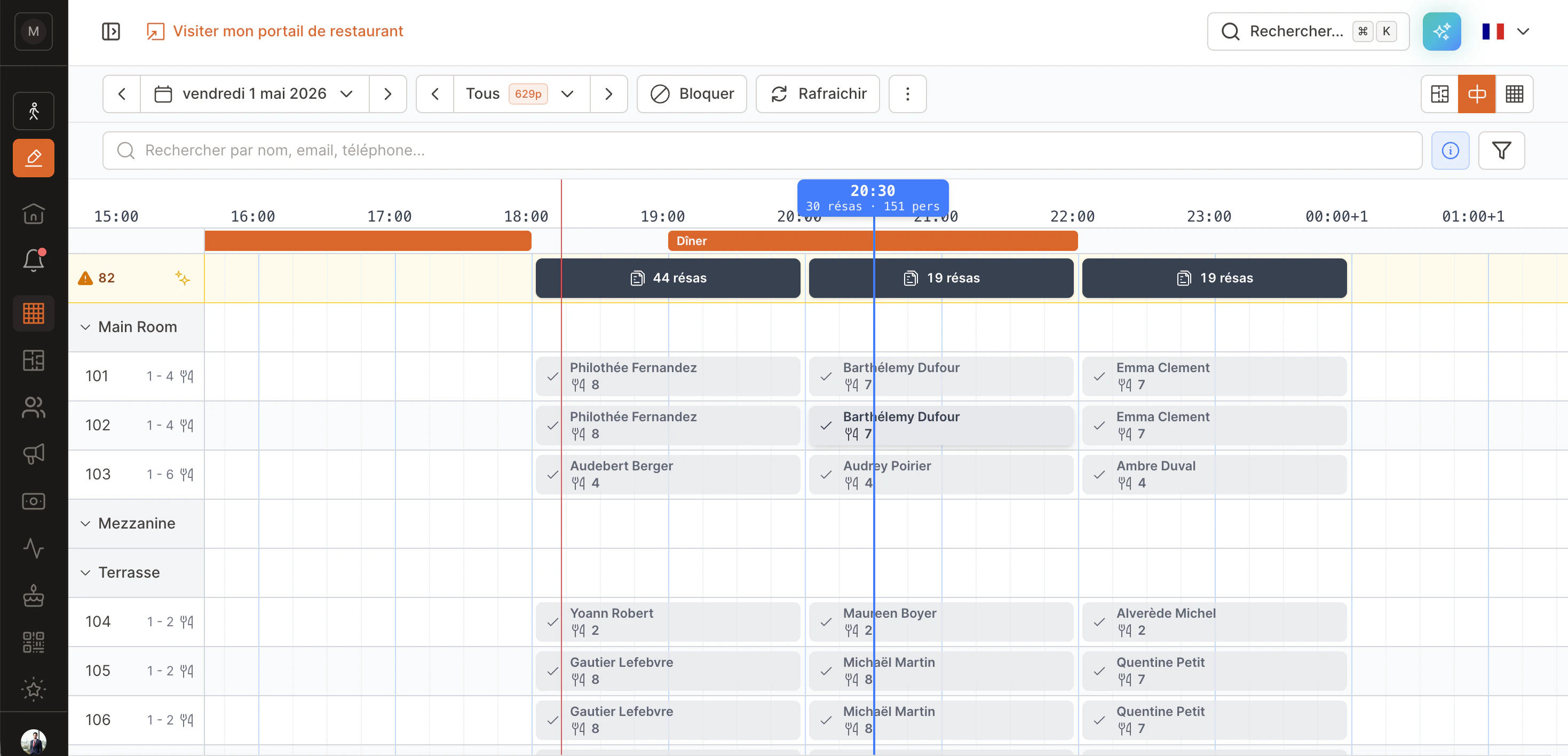
Anatomy
From top to bottom:- Header — date picker, filters (services, statuses, rooms), search, “Block” and “Refresh” buttons.
- Hours bar — stays sticky at the top while you scroll. On hover, a blue tooltip shows the exact time plus the number of reservations and covers at that moment (e.g.
20:30 — 30 resv · 151 pers). - Orange shift bar — shows each service’s window (e.g. Dinner 7pm-11pm).
- “Unassigned” lane — yellow background with an orange badge counting reservations without a table. See below.
- Rooms (
Main Room,Mezzanine,Terrasse…) — collapsible. Each room contains its tables. - Table rows — one row per table. Number and capacity (
1 - 4) on the left. - Reservation blocks — colored by status. Width = expected duration.
- Vertical red line — current time (
now).
Reading the date picker
The date picker is not only there to change day. Every day carries a marker that tells you what is waiting on it before you open it — so you can spot the evening that needs preparing while you are still looking at today.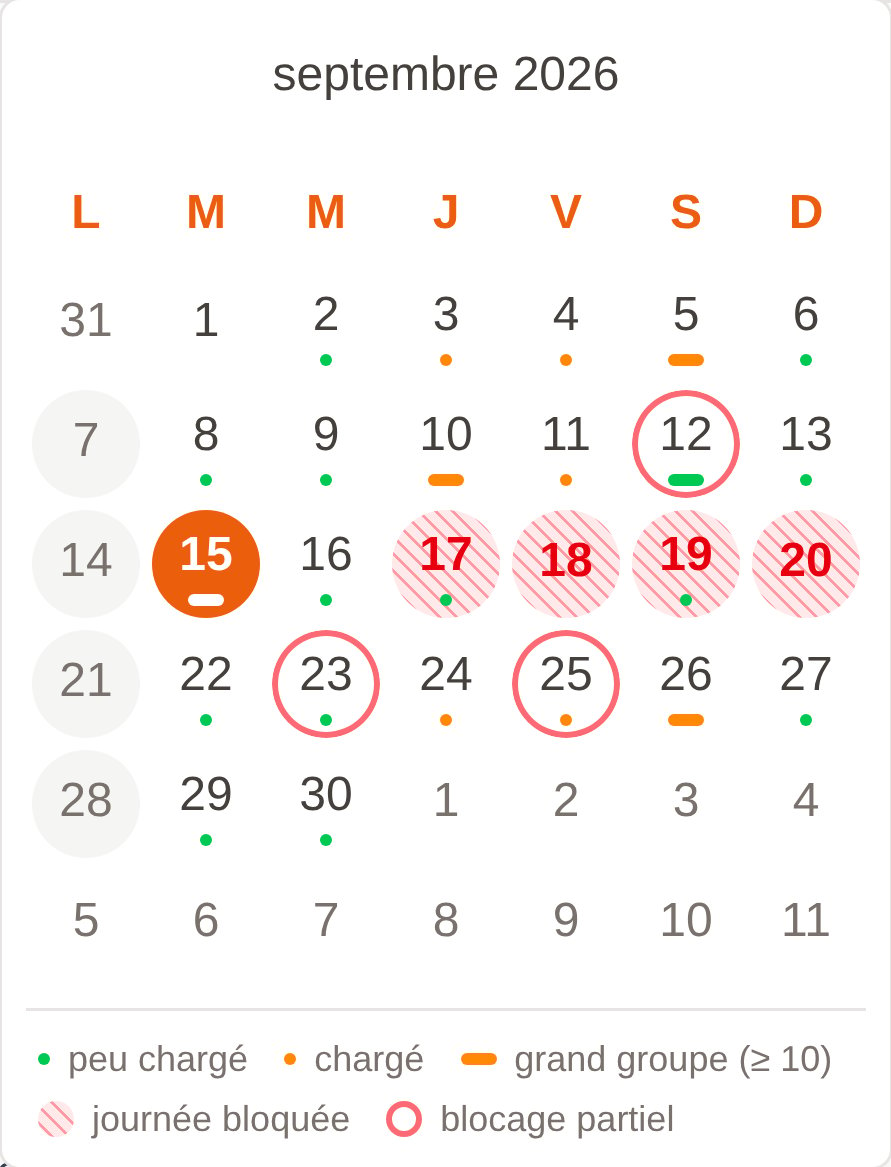
The markers at rest, with the legend under the grid.
Load: the marker under the number
Read it in two parts: the colour is how full the day is, the shape is whether a large party is on it. A busy Saturday with a table of 20 is an orange bar; a quiet Tuesday with the same table of 20 is a green bar — and the second one is often the more useful thing to know.
You decide what “large” means: Settings → Floor plan → Flag large groups in the calendar, then the party size to flag from (10 covers by default). Lower it to mark more days, raise it to keep only the exceptional ones, or turn the switch off and the calendar goes back to plain load dots. This is your own reading threshold — it changes nothing about who can book: that stays the per-service Max covers on each shift (Booking rules).
Availability: the cell itself
The marker underneath tells you the demand. The cell tells you what you can still take — hatched, ringed or grey depending on what closes the day.
It reads in one line: filled = gone, ringed = cut short, grey = closed. The first two come from your blocks (Block Reservations, or the Block button on the planning); the grey comes from your shifts and simply follows the opening days you configured.
Blocking a day does not cancel the bookings already on it. A hatched day that keeps a load marker is exactly that: nothing more can come in, but there are still people to seat — and it is often the first day to open.
The detail on hover
On desktop, hover a day and the legend swaps for that day’s numbers: reservations, covers, and the size of the biggest party when the day holds one. A block comes first, in red, with what it takes out:Day blocked, Blocked 19:00–23:00, Blocked: Terrace, or 2 blocks when there are several — for that last one the detail lives in the Day Manager.
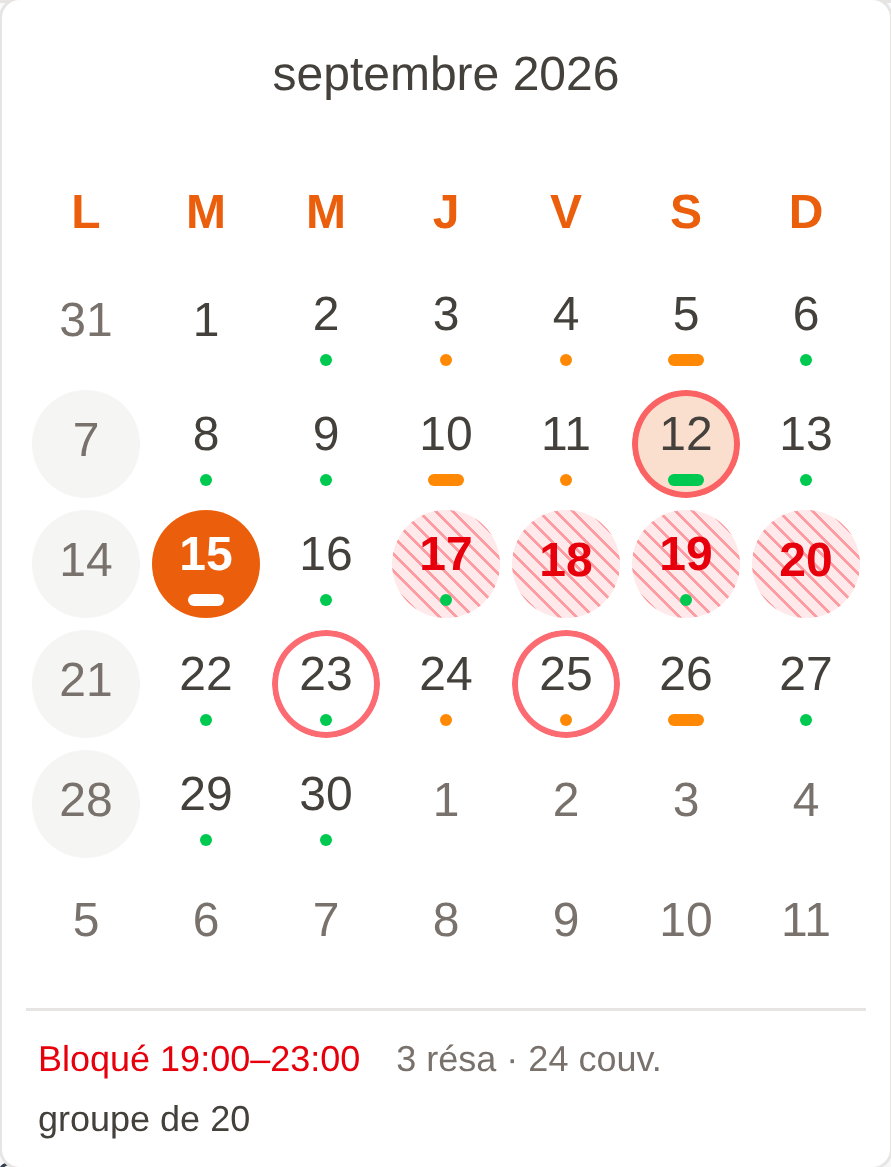
Hovering 12 September: blocked from 7pm to 11pm, and still 3 reservations, 24 covers and a party of 20 already taken.
Reading a block
Each block shows the key info at a glance:- Color = status (gray = confirmed, blue = seated, green = arrived, etc.).
- Customer name.
- Fork icon + number = covers (party size).
- 🔒 Lock (if visible) = the table is pinned for this reservation, auto-assign won’t touch it. See Pinned table.
- ⚠ Late (red, blinking) = the reservation should already have arrived but the status is still “Confirmed”.
Tap to act fast
Click (or tap on mobile) any block to open a quick-action menu.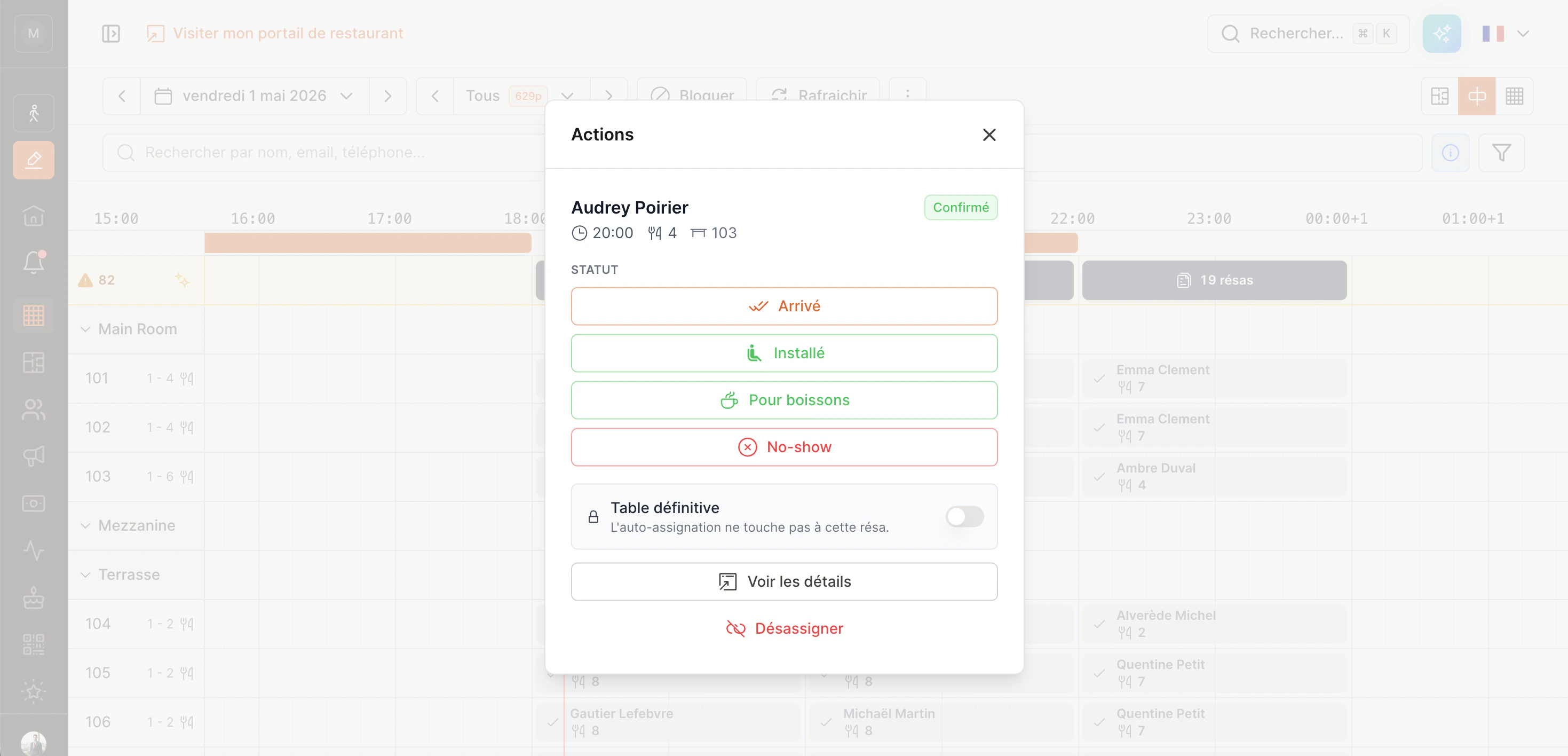
- The current status (badge top-right — here
Confirmed). - Status transitions that make sense from the current state — not all statuses appear, only the relevant ones. For example:
- From “Confirmed”: Showed up, Seated, For drinks, No-show.
- From “Showed up”: Seated, Done.
- From “Seated”: Done.
- Once “Done” / “Cancelled”: no buttons (final state).
- “Pinned table” toggle — only if auto-assign is enabled for your restaurant.
- See details — opens the full reservation drawer.
- Unassign — removes the reservation from the table (it goes back into the “Unassigned” lane).
A tap does ONE thing: opens this menu. To move the reservation (drag & drop), do a long-press — see Move a reservation.
Right-click (desktop) → context menu
On desktop, you can also right-click a block to open a fuller context menu. It offers the same status changes, plus:- See detail / See customer profile.
- Cancel reservation (with optional refund if there’s a payment).
- Refund all (if existing payments).
- Capture / Skip of a pre-authorization when marking as No-show.
Pinned table
When auto-assign is on for your restaurant, EatNow shuffles reservations across tables to optimize service. The 🔒 lock icon means a reservation is pinned to its table: auto-assign won’t move it.How to pin
- Manually from the quick-action sheet → “Pinned table” toggle.
- Automatically when you drag-and-drop a reservation. The explicit move is treated as a decision: the reservation gets pinned immediately, and the 🔒 appears.
Move a reservation
Drag & drop is the Planning view’s headline feature. In a single gesture you can change the table (vertical movement) and the time (horizontal movement).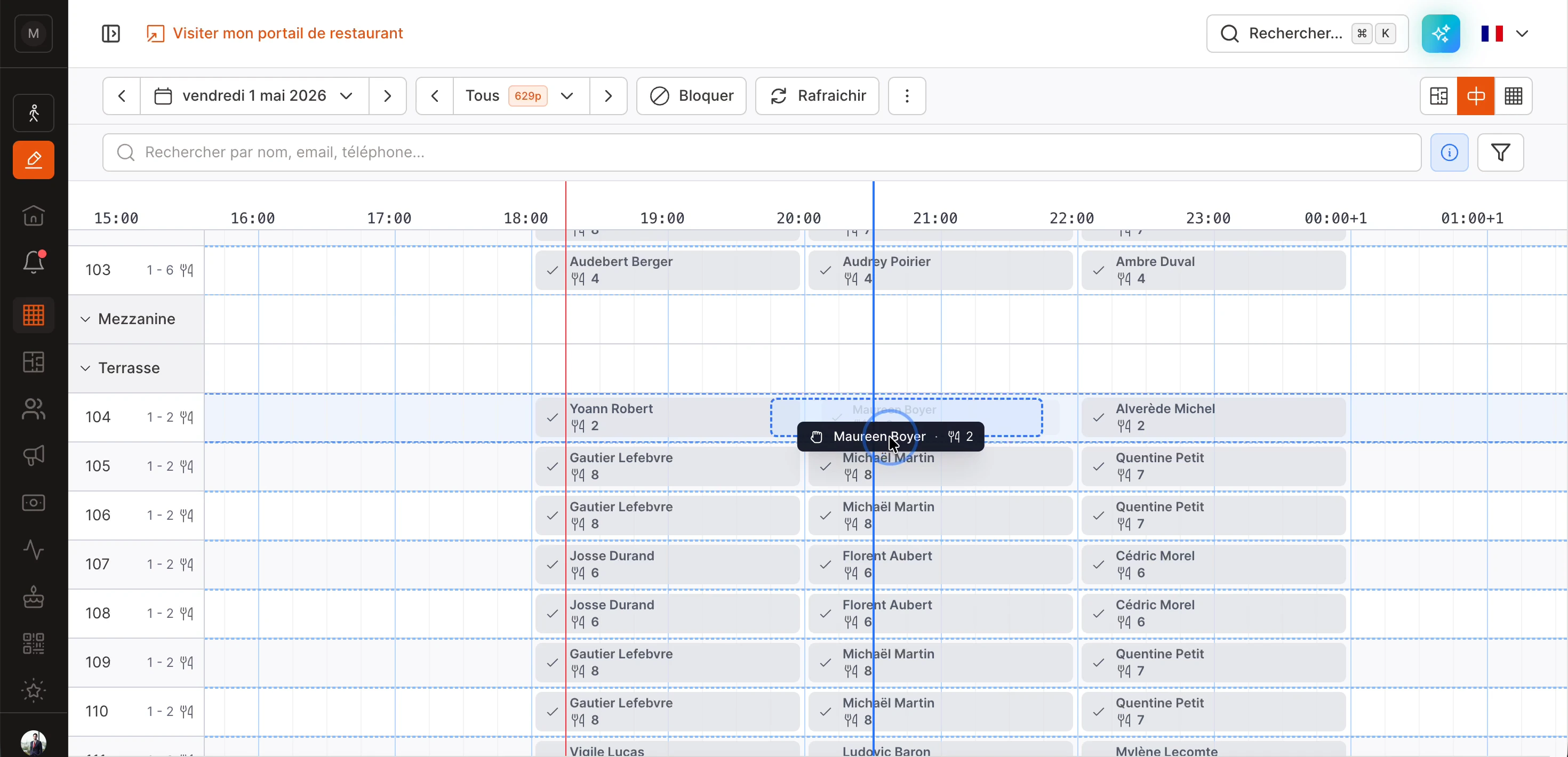
The gesture
- Long-press a block (~350ms — you’ll see it shrink slightly, that’s the cue).
- On mobile, you’ll feel a small vibration — drag is armed.
- Slide your finger / mouse to the new position. You’ll see:
- A black floating ghost following your pointer (reminder of which reservation you’re holding).
- A dashed blue rectangle on the target row showing exactly where the reservation will land (table + time).
- The original block stays in place but greyed out, like an “anchor” of the move.
- Release — the reservation lands at the new position. The 🔒 appears automatically.
Snap to 15 minutes
The target time is automatically snapped to 15-minute slots. No need for pixel-perfect aim.Auto-scroll at edges
If the destination is off-screen (e.g. moving a reservation from 4pm to 10pm and 10pm isn’t visible), just keep moving toward the edge. The grid auto-scrolls in that direction. Same vertically for rooms.Short tap vs long-press
- Short tap (release < 350ms) → opens the quick-action menu.
- Long-press (≥ 350ms) → enters drag mode.
Conflicts on drop
If you drop a reservation on a slot already occupied by another, EatNow opens a modal asking what to do:- Mark as done the previous reservation (frees the table).
- Chain them — both reservations follow each other on the same table.
- Replace — unassigns the previous reservation (it goes back to the “Unassigned” lane).
- Cancel — nothing changes.
Unassigned lane
At the top of the grid, on yellow background, EatNow shows reservations without a table. The orange badge on the left counts them.How they get there
- A reservation created without manual assignment.
- A reservation that was unassigned (from the action menu or elsewhere).
- A reservation auto-assign couldn’t place (no compatible table available).
”Auto-assign all” button
The ✨ icon to the left of the lane runs auto-assign. EatNow tries to place all unassigned reservations while respecting capacity, room constraints, and times. Pinned reservations (🔒) are not touched.Drag & drop from the lane
You can also drag a reservation from the lane down to a table: same gesture as a normal block. The reservation leaves the lane and lands on the target table.Subtleties
Multiple reservations on the same slot
When 2+ reservations have exactly the same time and duration on the same table (or stacked in the lane), EatNow merges them into a single dark-grey block2 resv. Click it to open a window listing each reservation individually.
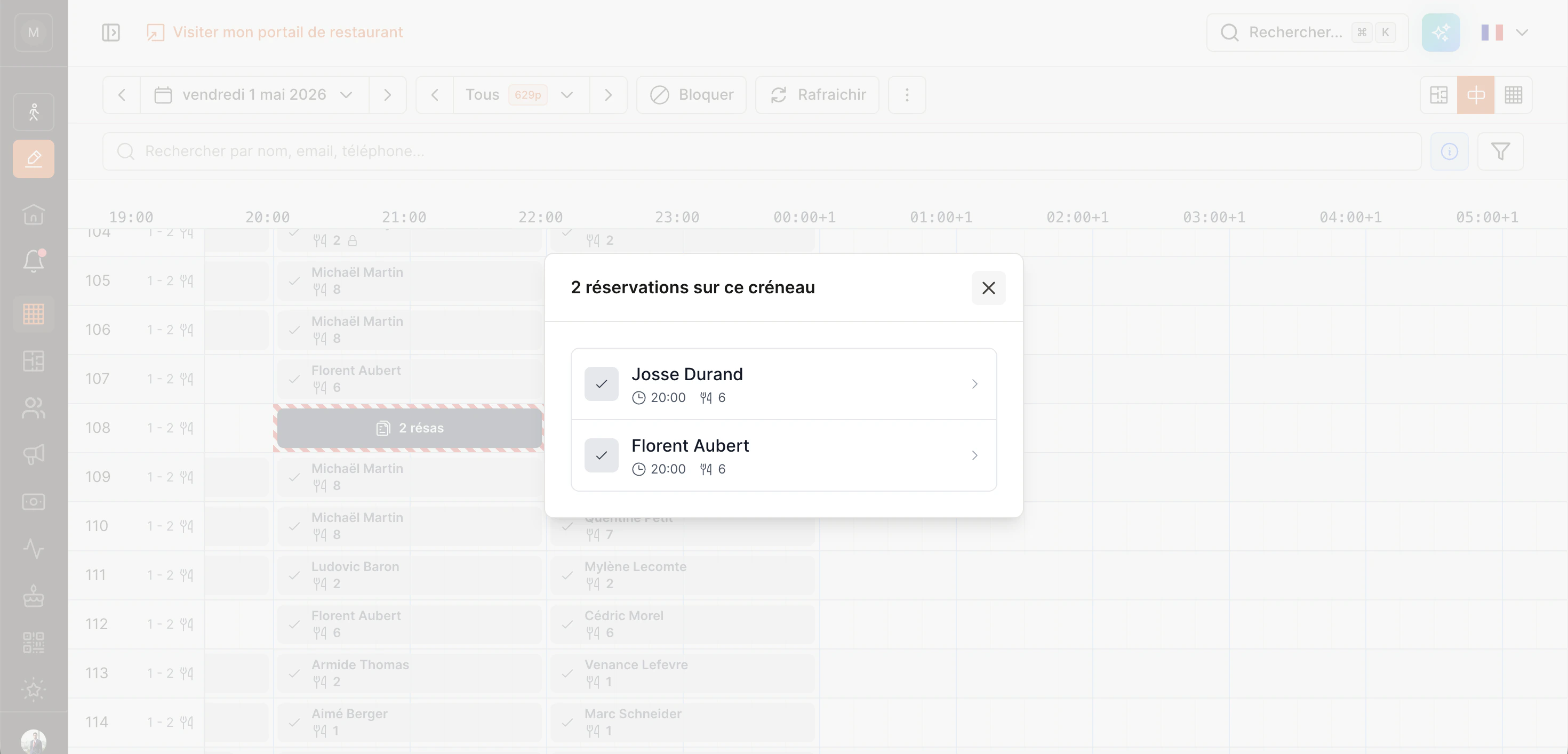
Visible conflicts
If two reservations overlap on the same table (without being stacked exactly), the conflict zone shows a red diagonal stripe pattern. It’s a signal that you have a problem to resolve: move one, mark one as done, or ignore if intentional.Hover over the hours bar
When hovering the grid (desktop mouse), a blue tooltip follows the cursor and shows:- The exact time under the cursor.
- The number of reservations and covers expected at that moment (across all rooms, excluding cancelled and no-shows).
Mobile vs Desktop
On mobile, you can’t scroll the grid by starting your finger on a block — this is intentional so drag works without conflict. Start your finger on an empty cell to scroll normally.