
A product is shared, not copied. Editing it in the catalog — for example changing its price — automatically applies to every shift that uses it, whether as prepayment or as an extra. There is nothing to update shift by shift.
The product list
The left column lists all your products:- Search filters the list by product name as you type.
- The filter button (next to the search field) has a Show archived switch to reveal archived products, marked with an “Archived” badge.
- The sort button (top right of the list) orders products by creation date, by name, or by category — when sorting by category, products are grouped under their category headers, with uncategorized ones under “No category”. Your choice is remembered.
- The arrow on a product row opens a menu with Duplicate and Archive (or Restore for an archived product). Duplicate creates a full copy of the product — settings, photos, and all variants — with “(Copy)” appended to the name. Handy for creating a seasonal variation without starting from scratch.
- Add product at the bottom creates a new product.
Edit a product’s price
A product’s price lives on its price variants (a product always has at least one — e.g. “Adult” and “Child”, or a single default variant).1
Open the catalog
Go to Settings → Products and click the product you want to change.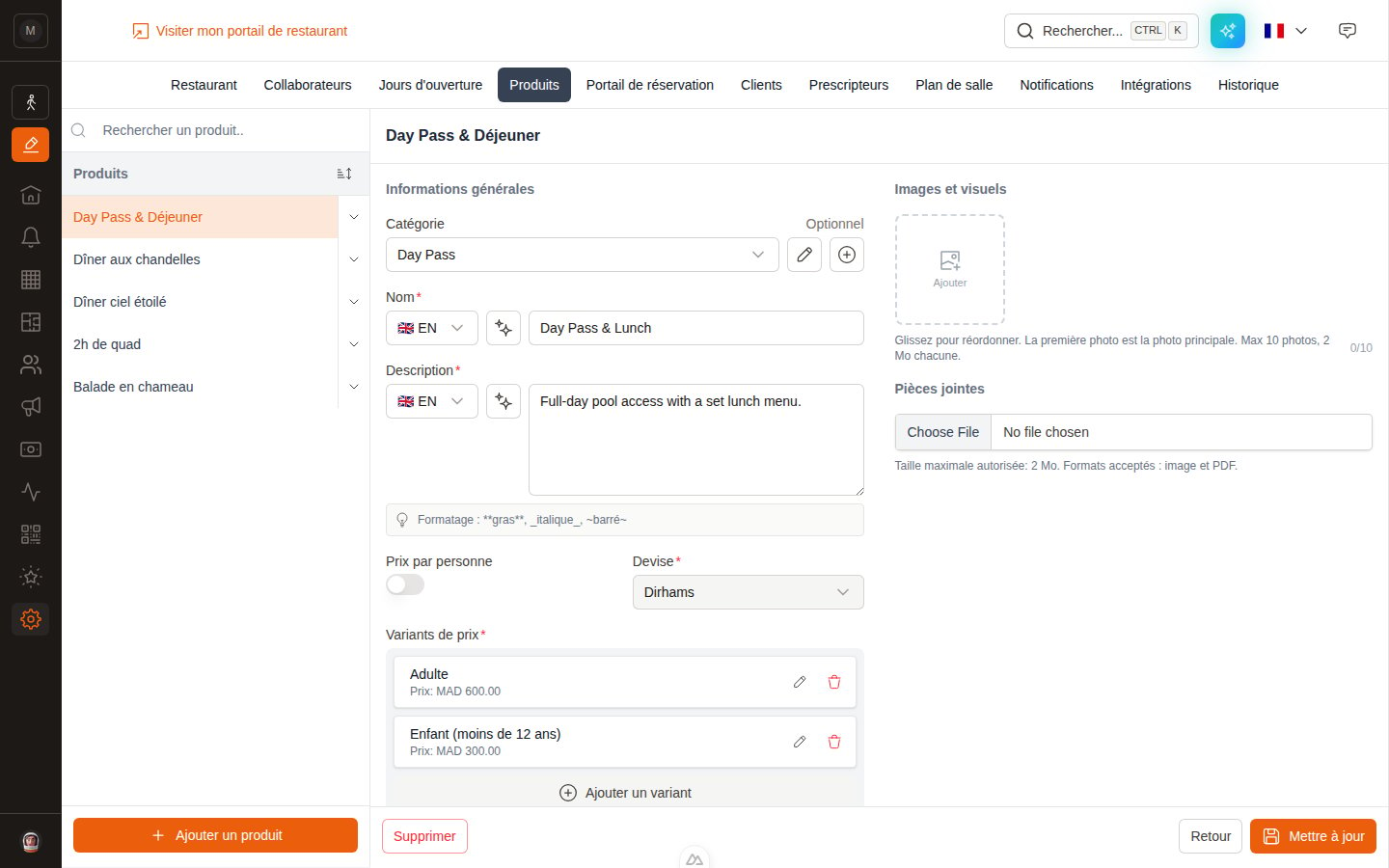
2
Edit the price
Under Price variants, click the pencil on the variant to change. In the window that opens, enter the new amount in the Price field and click Update.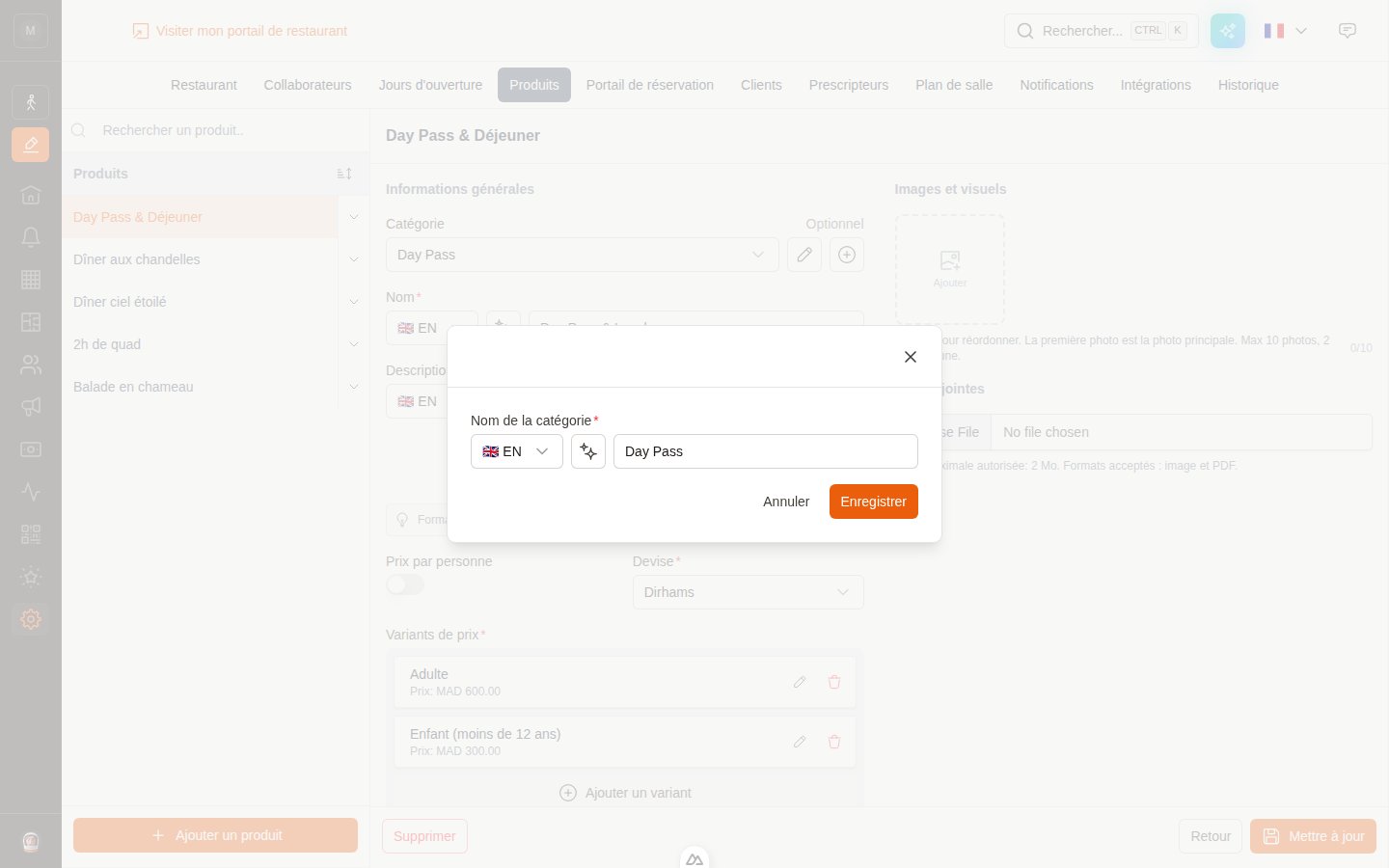
3
Save the product
Back on the product form, click Update to save. The new price applies immediately to all shifts selling this product.
Reservations that were already paid keep the amount that was charged at the time — a price change only affects future bookings.
Product settings
Category (optional)
Categories organize your catalog: they group products in the list (when sorting by category) and on your booking portal, where customers see products grouped under their category name. Use the + button next to the field to create a category, or the pencil to rename the selected one. Category names are multi-language, like product names. A product without a category still works fine — it simply appears ungrouped.Name and description
Both are multi-language: the flag dropdown next to the field switches between French, English, Spanish, Italian, German, and Portuguese. Each language is edited independently, and at least English or French must be filled in. Customers see the language matching their booking portal locale. The description supports light formatting, rendered on the booking portal:**bold**, _italic_, and ~strikethrough~. Line breaks are preserved.
Price per person
This toggle changes how the price is charged:- Off — the product is a single flat charge, regardless of party size (e.g. a birthday cake).
- On — the customer chooses a quantity and pays the variant price for each unit (e.g. a set menu per guest, a day pass per person).
Currency
Fixed to your restaurant’s default currency — it can’t be changed per product.Images and visuals
A photo gallery of up to 10 images (2 MB each). Drag to reorder; the first photo is the main one, shown on the product card on your booking portal. You can also right-click any photo’s menu to set it as main or remove it.Attachments
One optional file (image or PDF, max 2 MB) attached to the product. On the booking portal it appears as a “See details” link on the product card — perfect for a full menu, a program, or a brochure that opens in a new tab.Price variants
Every product has at least one variant. Use several when the same product comes in versions with different prices — “Adult” / “Child”, “Vegetarian” / “Meat”, “Solo” / “Duo”. Customers pick the variant when booking, and each variant tracks its own availability when a capacity per variant is set on the shift. Each variant has:Number of participants / product
Number of participants / product
By default one unit = one person. Raise this when a single purchase covers several guests — a sharing platter for 4, a cabana for up to 6. The portal uses it to work out how many units a group needs: a party of 8 booking a platter-for-4 will be prompted for 2 units, and the product card displays a group badge with the participant count instead of a per-head price.
Minimum / maximum number of covers
Minimum / maximum number of covers
Turn these on to tie a variant to the party size. The maximum caps how many units of the variant a customer can select. The minimum is displayed to the customer as guidance (e.g. “Minimum 2 persons”). Leave both off for no bounds.
Removing a variant that has already been sold doesn’t delete it: it is archived automatically, so payment and booking history keeps its links. Archived variants appear in an “Archived variants” section under the list, where one click restores them. A variant that was never sold is deleted for real.
Where a product can be used
The same catalog feeds several places — which is exactly why editing it in one place is enough:- Shift prepayment — the main offer customers pay when booking (Prepayment)
- Shift extras — optional add-ons on a reservation (Extras)
- Activities — the product can be published as a bookable experience on your activities portal, with its own schedule, capacity, and payment rules (Activities)
- Email & WhatsApp templates — confirmation or reminder templates can be linked to specific products, so bookings of that product trigger the right message
- Payment reports — every charge is linked to its product and variant, so exports break revenue down by product
Product settings vs. shift settings
Some settings belong to the product (edited in the catalog), others belong to the shift (edited on the shift’s General tab):
So to change what a product costs, edit the product in the catalog. To change how a specific shift sells it, edit the shift.
Archiving and deleting a product
When you no longer sell a product, archive it rather than deleting it:- Archive (button on the product form, or via the arrow menu on a product row) withdraws the product from sale everywhere at once — shifts, extras, activities, and your booking portal — while keeping its full payment and booking history. Archived products disappear from the catalog list; enable Show archived in the list’s filters to see them, marked with an “Archived” badge. If the product was the last active one of a shift’s prepayment (or extras), that feature is automatically switched off on the shift so customers never face an empty step — the confirmation dialog warns you and names the shifts concerned.
- Restore (on an archived product) brings it back exactly as it was: it reappears in the catalog and is offered again on the shifts that use it. If archiving had switched off a shift’s prepayment or extras, re-enable it manually on the shift.
- Delete permanently removes a product — it is only possible for products that were never sold. If the product has any payment or booking history, deletion is refused and you’ll be invited to archive it instead. This protects your revenue reports and your customers’ bookings.