
This is on by default. You can turn it off in Settings → AI Agent, in the Trigger card — with it off, the agent behaves exactly as before (text only).
Where the agent uses buttons
Confirming a change or a cancellation
When a customer asks to modify or cancel a booking, the agent shows a short before→after summary with two buttons: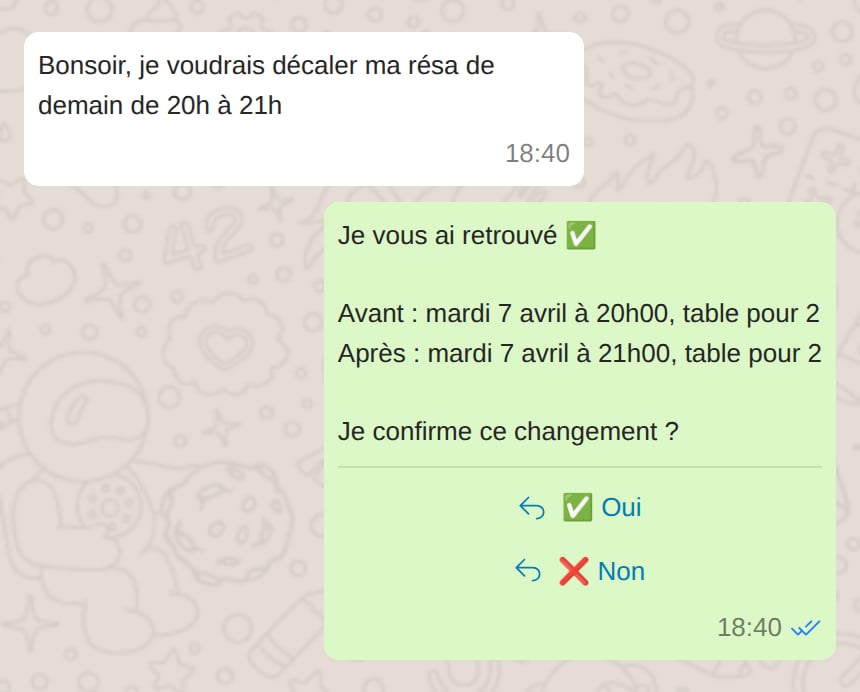
- Tapping ✅ Yes confirms — the agent re-checks the booking is still valid, then applies the change.
- Tapping ❌ No leaves everything untouched.
Offering a choice
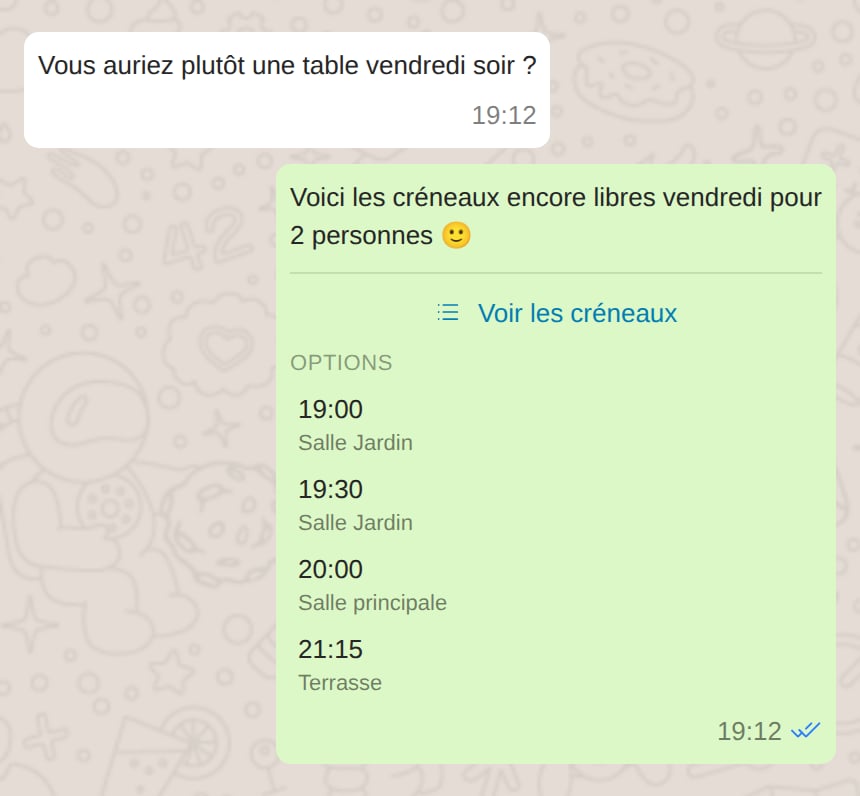
When the agent needs the customer to pick from a small, concrete set — which room, or which of the available time slots — it offers them as tappable options:- 3 or fewer options → quick-reply buttons.
- 4 to 10 options → a tappable list (a button opens the menu — the agent labels it for the context, e.g. “Voir les créneaux”).
What it changes for you
- Your inbox shows exactly what the agent sent — the message body plus the buttons or list — and, for an incoming tap, the option the customer chose.
- Shadow mode still applies: if the agent drafts an interactive reply, you approve it like any other draft and the buttons go out on approval. If you edit the draft text before approving, it’s sent as plain text (the buttons may no longer match your wording).
- Escalations and error replies are always sent as plain text — buttons are only added to normal replies.
Turning it on or off
It’s on by default. To change it:- Go to Settings → AI Agent.
- In the Trigger card, toggle Interactive replies.
- Save. The change applies to new messages immediately.