
Go to Settings → Opening days → Shifts and click + New shift.
The essentials
1
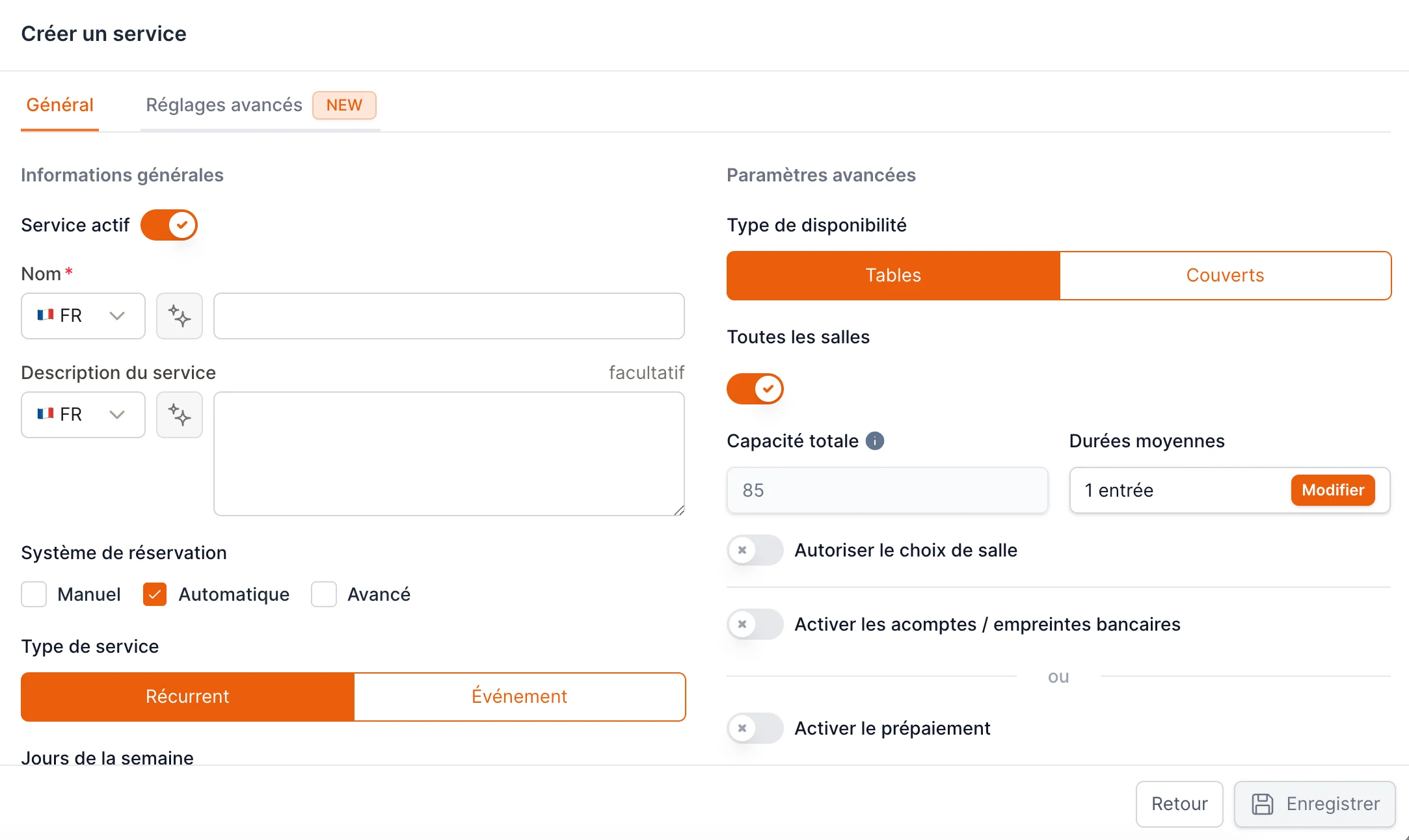
Name your shift
Give it a name customers will recognize, like Dinner or Sunday Brunch. Pick a color to tell it apart on your planning calendar.
2
Choose when it runs
Set Shift type to Recurring for a regular service, then select the days of the week it runs (e.g. Tuesday–Sunday). For a one-off date, choose Event instead. See Schedule & hours.
3
Set your online booking hours
Under Online booking hours, add the time window when customers can book — for example 19:00 to 22:00. Running both lunch and dinner? Create a separate shift for each rather than one shift covering both.
4
Set the slot interval
Interval is the gap between bookable times.
30 minutes gives customers slots at 19:00, 19:30, 20:00, and so on.5
Set group sizes
Min covers and Max covers are the smallest and largest party you’ll accept online (e.g. 1 to 8).
6
Set your capacity
Choose how availability is counted — Tables (from your floor plan) or Covers (a number of seats). If you use Covers, enter your Total capacity. See Capacity & rooms.
7
Save
Click Save. Your shift is live and bookable on your online portal.
What you can add later
Once you’re live, these are the most common next steps:Booking lead times
Stop last-minute bookings or limit how far ahead people book.
Deposits
Protect against no-shows with a card hold or deposit.
Pacing
Cap how many arrive at once.
Approvals
Review large bookings before confirming.