How to supervise your AI agent from the inbox — approve or edit its draft replies, follow escalations, and test it safely before it goes live.
Whether the agent drafts replies (shadow mode) or sends them directly, you’re always in the loop. Everything happens in your normal WhatsApp inbox, with a few extra touches for the agent.
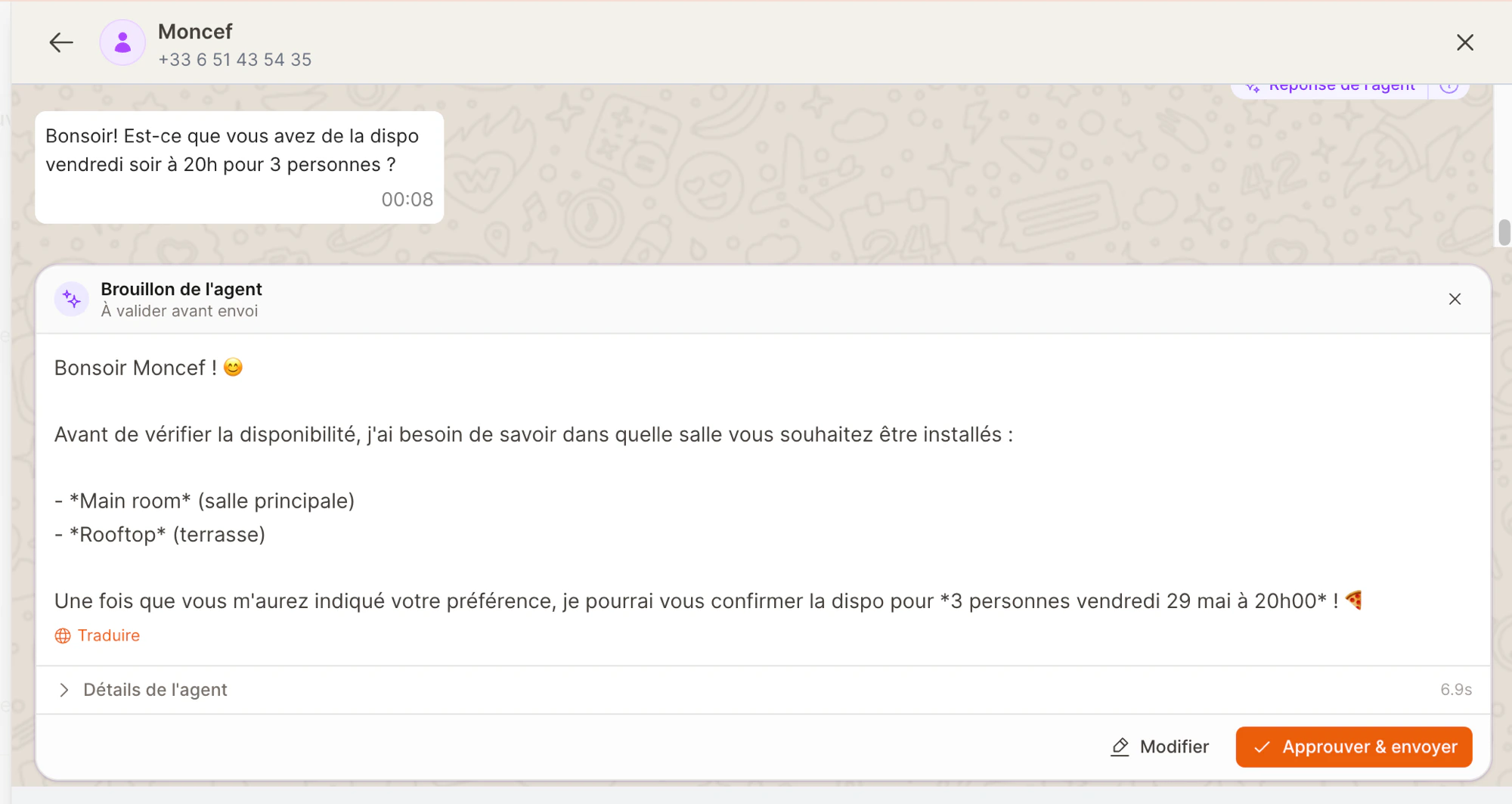
Each draft has a Details link. Open it to see what the agent did behind the scenes — for example “searched availability” and “found 20:00 free for 4”. It’s a quick way to build trust: you can confirm the agent actually checked the calendar before promising a table.
If the agent drafts a reply in a language you don’t read, click Translate to see it in your own language before approving. This never changes what the customer receives — it’s just for you.
Translation is on us — checking a draft in your language never costs you any agent credits.
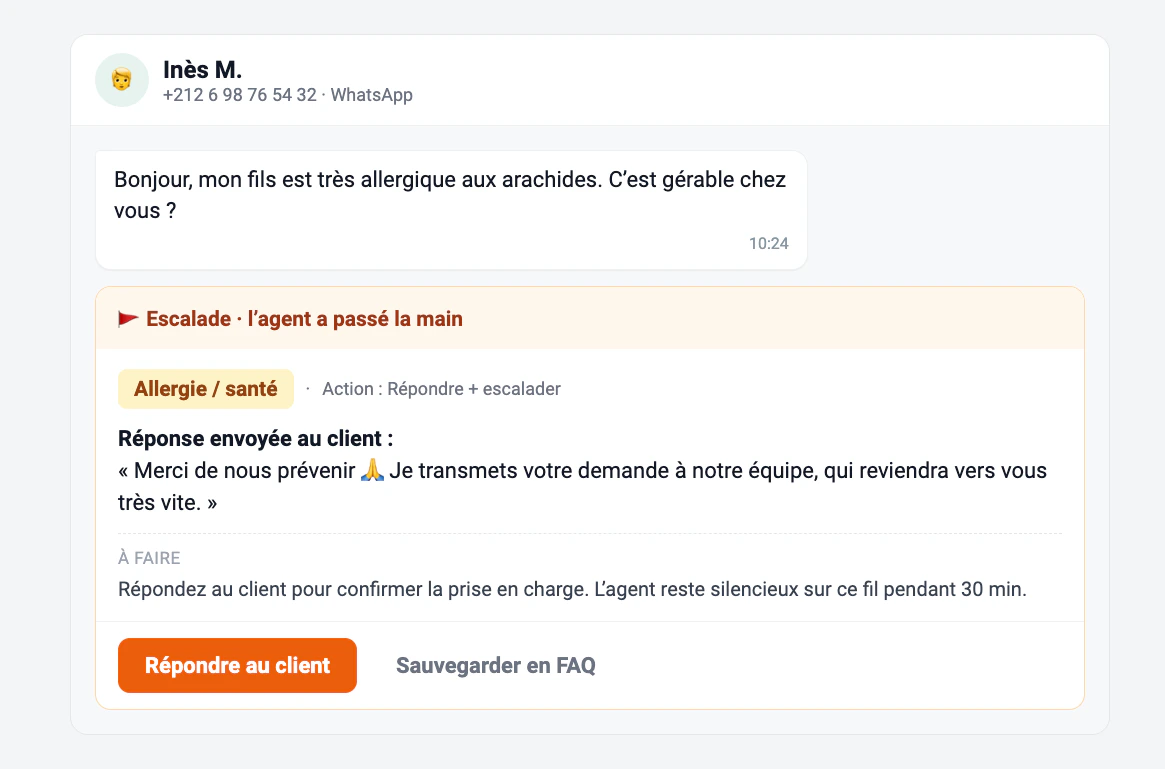
The agent knows its limits. For anything sensitive — an allergy, a complaint, a request for a human — it stops, sends a brief reassuring reply, and flags the conversation for your team. This is called an escalation.
An escalation: the reason is labelled, and the agent steps back so you can take over.
An escalated conversation shows:
Why it was escalated (e.g. Allergy / health).
The holding reply the agent already sent the customer.
A reminder that the agent will stay silent on that conversation for a while, so it won’t talk over you.
Just reply as you normally would to take over. If the question is a good one to reuse, Save to FAQ right there — see Knowledge base.You decide which topics trigger a hand-off in Safety & controls.
You don’t have to hunt for drafts and escalations. When the agent needs your attention, the messages icon in the top bar shows a count, and those conversations are flagged in your notifications so you can jump straight to them.Every collaborator with access to the conversations also gets a push notification the moment the agent hands over. Too many pings? Each person tunes their own in Profile → Notifications, under WhatsApp: the escalation push and the inbound-message push can be muted independently, without affecting the rest of the team. Escalations still show up in the notification center — a customer is waiting on a human, so the trace stays.
Want to see how the agent behaves before a real customer does? The AI Agent settings page has a Test the agent panel on the right.Type a fake customer message and the agent responds using your current configuration — your persona, your knowledge base, your enabled actions. Change a setting, test again, and see the difference instantly. It’s the safest place to experiment: nothing here ever reaches a real customer.
Use the test panel to rehearse tricky cases: a last-minute booking, a customer writing in Darija, a question you’re not sure you’ve taught it yet. If the answer’s off, update the knowledge base and try again.