
Most of these live in the General tab. Walk-in hours and strict end are in the Advanced tab.
Recurring or one-off?
The Shift type decides whether the shift repeats or happens once.Recurring shifts
- Set Shift type to Recurring
- Select the days of the week the shift runs (e.g. Tuesday–Sunday)
Event shifts
Set Shift type to Event and pick a start date (and an end date for a multi-day event) to run a one-off special service.Online booking hours
Online booking hours are the windows when customers can book online (e.g. 19:00 → 22:00). Customers cannot book outside these hours.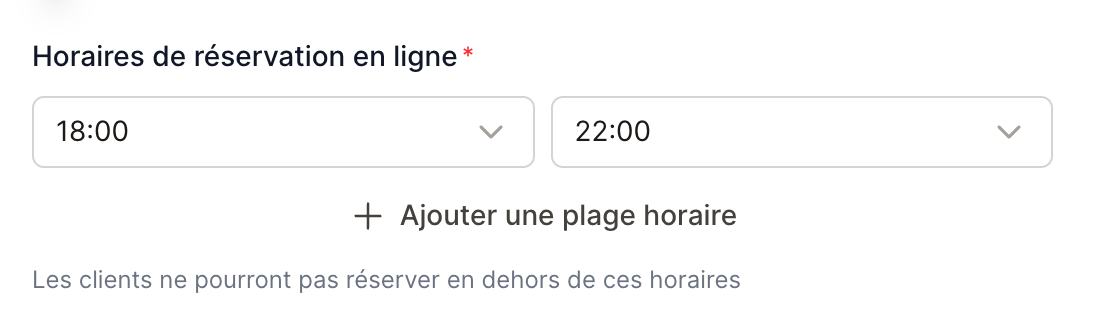
Slot interval
Interval is the gap between bookable times. With a 30-minute interval, customers see 19:00, 19:30, 20:00… A 15-minute interval gives finer control; 60 minutes keeps it simple.Walk-in hours (different opening hours)
By default, your staff can add reservations across the same hours customers book. If you take walk-ins outside booking hours, turn on Different opening hours (Advanced tab) to set a wider opening and closing time for internal use. A typical setup: customers book 18:00 → 22:00 online, but staff can seat walk-ins from 17:00 → 23:30.Strict end of service
Free the tables at a fixed time lets you offer a shorter meal to guests arriving late in a shift. Use it to prepare a second seating or meet a closing time, while telling guests how long they have when they book online.Set the table release time
- Open Settings → Opening days → Shifts, then open the relevant shift.
- In Advanced, turn on Free the tables at a fixed time.
- Set Tables free at to the time you need the tables back.
- Set Minimum stay offered online, then save.
What online guests see
EatNow starts with the average duration for the party size. If the meal would end after the release time, the stay is shortened to the time remaining. Otherwise, the usual duration is kept. This setting never extends a meal. If the shortened stay is below your minimum, the slot is not offered online. A stay exactly equal to the minimum remains eligible, subject to the other availability rules. The portal tells guests about their shorter stay before they confirm the booking. This rule applies to portal bookings, the booking API and the WhatsApp agent. It does not create extra seats: capacities, tables and other shift limits still apply. Availability uses the actual duration saved for each reservation.Example: arrange two seatings
For the first seating, configure:- Online arrivals: 19:00 to 20:30, every 30 minutes.
- Average duration: 2 hours for the party sizes in this example.
- Tables free at: 21:00.
- Minimum stay offered online: 60 minutes.
Create a separate second shift for arrivals from 21:00. If your team needs 15 minutes to reset
the tables, start that shift at 21:15 instead. Two seatings with different release times require
two shifts, each with its own settings.
The staff choice on web and mobile
Bookings entered by your team are not shortened automatically. After choosing the shift, time and party size, select Free the table at… on the web or Release the table at… on mobile if you agree on a shorter meal with the guest. This choice appears near the time on the web and in the When section of the mobile app.- Selected: the displayed duration is saved; manual table selection and Auto use that duration to find a table.
- Not selected: the booking keeps its full duration, even if it ends after the release time.
- The online minimum does not block this staff choice: you can accept a shorter stay when agreed with the guest.
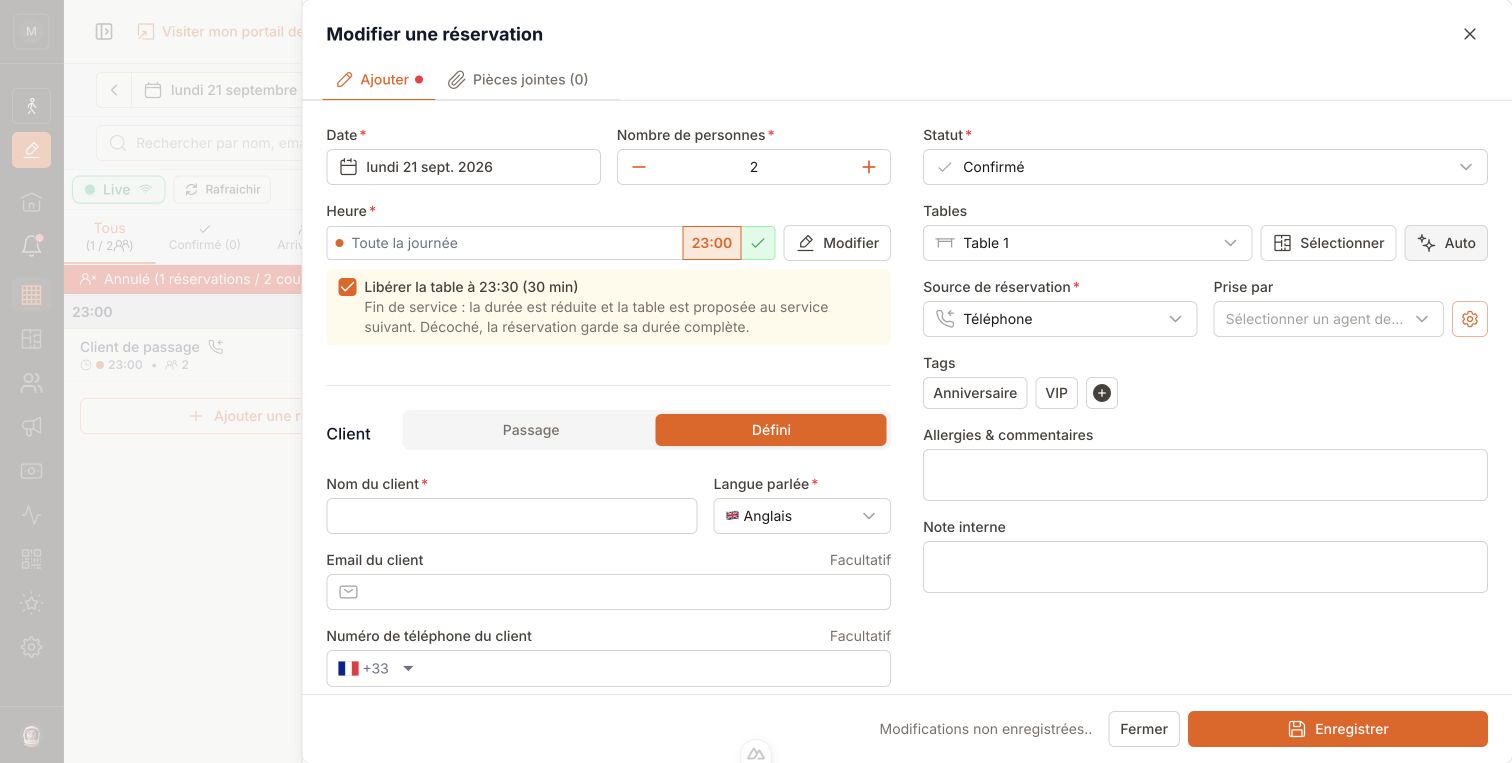
Staff example (French interface): arrival at 23:00, release at 23:30 selected, giving a 30-minute stay.
Change the settings or an existing booking
A saved shortened stay is preserved if you later change the shift settings, its release time or turn the option off. These changes do not rewrite the time already agreed with the guest. Editing only a note, status or date, without changing the time, party size or shift, also keeps that duration. Changing the time, party size or shift can recalculate it using the new settings: check the displayed choice before saving and tell the guest if their stay changes. Staff can clear the choice to restore the full duration.This option does not automatically mark a reservation as completed. With
strict seating, an occupied table
remains held until your team completes the reservation. Allow time between
seatings and update statuses when guests leave.