
Blocks are temporary, visibility is permanent. Use Block Reservations for one-off closures (holidays, private events, emergencies). Use the visibility settings on this page for your ongoing schedule — e.g. “we never take online lunch bookings.”
Shift States
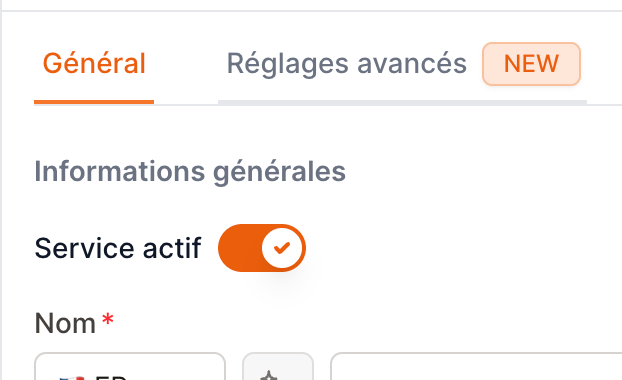
Every shift has two independent switches that, together, determine who can book it.- Active shift (
is_active) — turns the shift on or off entirely. An inactive shift accepts no bookings from anyone. - Internal-only shift (
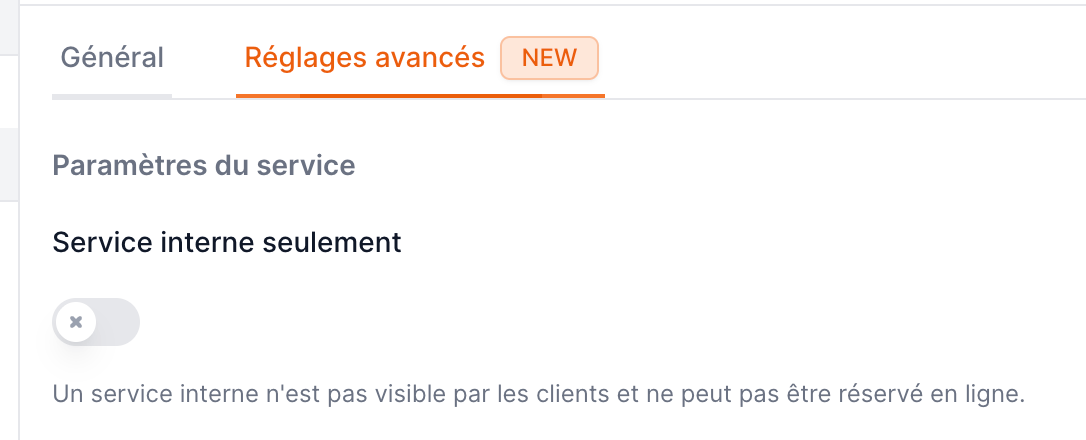
is_internal) — when on, the shift is hidden from your online booking portal. Staff can still create reservations on it manually; customers never see it.
Where to Find These Settings
- Go to Settings → Opening days → Shifts
- Click an existing shift to edit it, or + New shift to create one
- Active shift is in the General tab, under General information
- Internal-only shift is in the Advanced tab, under Shift settings
Choosing an Approach
To offer online booking for one service but not another, you have two clean options:Option A — Only create the public shift
Create the shift you want customers to book, and simply don’t create the other one.- Best when the other service has no relevance to your reservation flow — you never seat or track those bookings in EatNow.
- Example: a fine-dining restaurant that only opens for dinner creates a Dinner shift and nothing for lunch.
Option B — Make the other shift internal-only
Create both shifts, but mark the one you don’t want online as Internal-only.- Best when staff still need to record reservations for that service (phone bookings, walk-ins, internal events) even though customers can’t book it online.
- Example: a café serves lunch to walk-ins; staff occasionally log a phone reservation, but the lunch shift never appears on the online portal.
Both options give customers the same experience — they only ever see the public shift online. The difference is purely whether your staff can book the hidden service internally.
Step-by-Step: Evening-Only Dinner Service
You want customers to book dinner online, with no online lunch bookings.If you don’t track lunch reservations at all (Option A)
- Go to Settings → Opening days → Shifts
- Open (or create) your Dinner shift
- In the General tab, make sure Active shift is on
- In the Advanced tab, make sure Internal-only shift is off
- Save
- Do not create a Lunch shift
If staff still book lunch by phone (Option B)
- Go to Settings → Opening days → Shifts
- Open (or create) your Dinner shift — Active: on, Internal-only: off, then Save
- Open (or create) your Lunch shift
- In the General tab, keep Active shift on
- In the Advanced tab, turn Internal-only shift on
- Save
Step-by-Step: Lunch-Only Service
You want customers to book lunch online, with no online dinner bookings (e.g. a lunch-only café).- Go to Settings → Opening days → Shifts
- Open (or create) your Lunch shift
- General tab → Active shift: on
- Advanced tab → Internal-only shift: off
- Save
- For dinner, choose one:
- Don’t create a Dinner shift if you never serve or track dinner reservations, or
- Create the Dinner shift with Active: on and Internal-only: on if staff still need to record dinner bookings manually