
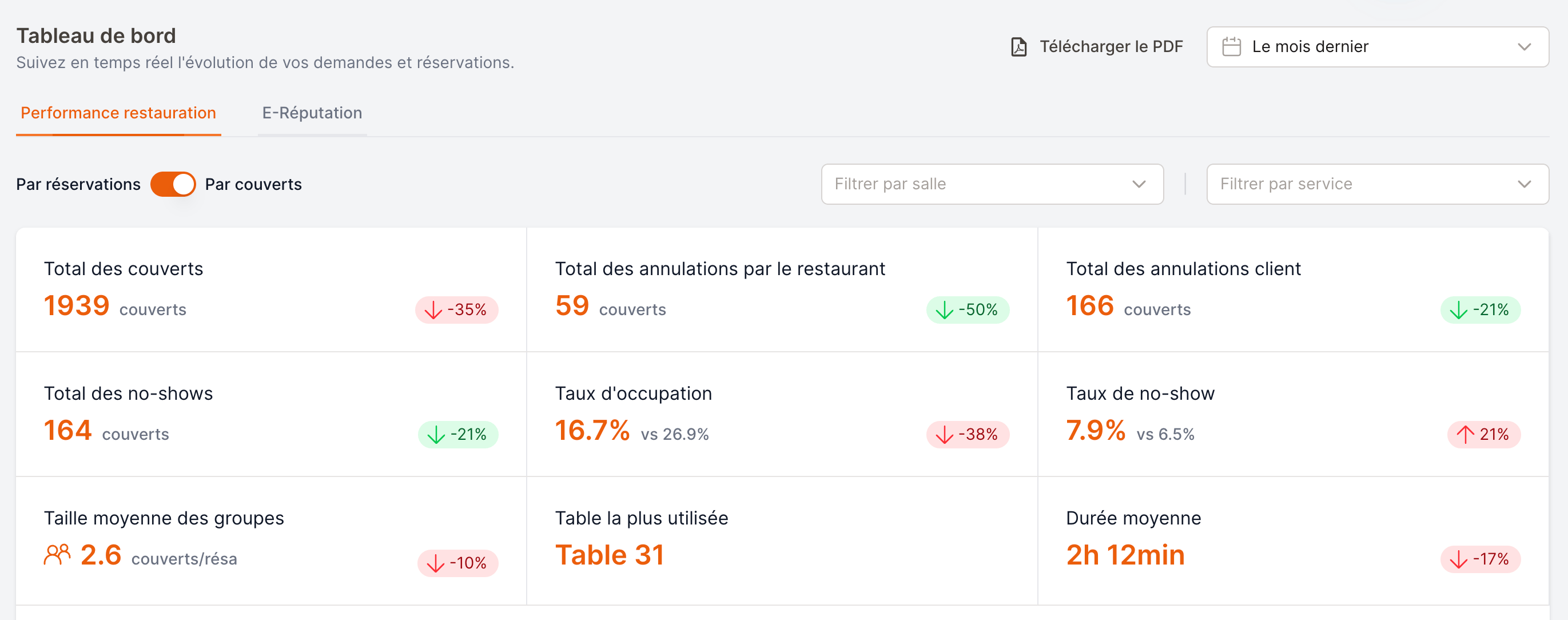
The Dashboard — your restaurant's key figures for the selected period.
Some numbers can look surprising until you know the rules behind them (for example, why a cancelled booking still affects your no-show rate, or why average duration only counts finished meals). This page is here to remove that doubt.
Before you read the numbers
A few controls at the top of the dashboard change every statistic below them. Always check these first.Date range and comparison
Pick a period from the date selector (Today, This week, Last month, a custom range…). Every figure is computed for that period. Most cards also show a comparison against another period. By default this is the period immediately before of the same length — for example, if you select Last week, each card compares it to the week before that. The comparison range is always shown next to the date selector so you know exactly what you are comparing against. You can change the comparison with the Compared to selector:Services that run past midnight count towards the day they started on. A cover served at 00:30 during the service of the 12th is counted on the 12th, not the 13th — the same way your reservations list works.A day therefore rolls over at 6am, not at midnight. Between midnight and 6am, Today still means the service in progress, and the date picker spells the date out (for example Today · 12 Jul) so there is no ambiguity.
By covers vs. by reservations
A switch lets you count either:- By covers — the number of guests (the sum of every party size).
- By reservations — the number of bookings, regardless of party size.
Shift and room filters
You can narrow the whole dashboard to a single shift (e.g. only Dinner) or a single room. Leave them on All to see the full picture.The three tabs
A quick word on reservation statuses
Several metrics depend on a reservation’s status, so it helps to know what each one means.Throughout this guide, “attended” means any reservation that was honoured — i.e. confirmed and not cancelled: Confirmed, Manually confirmed, Double confirmed, Showed up, Seated, Seated for drinks, Done. These are the bookings that represent real guests in your dining room.
Restaurant performance
Total covers
The total number of covers (or reservations) that were attended in the period. Cancellations and no-shows are not included — this is what you actually served.Cancellations
Two separate cards:- Cancelled by restaurant — bookings you cancelled.
- Cancelled by user — bookings the guest cancelled.
Total no-shows
Covers from confirmed bookings whose guests never arrived (status No-show). Inverted metric.Occupancy rate
What it tells you: how full your restaurant was over the period. How it’s calculated:- Attended guests — the sum of party sizes for all attended reservations (Confirmed, Manually/Double confirmed, Showed up, Seated, Seated for drinks, Partially seated, Done).
- Total capacity — your restaurant’s real capacity added up day by day across the period, based on your shifts and rooms (how many guests you can physically seat).
Worked example
Worked example
Your restaurant can seat 100 guests per day. Over a 5-day week, total capacity is
100 × 5 = 500.If you served 375 guests that week:No-show rate
What it tells you: the share of expected guests who didn’t turn up. How it’s calculated:Worked example
Worked example
In the period you had 200 attended covers and 10 no-show covers.
Average group size
The average number of guests per attended booking, rounded to one decimal.Most used table
The table that hosted the most covers (or reservations) in the period.Average duration
The average time guests spend at the table.- Only reservations marked Done with a recorded departure time are counted (i.e. meals that actually finished and were closed out).
- Duration is measured from the booking time to the moment the table was freed.
Average arrival delay
The average lateness of guests, in minutes.- Counted from reservations that were Seated or Done and have a recorded seating time.
- Measured from the booking time to the actual seating time.
- Guests who arrive early or on time count as 0 — early arrivals never make the delay negative.
Payments
If you have a payment integration active (Stripe, Payzone or CMI) and the right permission, a Payments section appears. Depending on whether your shifts take a deposit, you’ll see either:
Revenue and captured amounts are normal metrics; refunded, voided and lost are inverted.
Long-term performance
Below the headline cards, a set of charts shows how things evolve over time and how your bookings break down:Returning clients (repetition rate)
What it tells you: how loyal your guests are. Among the customers who dined with you during the selected period, it’s the share who had already dined with you before the period started.Worked example
Worked example
This month, 120 different customers dined with you. Of those, 42 had already visited at least once before this month.
Because this looks before the selected period, it only makes sense with a start date — choosing a single open-ended range will show 0%.