
What it’s for
- Capture demand you’d otherwise lose. A full slot is no longer a “no”: guests leave their name, party size and contact details in a few seconds.
- Fill cancellations and no-shows automatically. When a reservation is cancelled, rejected, deleted, marked as a no-show, moved or reduced — from any channel (dashboard, booking portal, Google, WhatsApp agent, partner API, your till) — the waitlist wakes up and the freed spot is offered to the queue.
- Measure real demand. Ten people on the 8:00 PM waitlist every Friday is a strong signal — maybe it’s time to open more tables, add a second seating or raise the slot’s capacity.
- Keep control. You decide per shift whether the waitlist is on, how many guests can queue per slot, and whether spots are re-offered automatically or only by your team.
How a guest experiences it
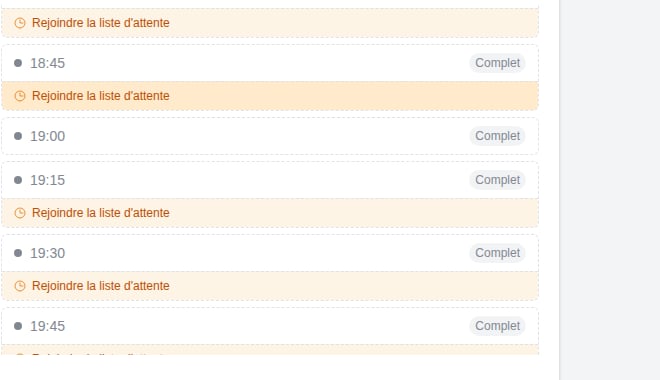
1
They join from your booking portal
On a full slot, the portal shows Join the waitlist instead of blocking the booking. The guest fills the usual details (name, phone, email, party size) — it takes under a minute.
2
They get an instant confirmation
An email (and WhatsApp, if connected) confirms they’re on the list — and makes clear it’s not a reservation yet. A personal link lets them track or cancel their request at any time.
3
A spot opens up — they're notified
When a table frees up, the guest receives a “A spot just opened up” message with one button: Confirm my spot. Depending on your settings this goes to everyone at once, or one guest at a time in queue order.
4
They confirm, and it's a real reservation
The guest confirms within the stated window (a countdown shows on their tracking page), the reservation is created, and they receive the usual confirmation with a calendar invite. From that point on it behaves like any other booking.
On a shift with prepaid formulas, a deposit or a card imprint, nothing is collected when joining — the guest picks their formula, but payment (or the card imprint) is only requested when they confirm an offered spot. Their tracking page states what is owed, and when, at every step.
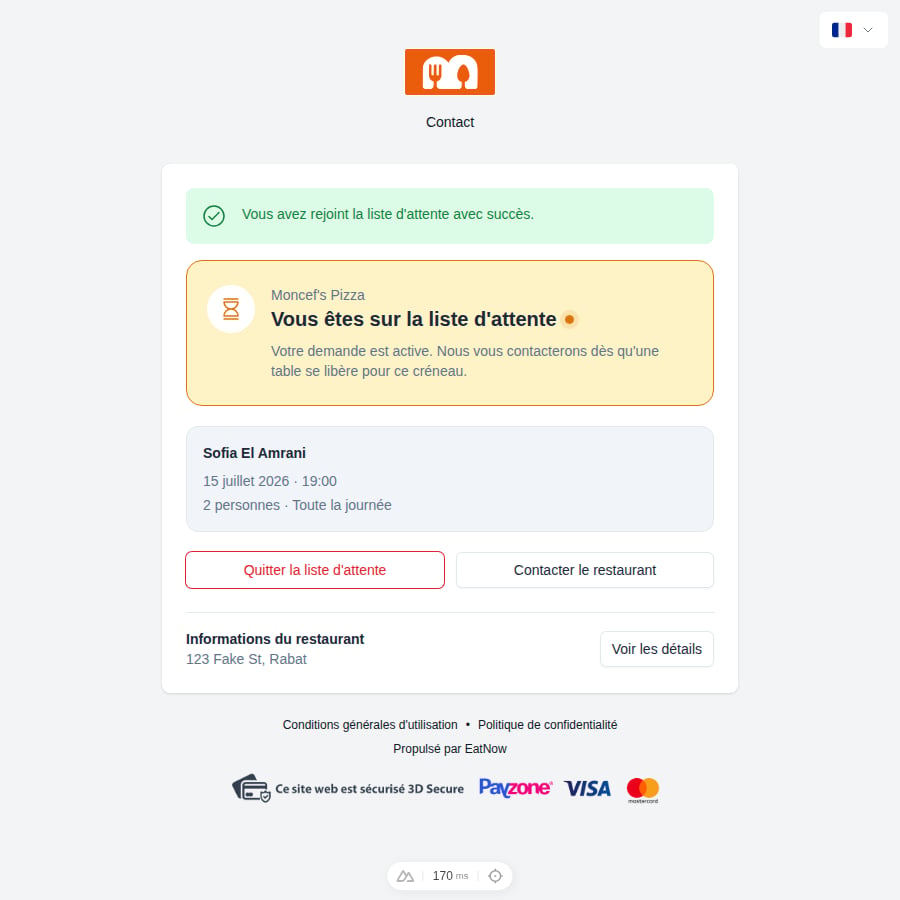
The five statuses
Where you see it
- The Reservations list gains a Waitlist tab (with a live counter) on any day where a shift has the waitlist enabled.
- The Planning view shows a dedicated waitlist lane, so you see waiting guests next to your seated reservations.
- On mobile, the view switcher badge tells you at a glance how many guests are waiting today.
The waitlist is configured per shift — enable it only for the services where it makes sense (Friday dinner, Sunday brunch…). See Setting up the waitlist.