> ## Documentation Index
> Fetch the complete documentation index at: https://docs.eat-now.io/llms.txt
> Use this file to discover all available pages before exploring further.
# Verify your business with Meta
> After connecting, finish two one-time steps on Meta — verify your business and get your display name approved — to unlock full sending.
Once WhatsApp is connected to EatNow, there are two **one-time** steps to do on Meta's side. They unlock higher messaging limits and make sure your customers see your real name.
You can already **receive and reply** to messages without these steps. They're needed to send **automatic messages** (confirmations, reminders…) reliably and at scale.
## Step 1 — Verify your business
Go to **[Meta Business Manager](https://business.facebook.com/latest/settings/)** and select the business portfolio you used to connect WhatsApp.
Open the WhatsApp account connected to EatNow, then click **Start verification**.
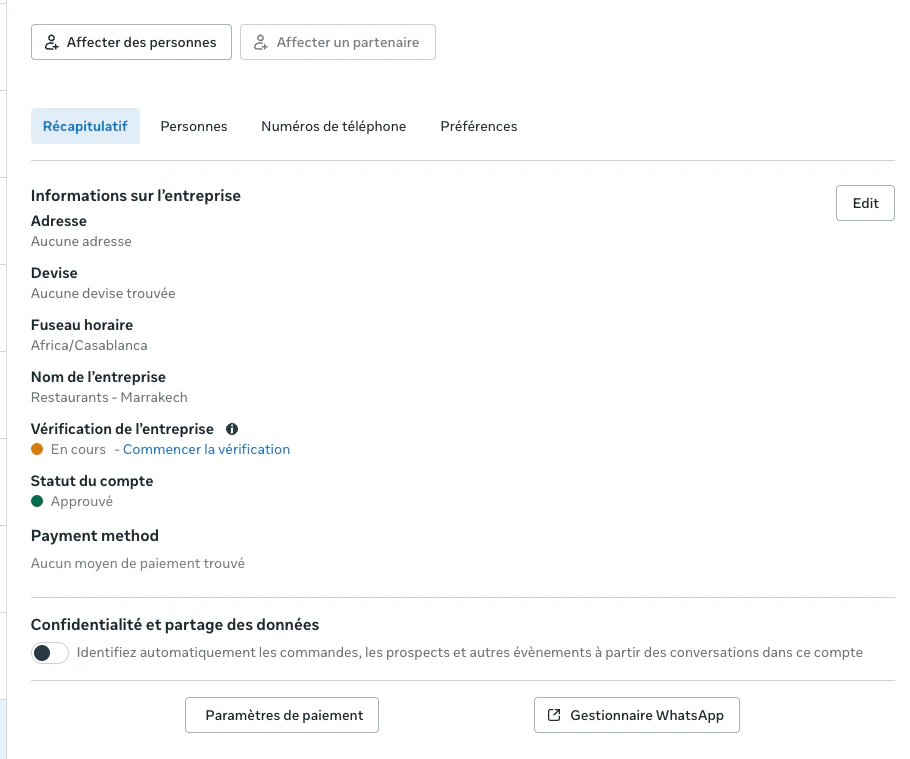 Follow the steps: business documents, the owner's identity, phone number, etc. Meta confirms by notification — this can take **up to 2 business days**.
Request rejected? See [Business verification rejected](/whatsapp/verification-rejected) for the most common reasons and how to fix them before resubmitting.
### Add a payment method
A payment method must be on file with Meta to send **automatic messages** (Meta bills these per message — see [Pricing](/whatsapp/cost)). If you didn't add it during onboarding, open your WhatsApp account → **Payment settings**, and add a card that can handle monthly invoices in EUR or USD.
## Step 2 — Get your display name approved
Your **display name** is what customers see at the top of the chat (your restaurant's name). Meta reviews it against [its rules](https://www.facebook.com/business/help/757569725593362).
Until Meta **approves** the display name, customers see your **phone number** instead of your name — including for a Coexistence number. Approval usually takes a few hours to a few days. This is normal: nothing to fix unless the name is rejected.
In Meta Business Manager, open your WhatsApp account → **WhatsApp Manager**, click your connected phone number, and open the **Profile** tab. You'll see whether the display name is **approved**.
Follow the steps: business documents, the owner's identity, phone number, etc. Meta confirms by notification — this can take **up to 2 business days**.
Request rejected? See [Business verification rejected](/whatsapp/verification-rejected) for the most common reasons and how to fix them before resubmitting.
### Add a payment method
A payment method must be on file with Meta to send **automatic messages** (Meta bills these per message — see [Pricing](/whatsapp/cost)). If you didn't add it during onboarding, open your WhatsApp account → **Payment settings**, and add a card that can handle monthly invoices in EUR or USD.
## Step 2 — Get your display name approved
Your **display name** is what customers see at the top of the chat (your restaurant's name). Meta reviews it against [its rules](https://www.facebook.com/business/help/757569725593362).
Until Meta **approves** the display name, customers see your **phone number** instead of your name — including for a Coexistence number. Approval usually takes a few hours to a few days. This is normal: nothing to fix unless the name is rejected.
In Meta Business Manager, open your WhatsApp account → **WhatsApp Manager**, click your connected phone number, and open the **Profile** tab. You'll see whether the display name is **approved**.
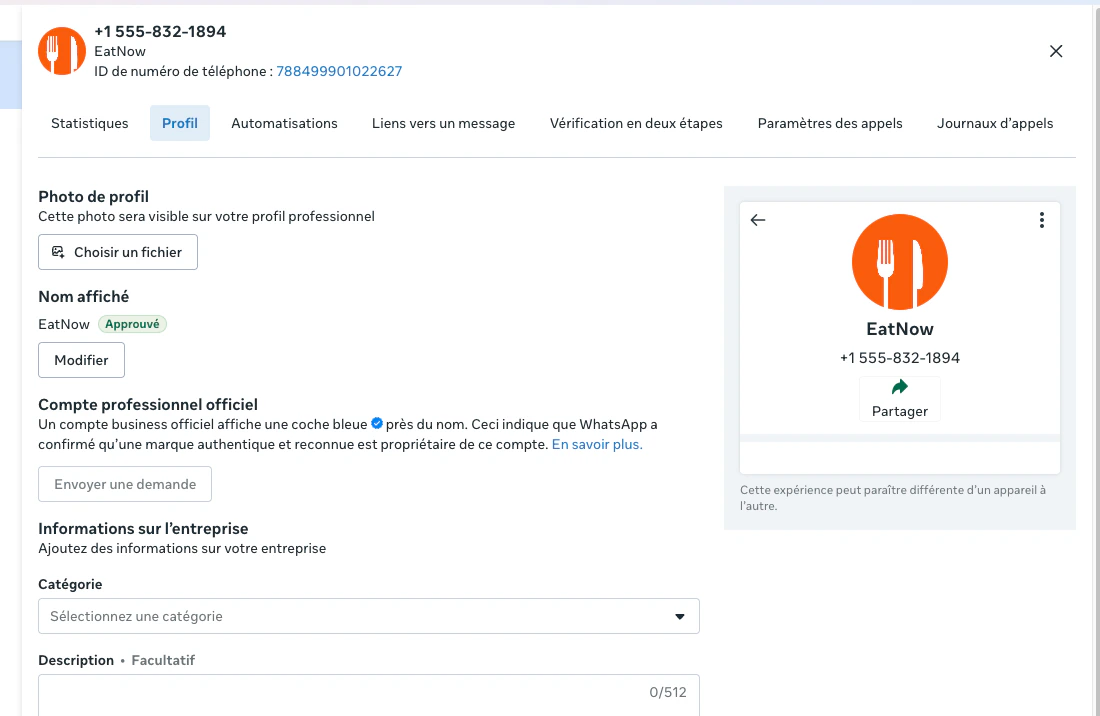 If it isn't approved, click **Edit**, enter your establishment's name with correct spelling, and **Save**. Meta reviews it — this can take a few hours to a few days, and you'll be notified of the result.
If you connected with a **new number (Cloud API)**: once the name is approved, go to **EatNow → Settings → Integrations → WhatsApp → Re-register number**, and enter your 6-digit PIN.
If you connected with **Coexistence** (your existing number), there's nothing to re-register — you're done.
Once your business is verified and your display name is approved, you're fully set up. Head to [Enable notifications](/whatsapp/activate) to choose what EatNow sends.
If it isn't approved, click **Edit**, enter your establishment's name with correct spelling, and **Save**. Meta reviews it — this can take a few hours to a few days, and you'll be notified of the result.
If you connected with a **new number (Cloud API)**: once the name is approved, go to **EatNow → Settings → Integrations → WhatsApp → Re-register number**, and enter your 6-digit PIN.
If you connected with **Coexistence** (your existing number), there's nothing to re-register — you're done.
Once your business is verified and your display name is approved, you're fully set up. Head to [Enable notifications](/whatsapp/activate) to choose what EatNow sends.