> ## Documentation Index
> Fetch the complete documentation index at: https://docs.eat-now.io/llms.txt
> Use this file to discover all available pages before exploring further.
# Case 3 — New number on a SIM card
> Connect to EatNow the number of a SIM card that isn't on WhatsApp yet. Meta checks it with a code sent by text message or phone call.
You use the number of a **SIM card** for WhatsApp. The number stays a real phone number: the SIM card keeps working normally for calls and text messages.
You already have WhatsApp Business on your number? You can also keep it with **[Case 1](/whatsapp/coexistence)**. Without a SIM card, see **[Case 2 — Free virtual number](/whatsapp/virtual-number)**.
## Before you start
The number must **not** be used on WhatsApp **or** WhatsApp Business. If it is, first delete that account from the app: **Settings → Account → Delete account**.
Deleting the account erases its chats. If you want to keep this number **and** the app, use [Case 1](/whatsapp/coexistence) (with the WhatsApp Business app).
Meta sends a **6-digit code by text message or phone call** to this number. A **mobile** number works best. For a landline, choose the voice call.
## Connect WhatsApp
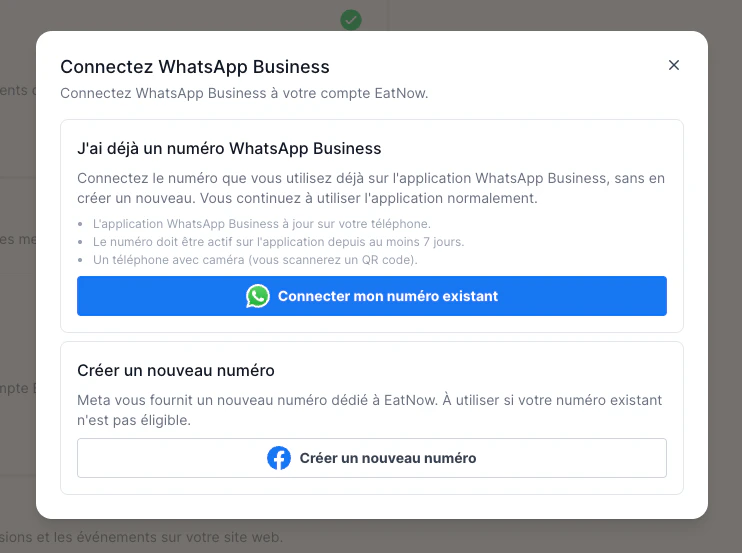
In EatNow, go to **Settings → Integrations**, find the **WhatsApp** card and click **Connect**.
It's the bottom button, under **“Create a new number”**. A Meta window opens: log in with the Facebook account that manages your business.
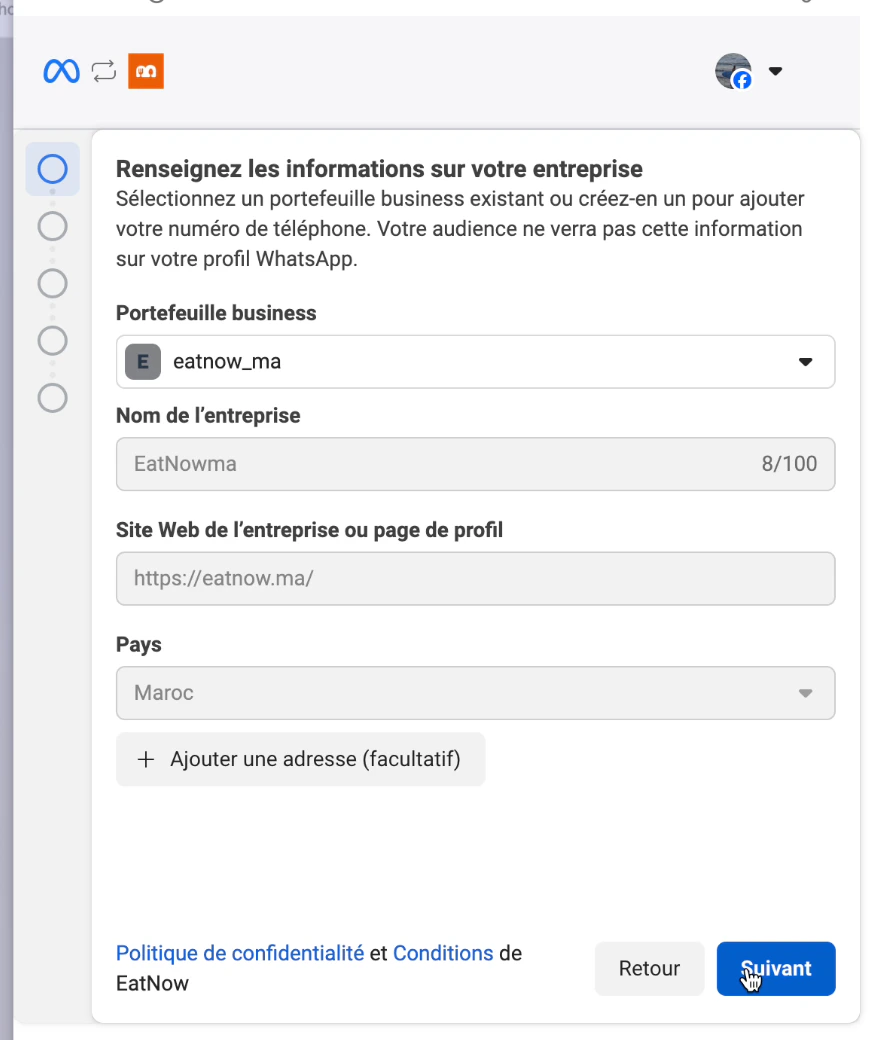
 Choose your business portfolio from the list, or create one if there isn't any.
Whenever a name is asked, type your restaurant's name, spelled correctly: it's what your customers will see.
Choose your business portfolio from the list, or create one if there isn't any.
Whenever a name is asked, type your restaurant's name, spelled correctly: it's what your customers will see.
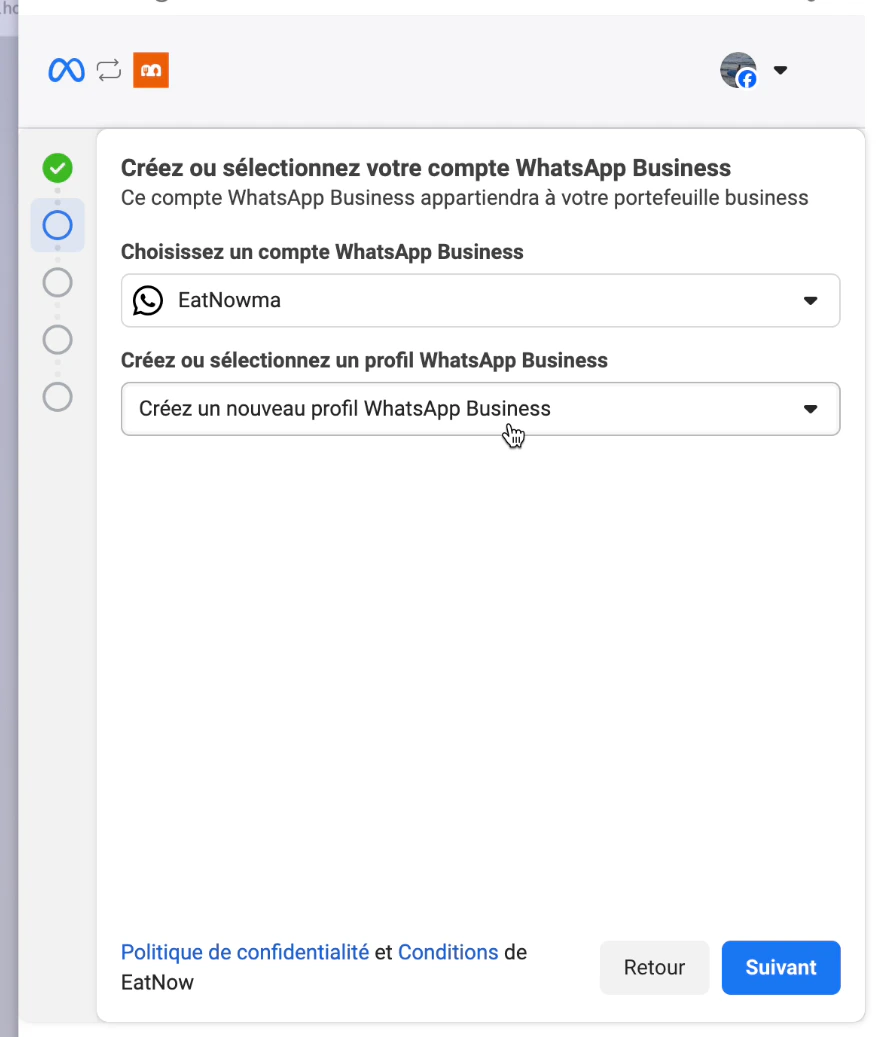
 In **“Create or select a WhatsApp Business profile”**, choose **Create a new WhatsApp Business profile**, then click **Next** and fill in your restaurant's information.
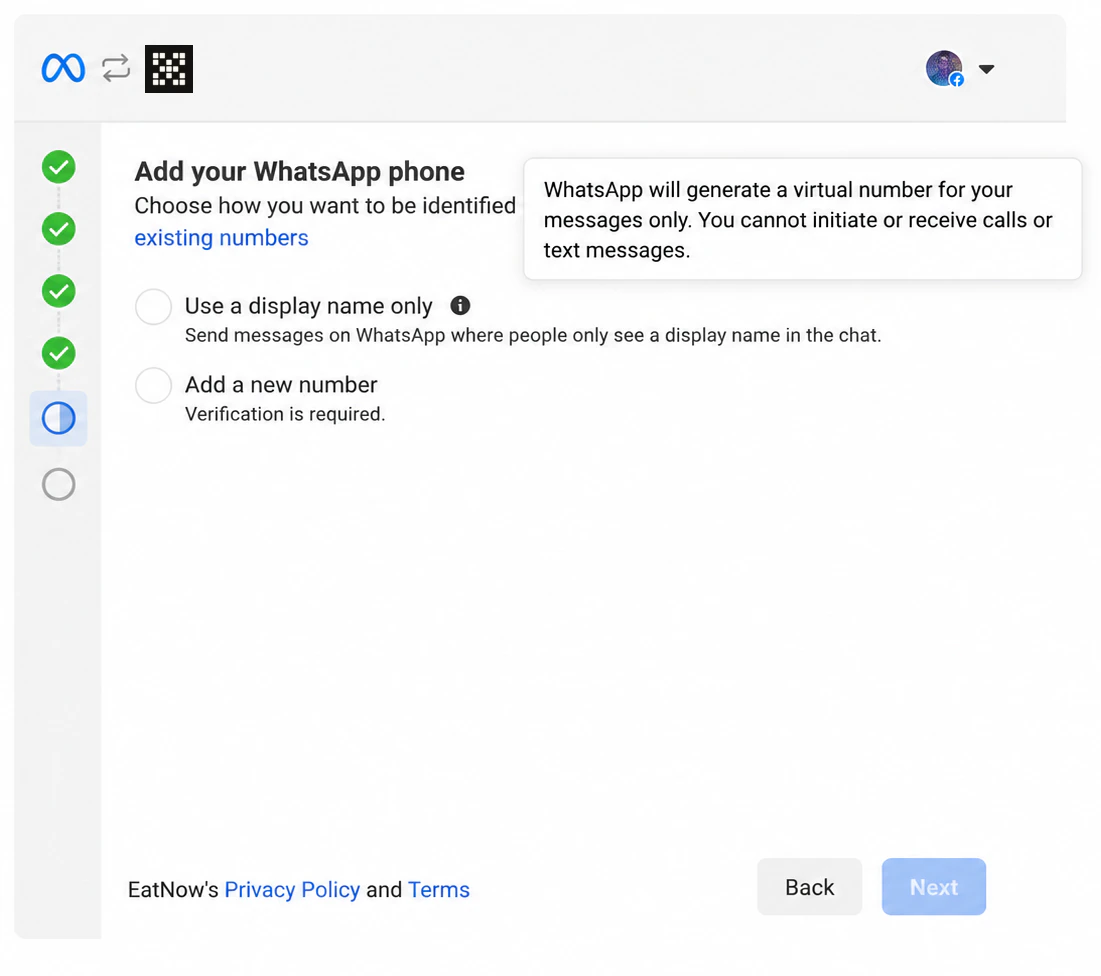
 On the **“Add your WhatsApp phone”** screen, tick **“Add a new number”**, then click **Next**.
 Choose the country, type the SIM card's number, then choose how to get the code: **text message** or **voice call**. Type the 6-digit code you receive.
No code? Wait a minute, then ask for it again by **voice call**.
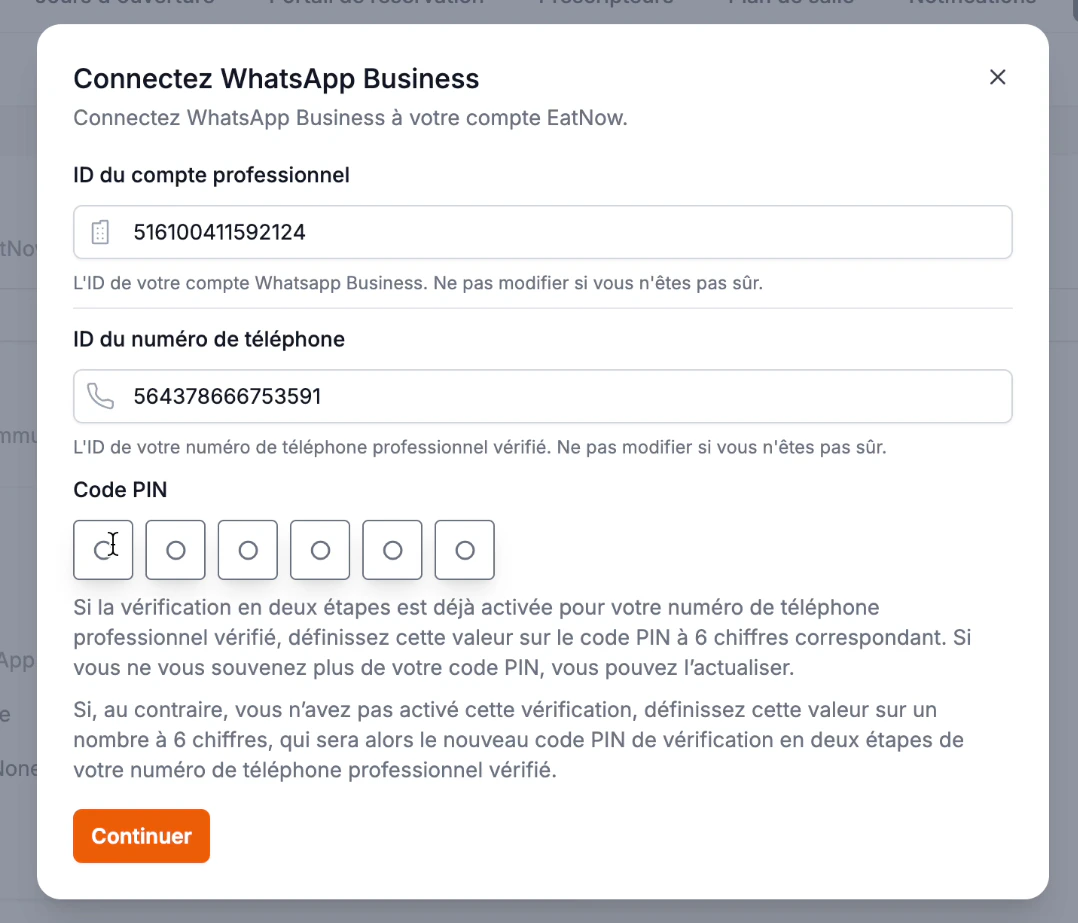
Back in EatNow, make up a **6-digit PIN code**, type it, then click **Continue**. Don't touch the two fields above it.
**Write down this PIN code** somewhere safe: you will be asked for it later (see [Finish setup](/whatsapp/verification)). It's not the code you got by text message.
Finishing the setup can take a few minutes — **don't close the window and don't reload the page**.
Choose the country, type the SIM card's number, then choose how to get the code: **text message** or **voice call**. Type the 6-digit code you receive.
No code? Wait a minute, then ask for it again by **voice call**.
Back in EatNow, make up a **6-digit PIN code**, type it, then click **Continue**. Don't touch the two fields above it.
**Write down this PIN code** somewhere safe: you will be asked for it later (see [Finish setup](/whatsapp/verification)). It's not the code you got by text message.
Finishing the setup can take a few minutes — **don't close the window and don't reload the page**.
 Once connected, this number can no longer be used in a WhatsApp app on a phone: your WhatsApp conversations happen in EatNow. The SIM card keeps its normal calls and text messages.
Bank card, display name, re-registering the number and notifications — the checklist so that automatic messages go out.
This documentation is built and hosted on [Mintlify](https://mintlify.com), a developer documentation platform.
Once connected, this number can no longer be used in a WhatsApp app on a phone: your WhatsApp conversations happen in EatNow. The SIM card keeps its normal calls and text messages.
Bank card, display name, re-registering the number and notifications — the checklist so that automatic messages go out.
This documentation is built and hosted on [Mintlify](https://mintlify.com), a developer documentation platform.