> ## Documentation Index
> Fetch the complete documentation index at: https://docs.eat-now.io/llms.txt
> Use this file to discover all available pages before exploring further.
# Requirements (read before connecting)
> What you need to connect WhatsApp to EatNow with Coexistence — and a plain-language guide to the Meta terms you'll see along the way.
We recommend connecting WhatsApp with **Coexistence**: you keep using your number in the **WhatsApp Business app** on your phone, and EatNow connects to it **in parallel**. You keep chatting from the app as usual — EatNow just sends notifications and (if enabled) lets the AI agent reply, all in sync.
Take two minutes to check the points below before you start — it makes the connection go smoothly the first time.
## What you need
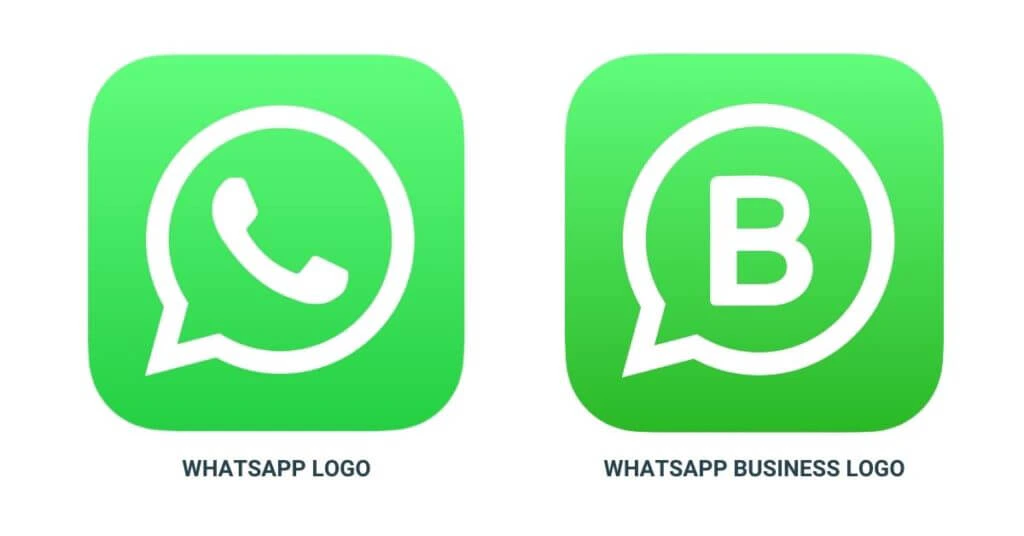
Coexistence only works with the **WhatsApp Business** app — the green icon with a **“B”**. The regular WhatsApp (used for personal chats) won't work.
 Update the WhatsApp Business app from your phone's app store before starting.
 The number must have been **active on the WhatsApp Business app for at least 7 days**. Brand-new numbers can't use Coexistence yet.
The connection ends by **scanning a QR code** with your phone, so you'll need a phone with a working camera.
You'll log in with the **Facebook account** that manages (or will manage) your business on Meta. If you're not sure which one, ask whoever set up your Facebook/Instagram business page.
## Meta terms, in plain language
Meta's screens use a few words that can be confusing. Here's what they mean:
Your personal Facebook login. It's the key that lets you manage your business on Meta — it doesn't mean your customers will see your personal profile.
The “folder” that holds your business on Meta: your pages, your WhatsApp account, your billing. You may already have one; if not, you can create it during the setup.
The account, inside your business portfolio, that holds your WhatsApp number and message templates. EatNow connects to this.
The name your customers see at the top of the chat (e.g. your restaurant's name). Meta reviews it — use your real establishment name with correct spelling.
A one-time check by Meta confirming your business is real. It's not required to start, but unlocks higher messaging limits later.
A card registered with Meta. Needed **only** to send automatic messages (confirmations, reminders…), which Meta bills per message. Chatting and replying within 24 hours are free.
## Availability by country
Coexistence isn't available everywhere yet — it depends on your country and how your number is used. If Meta tells you your number isn't eligible, no problem: you can still connect by **[creating a new number](/whatsapp/onboarding)** instead (Option B).
## What happens after you connect
* Your recent chat history syncs into EatNow so you have context.
* Replies your team sends **from the phone** show up in the EatNow inbox, marked *“sent from the phone”*.
* You can send confirmations and reminders, and optionally let the AI agent answer.
Follow the step-by-step guide.
The number must have been **active on the WhatsApp Business app for at least 7 days**. Brand-new numbers can't use Coexistence yet.
The connection ends by **scanning a QR code** with your phone, so you'll need a phone with a working camera.
You'll log in with the **Facebook account** that manages (or will manage) your business on Meta. If you're not sure which one, ask whoever set up your Facebook/Instagram business page.
## Meta terms, in plain language
Meta's screens use a few words that can be confusing. Here's what they mean:
Your personal Facebook login. It's the key that lets you manage your business on Meta — it doesn't mean your customers will see your personal profile.
The “folder” that holds your business on Meta: your pages, your WhatsApp account, your billing. You may already have one; if not, you can create it during the setup.
The account, inside your business portfolio, that holds your WhatsApp number and message templates. EatNow connects to this.
The name your customers see at the top of the chat (e.g. your restaurant's name). Meta reviews it — use your real establishment name with correct spelling.
A one-time check by Meta confirming your business is real. It's not required to start, but unlocks higher messaging limits later.
A card registered with Meta. Needed **only** to send automatic messages (confirmations, reminders…), which Meta bills per message. Chatting and replying within 24 hours are free.
## Availability by country
Coexistence isn't available everywhere yet — it depends on your country and how your number is used. If Meta tells you your number isn't eligible, no problem: you can still connect by **[creating a new number](/whatsapp/onboarding)** instead (Option B).
## What happens after you connect
* Your recent chat history syncs into EatNow so you have context.
* Replies your team sends **from the phone** show up in the EatNow inbox, marked *“sent from the phone”*.
* You can send confirmations and reminders, and optionally let the AI agent answer.
Follow the step-by-step guide.