> ## Documentation Index
> Fetch the complete documentation index at: https://docs.eat-now.io/llms.txt
> Use this file to discover all available pages before exploring further.

# Connect WhatsApp Business

> Connect WhatsApp to EatNow in a few minutes. We recommend keeping the number you already use, with WhatsApp Coexistence.

EatNow partners with Meta so you can message your customers on WhatsApp — confirmations, reminders, and replies — with excellent deliverability.

There are **two ways** to connect:

<CardGroup cols={2}>
  <Card title="Connect my existing number" icon="whatsapp">
    **Recommended.** Keep the number you already use in the WhatsApp Business app. You keep chatting from the app; EatNow connects in parallel.
  </Card>

  <Card title="Create a new number" icon="plus">
    Meta gives you a brand-new number dedicated to EatNow. Use this only if your existing number can't be connected.
  </Card>
</CardGroup>

<Note>
  Before you start, please read **[Requirements](/whatsapp/prerequisites)** — it lists everything you need (the WhatsApp Business app, a phone with a camera, …) so the connection goes smoothly the first time.
</Note>

To begin, in **EatNow** go to **Settings → Integrations**, search for **“WhatsApp”** and click **Connect**. You'll be offered both options.

## Option A — Connect my existing number (recommended)

This uses **WhatsApp Coexistence**: your number stays on the WhatsApp Business app on your phone, and EatNow connects to it in parallel. You keep replying from the app, EatNow sends notifications, and (if enabled) the AI agent can answer — everything stays in sync.

<Steps>
  <Step title="Open the WhatsApp integration">
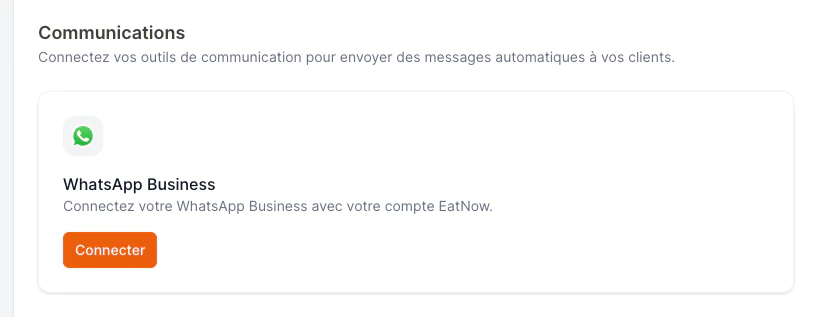
    In EatNow, go to **Settings → Integrations**, find the **WhatsApp** card and click **Connect**.

    <Frame caption="The WhatsApp card in EatNow Integrations.">
      <img src="https://mintcdn.com/eatnow/cX-mVYMcFHjL469G/images/screenshots/coex-01-integrations.png?fit=max&auto=format&n=cX-mVYMcFHjL469G&q=85&s=73558cb4abae8e9b931f8e6a1df2489b" alt="WhatsApp card in EatNow Integrations" width="830" height="317" data-path="images/screenshots/coex-01-integrations.png" />
    </Frame>
  </Step>

  <Step title="Choose “Connect my existing number”">
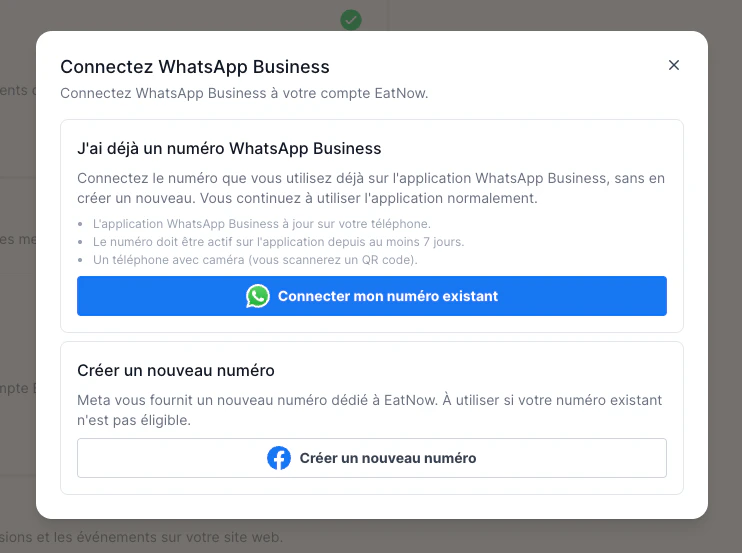
    Pick the first option to keep your current WhatsApp Business number.

    <Frame caption="Pick “Connect my existing number”.">
      <img src="https://mintcdn.com/eatnow/cX-mVYMcFHjL469G/images/screenshots/coex-02-two-options.png?fit=max&auto=format&n=cX-mVYMcFHjL469G&q=85&s=d4c2c0e48fa7155e47b528c4181f5839" alt="The two connection options in EatNow" width="742" height="553" data-path="images/screenshots/coex-02-two-options.png" />
    </Frame>
  </Step>

  <Step title="Log in with Facebook">
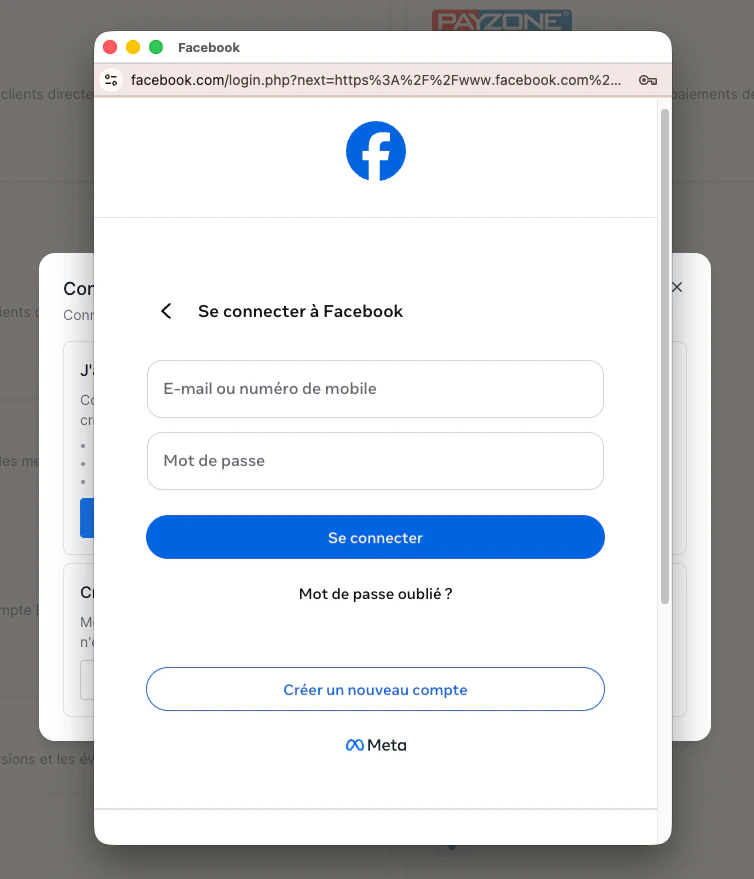
    A Meta window opens. Log in with the Facebook account that manages your business.

    <Frame caption="Log in with your Facebook account.">
      <img src="https://mintcdn.com/eatnow/cX-mVYMcFHjL469G/images/screenshots/coex-03-fb-login.png?fit=max&auto=format&n=cX-mVYMcFHjL469G&q=85&s=639bac3641d2aaadde533755b26db351" alt="Meta Facebook login window" width="754" height="879" data-path="images/screenshots/coex-03-fb-login.png" />
    </Frame>
  </Step>

  <Step title="Select your business">
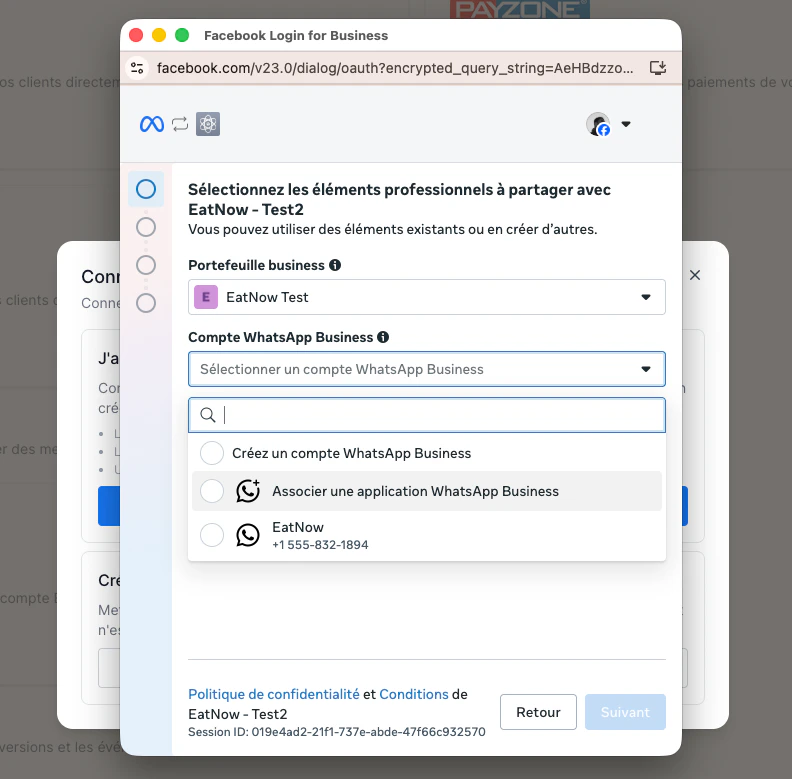
    Follow the on-screen steps to select your business portfolio.
    <Tip>Whenever a name is requested, enter your establishment's name with the correct spelling — it's what your customers will see.</Tip>

    <Frame caption="Select (or create) your business portfolio.">
      <img src="https://mintcdn.com/eatnow/cX-mVYMcFHjL469G/images/screenshots/coex-04-select-portfolio.png?fit=max&auto=format&n=cX-mVYMcFHjL469G&q=85&s=1f26cc94928fea07345f7204ddc4bc82" alt="Selecting the business portfolio on Meta" width="792" height="779" data-path="images/screenshots/coex-04-select-portfolio.png" />
    </Frame>
  </Step>

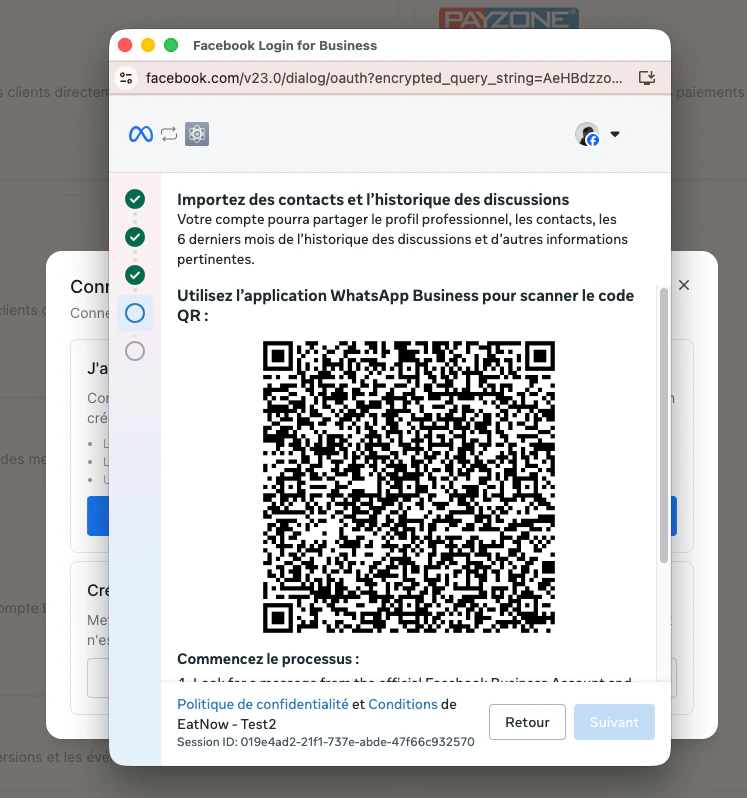
  <Step title="Display the QR code">
    Meta shows a **QR code**. Keep this screen open on your computer.

    <Frame caption="The QR code shown by Meta.">
      <img src="https://mintcdn.com/eatnow/cX-mVYMcFHjL469G/images/screenshots/coex-05-qr-screen.png?fit=max&auto=format&n=cX-mVYMcFHjL469G&q=85&s=36a77c42122b0b2bb98473cf6b09974b" alt="QR code screen shown by Meta" width="747" height="798" data-path="images/screenshots/coex-05-qr-screen.png" />
    </Frame>
  </Step>

  <Step title="Scan it from the WhatsApp Business app">
    The easiest way: you'll receive a **WhatsApp message from Facebook Business** on that number, with a **Connect** button — tap it to jump straight to the scan screen. (This is exactly what the video below shows, starting from that message.)

    Otherwise, open the **WhatsApp Business app → Settings → Linked devices → Link a device** manually, then scan the QR code shown on your computer.

    <video controls className="w-full rounded-lg">
      <source src="https://mintlify.s3.us-west-1.amazonaws.com/eatnow/images/screenshots/coex-06-app-scan.MP4" />
    </video>
  </Step>

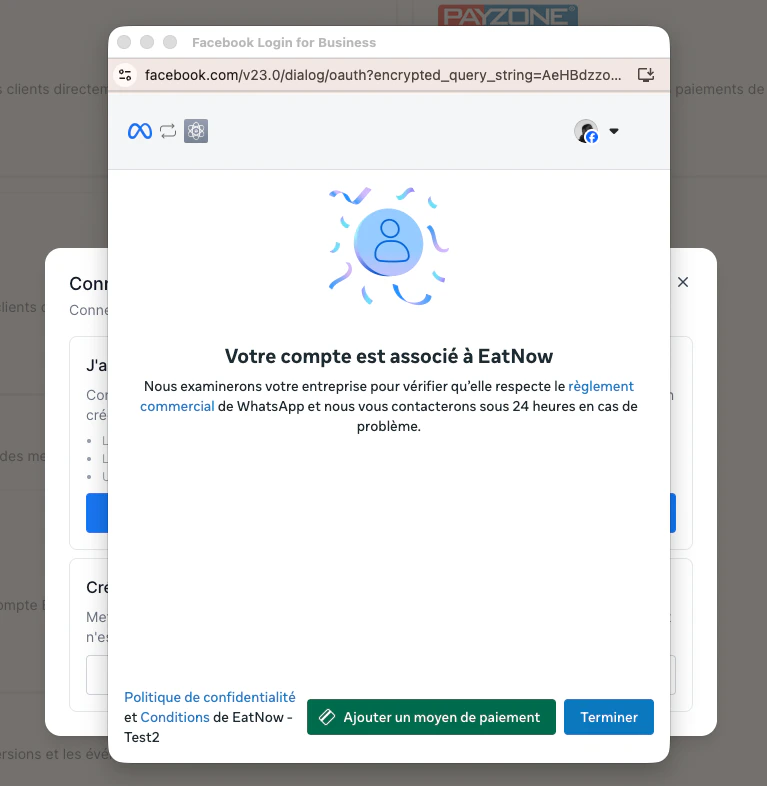
  <Step title="Add a payment method (for automatic messages)">
    Click **Add a payment method** to open the Meta portal and register a card.

    <Warning>
      This is required **only for automatic messages** — the templates EatNow sends on your behalf (booking confirmations, reminders, etc.). Meta bills these per message, so a card must be on file with Meta to send them. **Receiving messages, chatting, and replying within the 24-hour window don't require it** — you can add the card later if you only want to chat for now.
    </Warning>

    <Frame caption="“Add a payment method” opens Meta's billing portal.">
      <img src="https://mintcdn.com/eatnow/cX-mVYMcFHjL469G/images/screenshots/coex-07-payment-method.png?fit=max&auto=format&n=cX-mVYMcFHjL469G&q=85&s=3e206779ac6bc87dff04900c75f58d8f" alt="Add a payment method button redirecting to the Meta portal" width="767" height="786" data-path="images/screenshots/coex-07-payment-method.png" />
    </Frame>
  </Step>

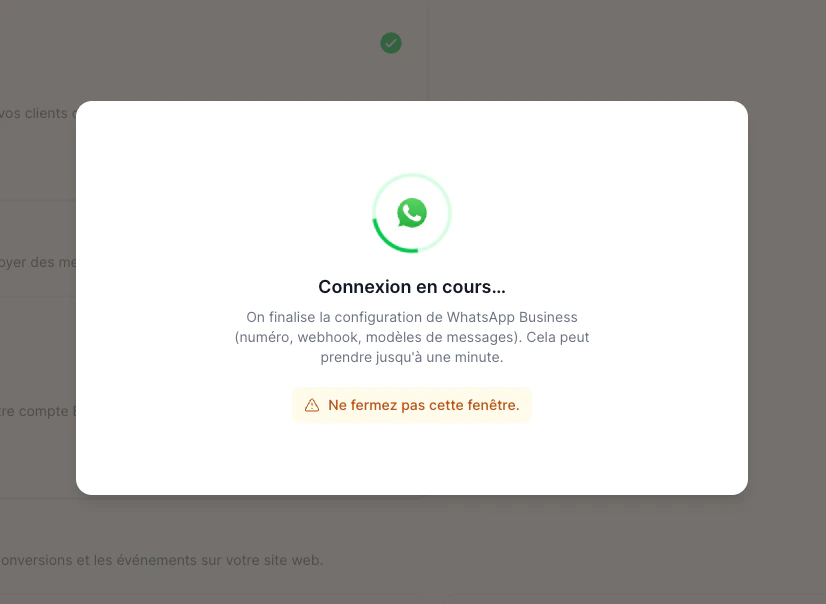
  <Step title="Wait while we finalize">
    EatNow finalizes the setup (number, history sync, message templates). **Don't close the window or reload the page** — it can take up to a minute.

    <Frame caption="Finalizing — please don't close this window.">
      <img src="https://mintcdn.com/eatnow/cX-mVYMcFHjL469G/images/screenshots/coex-08-loading.png?fit=max&auto=format&n=cX-mVYMcFHjL469G&q=85&s=497b458ddfb25999c30e8fba69c625cd" alt="EatNow finalizing the WhatsApp connection" width="826" height="604" data-path="images/screenshots/coex-08-loading.png" />
    </Frame>
  </Step>

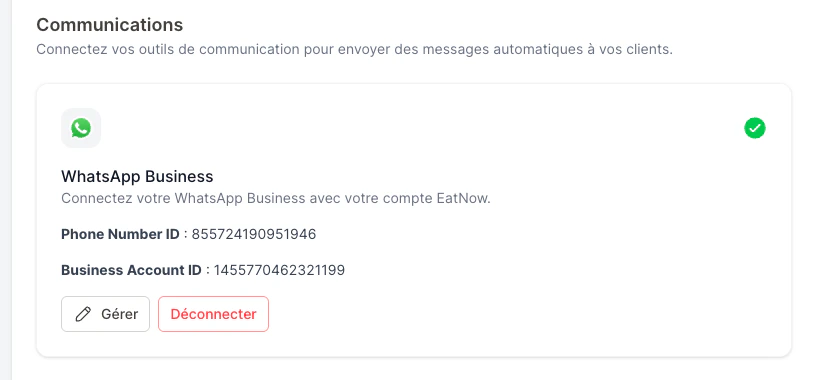
  <Step title="You're connected">
    That's it — **no PIN, no new number, no business verification step** here.

    <Frame caption="WhatsApp is connected.">
      <img src="https://mintcdn.com/eatnow/cX-mVYMcFHjL469G/images/screenshots/coex-09-connected.png?fit=max&auto=format&n=cX-mVYMcFHjL469G&q=85&s=93f2a1aa80f5e1e1778c812003c83af4" alt="WhatsApp connected in EatNow" width="824" height="380" data-path="images/screenshots/coex-09-connected.png" />
    </Frame>
  </Step>
</Steps>

<Note>
  If Meta tells you your number isn't eligible for this option (it can depend on your country or how the number is currently used), use **Option B** below to create a new number instead.
</Note>

## Option B — Create a new number

Use this if you don't have a WhatsApp Business number yet, or if your existing one isn't eligible for Coexistence.

<Steps>
  <Step title="Choose “Create a new number”">
    In the WhatsApp connection screen, pick the second option.
  </Step>

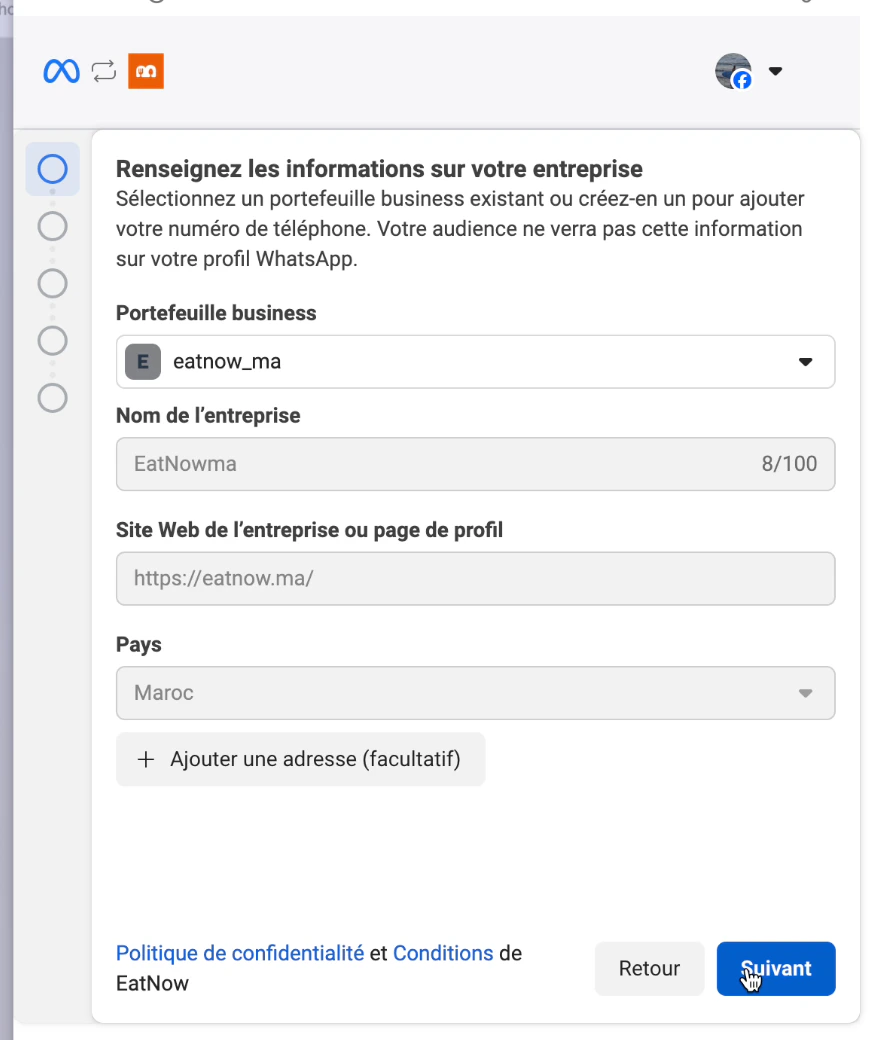
  <Step title="Connect your business portfolio">
    Follow the onboarding and connect your business portfolio first.

    * If you don't have one, you can create it directly from the interface.
    * If you already have one, select it from the list.
      <Tip>Whenever a name is requested, enter your establishment's name with the correct spelling.</Tip>

    <Frame caption="Select or create your business portfolio.">
      <img src="https://mintcdn.com/eatnow/cX-mVYMcFHjL469G/images/screenshots/new-01-create-portfolio.png?fit=max&auto=format&n=cX-mVYMcFHjL469G&q=85&s=5ac9da26c5c7222939a1fb49901190a3" alt="Creating or selecting a business portfolio on Meta" width="879" height="1040" data-path="images/screenshots/new-01-create-portfolio.png" />
    </Frame>
  </Step>

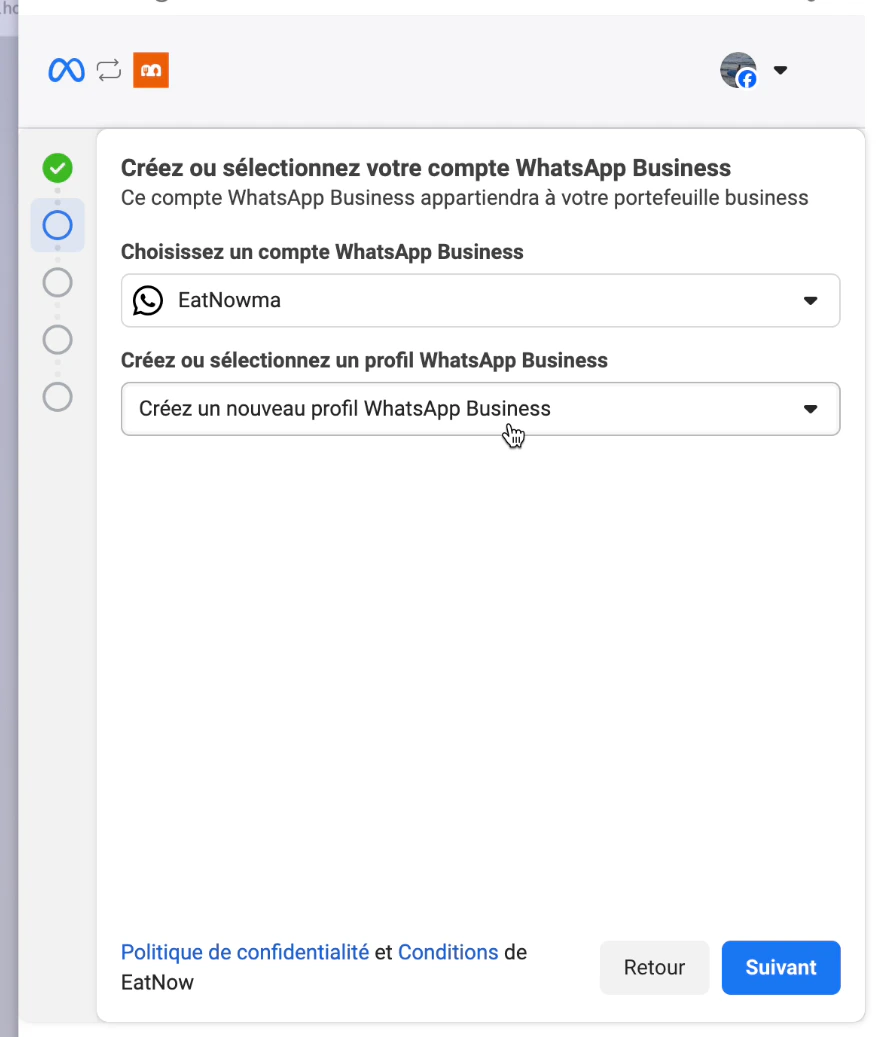
  <Step title="Create a WhatsApp Business profile">
    Choose a WhatsApp Business account and create a new WhatsApp Business profile.

    <Frame caption="Create your WhatsApp Business account.">
      <img src="https://mintcdn.com/eatnow/cX-mVYMcFHjL469G/images/screenshots/new-02-create-waba.png?fit=max&auto=format&n=cX-mVYMcFHjL469G&q=85&s=39fede6292e4b4e4446c41a801f948a0" alt="Creating a WhatsApp Business account on Meta" width="886" height="1037" data-path="images/screenshots/new-02-create-waba.png" />
    </Frame>
  </Step>

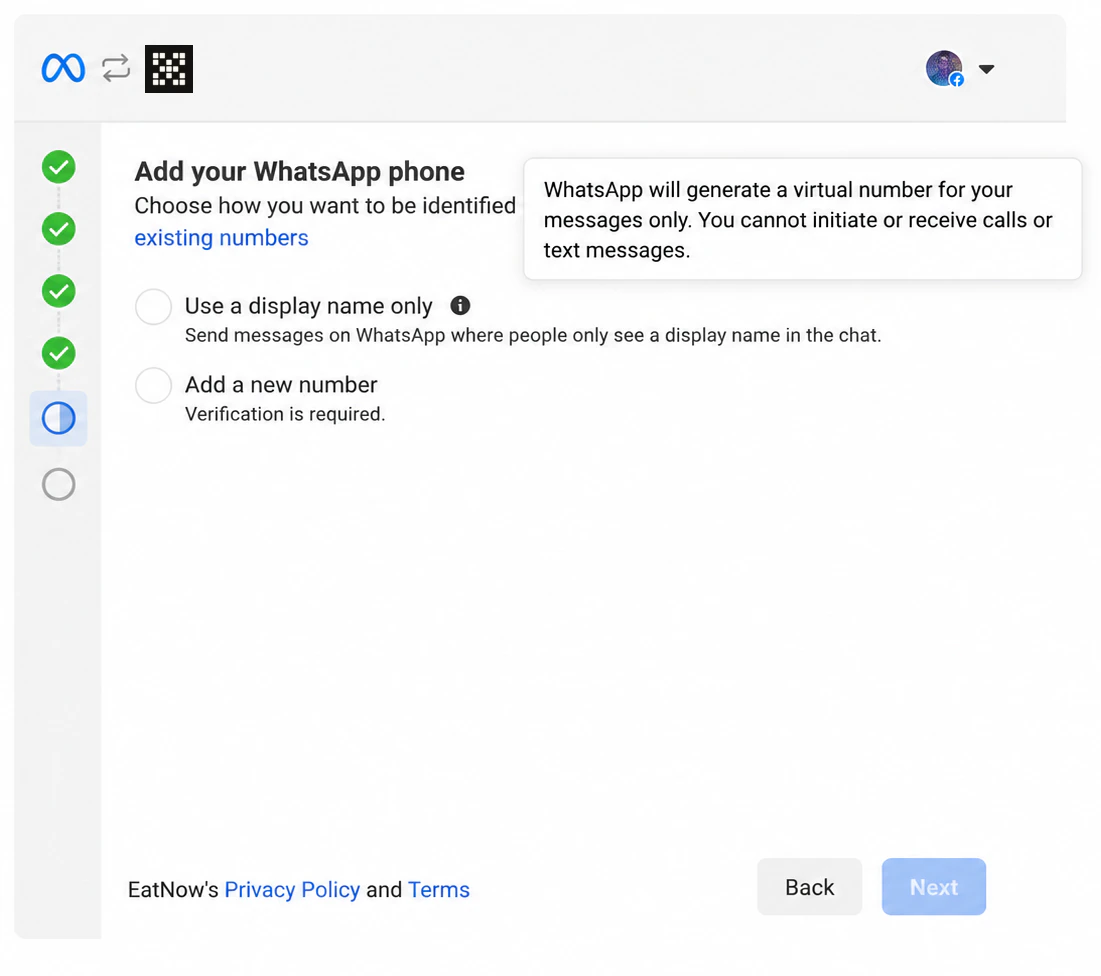
  <Step title="Choose a phone number">
    You **cannot** reuse a number already linked to another WhatsApp Business account. Meta offers to create a **free number dedicated to EatNow** — choose that option.

    <Frame caption="Choose a phone number — pick Meta's free dedicated number.">
      <img src="https://mintcdn.com/eatnow/cX-mVYMcFHjL469G/images/screenshots/new-03-choose-number.png?fit=max&auto=format&n=cX-mVYMcFHjL469G&q=85&s=ac28c0fd18a71717bf9d556cfd91f780" alt="Choosing a phone number on Meta" width="1101" height="976" data-path="images/screenshots/new-03-choose-number.png" />
    </Frame>
  </Step>

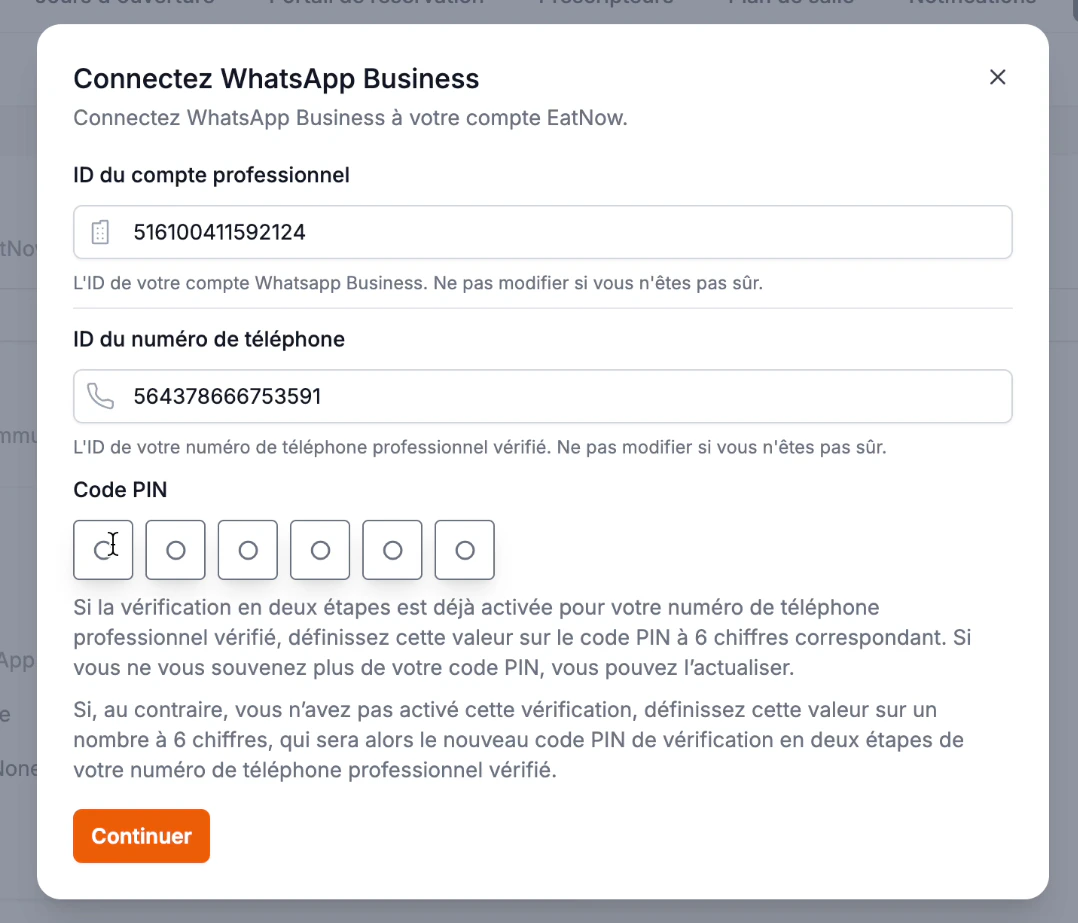
  <Step title="Enter the PIN in EatNow">
    Back in EatNow, enter the 6-digit PIN for the number:

    * If two-step verification is **already enabled**, enter the matching PIN (you can refresh it if you forgot it).
    * If it's **not enabled**, set a new 6-digit PIN — it becomes the two-step verification PIN for that number.

    Click **Continue**. Finalizing can take a few minutes — **don't close the window or reload**.

    <Frame caption="Enter the 6-digit PIN in EatNow.">
      <img src="https://mintcdn.com/eatnow/cX-mVYMcFHjL469G/images/screenshots/new-04-pin.png?fit=max&auto=format&n=cX-mVYMcFHjL469G&q=85&s=c1de75b33d0dbdd2d8824dacda329783" alt="PIN entry screen in EatNow" width="1078" height="923" data-path="images/screenshots/new-04-pin.png" />
    </Frame>
  </Step>
</Steps>

## After connecting

You can now [verify your business with Meta](/whatsapp/verification) and start sending WhatsApp messages with EatNow.

If you connected an existing number (Option A), replies your team sends straight from the **WhatsApp Business app** also appear in the EatNow inbox, marked *“sent from the phone”*, so nothing gets lost between the two.