> ## Documentation Index
> Fetch the complete documentation index at: https://docs.eat-now.io/llms.txt
> Use this file to discover all available pages before exploring further.

# Case 1 — Keep my WhatsApp Business number

> Connect to EatNow the number you already use on the WhatsApp Business app. You keep using the app as usual.

Your number stays on the **WhatsApp Business** app on your phone, and EatNow connects to it **at the same time** (Meta calls this “Coexistence”). You chat from the app as before; EatNow sends confirmations and reminders, and the AI agent can reply if you turn it on. Everything stays in sync.

<Info>
  This case needs a number already used on the WhatsApp Business app. Otherwise, see the other cases in **[Where to start?](/whatsapp/onboarding)**.
</Info>

## Before you start

<Steps>
  <Step title="The WhatsApp Business app, not the regular WhatsApp">
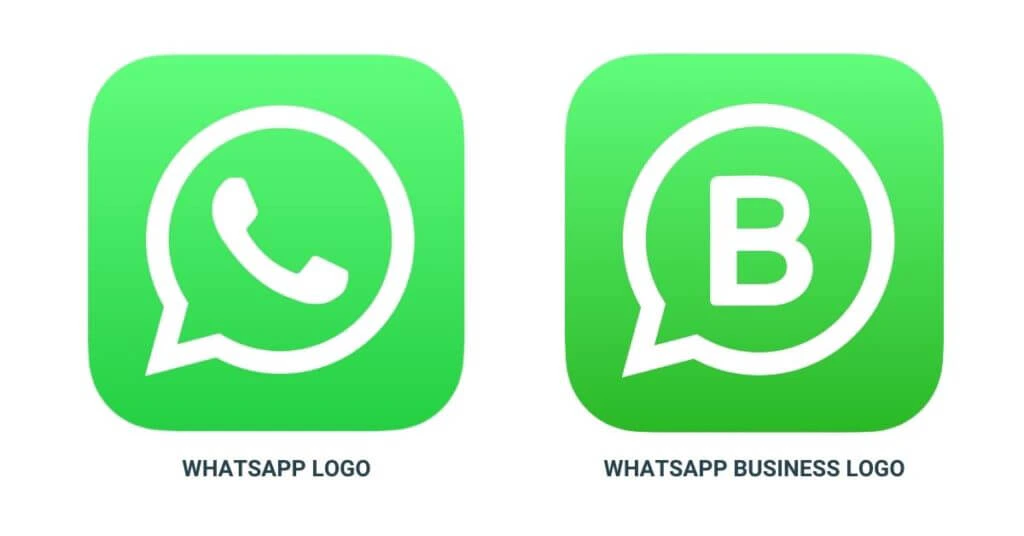
    You need the **WhatsApp Business** app — the green icon with a **“B”**. The regular WhatsApp doesn't work.

    <Frame caption="WhatsApp Business (left) and the regular WhatsApp (right).">
      <img src="https://mintcdn.com/eatnow/cX-mVYMcFHjL469G/images/screenshots/req-app-icons.jpg?fit=max&auto=format&n=cX-mVYMcFHjL469G&q=85&s=c34676f7e0be9b2fa90e4d477e473b2a" alt="WhatsApp Business icon next to the regular WhatsApp icon" width="1024" height="536" data-path="images/screenshots/req-app-icons.jpg" />
    </Frame>
  </Step>

  <Step title="The app up to date">
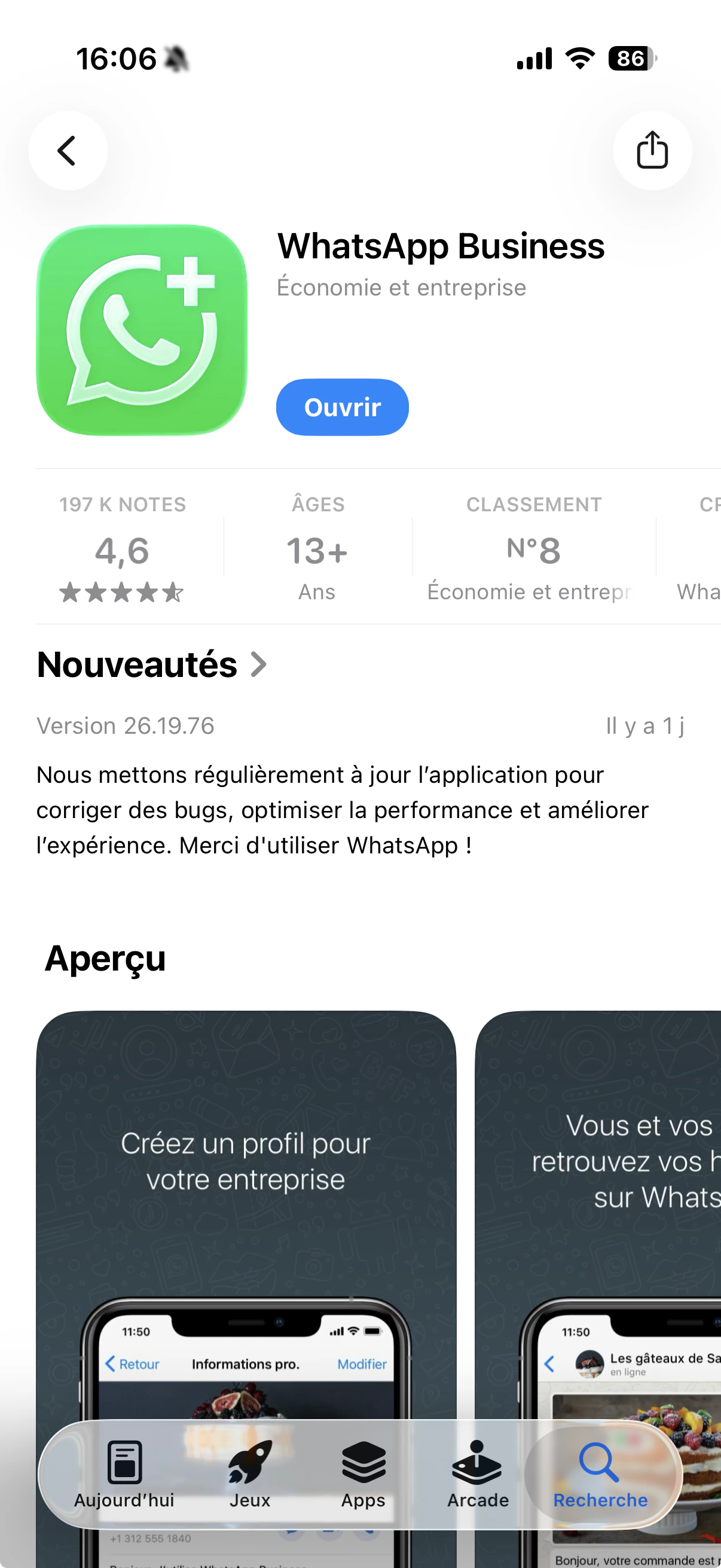
    Update WhatsApp Business from your phone's app store.

    <Frame caption="Update WhatsApp Business from the store.">
      <img src="https://mintcdn.com/eatnow/cX-mVYMcFHjL469G/images/screenshots/req-app-update.png?fit=max&auto=format&n=cX-mVYMcFHjL469G&q=85&s=1b4e4d5e0b85d0de071e24d314619a4e" alt="WhatsApp Business store page with the Update button" width="1206" height="2622" data-path="images/screenshots/req-app-update.png" />
    </Frame>
  </Step>

  <Step title="The number used on the app for at least 7 days">
    Brand-new numbers on WhatsApp Business can't be connected yet.
  </Step>

  <Step title="The phone at hand">
    The connection ends by **scanning a QR code** with this phone: you need a working camera.
  </Step>
</Steps>

## Connect your number

<Steps>
  <Step title="Open the WhatsApp integration">
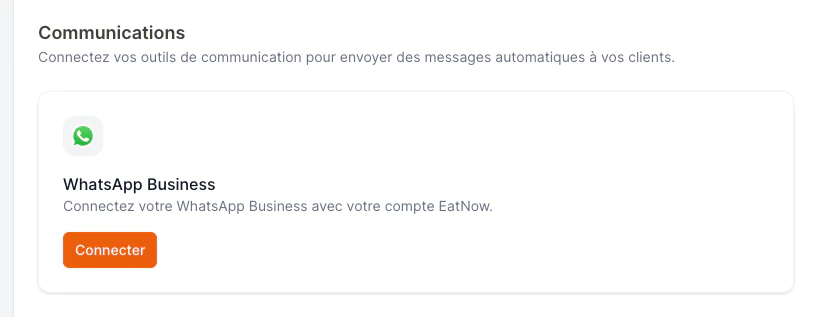
    In EatNow, go to **Settings → Integrations**, find the **WhatsApp** card and click **Connect**.

    <Frame caption="The WhatsApp card in EatNow Integrations.">
      <img src="https://mintcdn.com/eatnow/cX-mVYMcFHjL469G/images/screenshots/coex-01-integrations.png?fit=max&auto=format&n=cX-mVYMcFHjL469G&q=85&s=73558cb4abae8e9b931f8e6a1df2489b" alt="WhatsApp card in EatNow Integrations" width="830" height="317" data-path="images/screenshots/coex-01-integrations.png" />
    </Frame>
  </Step>

  <Step title="Click “Connect my existing number”">
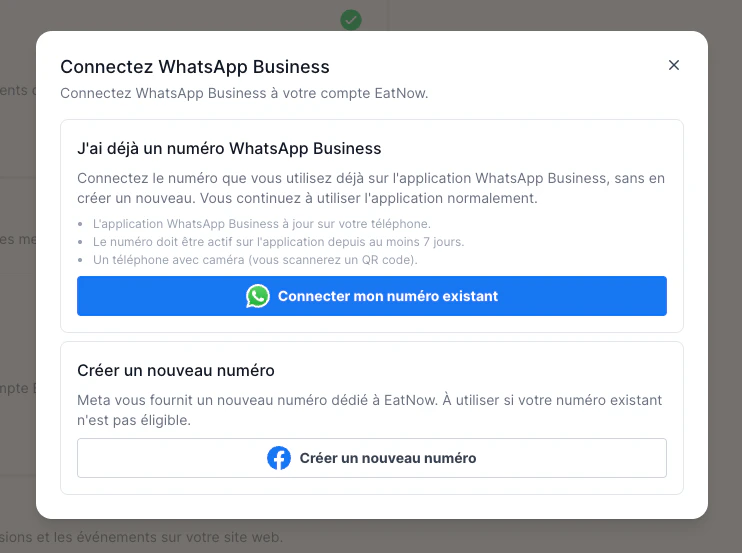
    It's the blue button, under **“I already have a WhatsApp Business number”**.

    <Frame caption="Click “Connect my existing number”.">
      <img src="https://mintcdn.com/eatnow/cX-mVYMcFHjL469G/images/screenshots/coex-02-two-options.png?fit=max&auto=format&n=cX-mVYMcFHjL469G&q=85&s=d4c2c0e48fa7155e47b528c4181f5839" alt="The two connection options in EatNow" width="742" height="553" data-path="images/screenshots/coex-02-two-options.png" />
    </Frame>
  </Step>

  <Step title="Log in with Facebook">
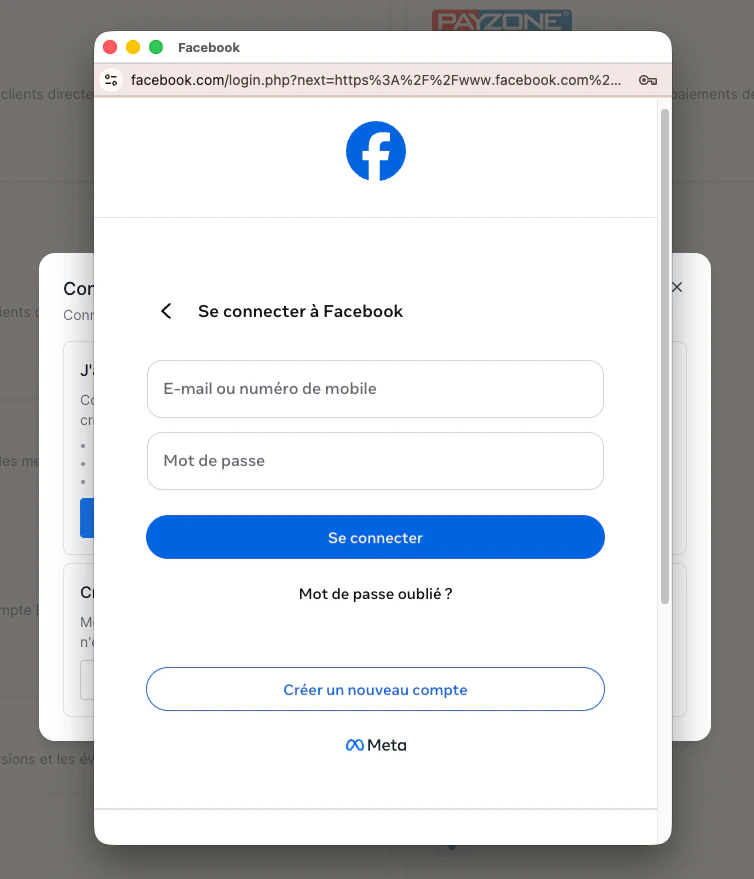
    A Meta window opens. Log in with the Facebook account that manages your business.

    <Frame caption="Log in with your Facebook account.">
      <img src="https://mintcdn.com/eatnow/cX-mVYMcFHjL469G/images/screenshots/coex-03-fb-login.png?fit=max&auto=format&n=cX-mVYMcFHjL469G&q=85&s=639bac3641d2aaadde533755b26db351" alt="Meta Facebook login window" width="754" height="879" data-path="images/screenshots/coex-03-fb-login.png" />
    </Frame>
  </Step>

  <Step title="Choose your business">
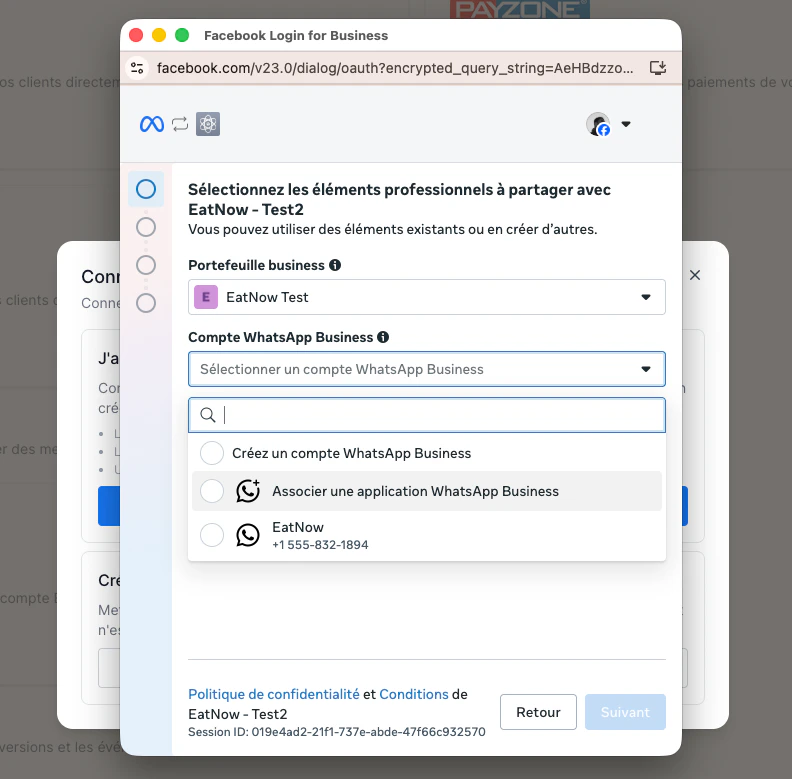
    Follow the screens to choose your business portfolio, or create one.
    <Tip>Whenever a name is asked, type your restaurant's name, spelled correctly: it's what your customers will see.</Tip>

    <Frame caption="Choose (or create) your business portfolio.">
      <img src="https://mintcdn.com/eatnow/cX-mVYMcFHjL469G/images/screenshots/coex-04-select-portfolio.png?fit=max&auto=format&n=cX-mVYMcFHjL469G&q=85&s=1f26cc94928fea07345f7204ddc4bc82" alt="Selecting the business portfolio on Meta" width="792" height="779" data-path="images/screenshots/coex-04-select-portfolio.png" />
    </Frame>
  </Step>

  <Step title="Show the QR code">
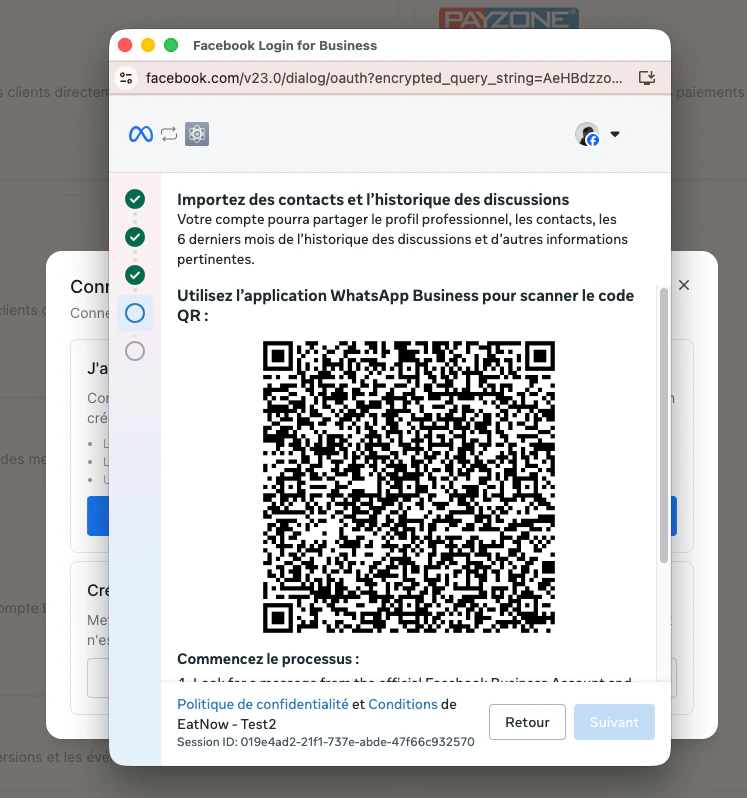
    Meta shows a **QR code**. Keep this screen open on your computer.

    <Frame caption="The QR code shown by Meta.">
      <img src="https://mintcdn.com/eatnow/cX-mVYMcFHjL469G/images/screenshots/coex-05-qr-screen.png?fit=max&auto=format&n=cX-mVYMcFHjL469G&q=85&s=36a77c42122b0b2bb98473cf6b09974b" alt="QR code screen shown by Meta" width="747" height="798" data-path="images/screenshots/coex-05-qr-screen.png" />
    </Frame>
  </Step>

  <Step title="Scan the QR code with your phone">
    The easiest way: you receive on this number a **WhatsApp message from Facebook Business** with a **Connect** button. Tap it: the scan screen opens. Point it at the QR code on your computer. (The video below starts on this message.)

    No message? Open **WhatsApp Business → Settings → Linked devices → Link a device**, then scan the QR code.

    <video controls className="w-full rounded-lg">
      <source src="https://mintlify.s3.us-west-1.amazonaws.com/eatnow/images/screenshots/coex-06-app-scan.MP4" />
    </video>
  </Step>

  <Step title="Add a bank card (you can do it later)">
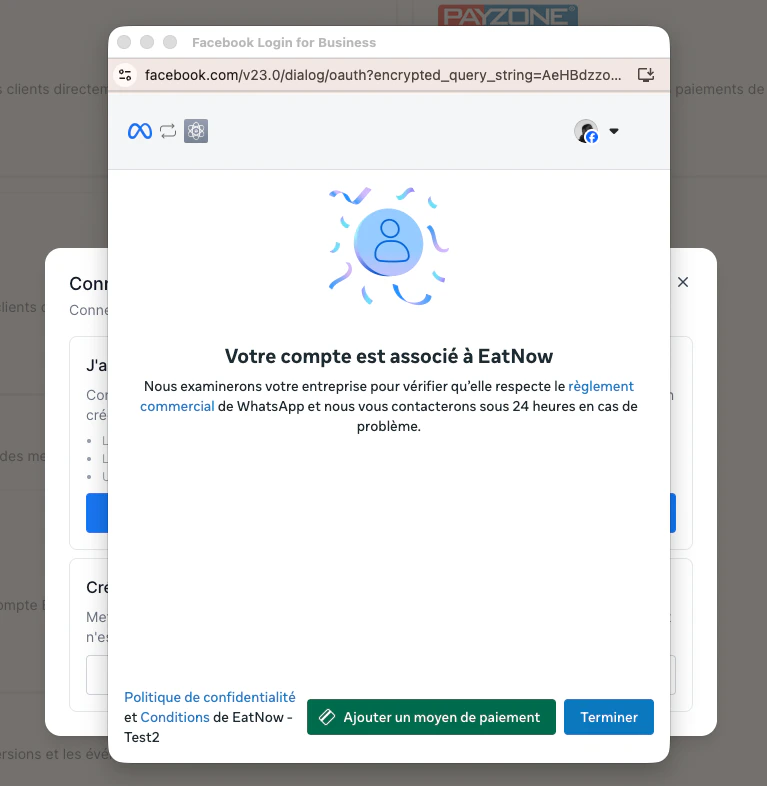
    Click **Add a payment method** to save a card on Meta.

    It's used **only for automatic messages** (confirmations, reminders…), which Meta charges per message. Receiving messages and replying to your customers is free: if you only want to chat for now, skip this step.

    <Frame caption="“Add a payment method” opens Meta's billing.">
      <img src="https://mintcdn.com/eatnow/cX-mVYMcFHjL469G/images/screenshots/coex-07-payment-method.png?fit=max&auto=format&n=cX-mVYMcFHjL469G&q=85&s=3e206779ac6bc87dff04900c75f58d8f" alt="Add a payment method button redirecting to the Meta portal" width="767" height="786" data-path="images/screenshots/coex-07-payment-method.png" />
    </Frame>
  </Step>

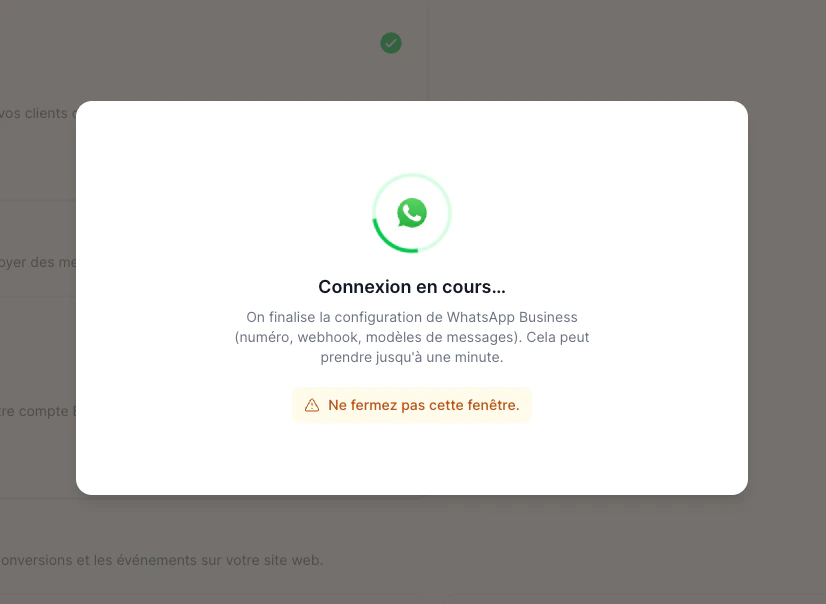
  <Step title="Wait">
    EatNow finishes the setup. **Don't close the window and don't reload the page** — it can take up to a minute.

    <Frame caption="Finishing — don't close this window.">
      <img src="https://mintcdn.com/eatnow/cX-mVYMcFHjL469G/images/screenshots/coex-08-loading.png?fit=max&auto=format&n=cX-mVYMcFHjL469G&q=85&s=497b458ddfb25999c30e8fba69c625cd" alt="EatNow finalizing the WhatsApp connection" width="826" height="604" data-path="images/screenshots/coex-08-loading.png" />
    </Frame>
  </Step>

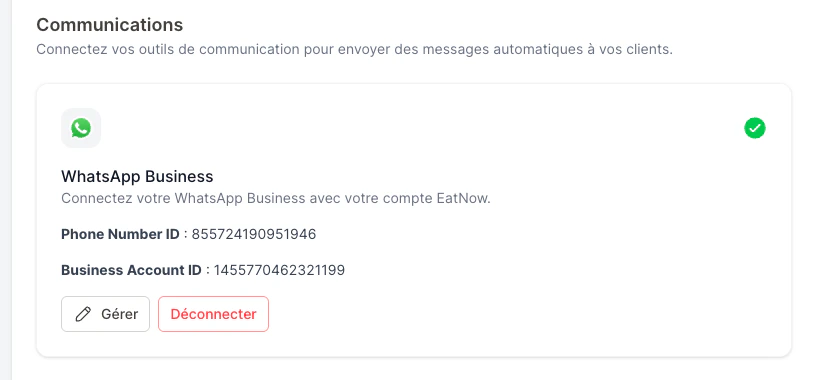
  <Step title="You're connected">
    No PIN code, no new number: the connection is done.

    <Frame caption="WhatsApp is connected.">
      <img src="https://mintcdn.com/eatnow/cX-mVYMcFHjL469G/images/screenshots/coex-09-connected.png?fit=max&auto=format&n=cX-mVYMcFHjL469G&q=85&s=93f2a1aa80f5e1e1778c812003c83af4" alt="WhatsApp connected in EatNow" width="824" height="380" data-path="images/screenshots/coex-09-connected.png" />
    </Frame>
  </Step>
</Steps>

<Warning>
  Meta tells you your number **isn't eligible**? It depends on the country and how the number is used. In that case, choose **[Case 2 — Virtual number](/whatsapp/virtual-number)** or **[Case 3 — SIM card](/whatsapp/sim-number)**.
</Warning>

## What changes next

* Your recent chats are imported into EatNow, so you have the context.
* Replies sent **from the phone** also show up in EatNow, marked *“sent from the phone”*.
* Keep using the WhatsApp Business app regularly: if it stays unused for too long, Meta can cut the connection.

<Card title="Last step: finish setup" icon="arrow-right" href="/whatsapp/verification">
  Bank card, display name and notifications — the checklist so that automatic messages go out.
</Card>


This documentation is built and hosted on [Mintlify](https://mintlify.com), a developer documentation platform.