> ## Documentation Index
> Fetch the complete documentation index at: https://docs.eat-now.io/llms.txt
> Use this file to discover all available pages before exploring further.
# Managing the waitlist day to day
> Where the queue lives in your dashboard, and every action your team can take — offer, confirm, convert, remove.
## The Waitlist tab
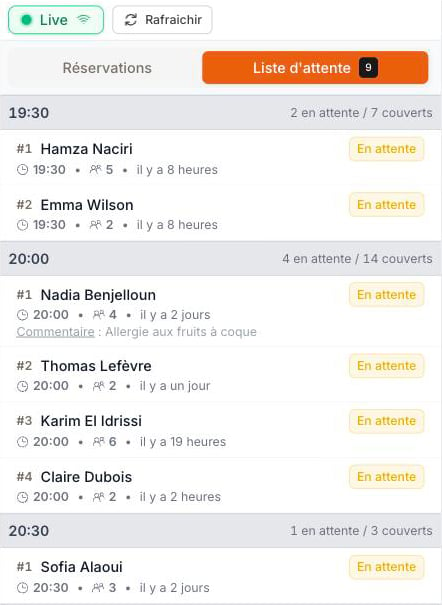
On any day where a shift has the waitlist enabled, the **Reservations list** shows a **Waitlist tab** with a live counter. Entries are grouped by slot, under the same time header as the reservation list (how many guests wait and how many covers). Each row shows the guest's rank in that slot (**#1**, **#2**…), the party size, how long they have been waiting — or, once a spot is offered, how long the offer has left — their comment, and a status badge: amber for **Waiting**, blue for **Offered**.
 The **Planning** view adds a dedicated waitlist lane above the rooms, so you can see waiting guests exactly where their slot sits in the evening. In the **table view**, the **Waitlist** tab (next to **Reservations**) lays the queue out in columns, slot by slot, with each guest's rank and their next action at the end of the row.
## The actions
Right-click any entry (desktop) to act without opening anything:
The **Planning** view adds a dedicated waitlist lane above the rooms, so you can see waiting guests exactly where their slot sits in the evening. In the **table view**, the **Waitlist** tab (next to **Reservations**) lays the queue out in columns, slot by slot, with each guest's rank and their next action at the end of the row.
## The actions
Right-click any entry (desktop) to act without opening anything:
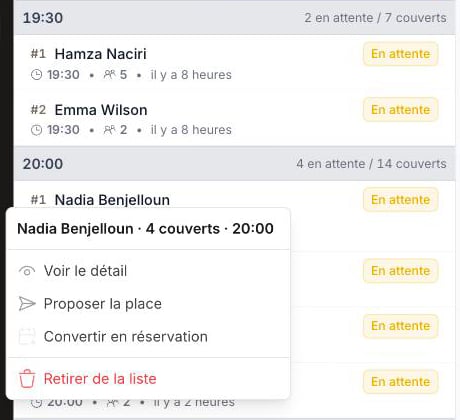 * **Convert to reservation** — opens the reservation form prefilled with the guest's details. This is the fast path when a table just freed and you simply want them in. The usual capacity check applies (you can force if you know what you're doing).
* **Offer spot** — flips the entry to **Offered** and sends the guest the "a spot just opened up" notification. Use it when you'd rather let the guest confirm themselves. The guest must be reachable by email or WhatsApp. When no table fits the party right now, the dashboard asks whether to **offer anyway** — useful when you know a table is about to free up. If the guest confirms a forced offer, their reservation is added past capacity, like "Add anyway". The offer lasts the shift's priority window, and never beyond the start of the slot.
* **Confirm (on behalf of guest)** — e.g. when the guest confirms by phone: creates the reservation immediately. If the service is full, you are asked whether to force it, exactly like in the reservation form.
* **Remove from waitlist** — takes the guest out of the queue.
* **Reactivate** — puts an expired or cancelled entry back at the end of the queue.
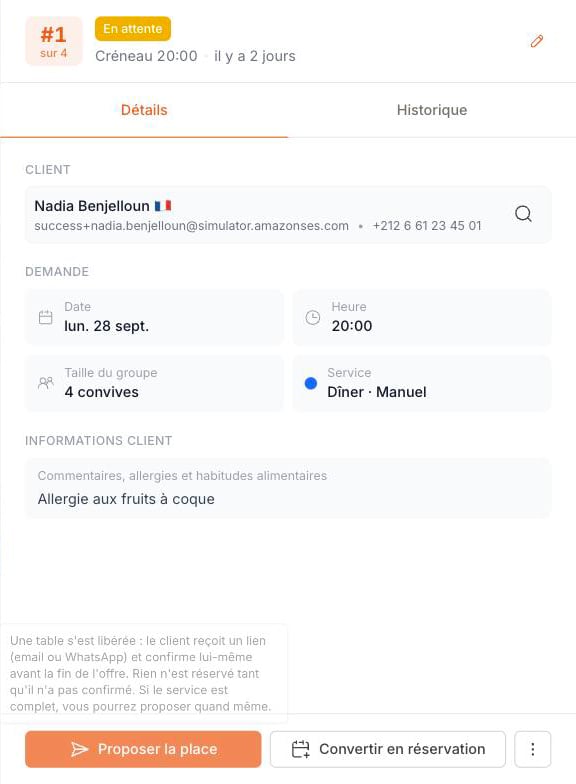
While the guest is in the queue, the drawer also shows the **payment on confirmation**: the service's deposit or card hold and the chosen formulas, with the total. If the confirmation would be refused as it stands (a required formula missing, a formula withdrawn…), the drawer says so.
The same actions live in the entry's detail drawer (click the entry), and as swipe actions on mobile. The drawer puts the guest's place in the queue up front (**#1 of 4** for their slot) and, when you hover **Offer spot** or **Convert to reservation**, explains which one to use.
* **Convert to reservation** — opens the reservation form prefilled with the guest's details. This is the fast path when a table just freed and you simply want them in. The usual capacity check applies (you can force if you know what you're doing).
* **Offer spot** — flips the entry to **Offered** and sends the guest the "a spot just opened up" notification. Use it when you'd rather let the guest confirm themselves. The guest must be reachable by email or WhatsApp. When no table fits the party right now, the dashboard asks whether to **offer anyway** — useful when you know a table is about to free up. If the guest confirms a forced offer, their reservation is added past capacity, like "Add anyway". The offer lasts the shift's priority window, and never beyond the start of the slot.
* **Confirm (on behalf of guest)** — e.g. when the guest confirms by phone: creates the reservation immediately. If the service is full, you are asked whether to force it, exactly like in the reservation form.
* **Remove from waitlist** — takes the guest out of the queue.
* **Reactivate** — puts an expired or cancelled entry back at the end of the queue.
While the guest is in the queue, the drawer also shows the **payment on confirmation**: the service's deposit or card hold and the chosen formulas, with the total. If the confirmation would be refused as it stands (a required formula missing, a formula withdrawn…), the drawer says so.
The same actions live in the entry's detail drawer (click the entry), and as swipe actions on mobile. The drawer puts the guest's place in the queue up front (**#1 of 4** for their slot) and, when you hover **Offer spot** or **Convert to reservation**, explains which one to use.
 ## Adding a guest yourself
A guest calls and the slot is full? Add them from the Waitlist tab with **Add to waitlist**. The form uses the same slot picker as the reservation form — full slots show in red, which is exactly where a waitlist entry makes sense.
## Adding a guest yourself
A guest calls and the slot is full? Add them from the Waitlist tab with **Add to waitlist**. The form uses the same slot picker as the reservation form — full slots show in red, which is exactly where a waitlist entry makes sense.
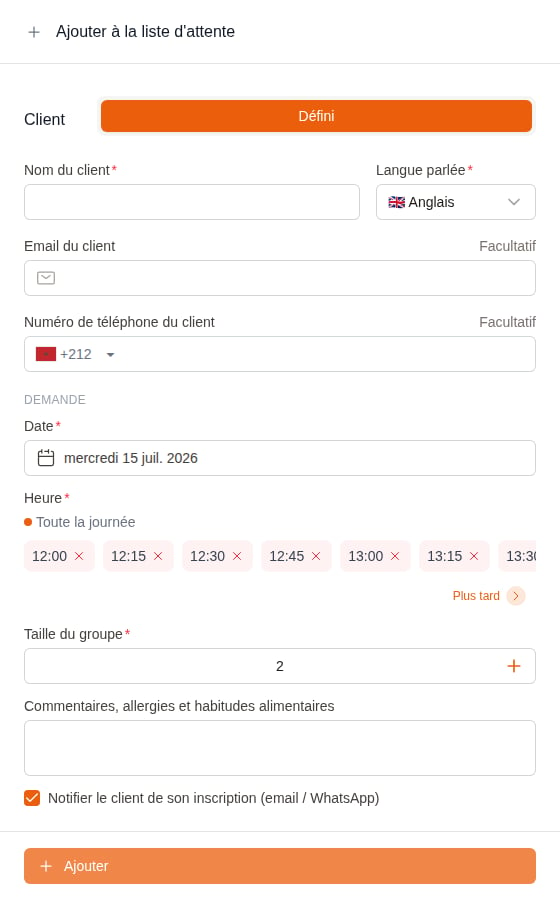 On a service with prepaid formulas, also pick the guest's **formula**, as they would on the portal: it is required when prepayment is mandatory, and must cover the whole party for a per-guest formula. Only the formulas sold online are listed. Nothing is charged at sign-up.
The **Notify the guest** checkbox (on by default) sends them the "you're on the waitlist" message, so they have their personal tracking link. Untick it for silent entries.
## History and audit trail
Every waitlist entry keeps a full audit trail: who created it (your team or the guest through the QR/portal page), every edit, each offered spot (manual or automated), expirations, cancellations, reactivations and the final confirmation or conversion — with the author and timestamp on each event.
Open any entry and switch to the **History** tab to read the timeline. When an entry becomes a reservation, its waitlist history follows: the reservation's own **History** tab shows the pre-conversion events, marked with a *Waitlist* badge, so the whole story stays in one place.
## What happens on a cancellation
When a reservation is cancelled, rejected, deleted, marked as a no-show, moved to another slot or reduced — whatever the channel — on a day that has waiting guests, the release process starts after your configured **notification delay**:
* **Manual** mode: nothing moves — your team offers spots from the dashboard.
* **Notify all**: every waiting guest gets the message; the first to confirm gets the reservation. If nobody confirms in time, they all stay in the queue but are not messaged again for that same spot — they will be at the next release.
* **Notify in order**: guest #1 gets an exclusive window; no answer in time → their turn has passed (they move to **Expired**, and **Reactivate** puts them back at the end of the queue) and guest #2 is notified right away, and so on.
In both automatic modes, only guests whose party fits the freed capacity are offered the spot (a party of 6 is skipped for a table of 2), and a service runs **one automatic offer at a time per day**: the next one starts when the current one is confirmed or lapses. Marking a reservation **Done** also frees its table for the waitlist. An offer never outlives the start of its slot.
Automatic offers start only when a reservation frees capacity. Raising a shift's capacity, removing a block, or adding a guest to the waitlist while tables are still free does not send anything on its own: offer the spot from the dashboard.
## FAQ
**A guest confirmed but the slot filled up in the meantime — what happens?**
Capacity is re-checked at the exact moment the guest confirms, and two guests can never take the same table. If it's gone, the guest is told the spot has just been taken — no reservation is created and nothing is charged. Your team can still confirm them by hand and force it if they want to make room.
**Can I change the order of the queue?**
Queue order follows first come, first served within a slot. Whatever the mode, your team is free to offer, confirm or convert anyone regardless of position — that's the point of it.
**Does the guest see their position in the queue?**
No — on purpose. The guest sees their request is active, not their rank, so your team keeps full flexibility to prioritize (regulars, group size fitting the freed table…) without breaking a promise.
**The guest has no email or phone — can they still join?**
Your team can add anyone by hand. Without contact details, no notification can reach them — offer and confirm on their behalf when they call back.
On a service with prepaid formulas, also pick the guest's **formula**, as they would on the portal: it is required when prepayment is mandatory, and must cover the whole party for a per-guest formula. Only the formulas sold online are listed. Nothing is charged at sign-up.
The **Notify the guest** checkbox (on by default) sends them the "you're on the waitlist" message, so they have their personal tracking link. Untick it for silent entries.
## History and audit trail
Every waitlist entry keeps a full audit trail: who created it (your team or the guest through the QR/portal page), every edit, each offered spot (manual or automated), expirations, cancellations, reactivations and the final confirmation or conversion — with the author and timestamp on each event.
Open any entry and switch to the **History** tab to read the timeline. When an entry becomes a reservation, its waitlist history follows: the reservation's own **History** tab shows the pre-conversion events, marked with a *Waitlist* badge, so the whole story stays in one place.
## What happens on a cancellation
When a reservation is cancelled, rejected, deleted, marked as a no-show, moved to another slot or reduced — whatever the channel — on a day that has waiting guests, the release process starts after your configured **notification delay**:
* **Manual** mode: nothing moves — your team offers spots from the dashboard.
* **Notify all**: every waiting guest gets the message; the first to confirm gets the reservation. If nobody confirms in time, they all stay in the queue but are not messaged again for that same spot — they will be at the next release.
* **Notify in order**: guest #1 gets an exclusive window; no answer in time → their turn has passed (they move to **Expired**, and **Reactivate** puts them back at the end of the queue) and guest #2 is notified right away, and so on.
In both automatic modes, only guests whose party fits the freed capacity are offered the spot (a party of 6 is skipped for a table of 2), and a service runs **one automatic offer at a time per day**: the next one starts when the current one is confirmed or lapses. Marking a reservation **Done** also frees its table for the waitlist. An offer never outlives the start of its slot.
Automatic offers start only when a reservation frees capacity. Raising a shift's capacity, removing a block, or adding a guest to the waitlist while tables are still free does not send anything on its own: offer the spot from the dashboard.
## FAQ
**A guest confirmed but the slot filled up in the meantime — what happens?**
Capacity is re-checked at the exact moment the guest confirms, and two guests can never take the same table. If it's gone, the guest is told the spot has just been taken — no reservation is created and nothing is charged. Your team can still confirm them by hand and force it if they want to make room.
**Can I change the order of the queue?**
Queue order follows first come, first served within a slot. Whatever the mode, your team is free to offer, confirm or convert anyone regardless of position — that's the point of it.
**Does the guest see their position in the queue?**
No — on purpose. The guest sees their request is active, not their rank, so your team keeps full flexibility to prioritize (regulars, group size fitting the freed table…) without breaking a promise.
**The guest has no email or phone — can they still join?**
Your team can add anyone by hand. Without contact details, no notification can reach them — offer and confirm on their behalf when they call back.