> ## Documentation Index
> Fetch the complete documentation index at: https://docs.eat-now.io/llms.txt
> Use this file to discover all available pages before exploring further.
# Shift Visibility
> Configure evening-only or lunch-only online booking using shift visibility settings — without misusing reservation blocks. Learn the difference between Public, Internal, and Inactive shifts.
A common need is to accept **online reservations for dinner only** (or lunch only). This is often confused with "blocking" reservations — but blocks are the wrong tool for a permanent schedule.
The right approach is to control each shift's **visibility**: whether customers can see and book it, or whether it exists for staff only.
**Blocks are temporary, visibility is permanent.** Use [Block Reservations](/shifts/block-reservations) for one-off closures (holidays, private events, emergencies). Use the visibility settings on this page for your ongoing schedule — e.g. "we never take online lunch bookings."
***
## Shift States
Every shift has two independent switches that, together, determine who can book it.
| State | Active shift | Internal-only shift | Who can book |
| --------------------- | ------------ | ------------------- | ----------------------------------------------------------------- |
| **Active + Public** | On | Off | Customers (online) **and** staff. The normal, bookable shift. |
| **Active + Internal** | On | On | Staff only. Customers don't see it and can't book it online. |
| **Inactive** | Off | — | No one. The shift exists but is disabled and accepts no bookings. |
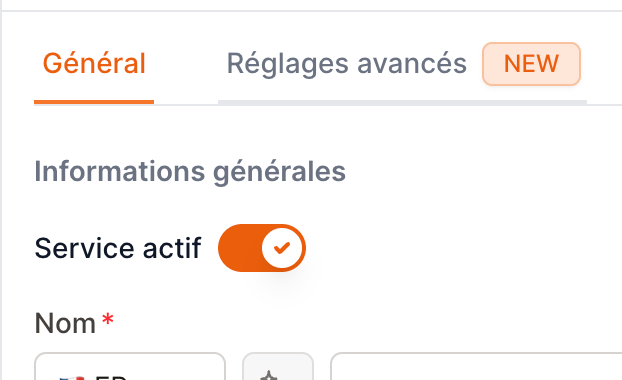
* **Active shift** (`is_active`) — turns the shift on or off entirely. An inactive shift accepts no bookings from anyone.
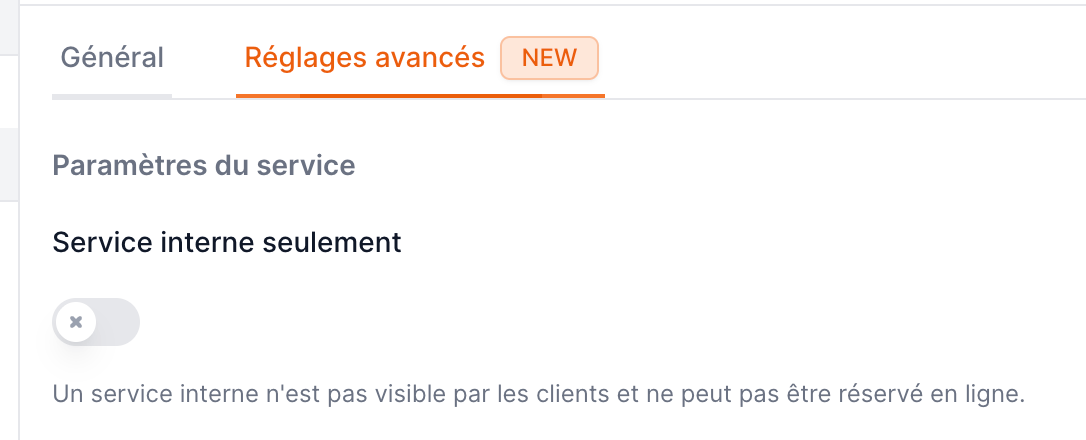
* **Internal-only shift** (`is_internal`) — when on, the shift is hidden from your online booking portal. Staff can still create reservations on it manually; customers never see it.
There's also a third option: simply **don't create the shift at all**. If a time period has no shift, there is nothing to book — no blocking and no internal shift required.
***
## Where to Find These Settings
1. Go to **Settings → Opening days → Shifts**
2. Click an existing shift to edit it, or **+ New shift** to create one
3. **Active shift** is in the **General** tab, under *General information*
4. **Internal-only shift** is in the **Advanced** tab, under *Shift settings*
 ***
## Choosing an Approach
To offer online booking for one service but not another, you have two clean options:
### Option A — Only create the public shift
Create the shift you want customers to book, and **simply don't create** the other one.
* Best when the other service has **no relevance** to your reservation flow — you never seat or track those bookings in EatNow.
* Example: a fine-dining restaurant that only opens for dinner creates a **Dinner** shift and nothing for lunch.
### Option B — Make the other shift internal-only
Create both shifts, but mark the one you don't want online as **Internal-only**.
* Best when staff still need to **record reservations** for that service (phone bookings, walk-ins, internal events) even though customers can't book it online.
* Example: a café serves lunch to walk-ins; staff occasionally log a phone reservation, but the lunch shift never appears on the online portal.
Both options give customers the same experience — they only ever see the public shift online. The difference is purely whether **your staff** can book the hidden service internally.
***
## Step-by-Step: Evening-Only Dinner Service
You want customers to book dinner online, with **no online lunch bookings**.
### If you don't track lunch reservations at all (Option A)
1. Go to **Settings → Opening days → Shifts**
2. Open (or create) your **Dinner** shift
3. In the **General** tab, make sure **Active shift** is **on**
4. In the **Advanced** tab, make sure **Internal-only shift** is **off**
5. Save
6. Do **not** create a Lunch shift
Customers now only see dinner slots online.
### If staff still book lunch by phone (Option B)
1. Go to **Settings → Opening days → Shifts**
2. Open (or create) your **Dinner** shift — **Active: on**, **Internal-only: off**, then Save
3. Open (or create) your **Lunch** shift
4. In the **General** tab, keep **Active shift** **on**
5. In the **Advanced** tab, turn **Internal-only shift** **on**
6. Save
Customers see only dinner online; staff can still log lunch reservations manually.
***
## Step-by-Step: Lunch-Only Service
You want customers to book lunch online, with **no online dinner bookings** (e.g. a lunch-only café).
1. Go to **Settings → Opening days → Shifts**
2. Open (or create) your **Lunch** shift
* **General** tab → **Active shift**: **on**
* **Advanced** tab → **Internal-only shift**: **off**
* Save
3. For dinner, choose one:
* **Don't create a Dinner shift** if you never serve or track dinner reservations, **or**
* Create the **Dinner** shift with **Active: on** and **Internal-only: on** if staff still need to record dinner bookings manually
Customers now only see lunch slots online.
***
## More Use Cases
| Scenario | Configuration |
| ------------------------------------------- | ------------------------------------------------------------------------------------------ |
| **Evening-only fine dining** (no lunch) | Dinner: Active + Public. No Lunch shift (or Lunch: Active + Internal). |
| **Lunch-only café** (closes for dinner) | Lunch: Active + Public. No Dinner shift (or Dinner: Active + Internal). |
| **Bar — table service in the evening only** | Evening: Active + Public. Daytime drinks/lunch: Active + Internal so staff can still book. |
| **Special service on weekends only** | Keep the shift Active + Public, but schedule it only on the relevant days of the week. |
| **Pause a shift for the season** | Set the shift to **Inactive** — it stops taking bookings but keeps its full configuration. |
***
## When to Use Each Approach
| You want to… | Use |
| ------------------------------------------------------------- | ------------------------------------------------ |
| Permanently stop online bookings for a service | **Internal-only** shift (or don't create it) |
| Let staff keep booking a service customers can't see | **Internal-only** shift |
| Temporarily close for a holiday, private event, or emergency | [Block Reservations](/shifts/block-reservations) |
| Disable a shift entirely (no one books it) but keep its setup | **Inactive** shift |
| Remove a service that's no longer relevant | Don't create it (or archive an existing one) |
***
## FAQ
**Should I block lunch every day to stop online lunch bookings?**
No. Blocks are meant for temporary, dated closures. For a permanent "no online lunch" rule, make the Lunch shift **Internal-only** or don't create it.
**If a shift is Internal-only, can my staff still add reservations to it?**
Yes. Internal-only only hides the shift from customers. Staff can create reservations on it as usual.
**What's the difference between Inactive and Internal-only?**
An **Inactive** shift accepts no bookings from anyone — it's switched off. An **Internal-only** shift is still active and bookable, just not visible to customers online.
**Will existing reservations disappear if I make a shift internal-only?**
No. Changing visibility affects only **new online bookings**. Existing reservations are kept.
***
## Choosing an Approach
To offer online booking for one service but not another, you have two clean options:
### Option A — Only create the public shift
Create the shift you want customers to book, and **simply don't create** the other one.
* Best when the other service has **no relevance** to your reservation flow — you never seat or track those bookings in EatNow.
* Example: a fine-dining restaurant that only opens for dinner creates a **Dinner** shift and nothing for lunch.
### Option B — Make the other shift internal-only
Create both shifts, but mark the one you don't want online as **Internal-only**.
* Best when staff still need to **record reservations** for that service (phone bookings, walk-ins, internal events) even though customers can't book it online.
* Example: a café serves lunch to walk-ins; staff occasionally log a phone reservation, but the lunch shift never appears on the online portal.
Both options give customers the same experience — they only ever see the public shift online. The difference is purely whether **your staff** can book the hidden service internally.
***
## Step-by-Step: Evening-Only Dinner Service
You want customers to book dinner online, with **no online lunch bookings**.
### If you don't track lunch reservations at all (Option A)
1. Go to **Settings → Opening days → Shifts**
2. Open (or create) your **Dinner** shift
3. In the **General** tab, make sure **Active shift** is **on**
4. In the **Advanced** tab, make sure **Internal-only shift** is **off**
5. Save
6. Do **not** create a Lunch shift
Customers now only see dinner slots online.
### If staff still book lunch by phone (Option B)
1. Go to **Settings → Opening days → Shifts**
2. Open (or create) your **Dinner** shift — **Active: on**, **Internal-only: off**, then Save
3. Open (or create) your **Lunch** shift
4. In the **General** tab, keep **Active shift** **on**
5. In the **Advanced** tab, turn **Internal-only shift** **on**
6. Save
Customers see only dinner online; staff can still log lunch reservations manually.
***
## Step-by-Step: Lunch-Only Service
You want customers to book lunch online, with **no online dinner bookings** (e.g. a lunch-only café).
1. Go to **Settings → Opening days → Shifts**
2. Open (or create) your **Lunch** shift
* **General** tab → **Active shift**: **on**
* **Advanced** tab → **Internal-only shift**: **off**
* Save
3. For dinner, choose one:
* **Don't create a Dinner shift** if you never serve or track dinner reservations, **or**
* Create the **Dinner** shift with **Active: on** and **Internal-only: on** if staff still need to record dinner bookings manually
Customers now only see lunch slots online.
***
## More Use Cases
| Scenario | Configuration |
| ------------------------------------------- | ------------------------------------------------------------------------------------------ |
| **Evening-only fine dining** (no lunch) | Dinner: Active + Public. No Lunch shift (or Lunch: Active + Internal). |
| **Lunch-only café** (closes for dinner) | Lunch: Active + Public. No Dinner shift (or Dinner: Active + Internal). |
| **Bar — table service in the evening only** | Evening: Active + Public. Daytime drinks/lunch: Active + Internal so staff can still book. |
| **Special service on weekends only** | Keep the shift Active + Public, but schedule it only on the relevant days of the week. |
| **Pause a shift for the season** | Set the shift to **Inactive** — it stops taking bookings but keeps its full configuration. |
***
## When to Use Each Approach
| You want to… | Use |
| ------------------------------------------------------------- | ------------------------------------------------ |
| Permanently stop online bookings for a service | **Internal-only** shift (or don't create it) |
| Let staff keep booking a service customers can't see | **Internal-only** shift |
| Temporarily close for a holiday, private event, or emergency | [Block Reservations](/shifts/block-reservations) |
| Disable a shift entirely (no one books it) but keep its setup | **Inactive** shift |
| Remove a service that's no longer relevant | Don't create it (or archive an existing one) |
***
## FAQ
**Should I block lunch every day to stop online lunch bookings?**
No. Blocks are meant for temporary, dated closures. For a permanent "no online lunch" rule, make the Lunch shift **Internal-only** or don't create it.
**If a shift is Internal-only, can my staff still add reservations to it?**
Yes. Internal-only only hides the shift from customers. Staff can create reservations on it as usual.
**What's the difference between Inactive and Internal-only?**
An **Inactive** shift accepts no bookings from anyone — it's switched off. An **Internal-only** shift is still active and bookable, just not visible to customers online.
**Will existing reservations disappear if I make a shift internal-only?**
No. Changing visibility affects only **new online bookings**. Existing reservations are kept.