> ## Documentation Index
> Fetch the complete documentation index at: https://docs.eat-now.io/llms.txt
> Use this file to discover all available pages before exploring further.
# Schedule & Hours
> Control which days your shift runs and exactly when customers can book online — including separate internal hours for walk-ins.
These settings decide **when your shift exists** and **when customers can book it**. They're the difference between "open every Friday night" and "Valentine's Day only."
Most of these live in the **General** tab. Walk-in hours and strict end are in the **Advanced** tab.
## Recurring or one-off?
The **Shift type** decides whether the shift repeats or happens once.
| Type | When to use | What you set |
| ------------- | ----------------------------------------------------- | ------------------------------------------------- |
| **Recurring** | A regular service that repeats weekly | The **days of the week** it runs |
| **Event** | A one-off occasion (NYE dinner, a special menu night) | A specific **start date** (and optional end date) |
### Recurring shifts
1. Set **Shift type** to **Recurring**
2. Select the **days of the week** the shift runs (e.g. Tuesday–Sunday)
Turn on **Custom date range** to give a recurring shift a **start date** and **end date** — perfect for a seasonal service. Leave the end date empty for an open-ended shift.
### Event shifts
Set **Shift type** to **Event** and pick a **start date** (and an end date for a multi-day event) to run a one-off special service.
Event shifts behave differently from recurring ones: on any date with an event, **all your recurring shifts are hidden** for that date. This trips a lot of people up — read [Event shifts](/shifts/events) before using them.
## Online booking hours
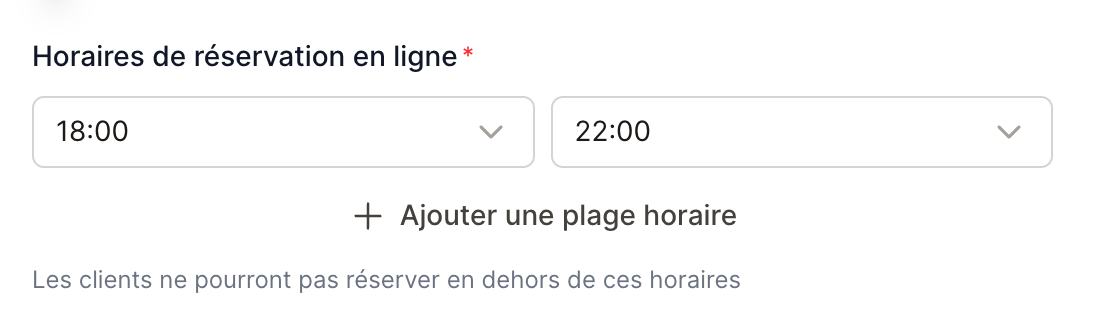
**Online booking hours** are the windows when customers can book online (e.g. **19:00 → 22:00**). Customers cannot book outside these hours.
**One service per shift.** If you serve both lunch and dinner, create **two separate shifts** — one for lunch, one for dinner — rather than one shift with two time windows. Separate shifts let each service have its own group sizes, capacity, deposits, and rules, and they're far easier to manage.
 ### Slot interval
**Interval** is the gap between bookable times. With a 30-minute interval, customers see 19:00, 19:30, 20:00… A 15-minute interval gives finer control; 60 minutes keeps it simple.
## Walk-in hours (different opening hours)
By default, your staff can add reservations across the same hours customers book. If you take **walk-ins outside booking hours**, turn on **Different opening hours** (Advanced tab) to set a wider **opening** and **closing** time for internal use.
Your internal opening hours must **fully cover** all your online booking windows. If a closing time falls after midnight, it shows as **J+1** (next day).
A typical setup: customers book **18:00 → 22:00** online, but staff can seat walk-ins from **17:00 → 23:30**.
## Strict end of service
**Free the tables at a fixed time** lets you offer a shorter meal to guests arriving late in a shift.
Use it to prepare a second seating or meet a closing time, while telling guests how long they have
when they book online.
### Set the table release time
1. Open **Settings → Opening days → Shifts**, then open the relevant shift.
2. In **Advanced**, turn on **Free the tables at a fixed time**.
3. Set **Tables free at** to the time you need the tables back.
4. Set **Minimum stay offered online**, then save.
**Tables free at** is separate from the last bookable arrival and your internal opening hours.
It must be **strictly after the last arrival in every online booking window**. For example, a last
arrival at 20:30 with tables free at 21:00 leaves the guest 30 minutes. The form rejects an arrival
at 21:00 with a release time of 21:00.
The minimum stay must be at least your slot interval: with a 30-minute interval, choose 30 minutes
or more. Above all, choose enough time to serve your menu and let guests enjoy their meal.
The form previews the last arrival: the remaining stay, a hidden slot if that stay is too short,
or no reduction if the usual duration already fits before the release time.
### What online guests see
EatNow starts with the **average duration for the party size**. If the meal would end after the
release time, the stay is shortened to the time remaining. Otherwise, the usual duration is kept.
This setting never extends a meal.
If the **shortened stay** is below your minimum, the slot is not offered online. A stay exactly equal
to the minimum remains eligible, subject to the other availability rules. The portal tells guests
about their shorter stay before they confirm the booking.
This rule applies to portal bookings, the booking API and the WhatsApp agent. It does not create
extra seats: capacities, tables and other shift limits still apply. Availability uses the actual
duration saved for each reservation.
### Example: arrange two seatings
For the first seating, configure:
* **Online arrivals**: 19:00 to 20:30, every 30 minutes.
* **Average duration**: 2 hours for the party sizes in this example.
* **Tables free at**: 21:00.
* **Minimum stay offered online**: 60 minutes.
| Arrival | Stay | Expected end | Offered online, if capacity allows |
| ------- | ----------------- | ------------ | ------------------------------------ |
| 19:00 | 2 hours | 21:00 | Yes, usual duration |
| 19:30 | 1 hour 30 minutes | 21:00 | Yes, shorter stay shown to the guest |
| 20:00 | 1 hour | 21:00 | Yes, meets the minimum |
| 20:30 | 30 minutes | 21:00 | No, below the 60-minute minimum |
Create a **separate second shift** for arrivals from 21:00. If your team needs 15 minutes to reset
the tables, start that shift at 21:15 instead. Two seatings with different release times require
two shifts, each with its own settings.
In this example, the last slot actually offered is 20:00. You can move the end
of the booking window to 20:00 to reflect that choice. Only lower the minimum
if you can genuinely serve a shorter meal.
### The staff choice on web and mobile
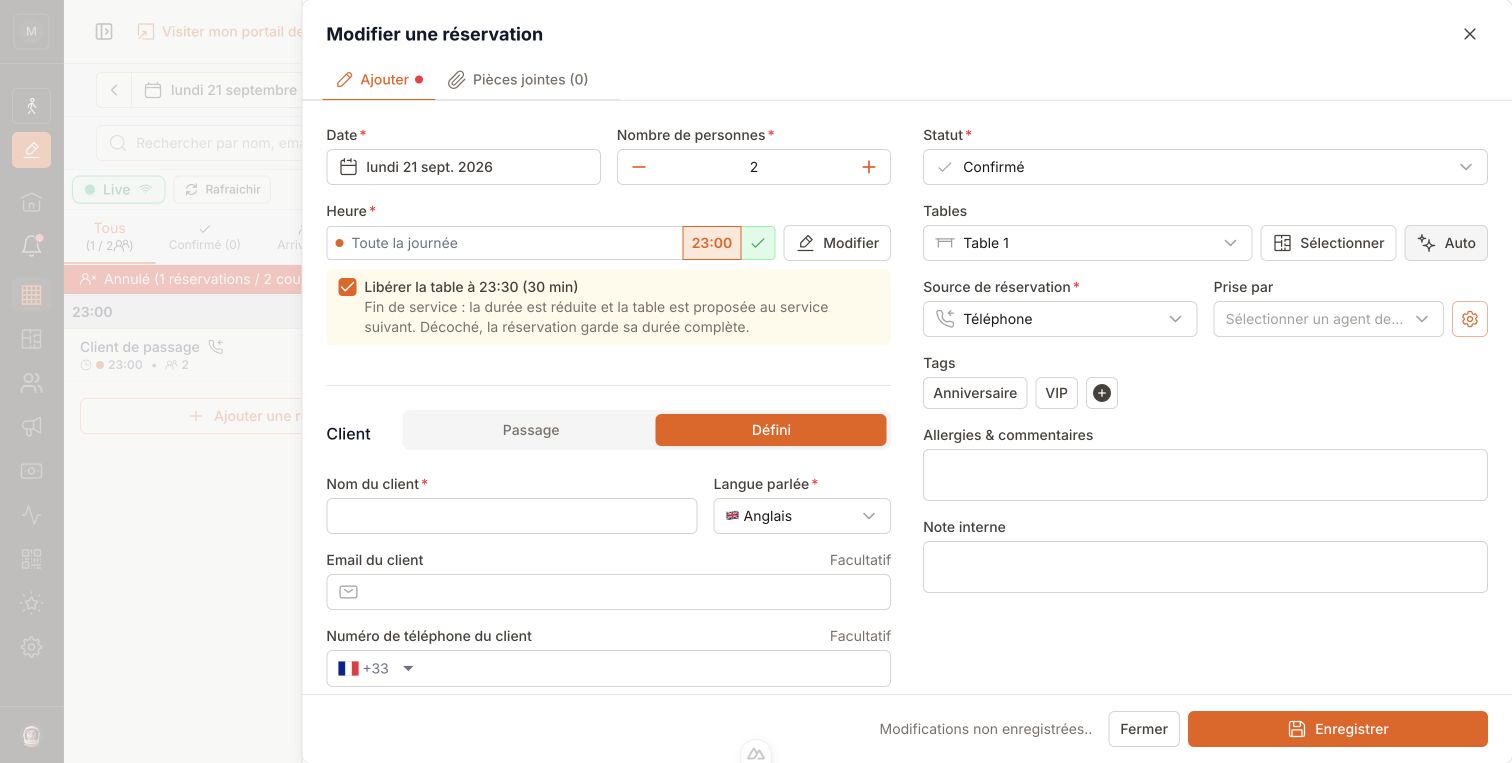
Bookings entered by your team **are not shortened automatically**. After choosing the shift, time
and party size, select **Free the table at…** on the web or **Release the table at…** on mobile
if you agree on a shorter meal with the guest. This choice appears near the time on the web and
in the **When** section of the mobile app.
* **Selected**: the displayed duration is saved; manual table selection and **Auto** use that duration
to find a table.
* **Not selected**: the booking keeps its full duration, even if it ends after the release time.
* The online minimum does not block this staff choice: you can accept a shorter stay when agreed
with the guest.
### Slot interval
**Interval** is the gap between bookable times. With a 30-minute interval, customers see 19:00, 19:30, 20:00… A 15-minute interval gives finer control; 60 minutes keeps it simple.
## Walk-in hours (different opening hours)
By default, your staff can add reservations across the same hours customers book. If you take **walk-ins outside booking hours**, turn on **Different opening hours** (Advanced tab) to set a wider **opening** and **closing** time for internal use.
Your internal opening hours must **fully cover** all your online booking windows. If a closing time falls after midnight, it shows as **J+1** (next day).
A typical setup: customers book **18:00 → 22:00** online, but staff can seat walk-ins from **17:00 → 23:30**.
## Strict end of service
**Free the tables at a fixed time** lets you offer a shorter meal to guests arriving late in a shift.
Use it to prepare a second seating or meet a closing time, while telling guests how long they have
when they book online.
### Set the table release time
1. Open **Settings → Opening days → Shifts**, then open the relevant shift.
2. In **Advanced**, turn on **Free the tables at a fixed time**.
3. Set **Tables free at** to the time you need the tables back.
4. Set **Minimum stay offered online**, then save.
**Tables free at** is separate from the last bookable arrival and your internal opening hours.
It must be **strictly after the last arrival in every online booking window**. For example, a last
arrival at 20:30 with tables free at 21:00 leaves the guest 30 minutes. The form rejects an arrival
at 21:00 with a release time of 21:00.
The minimum stay must be at least your slot interval: with a 30-minute interval, choose 30 minutes
or more. Above all, choose enough time to serve your menu and let guests enjoy their meal.
The form previews the last arrival: the remaining stay, a hidden slot if that stay is too short,
or no reduction if the usual duration already fits before the release time.
### What online guests see
EatNow starts with the **average duration for the party size**. If the meal would end after the
release time, the stay is shortened to the time remaining. Otherwise, the usual duration is kept.
This setting never extends a meal.
If the **shortened stay** is below your minimum, the slot is not offered online. A stay exactly equal
to the minimum remains eligible, subject to the other availability rules. The portal tells guests
about their shorter stay before they confirm the booking.
This rule applies to portal bookings, the booking API and the WhatsApp agent. It does not create
extra seats: capacities, tables and other shift limits still apply. Availability uses the actual
duration saved for each reservation.
### Example: arrange two seatings
For the first seating, configure:
* **Online arrivals**: 19:00 to 20:30, every 30 minutes.
* **Average duration**: 2 hours for the party sizes in this example.
* **Tables free at**: 21:00.
* **Minimum stay offered online**: 60 minutes.
| Arrival | Stay | Expected end | Offered online, if capacity allows |
| ------- | ----------------- | ------------ | ------------------------------------ |
| 19:00 | 2 hours | 21:00 | Yes, usual duration |
| 19:30 | 1 hour 30 minutes | 21:00 | Yes, shorter stay shown to the guest |
| 20:00 | 1 hour | 21:00 | Yes, meets the minimum |
| 20:30 | 30 minutes | 21:00 | No, below the 60-minute minimum |
Create a **separate second shift** for arrivals from 21:00. If your team needs 15 minutes to reset
the tables, start that shift at 21:15 instead. Two seatings with different release times require
two shifts, each with its own settings.
In this example, the last slot actually offered is 20:00. You can move the end
of the booking window to 20:00 to reflect that choice. Only lower the minimum
if you can genuinely serve a shorter meal.
### The staff choice on web and mobile
Bookings entered by your team **are not shortened automatically**. After choosing the shift, time
and party size, select **Free the table at…** on the web or **Release the table at…** on mobile
if you agree on a shorter meal with the guest. This choice appears near the time on the web and
in the **When** section of the mobile app.
* **Selected**: the displayed duration is saved; manual table selection and **Auto** use that duration
to find a table.
* **Not selected**: the booking keeps its full duration, even if it ends after the release time.
* The online minimum does not block this staff choice: you can accept a shorter stay when agreed
with the guest.
 Bookings from your POS or an import are not shortened automatically either.
### Change the settings or an existing booking
A saved shortened stay is preserved if you later change the shift settings, its release time or
turn the option off. These changes do not rewrite the time already agreed with the guest.
Editing only a note, status or date, without changing the time, party size or shift, also keeps
that duration. Changing the **time**, **party size** or **shift** can recalculate it using the new
settings: check the displayed choice before saving and tell the guest if their stay changes.
Staff can clear the choice to restore the full duration.
This option does not automatically mark a reservation as completed. With
[strict seating](/shifts/capacity-and-rooms#strict-seating), an occupied table
remains held until your team completes the reservation. Allow time between
seatings and update statuses when guests leave.
### Compatibility with Reserve with Google
This setting is **unavailable while Reserve with Google (Google E2E) is
active**. Google publishes slots using the average duration and does not
account for this shorter stay. Turning on Reserve with Google **disables this
setting on every shift**. Previously saved shortened stays are preserved.
## FAQ
**Should one shift cover both lunch and dinner?**
No — create **two separate shifts**, one for lunch and one for dinner. Each service then has its own hours, group sizes, capacity, and payment rules, and your planning stays clear.
**My shift runs past midnight — is that supported?**
Yes. Set the closing time after midnight and it's shown as **J+1**. The system handles the date rollover for you — up to **05:00**, which is where the service day ends. A shift cannot run past 05:00, and times up to 05:00 always count as the *end* of the day: a window like "00:45 (J+1) → 23:00" is backwards and the form rejects it.
**Will changing the days or hours affect existing bookings?**
No. Schedule changes only affect **new** availability. Existing reservations are kept.
Bookings from your POS or an import are not shortened automatically either.
### Change the settings or an existing booking
A saved shortened stay is preserved if you later change the shift settings, its release time or
turn the option off. These changes do not rewrite the time already agreed with the guest.
Editing only a note, status or date, without changing the time, party size or shift, also keeps
that duration. Changing the **time**, **party size** or **shift** can recalculate it using the new
settings: check the displayed choice before saving and tell the guest if their stay changes.
Staff can clear the choice to restore the full duration.
This option does not automatically mark a reservation as completed. With
[strict seating](/shifts/capacity-and-rooms#strict-seating), an occupied table
remains held until your team completes the reservation. Allow time between
seatings and update statuses when guests leave.
### Compatibility with Reserve with Google
This setting is **unavailable while Reserve with Google (Google E2E) is
active**. Google publishes slots using the average duration and does not
account for this shorter stay. Turning on Reserve with Google **disables this
setting on every shift**. Previously saved shortened stays are preserved.
## FAQ
**Should one shift cover both lunch and dinner?**
No — create **two separate shifts**, one for lunch and one for dinner. Each service then has its own hours, group sizes, capacity, and payment rules, and your planning stays clear.
**My shift runs past midnight — is that supported?**
Yes. Set the closing time after midnight and it's shown as **J+1**. The system handles the date rollover for you — up to **05:00**, which is where the service day ends. A shift cannot run past 05:00, and times up to 05:00 always count as the *end* of the day: a window like "00:45 (J+1) → 23:00" is backwards and the form rejects it.
**Will changing the days or hours affect existing bookings?**
No. Schedule changes only affect **new** availability. Existing reservations are kept.