> ## Documentation Index
> Fetch the complete documentation index at: https://docs.eat-now.io/llms.txt
> Use this file to discover all available pages before exploring further.
# Reviews
> Turn every satisfied guest into a public review — and every disappointed one into a private conversation. EatNow asks for the review, filters it, centralises it, and helps you reply.
Your online rating is the first thing a future customer sees. The **Reviews** feature is built to move that rating up, automatically, without you having to ask anyone anything face to face.
It does three things:
After each visit, EatNow sends your guest a message (email and/or WhatsApp) asking them to rate their experience.
Only guests who give **5 stars** are sent to Google or TripAdvisor. Everyone else lands on a private form only you can see.
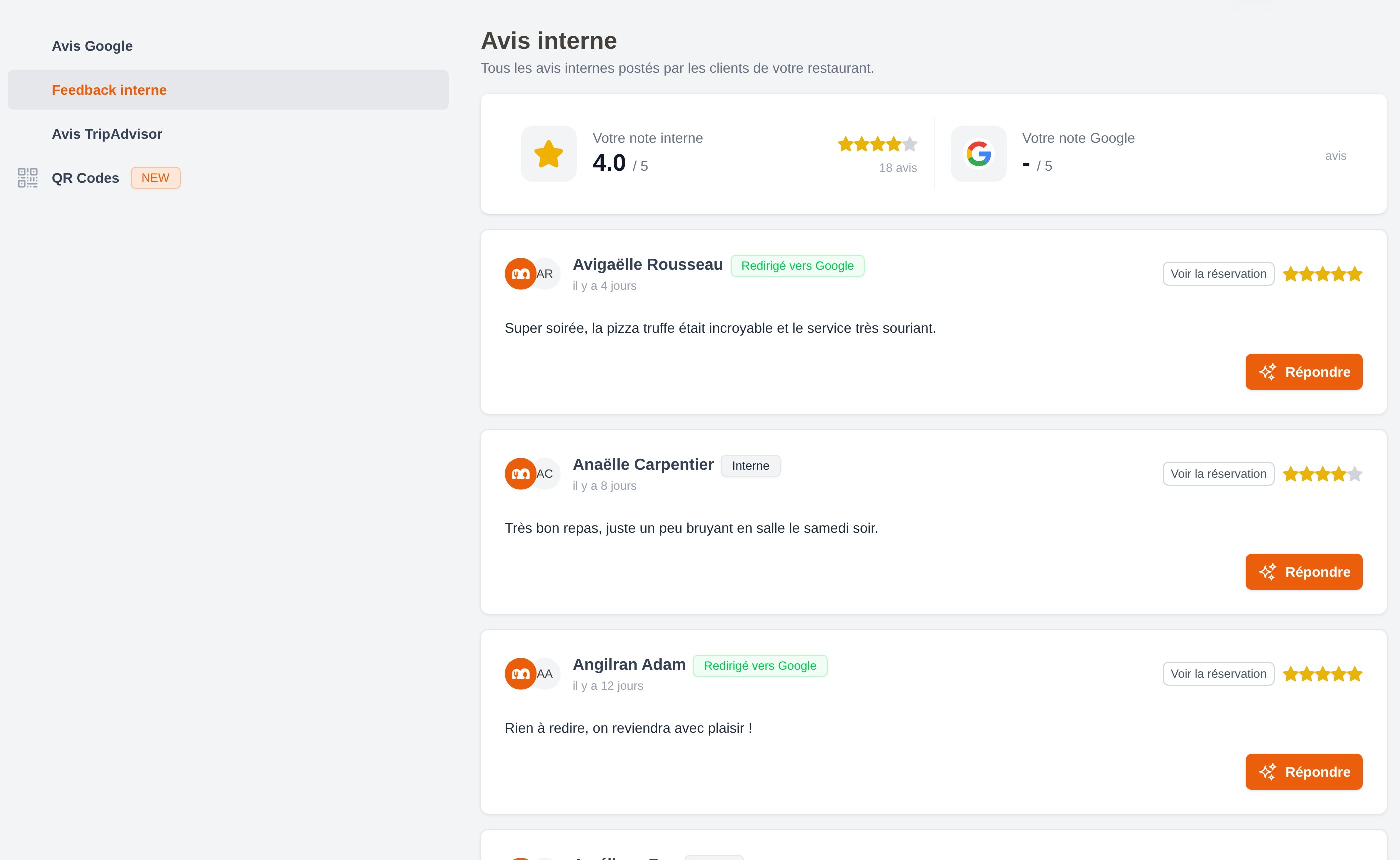
Google reviews, TripAdvisor reviews and private feedback all sit in one page — with an AI assistant to write your replies.
## The full journey, step by step
The reservation is marked as arrived or finished in EatNow (seated, showed up, done…).
After the delay you choose (24 hours by default), your guest receives a short message with five clickable stars.
They tap a star on their phone. That single tap decides what happens next.
The guest is sent straight to your Google (or TripAdvisor) page to post their review publicly.
The guest is invited to explain what went wrong. The comment stays inside EatNow, and you're notified.
From **Reviews**, you answer your Google reviews and your private feedback — with AI-generated drafts you can edit.
Nothing is ever posted publicly on your behalf. A public review is always written by the guest, on the platform, from their own account.
## Where everything lives
| What you want to do | Where to go |
| ---------------------------------------- | ----------------------------------------------------- |
| Set up the review request and the filter | **Settings > Notifications > General**, **Guest** tab |
| Connect Google or TripAdvisor | **Settings > Integrations > Integrations list** |
| Read and reply to reviews | **Reviews** (left sidebar) |
| Print QR codes for your tables | **Reviews > QR Codes** |
| Track your results | **Dashboard > E-Reputation** tab |
 ## Three ways to collect a review
Sent automatically after the visit to guests who have an email address.
Sent automatically to guests who have a phone number, if your WhatsApp integration is active.
Printed on your tables or at the counter, for walk-ins and guests without a reservation.
## What you need to get started
Nothing at all. **Internal reviews** are enabled by default — you only need to switch on the follow-up message.
A **Google My Business** integration connected in **Settings > Integrations > Integrations list**, with your restaurant listing selected.
A **TripAdvisor** integration connected in **Settings > Integrations > Integrations list**.
An active **WhatsApp** integration and a WhatsApp template of the **Follow-up** type approved by Meta. See [WhatsApp templates](/whatsapp/templates).
## Who can do what
Access to reviews is controlled by two permissions, set per collaborator role in **Settings > Collaborators**:
| Permission | What it allows |
| -------------- | ----------------------------------------------------------------- |
| `review:read` | See the **Reviews** page and everything in it |
| `review:reply` | Reply to a review or a private feedback, and use the AI generator |
If a collaborator doesn't see **Reviews** in the left sidebar, their role is missing `review:read`. See [Roles and permissions](/collaborators/permissions).
## Next steps
Choose when the message goes out and on which channels.
Exactly how EatNow keeps bad reviews off Google.
Use the AI assistant to answer in seconds.
Reviews generated, negative reviews intercepted, conversion rate.
## Three ways to collect a review
Sent automatically after the visit to guests who have an email address.
Sent automatically to guests who have a phone number, if your WhatsApp integration is active.
Printed on your tables or at the counter, for walk-ins and guests without a reservation.
## What you need to get started
Nothing at all. **Internal reviews** are enabled by default — you only need to switch on the follow-up message.
A **Google My Business** integration connected in **Settings > Integrations > Integrations list**, with your restaurant listing selected.
A **TripAdvisor** integration connected in **Settings > Integrations > Integrations list**.
An active **WhatsApp** integration and a WhatsApp template of the **Follow-up** type approved by Meta. See [WhatsApp templates](/whatsapp/templates).
## Who can do what
Access to reviews is controlled by two permissions, set per collaborator role in **Settings > Collaborators**:
| Permission | What it allows |
| -------------- | ----------------------------------------------------------------- |
| `review:read` | See the **Reviews** page and everything in it |
| `review:reply` | Reply to a review or a private feedback, and use the AI generator |
If a collaborator doesn't see **Reviews** in the left sidebar, their role is missing `review:read`. See [Roles and permissions](/collaborators/permissions).
## Next steps
Choose when the message goes out and on which channels.
Exactly how EatNow keeps bad reviews off Google.
Use the AI assistant to answer in seconds.
Reviews generated, negative reviews intercepted, conversion rate.