> ## Documentation Index
> Fetch the complete documentation index at: https://docs.eat-now.io/llms.txt
> Use this file to discover all available pages before exploring further.
# Managing and replying
> All your reviews in one page — Google, private feedback and TripAdvisor — with an AI assistant that writes your replies for you.
Everything lands in **Reviews** in the left sidebar. The page has four tabs.
| Tab | What's in it | Can you reply? |
| ----------------------- | -------------------------------------------- | -------------------------------- |
| **Google reviews** | Your public Google reviews, live from Google | Yes — published on Google |
| **Internal feedback** | Private ratings collected by EatNow | Yes — sent to the guest by email |
| **TripAdvisor reviews** | Your public TripAdvisor reviews | No — read-only |
| **QR Codes** | Your printable review QR codes | — |
## Google reviews
This tab reads your reviews directly from your Google Business listing, and your replies are published back to Google.
If the tab shows **"No integration"**, connect **Google My Business** in **Settings > Integrations > Integrations list**.
 Use the filter at the top right: **All reviews**, **Unanswered**, or **Answered**. Each review carries a green **Answered** or red **Unanswered** badge.
Click **Generate**. The AI writes a reply in the guest's own language, based on their rating and their comment.
Not happy with it? Use **Regenerate**, or open the dropdown next to it for **Shorter** / **Longer**. You can also edit the text by hand — it's a normal text box.
Click **Reply**. The answer is posted on Google under the review, in your restaurant's name.
Reviews written in another language show a **See translation** link, so you know what you're replying to.
### What the AI writes
The assistant is briefed to write like a community manager for your restaurant: courteous, humble, around 50 words, always in the customer's language, never signed, never repeating the guest's words back at them, and never mentioning the platform. For a negative review, it addresses the specific problem raised.
The AI produces a **draft**. Nothing is posted until you click the reply button. Read it before sending — especially on a negative review, where a specific gesture from you is worth more than any generated sentence.
## Internal feedback
This tab lists the private ratings collected through the follow-up and the QR codes — the ones that never went public.
Use the filter at the top right: **All reviews**, **Unanswered**, or **Answered**. Each review carries a green **Answered** or red **Unanswered** badge.
Click **Generate**. The AI writes a reply in the guest's own language, based on their rating and their comment.
Not happy with it? Use **Regenerate**, or open the dropdown next to it for **Shorter** / **Longer**. You can also edit the text by hand — it's a normal text box.
Click **Reply**. The answer is posted on Google under the review, in your restaurant's name.
Reviews written in another language show a **See translation** link, so you know what you're replying to.
### What the AI writes
The assistant is briefed to write like a community manager for your restaurant: courteous, humble, around 50 words, always in the customer's language, never signed, never repeating the guest's words back at them, and never mentioning the platform. For a negative review, it addresses the specific problem raised.
The AI produces a **draft**. Nothing is posted until you click the reply button. Read it before sending — especially on a negative review, where a specific gesture from you is worth more than any generated sentence.
## Internal feedback
This tab lists the private ratings collected through the follow-up and the QR codes — the ones that never went public.
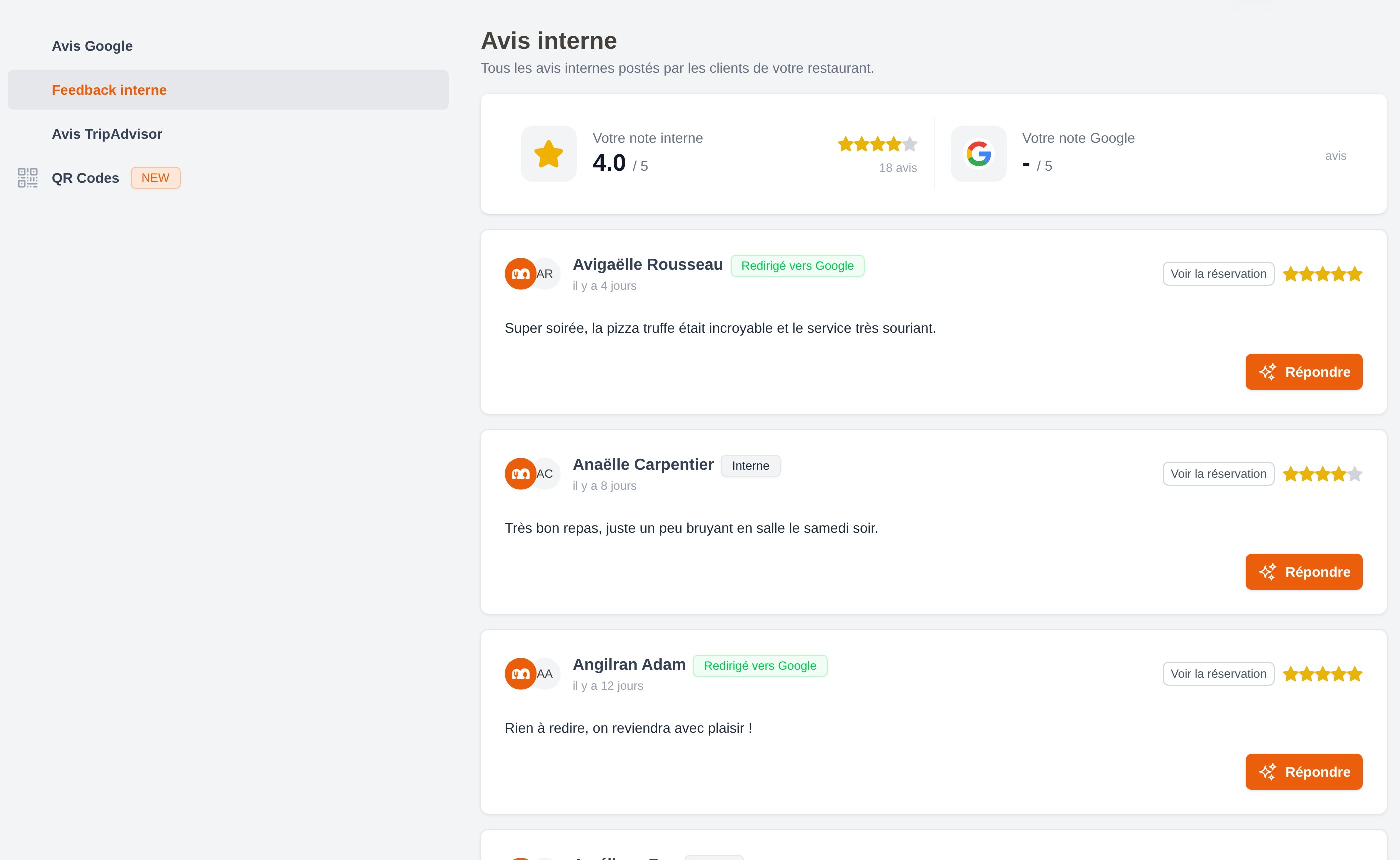 At the top, a recap gives your **internal rating** — the average of everything collected — next to your public Google rating.
Each card carries a badge:
* **Internal** — the guest rated 4 stars or less, the comment is yours alone.
* **Redirected to Google** — the guest gave 5 stars and was sent to the platform.
Click **See reservation** to open the booking behind the review, or the guest's name to open their customer file.
### Reply to private feedback
On any feedback card that isn't answered yet.
The modal shows the rating and the guest's comment. Click **Generate** for an AI draft, then edit it freely — the editor supports bold, lists and links.
At the top, a recap gives your **internal rating** — the average of everything collected — next to your public Google rating.
Each card carries a badge:
* **Internal** — the guest rated 4 stars or less, the comment is yours alone.
* **Redirected to Google** — the guest gave 5 stars and was sent to the platform.
Click **See reservation** to open the booking behind the review, or the guest's name to open their customer file.
### Reply to private feedback
On any feedback card that isn't answered yet.
The modal shows the rating and the guest's comment. Click **Generate** for an AI draft, then edit it freely — the editor supports bold, lists and links.
 Click **Send answer**. Your reply is **emailed directly to the guest**, and the feedback is marked as answered.
Replying to private feedback sends a real email to your guest. It only works when the review is linked to a reservation with a guest who has an email address — the **Reply** button is hidden otherwise.
A negative rating answered within 24 hours often turns a lost guest into a returning one. This is the single highest-value thing you can do in this page.
## TripAdvisor reviews
This tab shows your TripAdvisor reviews once the integration is connected in **Settings > Integrations > Integrations list**.
TripAdvisor does not allow replying to reviews from an outside tool. You can read your reviews here, but you must reply from your TripAdvisor Management Centre.
Unlike Google, which is read live, TripAdvisor reviews are synced **once a week (Monday morning)**. A review posted on Tuesday will therefore appear in EatNow the following Monday.
## Permissions
* Seeing the **Reviews** page requires `review:read`.
* The **Reply** and **Generate** buttons require `review:reply`. Without it they appear greyed out.
Both are configured per role in **Settings > Collaborators**. See [Roles and permissions](/collaborators/permissions).
Click **Send answer**. Your reply is **emailed directly to the guest**, and the feedback is marked as answered.
Replying to private feedback sends a real email to your guest. It only works when the review is linked to a reservation with a guest who has an email address — the **Reply** button is hidden otherwise.
A negative rating answered within 24 hours often turns a lost guest into a returning one. This is the single highest-value thing you can do in this page.
## TripAdvisor reviews
This tab shows your TripAdvisor reviews once the integration is connected in **Settings > Integrations > Integrations list**.
TripAdvisor does not allow replying to reviews from an outside tool. You can read your reviews here, but you must reply from your TripAdvisor Management Centre.
Unlike Google, which is read live, TripAdvisor reviews are synced **once a week (Monday morning)**. A review posted on Tuesday will therefore appear in EatNow the following Monday.
## Permissions
* Seeing the **Reviews** page requires `review:read`.
* The **Reply** and **Generate** buttons require `review:reply`. Without it they appear greyed out.
Both are configured per role in **Settings > Collaborators**. See [Roles and permissions](/collaborators/permissions).