> ## Documentation Index
> Fetch the complete documentation index at: https://docs.eat-now.io/llms.txt
> Use this file to discover all available pages before exploring further.
# Prescribers (concierges & agencies)
> Create prescribers, share a unique booking link, tag reservations manually, and track how many covers each concierge or agency brings you.
A **prescriber** is a partner who sends you customers — a hotel concierge, a travel agency, a tour guide, a local business. EatNow lets you keep a list of these partners, attribute reservations to them (automatically or by hand), and **measure how many bookings and covers each one brings you**.
There are two ways to attribute a reservation to a prescriber:
* **A unique booking link** — the prescriber books for the customer themselves, and the reservation is tagged automatically.
* **Manual association** — you set the reservation's source to *Prescriber / Agency* and pick the prescriber yourself (handy for phone bookings or walk-ins).
***
## Create a prescriber
Go to **Settings → Prescribers**.
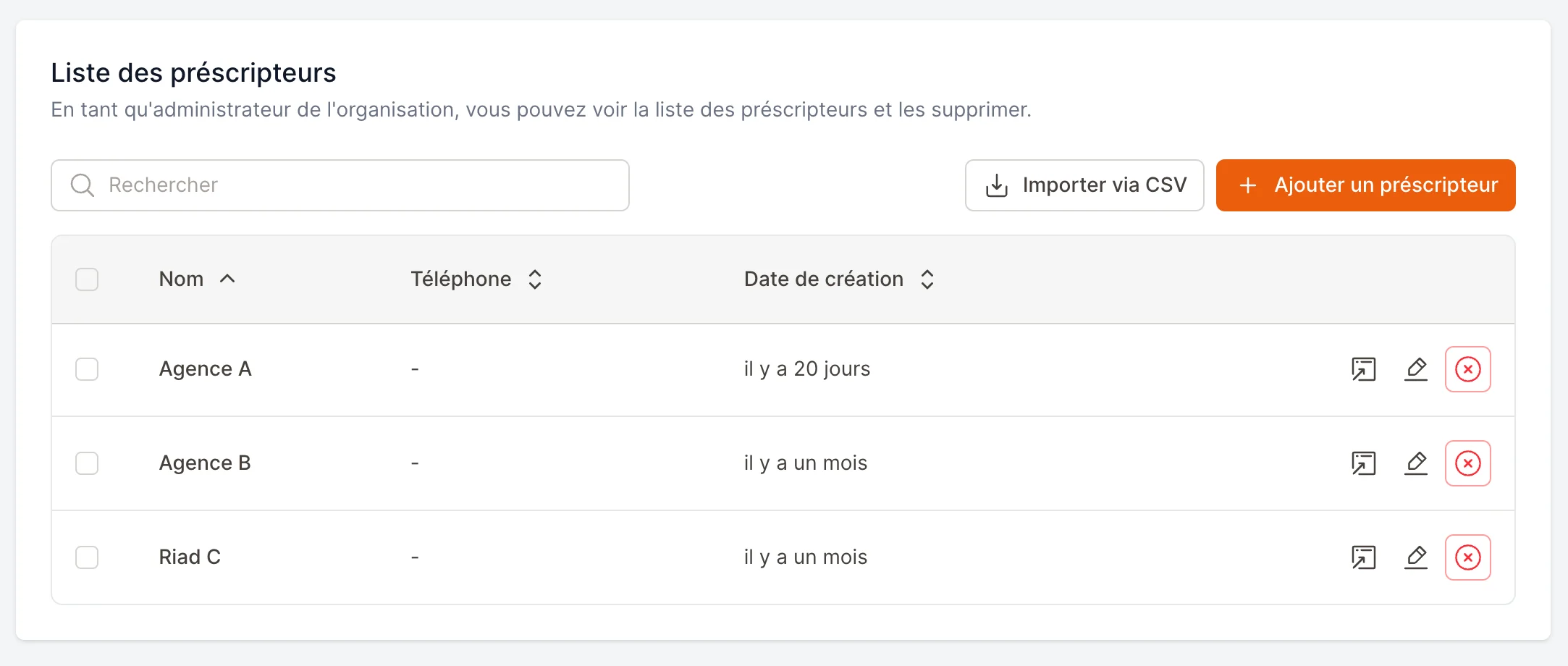 Fill in the form:
* **Prescriber name** *(required)* — e.g. a travel agency or guide.
* **Phone number** *(optional)* — to reach the partner.
* **Has discounts** *(optional)* — when enabled, the prescriber can see the promotions available on the relevant time slots.
* **Groups** *(optional)* — to reserve an offer for several partners at once (see below).
* **Sees public products** *(on by default)* — turn it off if the offer you reserve for this partner should **replace** your public catalog rather than add to it.
Save, and the prescriber appears in your list.
You can also **import prescribers in bulk from a CSV file**, **merge** duplicates, and **search** the list by name or phone number — all from the same page.
### Archiving a prescriber
When a partnership ends, **archive** the prescriber: they disappear from lists and pickers, and their link stops unlocking the offers reserved for them — it becomes an ordinary public link again, and bookings made through it are no longer attributed to them.
Everything they did is kept: their reservations, activities and retro-commission history stay intact. They even keep appearing in the report as long as the displayed period contains one of their bookings, so you can settle what you still owe them after the partnership ended. A **Restore** button brings them back at any time.
The **Show archived** switch above the table lists archived prescribers.
Prescribers cannot be deleted for good, and that is deliberate: a delete would detach the prescriber from every past reservation, and the revenue they brought you would vanish from your reports.
**Groups** are archived the same way. An archived group grants nothing, but the offers that targeted it keep their configuration: restore the group and the deal picks up exactly where it left off.
***
## Method 1 — A unique booking link
Each prescriber has their **own booking link**. Reservations made through it are **automatically associated** with that prescriber — no manual step required.
In the prescribers list, each row has a **link icon**. Click it and choose **Copy reservation link for this prescriber**.
If you also use **Activities**, the same menu offers **Copy activity link for this prescriber** for a dedicated activity-booking link.
You'll also find this link inside the prescriber's edit form, under **Special reservation link**, with a copy button next to it.
Share the link with your partner (by message, email, etc.). It opens your normal **online booking form** for them.
Every reservation the concierge makes through that link is **automatically tagged** to their prescriber profile. Nothing else to do on your side.
***
## Method 2 — Manual association
Use this for reservations that don't come through the link — a phone call, a walk-in, or a booking you're editing after the fact.
In the reservation form (new booking or editing an existing one), find the **Booking source** field.
Choose **Prescriber / Agency** in the **Booking source** list. A new field appears underneath.
Fill in the form:
* **Prescriber name** *(required)* — e.g. a travel agency or guide.
* **Phone number** *(optional)* — to reach the partner.
* **Has discounts** *(optional)* — when enabled, the prescriber can see the promotions available on the relevant time slots.
* **Groups** *(optional)* — to reserve an offer for several partners at once (see below).
* **Sees public products** *(on by default)* — turn it off if the offer you reserve for this partner should **replace** your public catalog rather than add to it.
Save, and the prescriber appears in your list.
You can also **import prescribers in bulk from a CSV file**, **merge** duplicates, and **search** the list by name or phone number — all from the same page.
### Archiving a prescriber
When a partnership ends, **archive** the prescriber: they disappear from lists and pickers, and their link stops unlocking the offers reserved for them — it becomes an ordinary public link again, and bookings made through it are no longer attributed to them.
Everything they did is kept: their reservations, activities and retro-commission history stay intact. They even keep appearing in the report as long as the displayed period contains one of their bookings, so you can settle what you still owe them after the partnership ended. A **Restore** button brings them back at any time.
The **Show archived** switch above the table lists archived prescribers.
Prescribers cannot be deleted for good, and that is deliberate: a delete would detach the prescriber from every past reservation, and the revenue they brought you would vanish from your reports.
**Groups** are archived the same way. An archived group grants nothing, but the offers that targeted it keep their configuration: restore the group and the deal picks up exactly where it left off.
***
## Method 1 — A unique booking link
Each prescriber has their **own booking link**. Reservations made through it are **automatically associated** with that prescriber — no manual step required.
In the prescribers list, each row has a **link icon**. Click it and choose **Copy reservation link for this prescriber**.
If you also use **Activities**, the same menu offers **Copy activity link for this prescriber** for a dedicated activity-booking link.
You'll also find this link inside the prescriber's edit form, under **Special reservation link**, with a copy button next to it.
Share the link with your partner (by message, email, etc.). It opens your normal **online booking form** for them.
Every reservation the concierge makes through that link is **automatically tagged** to their prescriber profile. Nothing else to do on your side.
***
## Method 2 — Manual association
Use this for reservations that don't come through the link — a phone call, a walk-in, or a booking you're editing after the fact.
In the reservation form (new booking or editing an existing one), find the **Booking source** field.
Choose **Prescriber / Agency** in the **Booking source** list. A new field appears underneath.
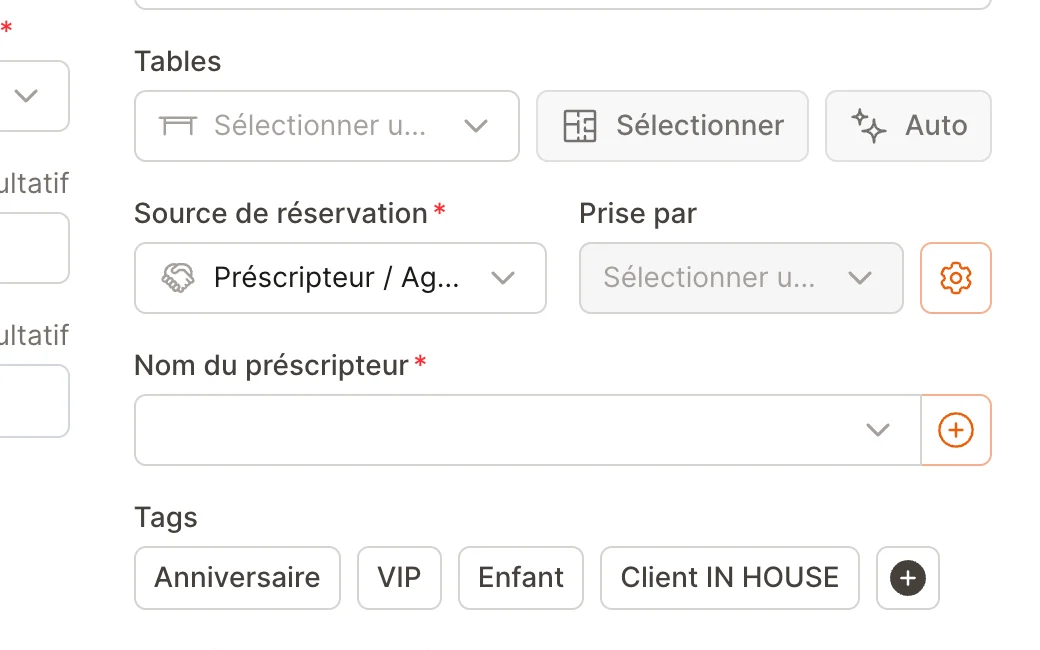 In the **Prescriber name** field, search for and select the right prescriber. Don't see them yet? Use the **+** button to create one on the spot, without leaving the form.
Save the reservation — it's now attributed to that prescriber.
The **Prescriber name** field only shows up once the source is **Prescriber / Agency**, and it's required for that source — a prescriber reservation must point to a prescriber.
***
## Reserve an offer for a prescriber
You often negotiate an **offer specific to a partner** — a menu at an agreed rate, a package no other customer should see. EatNow lets you reserve a prepaid product for a prescriber or a group of prescribers: the product stays entirely invisible on the public portal and only shows up for the targeted partners, through their booking link.
Nothing special here: create your prepaid product (and its variants) in your catalog, then add it to the relevant service.
In the service, click the product's edit icon. The **Visibility** field offers three choices:
* **Public** — the product is visible to every customer (the default).
* **Internal only** — the product is never visible to customers; your team can still sell it from the back office.
* **Prescribers only** — the product only appears for the targeted prescribers.
Once “Prescribers only” is selected, set the target:
* **No selection** — the offer is available to **every** prescriber of yours.
* **One or more groups** — handy when several partners share the same deal.
* **Named prescribers** — to target a few partners specifically.
Groups and named prescribers add up.
### Create prescriber groups
From **Settings → Prescribers**, the **Groups** button lets you create groups and put your prescribers in them. A prescriber can belong to several groups. Groups save you from re-selecting twenty agencies for every new offer.
### Replace the public catalog instead of extending it
By default a prescriber sees **both the public products *and* the offers reserved for them**. If your deal says the partner should sell **only** your dedicated offer, turn off **Sees public products** on their record: they will then only see the products reserved for them, extras included.
If you turn this option off without having reserved any product for that prescriber on a given service, the partner will see a message saying no offer is available and will not be able to book on that service. This is deliberate: a visible error beats a silently impossible booking.
Reserved offers are never reachable other than through the relevant prescriber's link: they appear neither on the public portal nor in the partner API, and the WhatsApp AI agent never offers them. Your team can still sell them from the back office.
***
## Track your prescribers
See, for any period, how many reservations and covers each prescriber has brought you.
Go to **Customers** and open the **By prescriber** tab.
In the **Prescriber name** field, search for and select the right prescriber. Don't see them yet? Use the **+** button to create one on the spot, without leaving the form.
Save the reservation — it's now attributed to that prescriber.
The **Prescriber name** field only shows up once the source is **Prescriber / Agency**, and it's required for that source — a prescriber reservation must point to a prescriber.
***
## Reserve an offer for a prescriber
You often negotiate an **offer specific to a partner** — a menu at an agreed rate, a package no other customer should see. EatNow lets you reserve a prepaid product for a prescriber or a group of prescribers: the product stays entirely invisible on the public portal and only shows up for the targeted partners, through their booking link.
Nothing special here: create your prepaid product (and its variants) in your catalog, then add it to the relevant service.
In the service, click the product's edit icon. The **Visibility** field offers three choices:
* **Public** — the product is visible to every customer (the default).
* **Internal only** — the product is never visible to customers; your team can still sell it from the back office.
* **Prescribers only** — the product only appears for the targeted prescribers.
Once “Prescribers only” is selected, set the target:
* **No selection** — the offer is available to **every** prescriber of yours.
* **One or more groups** — handy when several partners share the same deal.
* **Named prescribers** — to target a few partners specifically.
Groups and named prescribers add up.
### Create prescriber groups
From **Settings → Prescribers**, the **Groups** button lets you create groups and put your prescribers in them. A prescriber can belong to several groups. Groups save you from re-selecting twenty agencies for every new offer.
### Replace the public catalog instead of extending it
By default a prescriber sees **both the public products *and* the offers reserved for them**. If your deal says the partner should sell **only** your dedicated offer, turn off **Sees public products** on their record: they will then only see the products reserved for them, extras included.
If you turn this option off without having reserved any product for that prescriber on a given service, the partner will see a message saying no offer is available and will not be able to book on that service. This is deliberate: a visible error beats a silently impossible booking.
Reserved offers are never reachable other than through the relevant prescriber's link: they appear neither on the public portal nor in the partner API, and the WhatsApp AI agent never offers them. Your team can still sell them from the back office.
***
## Track your prescribers
See, for any period, how many reservations and covers each prescriber has brought you.
Go to **Customers** and open the **By prescriber** tab.
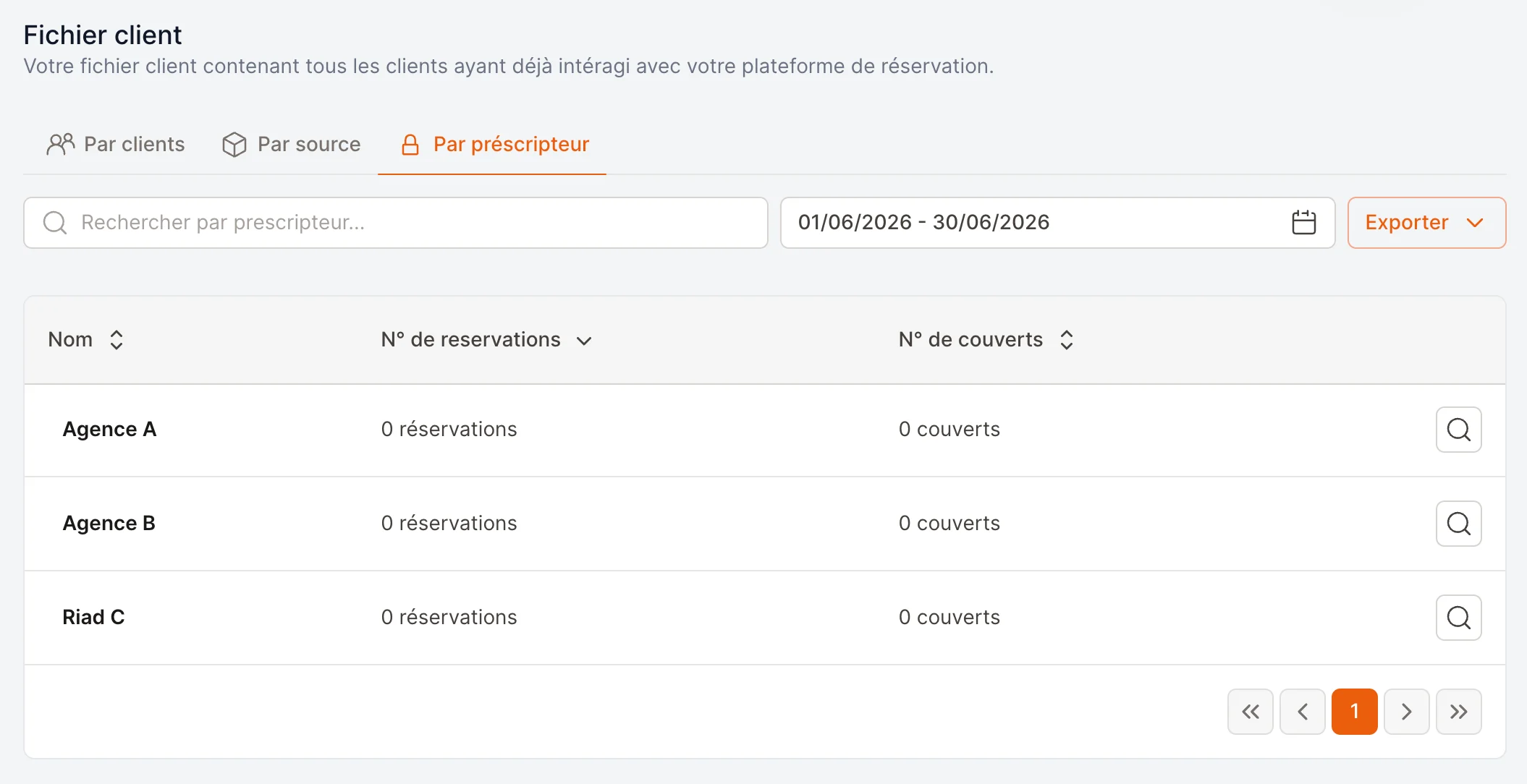 Pick a **date range** (it defaults to the current month). You can also **search** by prescriber name.
The table shows, per prescriber:
* **N° of bookings** — how many reservations they brought, plus activities if there are any.
* **N° of guests** — the total covers, reservations and activities combined.
* **Value sold** — the value of the products sold in the period, with the share already collected online.
Click a prescriber's **search icon** to open their record, with two tabs: their booking **history** and their **retro-commission** breakdown.
### Working out a retro-commission
A prescriber's **Retro-commission** tab gives the period's basis, product by product: quantity sold, value sold, amount collected online, amount pending and refunds. Offers reserved for them carry a **Reserved offer** badge, so you can see at a glance what the negotiated deal brought in.
EatNow does not compute the commission itself: every agreement has its own percentage, so the tool provides the amounts and you apply your rate.
A few things to know when reconciling the figures:
* **Value sold** is the full price of the products, even when only a share was collected online (a 30% deposit, the rest at the table).
* A product settled **on site** counts towards value sold, but not towards the amount collected online.
* Booking **deposits** are shown separately: they are no-show guarantees, not sales.
* **Refunds** are excluded from the basis and shown on their own.
* Amounts are grouped **per currency**, with no conversion.
* A sale is attributed to the **service date**, not the payment date.
The **See totals per prescriber group** button above the table gives the same amounts rolled up per group. A prescriber belonging to several groups counts in each of them, so group totals do not add up.
Need the data outside EatNow? Use **Export** to download the list, a prescriber's history, or the product breakdown as **CSV** or **XLS**. That last file is usually the one you send to the partner.
***
## Frequently asked
Yes. The unique link points to an existing prescriber profile, so create the prescriber first, then copy and share their link.
Yes. Edit the reservation, keep the source on **Prescriber / Agency**, and pick a different prescriber in the **Prescriber name** field.
When enabled, the prescriber can see the promotions available on the relevant time slots when booking through their link.
Attributing reservations to prescribers and managing the prescribers list are governed by permissions. Ask an administrator to grant the matching prescriber permissions to that collaborator's role.
Pick a **date range** (it defaults to the current month). You can also **search** by prescriber name.
The table shows, per prescriber:
* **N° of bookings** — how many reservations they brought, plus activities if there are any.
* **N° of guests** — the total covers, reservations and activities combined.
* **Value sold** — the value of the products sold in the period, with the share already collected online.
Click a prescriber's **search icon** to open their record, with two tabs: their booking **history** and their **retro-commission** breakdown.
### Working out a retro-commission
A prescriber's **Retro-commission** tab gives the period's basis, product by product: quantity sold, value sold, amount collected online, amount pending and refunds. Offers reserved for them carry a **Reserved offer** badge, so you can see at a glance what the negotiated deal brought in.
EatNow does not compute the commission itself: every agreement has its own percentage, so the tool provides the amounts and you apply your rate.
A few things to know when reconciling the figures:
* **Value sold** is the full price of the products, even when only a share was collected online (a 30% deposit, the rest at the table).
* A product settled **on site** counts towards value sold, but not towards the amount collected online.
* Booking **deposits** are shown separately: they are no-show guarantees, not sales.
* **Refunds** are excluded from the basis and shown on their own.
* Amounts are grouped **per currency**, with no conversion.
* A sale is attributed to the **service date**, not the payment date.
The **See totals per prescriber group** button above the table gives the same amounts rolled up per group. A prescriber belonging to several groups counts in each of them, so group totals do not add up.
Need the data outside EatNow? Use **Export** to download the list, a prescriber's history, or the product breakdown as **CSV** or **XLS**. That last file is usually the one you send to the partner.
***
## Frequently asked
Yes. The unique link points to an existing prescriber profile, so create the prescriber first, then copy and share their link.
Yes. Edit the reservation, keep the source on **Prescriber / Agency**, and pick a different prescriber in the **Prescriber name** field.
When enabled, the prescriber can see the promotions available on the relevant time slots when booking through their link.
Attributing reservations to prescribers and managing the prescribers list are governed by permissions. Ask an administrator to grant the matching prescriber permissions to that collaborator's role.