> ## Documentation Index
> Fetch the complete documentation index at: https://docs.eat-now.io/llms.txt
> Use this file to discover all available pages before exploring further.
# Export your reservations
> Download your reservations as Excel or CSV — with the exact columns and order you want, thanks to reusable export templates.
EatNow lets you **download your reservations** to open them in Excel, Google Sheets, or share them with your accountant. You can export from anywhere you see your reservations, and you decide **which columns appear and in what order** by saving **export templates**.
 ***
## Where can I export?
There are two places:
| From | Best for |
| ---------------------------------------------------------------------- | ----------------------------------------------------------------------------- |
| **The Export button** in any reservations view (List, Planning, Table) | Exporting exactly what you currently see on screen, with your filters applied |
| **Settings → Integrations → Export** | Exporting a whole period at once (by booking date range) |
When you export from a reservations view, you get **only the reservations currently displayed** — so if you've filtered by service, room or status, the file matches what's on screen.
***
## Choosing a file format
Whenever you export, you pick a format:
* **Excel (XLSX)** — a real spreadsheet. Best choice for most people: opens cleanly in Excel and Google Sheets, with accents and columns already formatted.
* **CSV** — a simple text file, handy if another tool asks for a CSV import.
Not sure which to pick? Choose **Excel (XLSX)**.
***
## What are export templates?
By default, an export includes **every available column**. That's a lot — and you rarely need all of them.
An **export template** lets you save a tidy, reusable selection: pick only the columns you care about, put them in the order you want, give it a name (e.g. *Accounting*, *Evening service*), and reuse it everywhere. You can create as many templates as you like.
For example, an *Accounting* template might keep only **Name, Date, Group size, Total paid** — nothing else — so the file is clean and ready to send.
***
## Create an export template
Go to **Settings → Integrations → Export**. At the top you'll find the **Reservation export templates** section.
***
## Where can I export?
There are two places:
| From | Best for |
| ---------------------------------------------------------------------- | ----------------------------------------------------------------------------- |
| **The Export button** in any reservations view (List, Planning, Table) | Exporting exactly what you currently see on screen, with your filters applied |
| **Settings → Integrations → Export** | Exporting a whole period at once (by booking date range) |
When you export from a reservations view, you get **only the reservations currently displayed** — so if you've filtered by service, room or status, the file matches what's on screen.
***
## Choosing a file format
Whenever you export, you pick a format:
* **Excel (XLSX)** — a real spreadsheet. Best choice for most people: opens cleanly in Excel and Google Sheets, with accents and columns already formatted.
* **CSV** — a simple text file, handy if another tool asks for a CSV import.
Not sure which to pick? Choose **Excel (XLSX)**.
***
## What are export templates?
By default, an export includes **every available column**. That's a lot — and you rarely need all of them.
An **export template** lets you save a tidy, reusable selection: pick only the columns you care about, put them in the order you want, give it a name (e.g. *Accounting*, *Evening service*), and reuse it everywhere. You can create as many templates as you like.
For example, an *Accounting* template might keep only **Name, Date, Group size, Total paid** — nothing else — so the file is clean and ready to send.
***
## Create an export template
Go to **Settings → Integrations → Export**. At the top you'll find the **Reservation export templates** section.
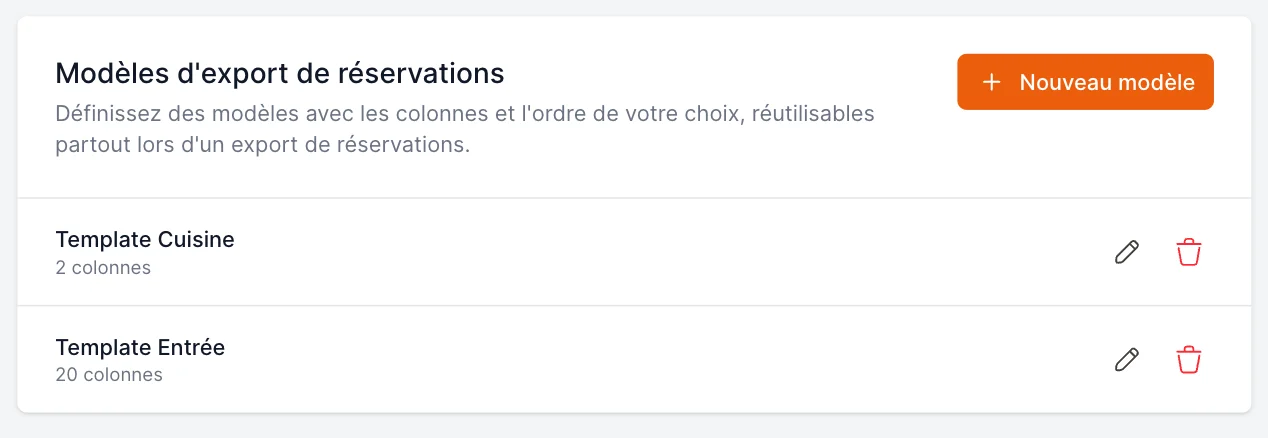 A window opens with **every column already selected** — you start from the full list and trim it down.
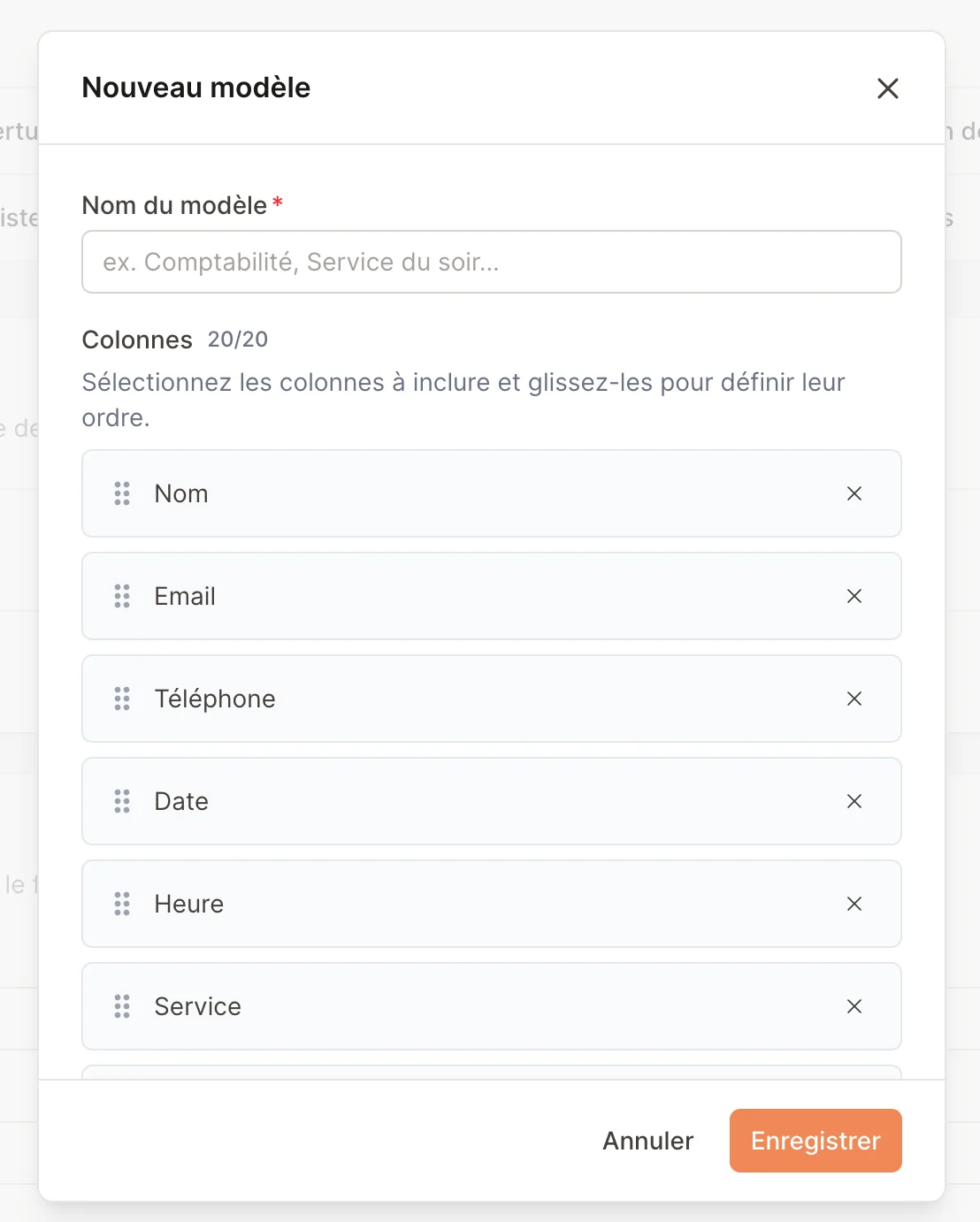 Give it a clear name you'll recognise later, like *Accounting* or *Evening service*.
* **Remove** a column with the **✕** on its right.
* **Reorder** columns by **dragging** them with the handle on the left — the order here is the order in your file.
* **Add a column back** with the **Add a column** button.
The small counter (e.g. **8/20**) shows how many columns you've kept out of all available ones.
Click **Save**. Your template is now available everywhere you export.
Need to change a template later? In the same settings page, click the **pencil** icon on a template to edit it, or the **trash** icon to delete it.
***
## Export using a template
### From a reservations view
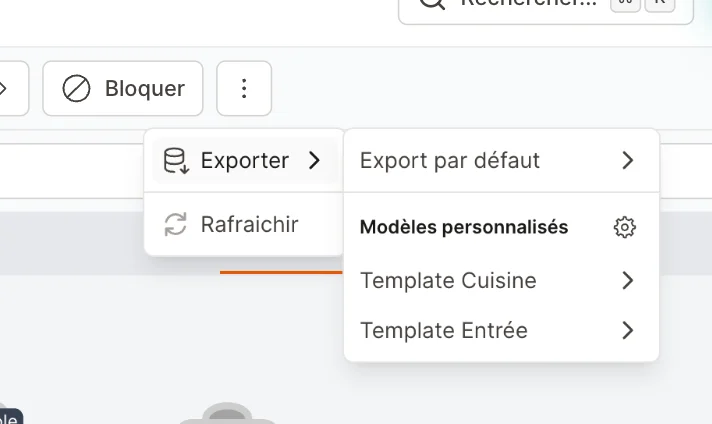
1. Open the **Export** menu (top-right of the Reservations page).
2. Choose **Default export** (all columns) or one of your saved templates under **Custom templates**.
3. Pick **CSV** or **XLSX** — the download starts immediately.
The little **gear** icon next to **Custom templates** takes you straight to the settings page to manage your templates.
### From the settings page (by date range)
Use this to export a whole period at once:
1. Go to **Settings → Integrations → Export**.
2. Pick an **export template** (or the default), a **file format**, and a **start** and **end date**.
3. Click **Export**.
Give it a clear name you'll recognise later, like *Accounting* or *Evening service*.
* **Remove** a column with the **✕** on its right.
* **Reorder** columns by **dragging** them with the handle on the left — the order here is the order in your file.
* **Add a column back** with the **Add a column** button.
The small counter (e.g. **8/20**) shows how many columns you've kept out of all available ones.
Click **Save**. Your template is now available everywhere you export.
Need to change a template later? In the same settings page, click the **pencil** icon on a template to edit it, or the **trash** icon to delete it.
***
## Export using a template
### From a reservations view
1. Open the **Export** menu (top-right of the Reservations page).
2. Choose **Default export** (all columns) or one of your saved templates under **Custom templates**.
3. Pick **CSV** or **XLSX** — the download starts immediately.
The little **gear** icon next to **Custom templates** takes you straight to the settings page to manage your templates.
### From the settings page (by date range)
Use this to export a whole period at once:
1. Go to **Settings → Integrations → Export**.
2. Pick an **export template** (or the default), a **file format**, and a **start** and **end date**.
3. Click **Export**.
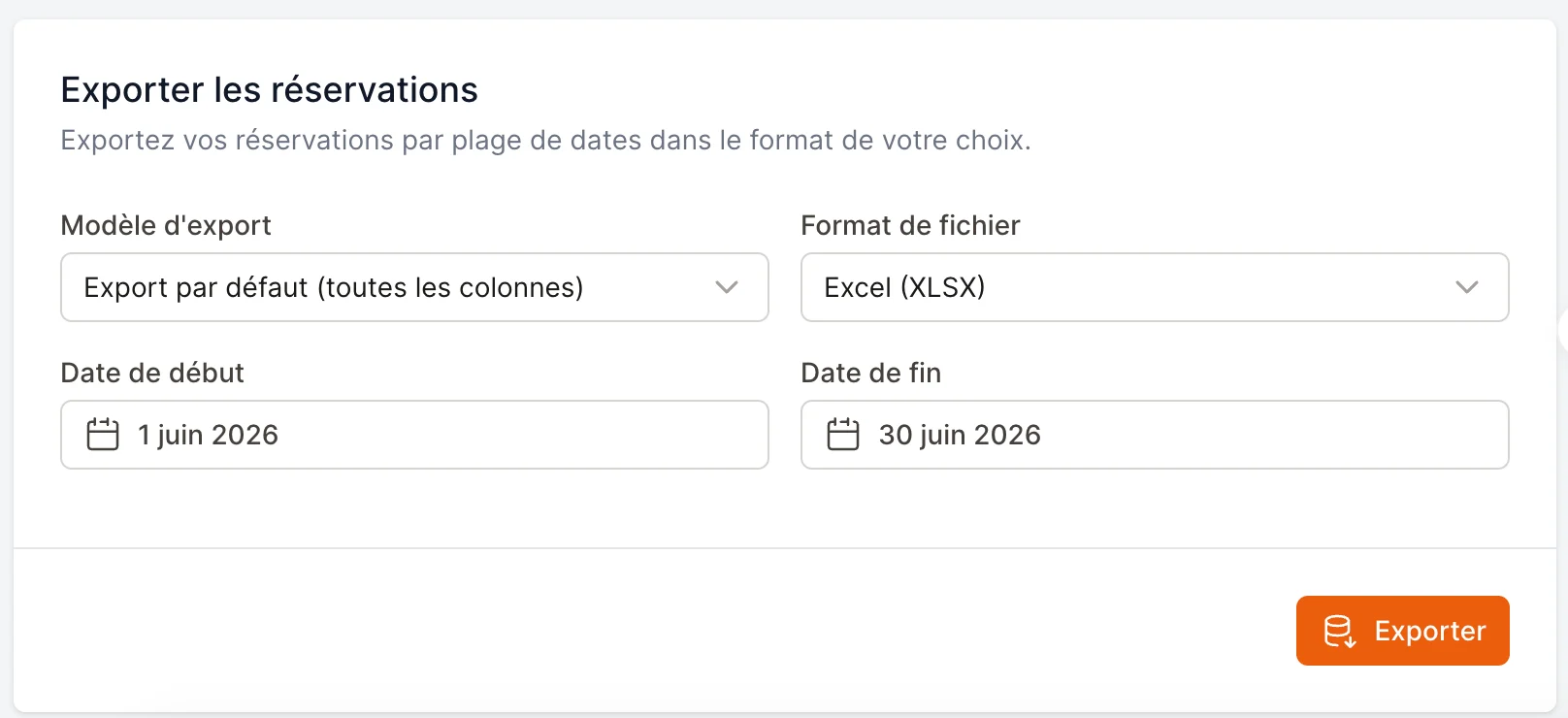 The date range filters by **when the reservation was created**, not the reservation's service date.
***
## Available columns
You can include any of these, plus **your own custom fields**:
Name · Email · Phone number · Date · Time · Service · Group size · Status · Room · Tables · Payment type · Products (prepayment) · Deposit / Card hold · Payment status · Total paid · Pending amount · Prescriber · Allergies & comment · Internal note · Attachments
***
## Frequently asked
It downloads to your device like any other file — check your browser's Downloads.
No. Templates only affect **how exports look**. They never modify your reservations.
Yes. Templates are saved for the **restaurant**, so everyone on your team sees and can use them.
When exporting from a view, the file contains only the reservations **currently shown**. Clear your filters or pick another date if you expected more.
The date range filters by **when the reservation was created**, not the reservation's service date.
***
## Available columns
You can include any of these, plus **your own custom fields**:
Name · Email · Phone number · Date · Time · Service · Group size · Status · Room · Tables · Payment type · Products (prepayment) · Deposit / Card hold · Payment status · Total paid · Pending amount · Prescriber · Allergies & comment · Internal note · Attachments
***
## Frequently asked
It downloads to your device like any other file — check your browser's Downloads.
No. Templates only affect **how exports look**. They never modify your reservations.
Yes. Templates are saved for the **restaurant**, so everyone on your team sees and can use them.
When exporting from a view, the file contains only the reservations **currently shown**. Clear your filters or pick another date if you expected more.