> ## Documentation Index
> Fetch the complete documentation index at: https://docs.eat-now.io/llms.txt
> Use this file to discover all available pages before exploring further.
# Planning view
> Visualize and orchestrate your day as a timeline. Drag reservations to move them, change statuses with a tap, spot peaks and conflicts at a glance.
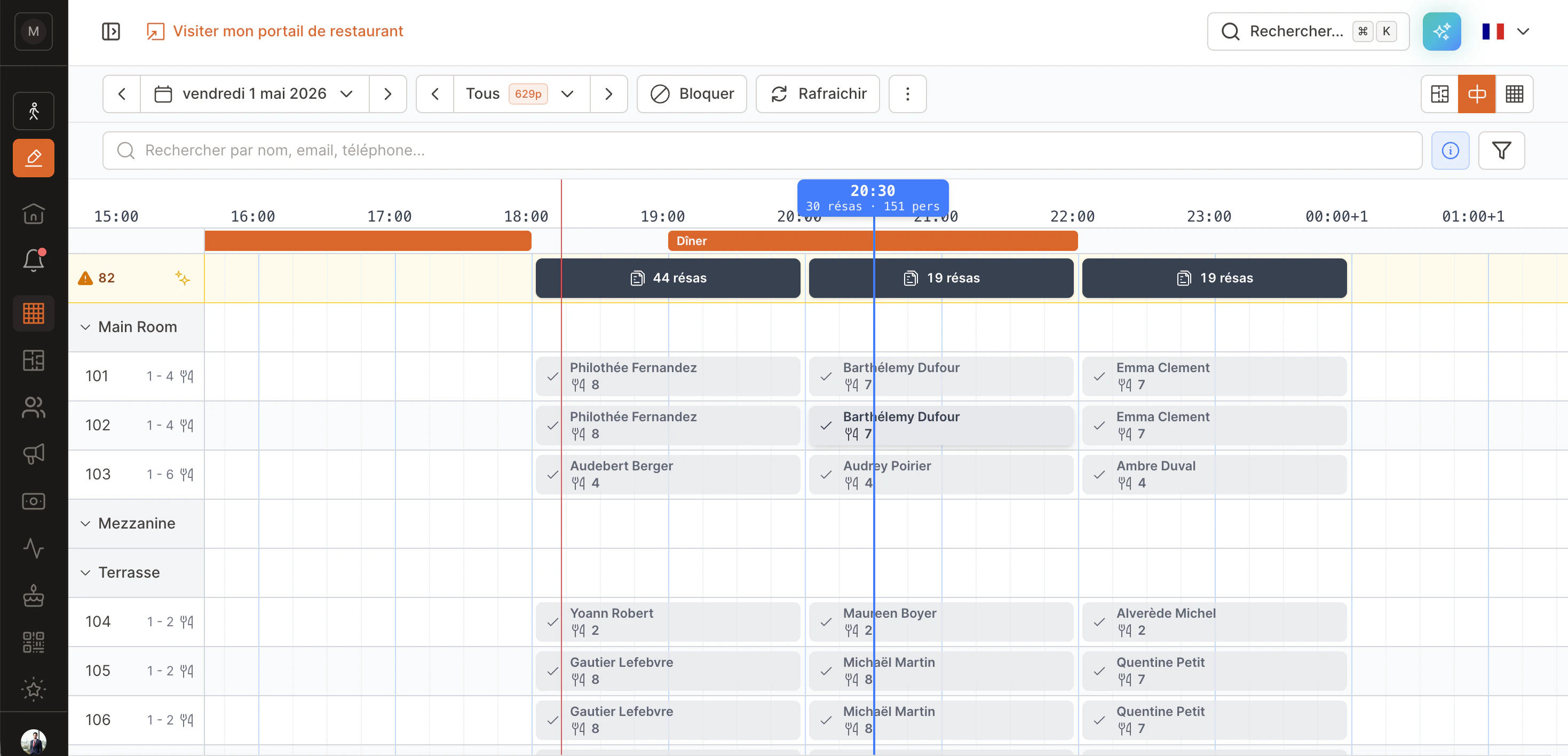
The **Planning** view shows your day as a horizontal timeline — each row is a table, each block is a reservation. It's the right view for **running service in real time**: see who's coming, who's seated, where you have headroom, and move things around quickly.
 ***
## When to use this view
EatNow gives you three ways to look at your reservations. Each has its job:
| View | Best for |
| -------------- | ------------------------------------------------------------------- |
| **Floor plan** | Spatial layout of the dining room, seating walk-ins |
| **List** | Sorting, filtering, reviewing, exporting |
| **Planning** | Orchestrating service, spotting peaks, moving a reservation quickly |
Switch between them via the **three icons in the top-right** of the Reservations page.
***
## Anatomy
From top to bottom:
1. **Header** — date picker, filters (services, statuses, rooms), search, "Block" and "Refresh" buttons.
2. **Hours bar** — stays sticky at the top while you scroll. On hover, a **blue tooltip** shows the exact time **plus the number of reservations and covers** at that moment (e.g. `20:30 — 30 resv · 151 pers`).
3. **Orange shift bar** — shows each service's window (e.g. Dinner 7pm-11pm).
4. **"Unassigned" lane** — yellow background with an orange badge counting reservations without a table. See [below](#unassigned-lane).
5. **Rooms** (`Main Room`, `Mezzanine`, `Terrasse`...) — collapsible. Each room contains its tables.
6. **Table rows** — one row per table. Number and capacity (`1 - 4`) on the left.
7. **Reservation blocks** — colored by status. Width = expected duration.
8. **Vertical red line** — current time (`now`).
***
## Reading a block
Each block shows the key info at a glance:
* **Color** = status (gray = confirmed, blue = seated, green = arrived, etc.).
* **Customer name**.
* **Fork icon + number** = covers (party size).
* **🔒 Lock** (if visible) = the table is pinned for this reservation, auto-assign won't touch it. See [Pinned table](#pinned-table).
* **⚠ Late** (red, blinking) = the reservation should already have arrived but the status is still "Confirmed".
***
## Tap to act fast
**Click** (or tap on mobile) any block to open a quick-action menu.
***
## When to use this view
EatNow gives you three ways to look at your reservations. Each has its job:
| View | Best for |
| -------------- | ------------------------------------------------------------------- |
| **Floor plan** | Spatial layout of the dining room, seating walk-ins |
| **List** | Sorting, filtering, reviewing, exporting |
| **Planning** | Orchestrating service, spotting peaks, moving a reservation quickly |
Switch between them via the **three icons in the top-right** of the Reservations page.
***
## Anatomy
From top to bottom:
1. **Header** — date picker, filters (services, statuses, rooms), search, "Block" and "Refresh" buttons.
2. **Hours bar** — stays sticky at the top while you scroll. On hover, a **blue tooltip** shows the exact time **plus the number of reservations and covers** at that moment (e.g. `20:30 — 30 resv · 151 pers`).
3. **Orange shift bar** — shows each service's window (e.g. Dinner 7pm-11pm).
4. **"Unassigned" lane** — yellow background with an orange badge counting reservations without a table. See [below](#unassigned-lane).
5. **Rooms** (`Main Room`, `Mezzanine`, `Terrasse`...) — collapsible. Each room contains its tables.
6. **Table rows** — one row per table. Number and capacity (`1 - 4`) on the left.
7. **Reservation blocks** — colored by status. Width = expected duration.
8. **Vertical red line** — current time (`now`).
***
## Reading a block
Each block shows the key info at a glance:
* **Color** = status (gray = confirmed, blue = seated, green = arrived, etc.).
* **Customer name**.
* **Fork icon + number** = covers (party size).
* **🔒 Lock** (if visible) = the table is pinned for this reservation, auto-assign won't touch it. See [Pinned table](#pinned-table).
* **⚠ Late** (red, blinking) = the reservation should already have arrived but the status is still "Confirmed".
***
## Tap to act fast
**Click** (or tap on mobile) any block to open a quick-action menu.
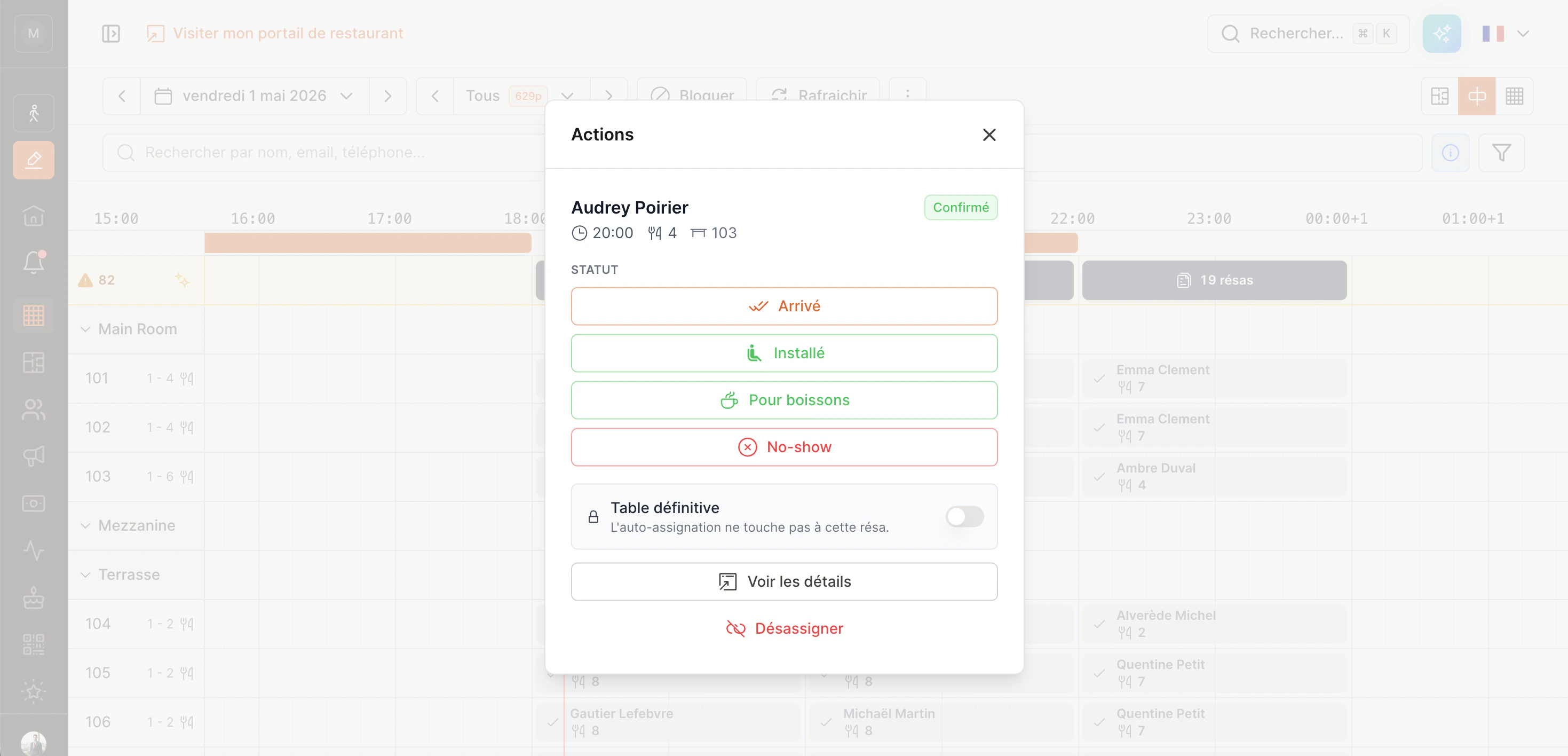 This menu shows you:
* **The current status** (badge top-right — here `Confirmed`).
* **Status transitions that make sense from the current state** — not all statuses appear, only the relevant ones. For example:
* From "Confirmed": Showed up, Seated, For drinks, No-show.
* From "Showed up": Seated, Done.
* From "Seated": Done.
* Once "Done" / "Cancelled": no buttons (final state).
* **"Pinned table" toggle** — only if auto-assign is enabled for your restaurant.
* **See details** — opens the full reservation drawer.
* **Unassign** — removes the reservation from the table (it goes back into the "Unassigned" lane).
A tap does ONE thing: opens this menu. To move the reservation (drag & drop), do a **long-press** — see [Move a reservation](#move-a-reservation).
***
## Right-click (desktop) → context menu
On **desktop**, you can also **right-click** a block to open a fuller context menu. It offers the same status changes, plus:
* **See detail** / **See customer profile**.
* **Cancel reservation** (with optional refund if there's a payment).
* **Refund all** (if existing payments).
* **Capture / Skip** of a pre-authorization when marking as No-show.
On **mobile**, right-click doesn't exist. All critical actions are reachable via the quick-action sheet + the "See details" button.
***
## Pinned table
When auto-assign is on for your restaurant, EatNow shuffles reservations across tables to optimize service. The **🔒 lock** icon means a reservation is **pinned to its table**: auto-assign won't move it.
### How to pin
* **Manually** from the quick-action sheet → **"Pinned table"** toggle.
* **Automatically** when you drag-and-drop a reservation. The explicit move is treated as a decision: the reservation gets pinned immediately, and the 🔒 appears.
To unpin (let it float again), turn off the toggle in the action sheet.
***
## Move a reservation
Drag & drop is the Planning view's headline feature. In a single gesture you can **change the table** (vertical movement) **and the time** (horizontal movement).
This menu shows you:
* **The current status** (badge top-right — here `Confirmed`).
* **Status transitions that make sense from the current state** — not all statuses appear, only the relevant ones. For example:
* From "Confirmed": Showed up, Seated, For drinks, No-show.
* From "Showed up": Seated, Done.
* From "Seated": Done.
* Once "Done" / "Cancelled": no buttons (final state).
* **"Pinned table" toggle** — only if auto-assign is enabled for your restaurant.
* **See details** — opens the full reservation drawer.
* **Unassign** — removes the reservation from the table (it goes back into the "Unassigned" lane).
A tap does ONE thing: opens this menu. To move the reservation (drag & drop), do a **long-press** — see [Move a reservation](#move-a-reservation).
***
## Right-click (desktop) → context menu
On **desktop**, you can also **right-click** a block to open a fuller context menu. It offers the same status changes, plus:
* **See detail** / **See customer profile**.
* **Cancel reservation** (with optional refund if there's a payment).
* **Refund all** (if existing payments).
* **Capture / Skip** of a pre-authorization when marking as No-show.
On **mobile**, right-click doesn't exist. All critical actions are reachable via the quick-action sheet + the "See details" button.
***
## Pinned table
When auto-assign is on for your restaurant, EatNow shuffles reservations across tables to optimize service. The **🔒 lock** icon means a reservation is **pinned to its table**: auto-assign won't move it.
### How to pin
* **Manually** from the quick-action sheet → **"Pinned table"** toggle.
* **Automatically** when you drag-and-drop a reservation. The explicit move is treated as a decision: the reservation gets pinned immediately, and the 🔒 appears.
To unpin (let it float again), turn off the toggle in the action sheet.
***
## Move a reservation
Drag & drop is the Planning view's headline feature. In a single gesture you can **change the table** (vertical movement) **and the time** (horizontal movement).
 ### The gesture
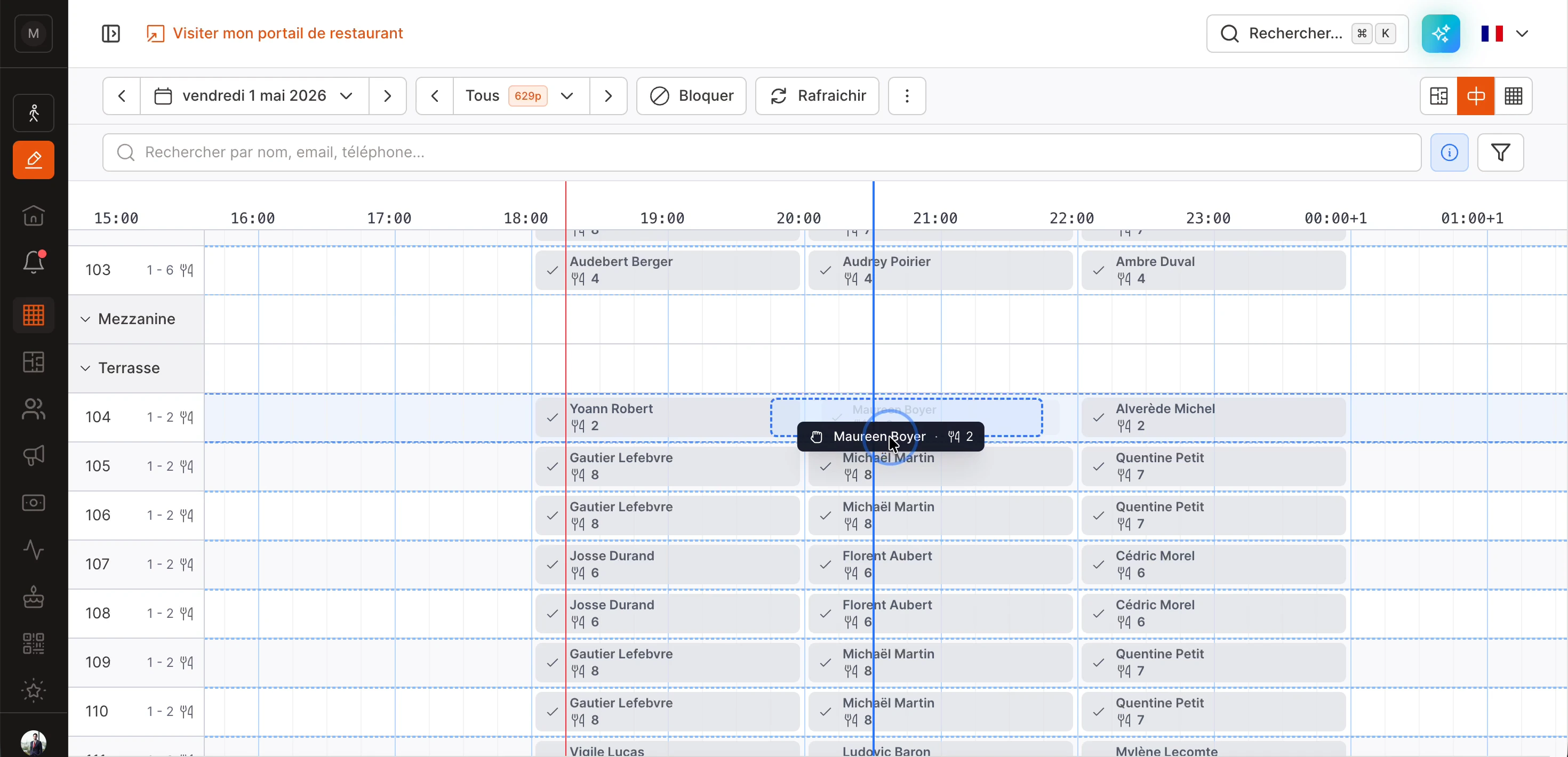
1. **Long-press** a block (\~350ms — you'll see it shrink slightly, that's the cue).
2. On mobile, you'll feel a small **vibration** — drag is armed.
3. **Slide your finger / mouse** to the new position. You'll see:
* A **black floating ghost** following your pointer (reminder of which reservation you're holding).
* A **dashed blue rectangle** on the target row showing exactly where the reservation will land (table + time).
* The original block stays in place but greyed out, like an "anchor" of the move.
4. **Release** — the reservation lands at the new position. The 🔒 appears automatically.
### Snap to 15 minutes
The target time is automatically snapped to **15-minute slots**. No need for pixel-perfect aim.
### Auto-scroll at edges
If the destination is off-screen (e.g. moving a reservation from 4pm to 10pm and 10pm isn't visible), just keep moving toward the edge. The grid **auto-scrolls** in that direction. Same vertically for rooms.
### Short tap vs long-press
* **Short tap** (release \< 350ms) → opens the quick-action menu.
* **Long-press** (≥ 350ms) → enters drag mode.
If you move your finger **before** the drag arms (during the first 350ms), the gesture is cancelled — try again.
### Conflicts on drop
If you drop a reservation on a slot **already occupied** by another, EatNow opens a modal asking what to do:
* **Mark as done** the previous reservation (frees the table).
* **Chain** them — both reservations follow each other on the same table.
* **Replace** — unassigns the previous reservation (it goes back to the "Unassigned" lane).
* **Cancel** — nothing changes.
***
## Unassigned lane
At the top of the grid, on yellow background, EatNow shows reservations **without a table**. The orange badge on the left counts them.
### How they get there
* A reservation created without manual assignment.
* A reservation that was unassigned (from the action menu or elsewhere).
* A reservation auto-assign couldn't place (no compatible table available).
### "Auto-assign all" button
The ✨ icon to the left of the lane runs auto-assign. EatNow tries to place all unassigned reservations while respecting capacity, room constraints, and times. Pinned reservations (🔒) are not touched.
### Drag & drop from the lane
You can also **drag a reservation from the lane down to a table**: same gesture as a normal block. The reservation leaves the lane and lands on the target table.
***
## Subtleties
### Multiple reservations on the same slot
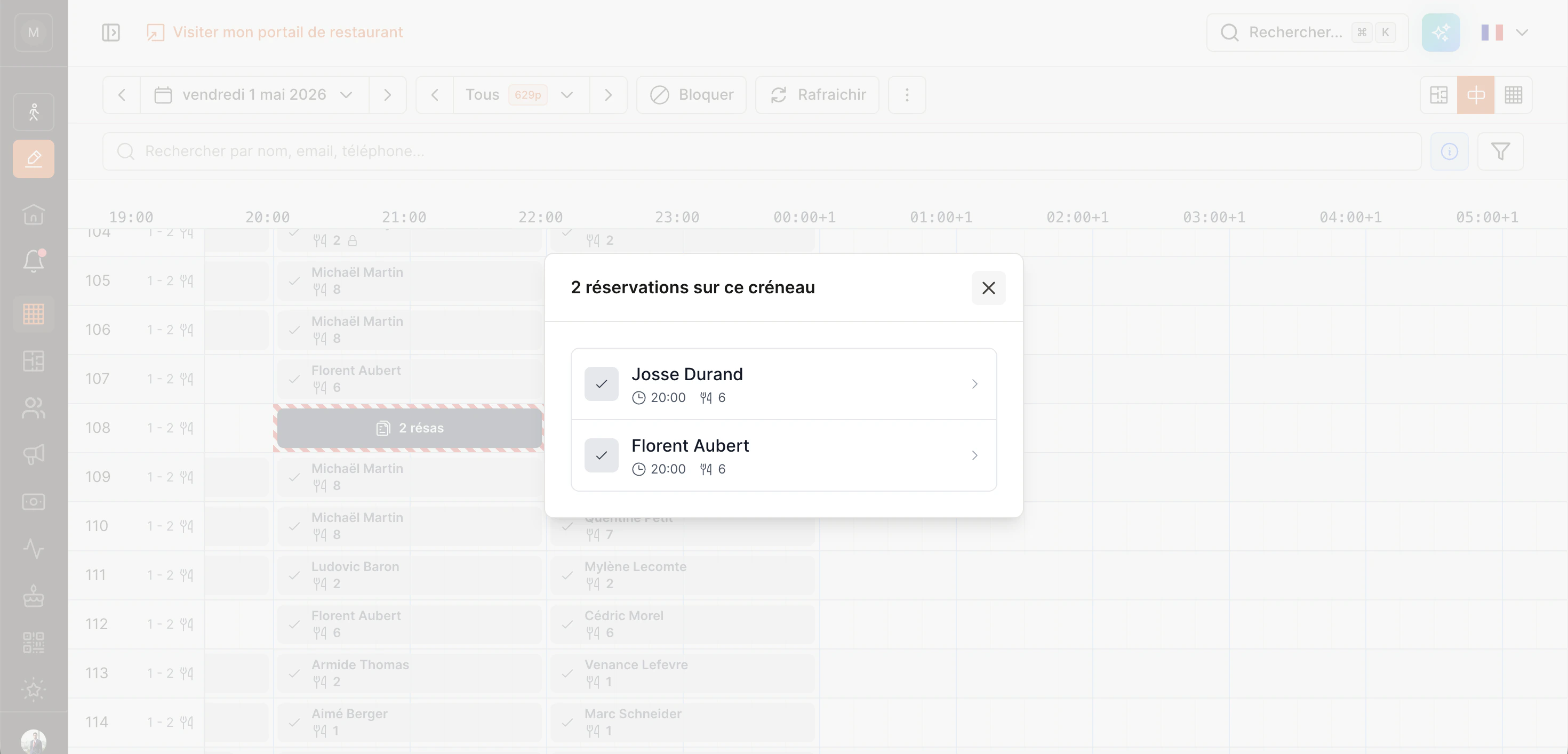
When **2+ reservations** have exactly the **same time and duration on the same table** (or stacked in the lane), EatNow merges them into a single dark-grey block `2 resv`. Click it to open a window listing each reservation individually.
### The gesture
1. **Long-press** a block (\~350ms — you'll see it shrink slightly, that's the cue).
2. On mobile, you'll feel a small **vibration** — drag is armed.
3. **Slide your finger / mouse** to the new position. You'll see:
* A **black floating ghost** following your pointer (reminder of which reservation you're holding).
* A **dashed blue rectangle** on the target row showing exactly where the reservation will land (table + time).
* The original block stays in place but greyed out, like an "anchor" of the move.
4. **Release** — the reservation lands at the new position. The 🔒 appears automatically.
### Snap to 15 minutes
The target time is automatically snapped to **15-minute slots**. No need for pixel-perfect aim.
### Auto-scroll at edges
If the destination is off-screen (e.g. moving a reservation from 4pm to 10pm and 10pm isn't visible), just keep moving toward the edge. The grid **auto-scrolls** in that direction. Same vertically for rooms.
### Short tap vs long-press
* **Short tap** (release \< 350ms) → opens the quick-action menu.
* **Long-press** (≥ 350ms) → enters drag mode.
If you move your finger **before** the drag arms (during the first 350ms), the gesture is cancelled — try again.
### Conflicts on drop
If you drop a reservation on a slot **already occupied** by another, EatNow opens a modal asking what to do:
* **Mark as done** the previous reservation (frees the table).
* **Chain** them — both reservations follow each other on the same table.
* **Replace** — unassigns the previous reservation (it goes back to the "Unassigned" lane).
* **Cancel** — nothing changes.
***
## Unassigned lane
At the top of the grid, on yellow background, EatNow shows reservations **without a table**. The orange badge on the left counts them.
### How they get there
* A reservation created without manual assignment.
* A reservation that was unassigned (from the action menu or elsewhere).
* A reservation auto-assign couldn't place (no compatible table available).
### "Auto-assign all" button
The ✨ icon to the left of the lane runs auto-assign. EatNow tries to place all unassigned reservations while respecting capacity, room constraints, and times. Pinned reservations (🔒) are not touched.
### Drag & drop from the lane
You can also **drag a reservation from the lane down to a table**: same gesture as a normal block. The reservation leaves the lane and lands on the target table.
***
## Subtleties
### Multiple reservations on the same slot
When **2+ reservations** have exactly the **same time and duration on the same table** (or stacked in the lane), EatNow merges them into a single dark-grey block `2 resv`. Click it to open a window listing each reservation individually.
 ### Visible conflicts
If two reservations overlap on **the same table** (without being stacked exactly), the conflict zone shows a **red diagonal stripe pattern**. It's a signal that you have a problem to resolve: move one, mark one as done, or ignore if intentional.
### Hover over the hours bar
When hovering the grid (desktop mouse), a **blue tooltip** follows the cursor and shows:
* The **exact time** under the cursor.
* The **number of reservations and covers expected** at that moment (across all rooms, excluding cancelled and no-shows).
Handy to spot pressure peaks instantly.
### Mobile vs Desktop
| Gesture | Desktop | Mobile / Tablet |
| --------------- | ----------------- | ---------------------- |
| Short tap | Quick-action menu | Quick-action menu |
| Long-press | Starts drag | Starts drag (vibrates) |
| Right-click | Context menu | *N/A* |
| Hours bar hover | Pressure tooltip | *N/A* (no touch hover) |
On mobile, **you can't scroll the grid by starting your finger on a block** — this is intentional so drag works without conflict. Start your finger on an **empty cell** to scroll normally.
***
## FAQ
**Why doesn't the tap menu offer every status?**
EatNow filters status transitions that make sense from the current state. If you need a specific status (e.g. forcing a return from "Done" to "Seated"), open **See details** → the full drawer allows anything.
**How do I cancel a reservation?**
On desktop: right-click the block → **Cancel reservation**. On mobile: tap → **See details** → cancel from the full drawer.
**How does this view relate to the Floor plan?**
Both show the same data in real time — when you change a status or move a reservation in Planning, the Floor plan updates instantly (and vice versa). Pick the view that matches your task.
**What's the yellow counter ("82") at the top-left?**
It's the number of **reservations without a table** for the day. Click the ✨ button next to it to run auto-assign, or drag blocks from the lane onto a table.
**What are the "44 resv / 19 resv / 19 resv" pills under the shift bar?**
They're **groups of unassigned reservations** at the same slot. Click them to see the list.
### Visible conflicts
If two reservations overlap on **the same table** (without being stacked exactly), the conflict zone shows a **red diagonal stripe pattern**. It's a signal that you have a problem to resolve: move one, mark one as done, or ignore if intentional.
### Hover over the hours bar
When hovering the grid (desktop mouse), a **blue tooltip** follows the cursor and shows:
* The **exact time** under the cursor.
* The **number of reservations and covers expected** at that moment (across all rooms, excluding cancelled and no-shows).
Handy to spot pressure peaks instantly.
### Mobile vs Desktop
| Gesture | Desktop | Mobile / Tablet |
| --------------- | ----------------- | ---------------------- |
| Short tap | Quick-action menu | Quick-action menu |
| Long-press | Starts drag | Starts drag (vibrates) |
| Right-click | Context menu | *N/A* |
| Hours bar hover | Pressure tooltip | *N/A* (no touch hover) |
On mobile, **you can't scroll the grid by starting your finger on a block** — this is intentional so drag works without conflict. Start your finger on an **empty cell** to scroll normally.
***
## FAQ
**Why doesn't the tap menu offer every status?**
EatNow filters status transitions that make sense from the current state. If you need a specific status (e.g. forcing a return from "Done" to "Seated"), open **See details** → the full drawer allows anything.
**How do I cancel a reservation?**
On desktop: right-click the block → **Cancel reservation**. On mobile: tap → **See details** → cancel from the full drawer.
**How does this view relate to the Floor plan?**
Both show the same data in real time — when you change a status or move a reservation in Planning, the Floor plan updates instantly (and vice versa). Pick the view that matches your task.
**What's the yellow counter ("82") at the top-left?**
It's the number of **reservations without a table** for the day. Click the ✨ button next to it to run auto-assign, or drag blocks from the lane onto a table.
**What are the "44 resv / 19 resv / 19 resv" pills under the shift bar?**
They're **groups of unassigned reservations** at the same slot. Click them to see the list.