> ## Documentation Index
> Fetch the complete documentation index at: https://docs.eat-now.io/llms.txt
> Use this file to discover all available pages before exploring further.
# The reservation form, field by field
> A deep dive into the create/edit reservation form — every field explained, what it controls, and why it matters. Your reference for taking and editing bookings.
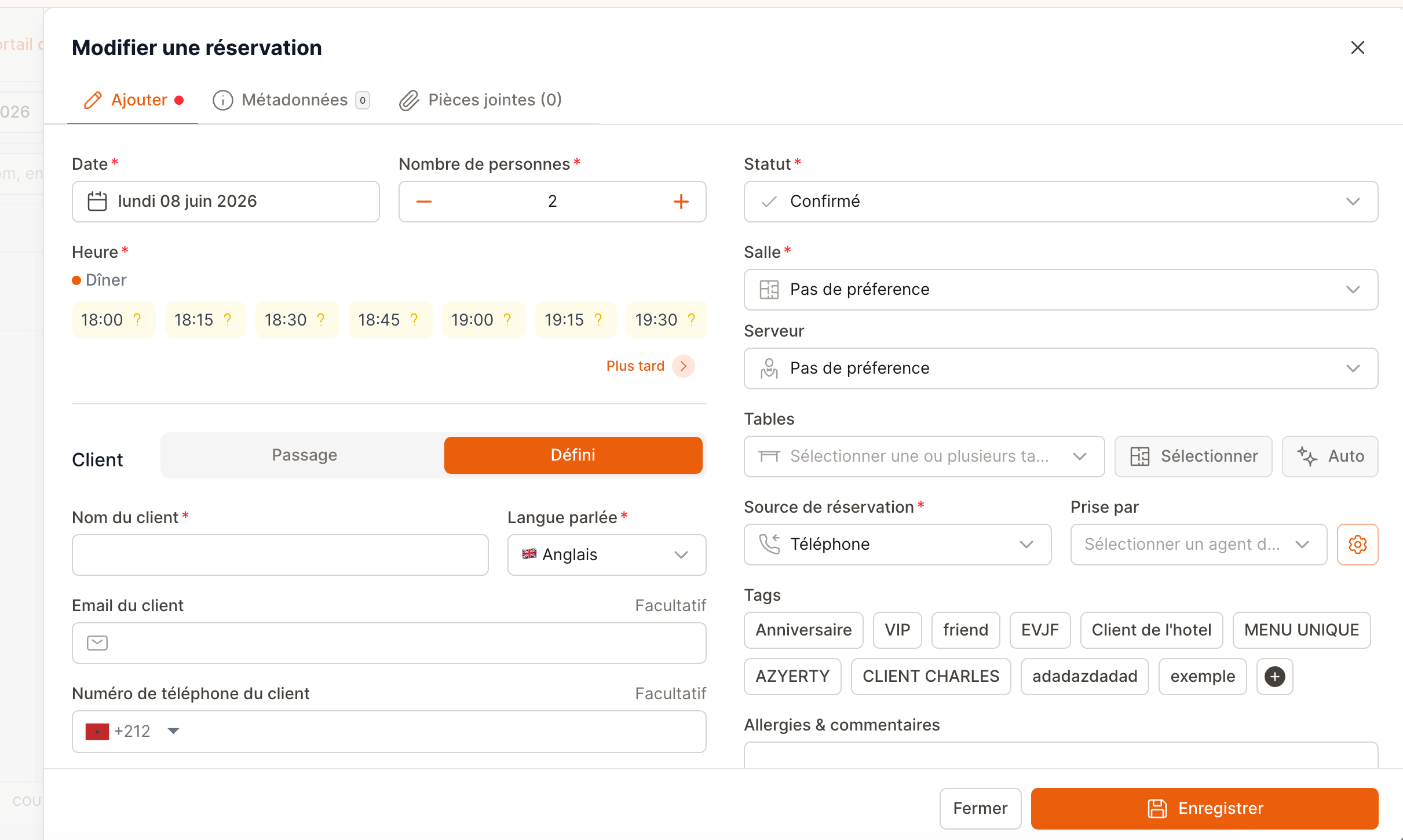
This is the complete reference for the **create / edit reservation** form — the panel you open when you add a booking or tap an existing one. Every field is listed by section, with **what it does** and **why it matters** so anyone on the team can take a booking confidently.
Not every field is always visible. Some appear only for certain restaurants (custom fields, payments, prescribers), and a few are required only when your settings demand them (e.g. email or phone mandatory, a room required for a shift). The form tells you what's required as you fill it in.
 ***
## Reservation details
The core of every booking: when, how many, and where.
* **Date** — the service day for the booking. *Why it matters:* it determines which shifts and which availability apply. Unavailable days are disabled in the picker.
* **Time** — the booking time, chosen from the shift's slots. The picker shows the shift name and an availability indicator (green = space, red = full). *Why it matters:* it locks in a real seat in the availability, and it decides the meal period (lunch / dinner / drinks).
* **Group size** — the number of covers (minimum 1). *Why it matters:* it drives table-capacity matching, your covers totals, and the expected meal duration used by the Cockpit Turn alerts.
***
## Status
* **Status** — where the reservation sits in its lifecycle. The dropdown offers the statuses that make sense for the current state. *Why it matters:* status is the source of truth for the whole team and every view. See the full [Reservation statuses](/operations/reservation-statuses) guide for what each one means and when to use it.
***
## Customer
You can keep a booking **anonymous** or attach a **defined customer**. A defined customer builds a profile and history and enables confirmations and follow-ups.
* **Guest name** — who the booking is for. Autocompletes against existing customers so you can reuse a profile. *Why it matters:* identifies the guest at the door and links the booking to their history. Required unless the booking is anonymous.
* **Language** — the guest's language (FR, EN, IT, ES, DE, PT). *Why it matters:* every email and message to the guest (confirmation, follow-up) is sent in this language.
* **Email** — the guest's email. *Why it matters:* used for confirmations, follow-ups, and the post-visit review request. Required if your restaurant makes email mandatory.
* **Phone number** — the guest's phone. *Why it matters:* your fastest way to reach a guest about their booking, and the channel for WhatsApp. Required if your restaurant makes phone mandatory.
* **Newsletter consent** — whether the guest agreed to marketing emails. *Why it matters:* GDPR/marketing compliance — it controls whether they can be included in campaigns.
* **Customer note / customer tags** — private notes and tags that live on the **customer's profile** (not just this booking). *Why it matters:* they follow the guest across every future visit (e.g. "always table by the window", "wine lover").
Pick an existing guest from the name autocomplete whenever you can. It keeps one clean profile per guest — with all their past visits, notes, and no-show history — instead of creating duplicates.
Names get misspelt; the **phone number** is what really identifies a guest. As soon as you type a number that is already known, EatNow says so and offers **Attach to this profile** — one tap and the booking joins the existing guest. Even if you ignore it, a number already on file is attached to its profile rather than duplicated (unless your restaurant turned automatic customer matching off, or the booking comes from a prescriber).
***
## Tables, room & staff
Where the party sits and who looks after them.
* **Room** — the dining area (e.g. Main room, Terrace). Always offers a "No preference" option. *Why it matters:* directs the party to the right space; some shifts require a room to be chosen.
* **Tables** — one or more specific tables, pickable from a list or the floor-plan modal. Availability is shown (green = free, yellow = occupied). An **Auto** button assigns the best-fit table for you once date, time, group size, and (if required) room are set. *Why it matters:* this is the actual seating; multi-table selection covers large parties spread across tables.
* **Waiter** — the server assigned to the table. Offers "No preference". *Why it matters:* fixes responsibility for the table and shows a blue flag in the Cockpit so the server knows it's theirs. It can be filled automatically from the table assignment.
Use the **Auto** button to let EatNow find a fitting table during a rush, or open the floor-plan picker to place a party by hand — for example to seat a big group on combined tables. See [Combining tables for a large party](/operations/scenarios#combining-tables-for-a-large-party).
***
## Source & who took it
Tracking where bookings come from and who handled them.
* **Booking source** — where the reservation originated: **Walk-in, Website, Phone, Email, Reserve with Google, Travel agencies, Other, Instagram, Facebook, TikTok, Snapchat, WhatsApp, TripAdvisor, Privatization, Missed call**. *Why it matters:* it powers your channel reporting (which sources actually fill the room) and, for **Walk-in**, lets you create the booking already seated.
* **Prescriber / travel agency** — the agency behind the booking. *Why it matters:* required when the source is **Travel agencies**; it attributes the cover to the right partner. You can create a new prescriber inline.
* **Taken by (reservation agent)** — which team member took the booking. Your last choice is remembered. *Why it matters:* accountability and per-agent reporting on phone/walk-in bookings.
***
## Notes
Free-text fields that brief the kitchen and the floor.
* **Allergies & comments** — dietary restrictions and any special requests. *Why it matters:* this is the kitchen's alert. It also raises a **yellow flag** on the reservation card in the Cockpit so the floor sees it at a glance.
* **Internal info (private)** — staff-only notes that are **never sent to the guest**. *Why it matters:* the place for context like "regular, hates being rushed" or "celebrating an anniversary" without risking it reaching the customer.
* **Ask for a Google review after departure (D+1)** — a toggle to send a review request the day after the visit (shown only when the guest has an email). *Why it matters:* a simple, well-timed nudge that grows your online reputation.
***
## Tags
* **Tags** — your restaurant's own labels, shown as toggle buttons on the booking (e.g. **VIP**, Regular, Birthday). You can create a new tag inline if you have permission. *Why it matters:* tags categorize bookings for filtering and reporting, and special tags surface in service — **VIP** raises a magenta flag on the Cockpit card so the whole team gives the table extra care.
***
## Payment
Shown when your restaurant uses payments. Covers deposits, prepayments, and discounts.
* **Payments** — one or more lines, each with a **type** (deposit, prepayment, extra), an **amount/quantity**, a **status** (pending, authorized, paid, refunded, canceled), and an **expiration / cancellation window**. *Why it matters:* this is the financial commitment behind the booking. An outstanding payment automatically moves the reservation to **Confirmed, pending payment**; clearing it returns it to **Confirmed**. On a **no-show**, an authorized card hold is what you can capture or release.
* **Active discounts** — a percentage discount applied to the booking. *Why it matters:* adjusts the price for promotions or goodwill, transparently recorded on the reservation.
Expiration and refundability are calculated from the reservation's time and your shift settings — for example a deposit may stop being refundable a set number of hours before the booking. The form shows the dates so you and the guest know where you stand.
***
## Custom fields
* **Custom fields** — extra fields your restaurant has configured (shown only if you have any). *Why it matters:* captures restaurant-specific information that the standard form doesn't cover (e.g. "occasion", "table preference", a loyalty number).
***
## Attachments
* **Attachments** — files linked to the reservation; the tab shows a count. *Why it matters:* keeps supporting documents with the booking — a signed privatization quote, a dietary list for a big group, an email thread.
***
## Communication history (existing reservations)
When you open a reservation that already exists, extra tabs show its **email** and **WhatsApp** history with the guest. *Why it matters:* you can see at a glance what's already been sent (confirmation, reminders, follow-up) before you call or message again.
***
## Saving & notifying the guest
When you save changes to an existing booking, EatNow may offer a **"notify the guest"** toggle — shown when the guest has an email or phone and something they'd care about changed (date, time, party size, payment). *Why it matters:* you decide whether a change is worth an email. It's enabled automatically when a booking becomes **Confirmed, pending payment** so the guest gets their payment link.
***
## FAQ
**Which fields are actually required?**
Always: **date**, **time**, **group size**, and a **status**. **Guest name** unless the booking is anonymous. **Email** or **phone** only if your restaurant marks them mandatory. A **room** only on shifts that require one. A **prescriber** only when the source is Travel agencies. The form flags anything missing when you try to save.
**What does the "Auto" button next to Tables do?**
It asks EatNow to pick the best-fitting available table for the party, once date, time, group size, and (if required) room are set. You can always override it by opening the table picker.
**Why can't I change the status to the one I want?**
The dropdown filters to sensible transitions from the current state, and it won't let you set **Confirmed, pending payment** by hand when there's no pending payment. To set a closed status like canceled, the reservation generally has to be in the matching state. See [Reservation statuses](/operations/reservation-statuses).
**Will the guest be emailed every time I edit?**
No. You're shown a **notify** toggle for meaningful changes and you choose. Routine internal edits (like adding an internal note) don't notify the guest.
***
## Reservation details
The core of every booking: when, how many, and where.
* **Date** — the service day for the booking. *Why it matters:* it determines which shifts and which availability apply. Unavailable days are disabled in the picker.
* **Time** — the booking time, chosen from the shift's slots. The picker shows the shift name and an availability indicator (green = space, red = full). *Why it matters:* it locks in a real seat in the availability, and it decides the meal period (lunch / dinner / drinks).
* **Group size** — the number of covers (minimum 1). *Why it matters:* it drives table-capacity matching, your covers totals, and the expected meal duration used by the Cockpit Turn alerts.
***
## Status
* **Status** — where the reservation sits in its lifecycle. The dropdown offers the statuses that make sense for the current state. *Why it matters:* status is the source of truth for the whole team and every view. See the full [Reservation statuses](/operations/reservation-statuses) guide for what each one means and when to use it.
***
## Customer
You can keep a booking **anonymous** or attach a **defined customer**. A defined customer builds a profile and history and enables confirmations and follow-ups.
* **Guest name** — who the booking is for. Autocompletes against existing customers so you can reuse a profile. *Why it matters:* identifies the guest at the door and links the booking to their history. Required unless the booking is anonymous.
* **Language** — the guest's language (FR, EN, IT, ES, DE, PT). *Why it matters:* every email and message to the guest (confirmation, follow-up) is sent in this language.
* **Email** — the guest's email. *Why it matters:* used for confirmations, follow-ups, and the post-visit review request. Required if your restaurant makes email mandatory.
* **Phone number** — the guest's phone. *Why it matters:* your fastest way to reach a guest about their booking, and the channel for WhatsApp. Required if your restaurant makes phone mandatory.
* **Newsletter consent** — whether the guest agreed to marketing emails. *Why it matters:* GDPR/marketing compliance — it controls whether they can be included in campaigns.
* **Customer note / customer tags** — private notes and tags that live on the **customer's profile** (not just this booking). *Why it matters:* they follow the guest across every future visit (e.g. "always table by the window", "wine lover").
Pick an existing guest from the name autocomplete whenever you can. It keeps one clean profile per guest — with all their past visits, notes, and no-show history — instead of creating duplicates.
Names get misspelt; the **phone number** is what really identifies a guest. As soon as you type a number that is already known, EatNow says so and offers **Attach to this profile** — one tap and the booking joins the existing guest. Even if you ignore it, a number already on file is attached to its profile rather than duplicated (unless your restaurant turned automatic customer matching off, or the booking comes from a prescriber).
***
## Tables, room & staff
Where the party sits and who looks after them.
* **Room** — the dining area (e.g. Main room, Terrace). Always offers a "No preference" option. *Why it matters:* directs the party to the right space; some shifts require a room to be chosen.
* **Tables** — one or more specific tables, pickable from a list or the floor-plan modal. Availability is shown (green = free, yellow = occupied). An **Auto** button assigns the best-fit table for you once date, time, group size, and (if required) room are set. *Why it matters:* this is the actual seating; multi-table selection covers large parties spread across tables.
* **Waiter** — the server assigned to the table. Offers "No preference". *Why it matters:* fixes responsibility for the table and shows a blue flag in the Cockpit so the server knows it's theirs. It can be filled automatically from the table assignment.
Use the **Auto** button to let EatNow find a fitting table during a rush, or open the floor-plan picker to place a party by hand — for example to seat a big group on combined tables. See [Combining tables for a large party](/operations/scenarios#combining-tables-for-a-large-party).
***
## Source & who took it
Tracking where bookings come from and who handled them.
* **Booking source** — where the reservation originated: **Walk-in, Website, Phone, Email, Reserve with Google, Travel agencies, Other, Instagram, Facebook, TikTok, Snapchat, WhatsApp, TripAdvisor, Privatization, Missed call**. *Why it matters:* it powers your channel reporting (which sources actually fill the room) and, for **Walk-in**, lets you create the booking already seated.
* **Prescriber / travel agency** — the agency behind the booking. *Why it matters:* required when the source is **Travel agencies**; it attributes the cover to the right partner. You can create a new prescriber inline.
* **Taken by (reservation agent)** — which team member took the booking. Your last choice is remembered. *Why it matters:* accountability and per-agent reporting on phone/walk-in bookings.
***
## Notes
Free-text fields that brief the kitchen and the floor.
* **Allergies & comments** — dietary restrictions and any special requests. *Why it matters:* this is the kitchen's alert. It also raises a **yellow flag** on the reservation card in the Cockpit so the floor sees it at a glance.
* **Internal info (private)** — staff-only notes that are **never sent to the guest**. *Why it matters:* the place for context like "regular, hates being rushed" or "celebrating an anniversary" without risking it reaching the customer.
* **Ask for a Google review after departure (D+1)** — a toggle to send a review request the day after the visit (shown only when the guest has an email). *Why it matters:* a simple, well-timed nudge that grows your online reputation.
***
## Tags
* **Tags** — your restaurant's own labels, shown as toggle buttons on the booking (e.g. **VIP**, Regular, Birthday). You can create a new tag inline if you have permission. *Why it matters:* tags categorize bookings for filtering and reporting, and special tags surface in service — **VIP** raises a magenta flag on the Cockpit card so the whole team gives the table extra care.
***
## Payment
Shown when your restaurant uses payments. Covers deposits, prepayments, and discounts.
* **Payments** — one or more lines, each with a **type** (deposit, prepayment, extra), an **amount/quantity**, a **status** (pending, authorized, paid, refunded, canceled), and an **expiration / cancellation window**. *Why it matters:* this is the financial commitment behind the booking. An outstanding payment automatically moves the reservation to **Confirmed, pending payment**; clearing it returns it to **Confirmed**. On a **no-show**, an authorized card hold is what you can capture or release.
* **Active discounts** — a percentage discount applied to the booking. *Why it matters:* adjusts the price for promotions or goodwill, transparently recorded on the reservation.
Expiration and refundability are calculated from the reservation's time and your shift settings — for example a deposit may stop being refundable a set number of hours before the booking. The form shows the dates so you and the guest know where you stand.
***
## Custom fields
* **Custom fields** — extra fields your restaurant has configured (shown only if you have any). *Why it matters:* captures restaurant-specific information that the standard form doesn't cover (e.g. "occasion", "table preference", a loyalty number).
***
## Attachments
* **Attachments** — files linked to the reservation; the tab shows a count. *Why it matters:* keeps supporting documents with the booking — a signed privatization quote, a dietary list for a big group, an email thread.
***
## Communication history (existing reservations)
When you open a reservation that already exists, extra tabs show its **email** and **WhatsApp** history with the guest. *Why it matters:* you can see at a glance what's already been sent (confirmation, reminders, follow-up) before you call or message again.
***
## Saving & notifying the guest
When you save changes to an existing booking, EatNow may offer a **"notify the guest"** toggle — shown when the guest has an email or phone and something they'd care about changed (date, time, party size, payment). *Why it matters:* you decide whether a change is worth an email. It's enabled automatically when a booking becomes **Confirmed, pending payment** so the guest gets their payment link.
***
## FAQ
**Which fields are actually required?**
Always: **date**, **time**, **group size**, and a **status**. **Guest name** unless the booking is anonymous. **Email** or **phone** only if your restaurant marks them mandatory. A **room** only on shifts that require one. A **prescriber** only when the source is Travel agencies. The form flags anything missing when you try to save.
**What does the "Auto" button next to Tables do?**
It asks EatNow to pick the best-fitting available table for the party, once date, time, group size, and (if required) room are set. You can always override it by opening the table picker.
**Why can't I change the status to the one I want?**
The dropdown filters to sensible transitions from the current state, and it won't let you set **Confirmed, pending payment** by hand when there's no pending payment. To set a closed status like canceled, the reservation generally has to be in the matching state. See [Reservation statuses](/operations/reservation-statuses).
**Will the guest be emailed every time I edit?**
No. You're shown a **notify** toggle for meaningful changes and you choose. Routine internal edits (like adding an internal note) don't notify the guest.