> ## Documentation Index
> Fetch the complete documentation index at: https://docs.eat-now.io/llms.txt
> Use this file to discover all available pages before exploring further.
# Digital menus
> Put your menu online, get a permanent link and a QR code for your tables — as a simple PDF, or as a hosted page with categories, allergens and translations.
A **digital menu** is your menu, online. EatNow hosts it, gives it a **permanent link** and a **QR code** you can print, and shows it on your booking portal so guests can read it before they book.
You can create as many menus as you like — lunch, dinner, drinks, brunch — and turn each one on or off independently.
## Where to find it
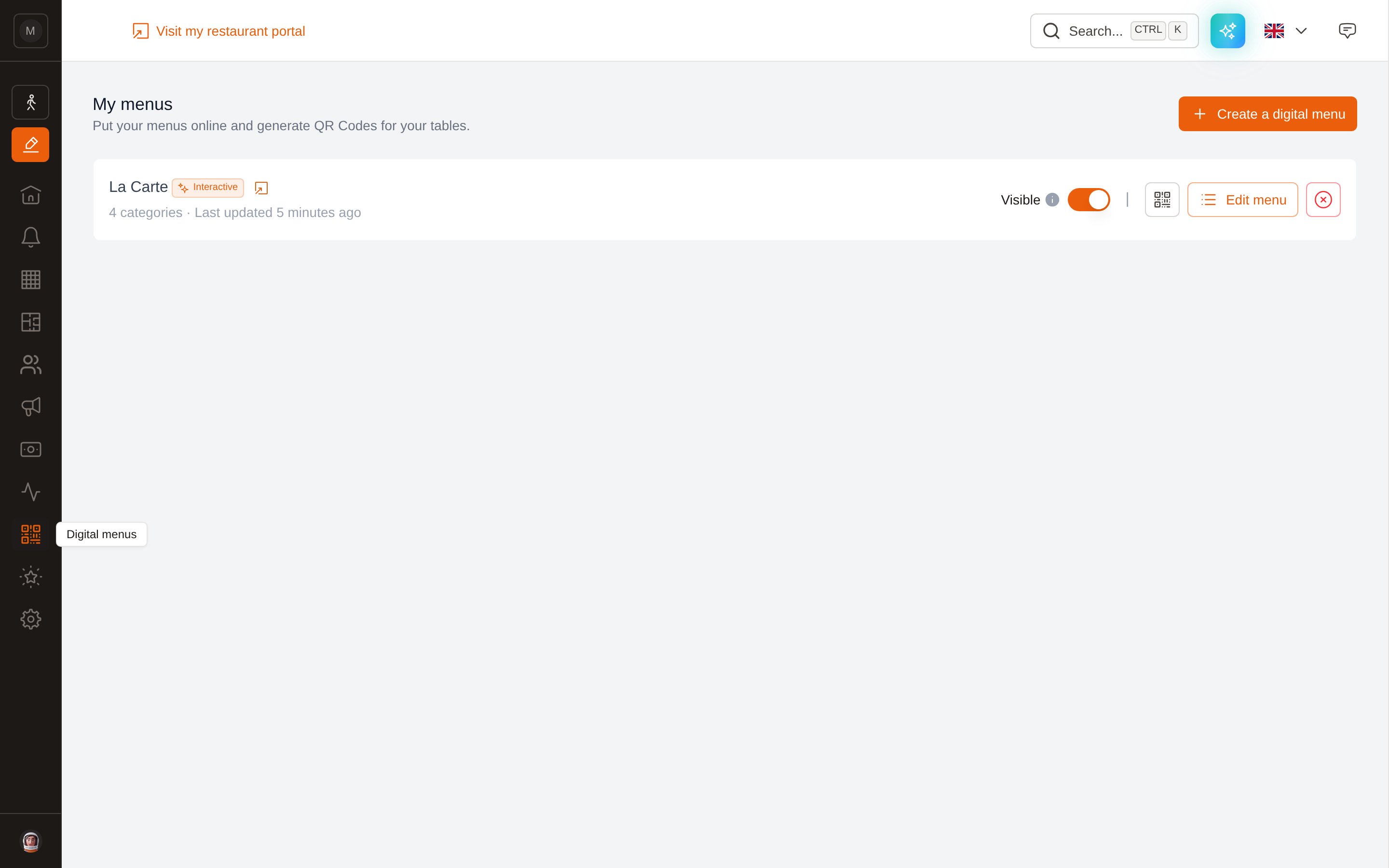
In the left sidebar of your dashboard, open **Digital menus**.
 ## The two types of menu
When you create a menu, you choose its type. This choice is **permanent** — see [Can I convert a PDF menu into an interactive one?](/menus/faq#can-i-convert-a-pdf-menu-into-an-interactive-one)
| | **PDF menu** | **Interactive menu** |
| ---------------------- | -------------------------------- | ---------------------------------------------------------------- |
| What the guest opens | Your PDF file, as-is | A web page on your booking portal, in your colors |
| Setup | Upload a PDF (or paste a link) | Import your PDF and let our AI fill it in, or build it by hand |
| Reading on a phone | Pinch and zoom | Category tabs, mobile-first |
| Languages | One — the language of your file | Automatically translated into the portal's 6 languages |
| Allergens & diets | Whatever is printed on your file | 14 EU allergens + dietary tags per dish, with guest-side filters |
| Photos | — | Up to 4 per dish |
| Changing a price | Re-export and re-upload a PDF | Edit the dish, live immediately |
| Out-of-stock dish | — | One tap to grey it out for the day |
| Google & AI assistants | Not readable | Real indexable page with structured data |
Not sure? Start with a **PDF menu** if you just need something online today. Choose an **interactive menu** if your prices or dishes change often, if you serve international guests, or if you want to be found on Google. You can keep both side by side — for example a PDF wine list and an interactive food menu.
## The menus list
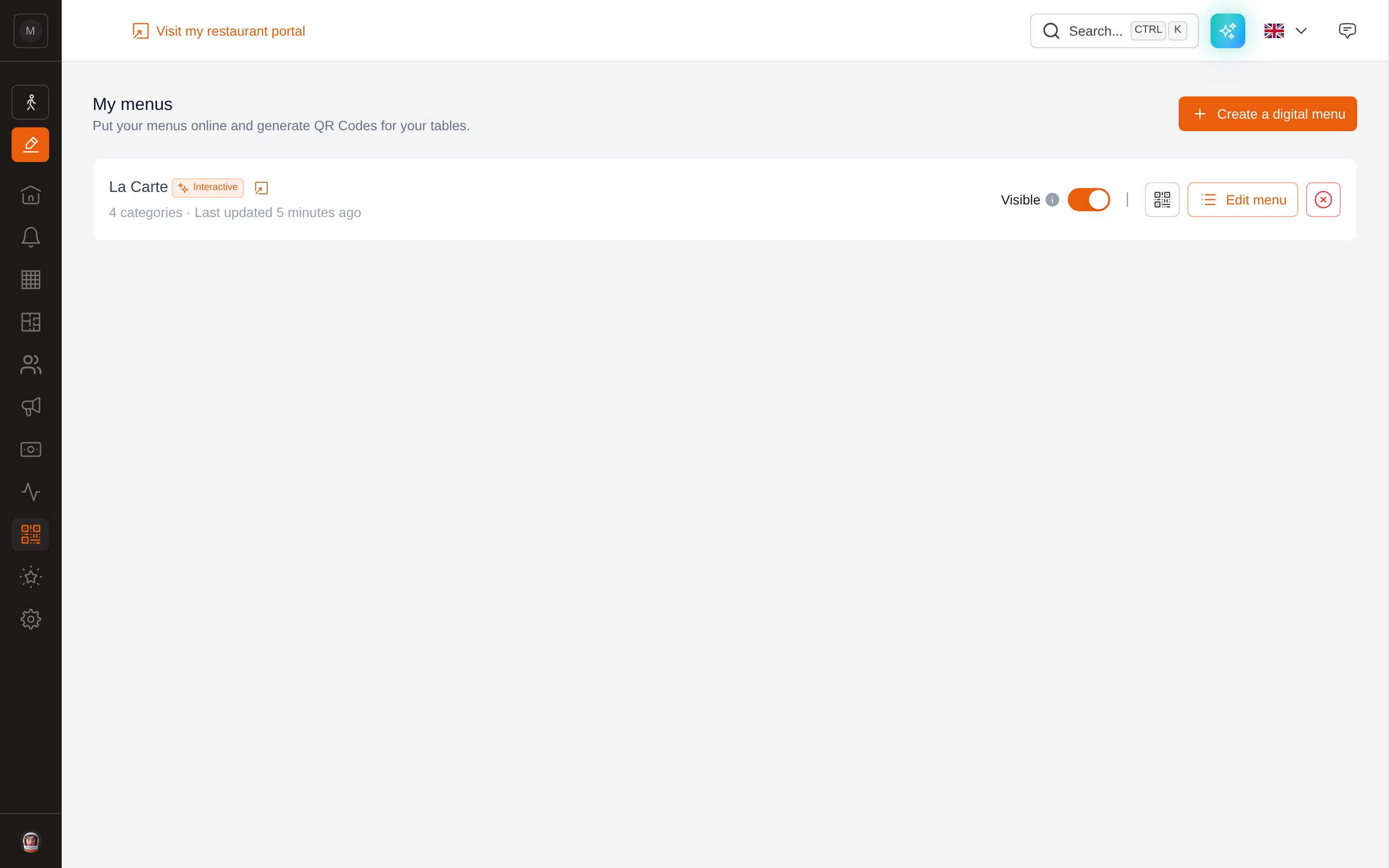
Each menu is one row, with everything you need on it.
## The two types of menu
When you create a menu, you choose its type. This choice is **permanent** — see [Can I convert a PDF menu into an interactive one?](/menus/faq#can-i-convert-a-pdf-menu-into-an-interactive-one)
| | **PDF menu** | **Interactive menu** |
| ---------------------- | -------------------------------- | ---------------------------------------------------------------- |
| What the guest opens | Your PDF file, as-is | A web page on your booking portal, in your colors |
| Setup | Upload a PDF (or paste a link) | Import your PDF and let our AI fill it in, or build it by hand |
| Reading on a phone | Pinch and zoom | Category tabs, mobile-first |
| Languages | One — the language of your file | Automatically translated into the portal's 6 languages |
| Allergens & diets | Whatever is printed on your file | 14 EU allergens + dietary tags per dish, with guest-side filters |
| Photos | — | Up to 4 per dish |
| Changing a price | Re-export and re-upload a PDF | Edit the dish, live immediately |
| Out-of-stock dish | — | One tap to grey it out for the day |
| Google & AI assistants | Not readable | Real indexable page with structured data |
Not sure? Start with a **PDF menu** if you just need something online today. Choose an **interactive menu** if your prices or dishes change often, if you serve international guests, or if you want to be found on Google. You can keep both side by side — for example a PDF wine list and an interactive food menu.
## The menus list
Each menu is one row, with everything you need on it.
 | Control | What it does |
| ---------------- | ------------------------------------------------------------------------------------------------------------------------------------------------------------------------------------------------------------------------- |
| **Visible** | Turns the menu on or off on your portal. Off, it disappears from the *Menus* list — and an interactive menu's page stops existing entirely. A hidden **PDF** menu still opens for anyone who already has its direct link. |
| **QR code** icon | Opens the permanent link and the printable QR code — see [QR codes & sharing](/menus/share). |
| **Edit menu** | Opens the editor (interactive menus only) — see [Build & publish](/menus/edit). |
| **Pencil** | Changes the name and the file (PDF menus only). |
| **Delete** | Removes the menu permanently. Its link and its QR code stop working. |
Managing menus requires the **Manage menus (QR Code)** permission. Owners, Managers and Marketing managers have it by default. See [Permissions](/collaborators/permissions).
## Next steps
PDF or interactive, and how the AI import from a PDF works.
Categories, dishes, allergens, translations and the publish switch.
Print a QR code, share the link, and see what your guests see.
My menu is not showing, the import failed, who can edit…
| Control | What it does |
| ---------------- | ------------------------------------------------------------------------------------------------------------------------------------------------------------------------------------------------------------------------- |
| **Visible** | Turns the menu on or off on your portal. Off, it disappears from the *Menus* list — and an interactive menu's page stops existing entirely. A hidden **PDF** menu still opens for anyone who already has its direct link. |
| **QR code** icon | Opens the permanent link and the printable QR code — see [QR codes & sharing](/menus/share). |
| **Edit menu** | Opens the editor (interactive menus only) — see [Build & publish](/menus/edit). |
| **Pencil** | Changes the name and the file (PDF menus only). |
| **Delete** | Removes the menu permanently. Its link and its QR code stop working. |
Managing menus requires the **Manage menus (QR Code)** permission. Owners, Managers and Marketing managers have it by default. See [Permissions](/collaborators/permissions).
## Next steps
PDF or interactive, and how the AI import from a PDF works.
Categories, dishes, allergens, translations and the publish switch.
Print a QR code, share the link, and see what your guests see.
My menu is not showing, the import failed, who can edit…