> ## Documentation Index
> Fetch the complete documentation index at: https://docs.eat-now.io/llms.txt
> Use this file to discover all available pages before exploring further.
# Build & publish
> The interactive menu editor: categories, dishes, prices, photos, allergens, out-of-stock, translations — and the switch that puts it online.
This page is about **interactive menus**. Open **Digital menus**, then click **Edit menu** on the menu you want to work on.
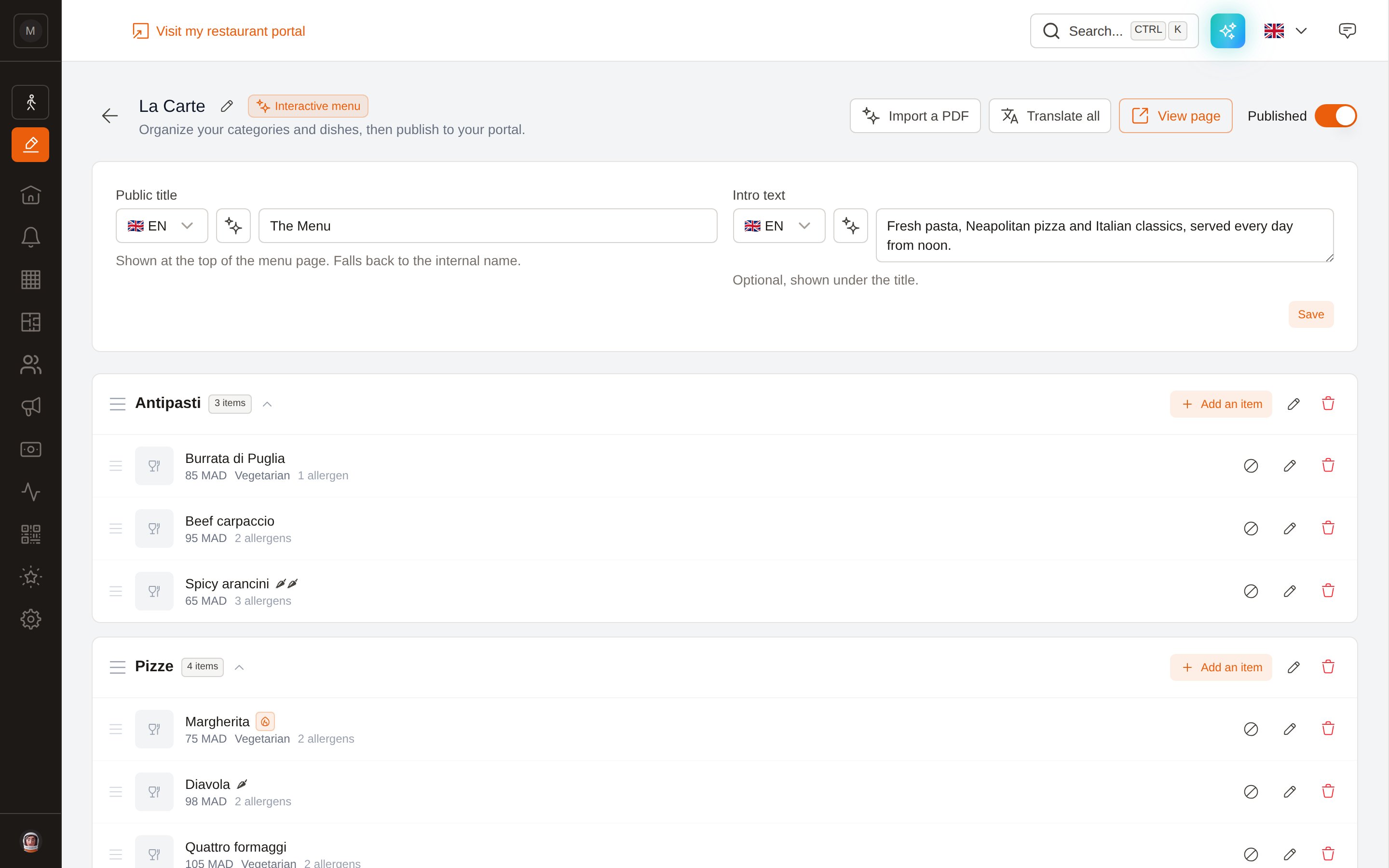 ## The menu heading
| Field | What it is |
| ---------------------------------------- | ----------------------------------------------------------------------------------------------------------- |
| **Menu name** (pencil next to the title) | Internal name, shown in your dashboard list. |
| **Public title** | The big title at the top of the guest page. Translatable. If you leave it empty, the internal name is used. |
| **Intro text** | An optional sentence under the title — "Served every day from noon", a word from the chef… Translatable. |
Click **Save** under those two fields to store them.
## Categories
Categories are your menu sections: Starters, Mains, Desserts, Wines…
* **Add a category** at the bottom of the editor.
* **Reorder** by dragging the handle on the left of a category. The order is saved instantly and is the order guests see.
* **Rename or describe** with the pencil. A category description shows as a short line under the section heading.
* **Delete** with the bin — this also deletes the dishes inside it.
Click a category header to fold or unfold its dishes.
## Dishes
Use **Add an item** inside a category, or the pencil on an existing dish.
## The menu heading
| Field | What it is |
| ---------------------------------------- | ----------------------------------------------------------------------------------------------------------- |
| **Menu name** (pencil next to the title) | Internal name, shown in your dashboard list. |
| **Public title** | The big title at the top of the guest page. Translatable. If you leave it empty, the internal name is used. |
| **Intro text** | An optional sentence under the title — "Served every day from noon", a word from the chef… Translatable. |
Click **Save** under those two fields to store them.
## Categories
Categories are your menu sections: Starters, Mains, Desserts, Wines…
* **Add a category** at the bottom of the editor.
* **Reorder** by dragging the handle on the left of a category. The order is saved instantly and is the order guests see.
* **Rename or describe** with the pencil. A category description shows as a short line under the section heading.
* **Delete** with the bin — this also deletes the dishes inside it.
Click a category header to fold or unfold its dishes.
## Dishes
Use **Add an item** inside a category, or the pencil on an existing dish.
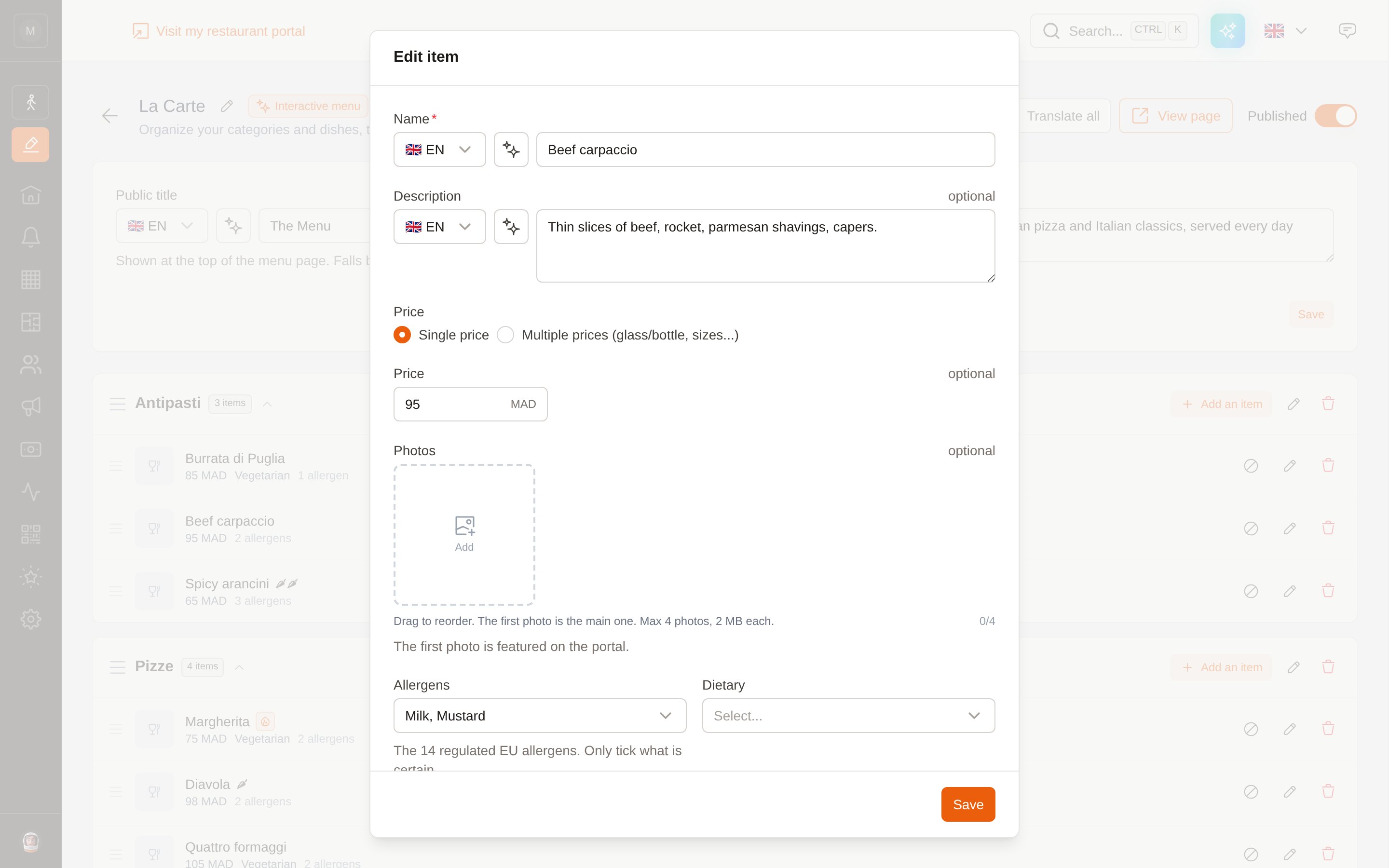 | Field | Notes |
| --------------- | ----------------------------------------------------------------------------------------------------------------------------------------------------------------------------------- |
| **Name** | Required. Translatable into the portal's 6 languages. |
| **Description** | Optional. Translatable. |
| **Price** | Either a **single price**, or **multiple prices** with labels — Glass / Bottle, 50 cl / 1 L, Small / Large. Enter plain numbers; your restaurant's currency is added automatically. |
| **Photos** | Up to 4, 2 MB each. Drag to reorder — the first one is the photo shown on the menu. |
| **Allergens** | The 14 EU-regulated allergens. Only tick what is certain. |
| **Dietary** | Vegetarian, Vegan, Halal, Gluten-free. Shown as green chips and usable by guests as filters. |
| **Spicy** | 1 to 3 chilies, shown next to the dish name. |
| **Badge** | New, Popular or Chef's suggestion (shown to guests as *Chef's pick*). Highlight at most one dish per category — a badge on everything highlights nothing. |
| Field | Notes |
| --------------- | ----------------------------------------------------------------------------------------------------------------------------------------------------------------------------------- |
| **Name** | Required. Translatable into the portal's 6 languages. |
| **Description** | Optional. Translatable. |
| **Price** | Either a **single price**, or **multiple prices** with labels — Glass / Bottle, 50 cl / 1 L, Small / Large. Enter plain numbers; your restaurant's currency is added automatically. |
| **Photos** | Up to 4, 2 MB each. Drag to reorder — the first one is the photo shown on the menu. |
| **Allergens** | The 14 EU-regulated allergens. Only tick what is certain. |
| **Dietary** | Vegetarian, Vegan, Halal, Gluten-free. Shown as green chips and usable by guests as filters. |
| **Spicy** | 1 to 3 chilies, shown next to the dish name. |
| **Badge** | New, Popular or Chef's suggestion (shown to guests as *Chef's pick*). Highlight at most one dish per category — a badge on everything highlights nothing. |
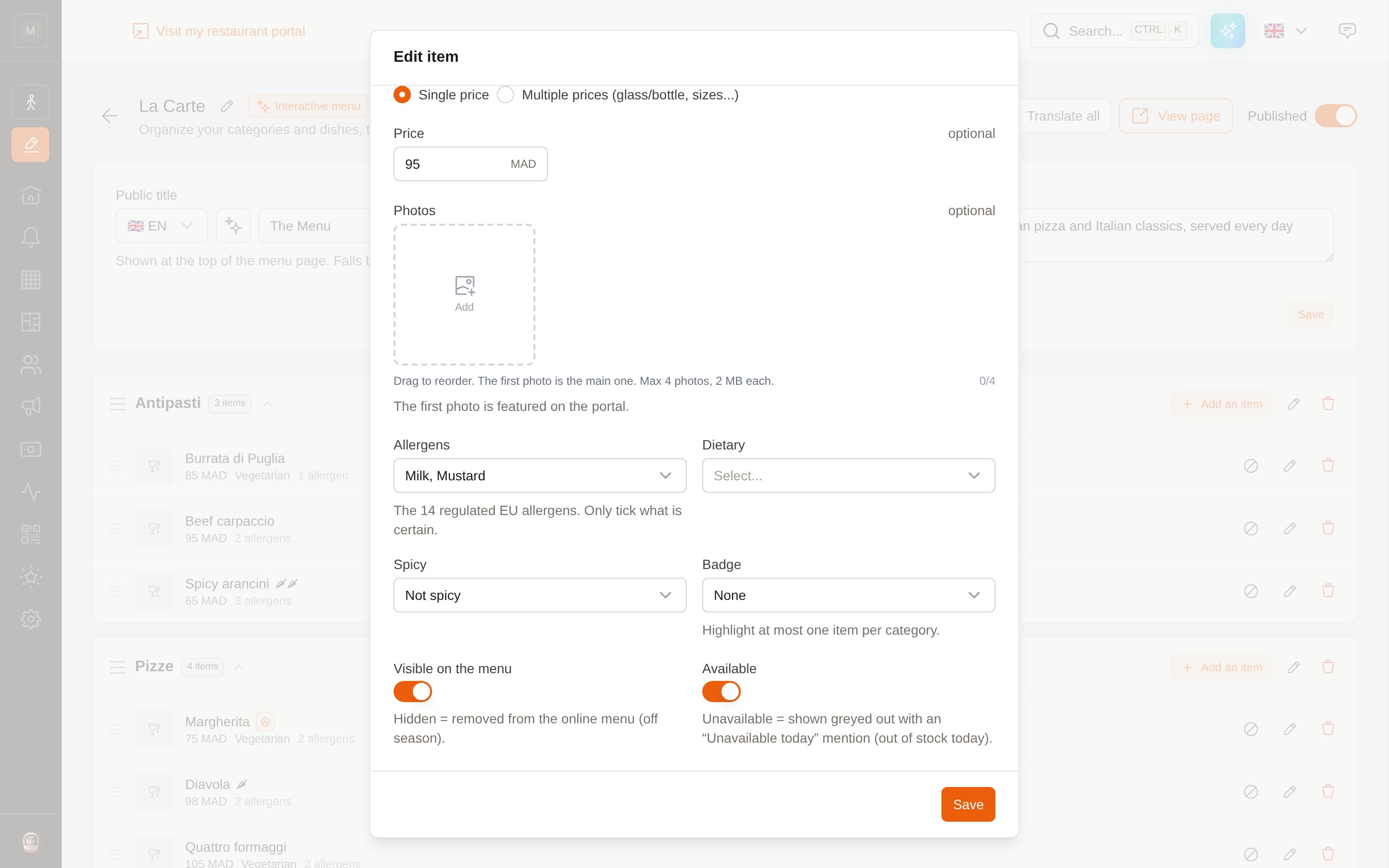 Dishes reorder by drag & drop inside their category, exactly like categories.
### Out of stock vs. hidden
Two different switches, for two different situations:
**You ran out tonight.** The dish stays on the menu, greyed out and marked *Unavailable today*. Guests see the dish exists — just not right now. One tap on the ⊘ button in the dish row does the same thing without opening the form.
**Off season, or not served any more.** The dish disappears from the menu entirely, but stays in your editor so you can bring it back next season.
## Translations
**A menu imported from a PDF arrives already translated.** The extraction translates your menu into the portal's six languages — English, French, Spanish, German, Portuguese, Italian — before it even shows it to you. There is nothing to run.
For dishes you add or edit afterwards, every text field has a language selector and a ✨ button.
**The ✨ translates FROM the language on screen.** Write your dish in French, leave the selector on 🇫🇷, click: your French wording stays untouched word for word, the five other languages are generated. It is also how you **refresh translations that have gone stale** — fix the French name, click again, the others follow.
For the whole menu at once, **Translate all** in the toolbar is still there: use it if the extraction couldn't translate, or after adding a lot of dishes by hand.
**Translate all only fills the languages that are still empty.** It never overwrites a wording you typed or corrected yourself — unlike the ✨, which regenerates the other languages on purpose. Re-running it later only fills what's new.
A dish no translation covers is never shown blank to your guests: the public page falls back to the language it is written in.
## Re-import a PDF
Your printed menu changed? Click **Import a PDF** in the toolbar at any time.
You choose what happens to the current content:
* **Replace current content — on**: the existing categories and dishes are deleted, then the extracted ones are created. Use this for a new season's menu.
* **Replace current content — off**: the extracted content is added *after* what's already there. Use this to add a wine list to an existing food menu.
The result is a draft to review, and your published menu keeps showing the old content until the extraction finishes.
With **Replace** on, the deletion happens *before* the AI reads your PDF. If that import then fails, your menu is left empty — the old dishes are gone. Click **Retry** on the error banner to fill it back in. If the menu you're replacing is one you spent time correcting, run the import with **Replace off** first, check the result, then delete the old categories by hand.
## Publish
The **Published** switch at the top right is what makes the menu visible to your guests. It is the same thing as the **Visible** switch on the menus list.
While a menu is unpublished, an orange banner reminds you, and the page simply does not exist for the outside world.
**View page** opens the real guest page. On an unpublished menu it shows a *not found* error — that's expected, not a bug. Publish first, then preview.
Before you flip the switch, a quick checklist:
* [ ] Every dish re-read, especially **allergens**
* [ ] Prices match your printed menu
* [ ] Categories in the order you want
* [ ] *Translate all* run at least once
* [ ] A **Public title** set (or the internal name is fine as a title)
Then head to [QR codes & sharing](/menus/share) to print it for your tables.
Dishes reorder by drag & drop inside their category, exactly like categories.
### Out of stock vs. hidden
Two different switches, for two different situations:
**You ran out tonight.** The dish stays on the menu, greyed out and marked *Unavailable today*. Guests see the dish exists — just not right now. One tap on the ⊘ button in the dish row does the same thing without opening the form.
**Off season, or not served any more.** The dish disappears from the menu entirely, but stays in your editor so you can bring it back next season.
## Translations
**A menu imported from a PDF arrives already translated.** The extraction translates your menu into the portal's six languages — English, French, Spanish, German, Portuguese, Italian — before it even shows it to you. There is nothing to run.
For dishes you add or edit afterwards, every text field has a language selector and a ✨ button.
**The ✨ translates FROM the language on screen.** Write your dish in French, leave the selector on 🇫🇷, click: your French wording stays untouched word for word, the five other languages are generated. It is also how you **refresh translations that have gone stale** — fix the French name, click again, the others follow.
For the whole menu at once, **Translate all** in the toolbar is still there: use it if the extraction couldn't translate, or after adding a lot of dishes by hand.
**Translate all only fills the languages that are still empty.** It never overwrites a wording you typed or corrected yourself — unlike the ✨, which regenerates the other languages on purpose. Re-running it later only fills what's new.
A dish no translation covers is never shown blank to your guests: the public page falls back to the language it is written in.
## Re-import a PDF
Your printed menu changed? Click **Import a PDF** in the toolbar at any time.
You choose what happens to the current content:
* **Replace current content — on**: the existing categories and dishes are deleted, then the extracted ones are created. Use this for a new season's menu.
* **Replace current content — off**: the extracted content is added *after* what's already there. Use this to add a wine list to an existing food menu.
The result is a draft to review, and your published menu keeps showing the old content until the extraction finishes.
With **Replace** on, the deletion happens *before* the AI reads your PDF. If that import then fails, your menu is left empty — the old dishes are gone. Click **Retry** on the error banner to fill it back in. If the menu you're replacing is one you spent time correcting, run the import with **Replace off** first, check the result, then delete the old categories by hand.
## Publish
The **Published** switch at the top right is what makes the menu visible to your guests. It is the same thing as the **Visible** switch on the menus list.
While a menu is unpublished, an orange banner reminds you, and the page simply does not exist for the outside world.
**View page** opens the real guest page. On an unpublished menu it shows a *not found* error — that's expected, not a bug. Publish first, then preview.
Before you flip the switch, a quick checklist:
* [ ] Every dish re-read, especially **allergens**
* [ ] Prices match your printed menu
* [ ] Categories in the order you want
* [ ] *Translate all* run at least once
* [ ] A **Public title** set (or the internal name is fine as a title)
Then head to [QR codes & sharing](/menus/share) to print it for your tables.