> ## Documentation Index
> Fetch the complete documentation index at: https://docs.eat-now.io/llms.txt
> Use this file to discover all available pages before exploring further.
# Interactive menus
> Turn your PDF menu into a beautiful hosted page on your booking portal — with categories, photos, allergens, automatic translations and guest-side filters.
Until now, a menu on EatNow was a **PDF**: guests tapped the *Menus* link on your booking portal (or scanned a QR code) and opened your file. That still works — but you can now go further with **interactive menus**.
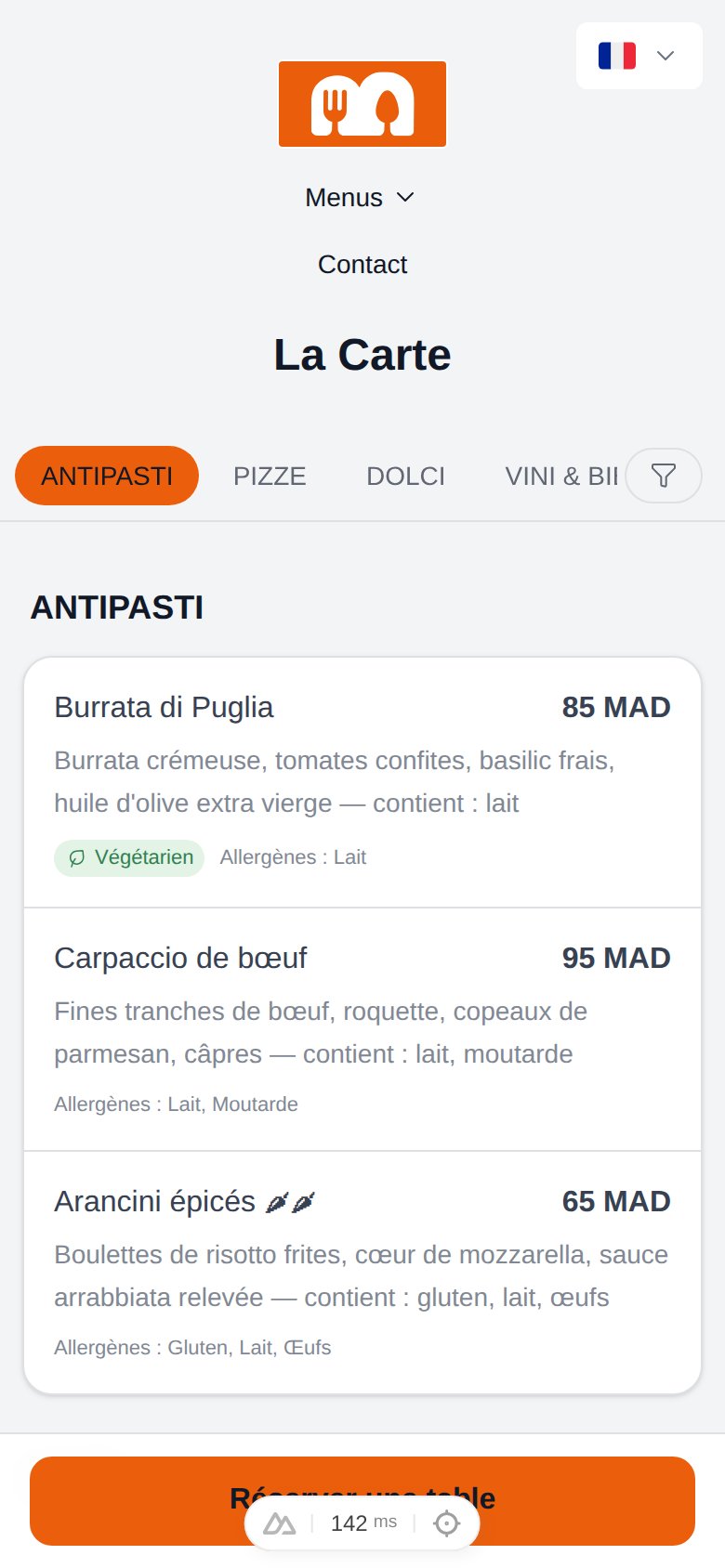
An interactive menu is a **web page hosted on your booking portal**, in your restaurant's colors, that presents your dishes by category with prices, photos, allergens and dietary tags. It reads beautifully on a phone, is translated into your portal's 6 languages, and is understood by search engines.
 ## Why switch from a PDF?
| PDF menu | Interactive menu |
| ---------------------------- | ------------------------------------------------------- |
| Guests pinch-zoom a document | Reads like an app, category tabs, mobile-first |
| One language | Automatically translated into 6 languages |
| Invisible to Google | Indexed, with structured data search engines understand |
| No allergen help | 14 EU allergens per dish + guest-side filters |
| New PDF for every change | Edit a dish in seconds, live immediately |
PDF menus are still fully supported — nothing changes for them. You choose the type when creating each menu, and you can keep both kinds side by side.
## Create an interactive menu
In your dashboard, go to **Menus** and click **Create a digital menu**.
Two types are offered: **PDF menu** (the classic behavior) and **Interactive menu**.
## Why switch from a PDF?
| PDF menu | Interactive menu |
| ---------------------------- | ------------------------------------------------------- |
| Guests pinch-zoom a document | Reads like an app, category tabs, mobile-first |
| One language | Automatically translated into 6 languages |
| Invisible to Google | Indexed, with structured data search engines understand |
| No allergen help | 14 EU allergens per dish + guest-side filters |
| New PDF for every change | Edit a dish in seconds, live immediately |
PDF menus are still fully supported — nothing changes for them. You choose the type when creating each menu, and you can keep both kinds side by side.
## Create an interactive menu
In your dashboard, go to **Menus** and click **Create a digital menu**.
Two types are offered: **PDF menu** (the classic behavior) and **Interactive menu**.
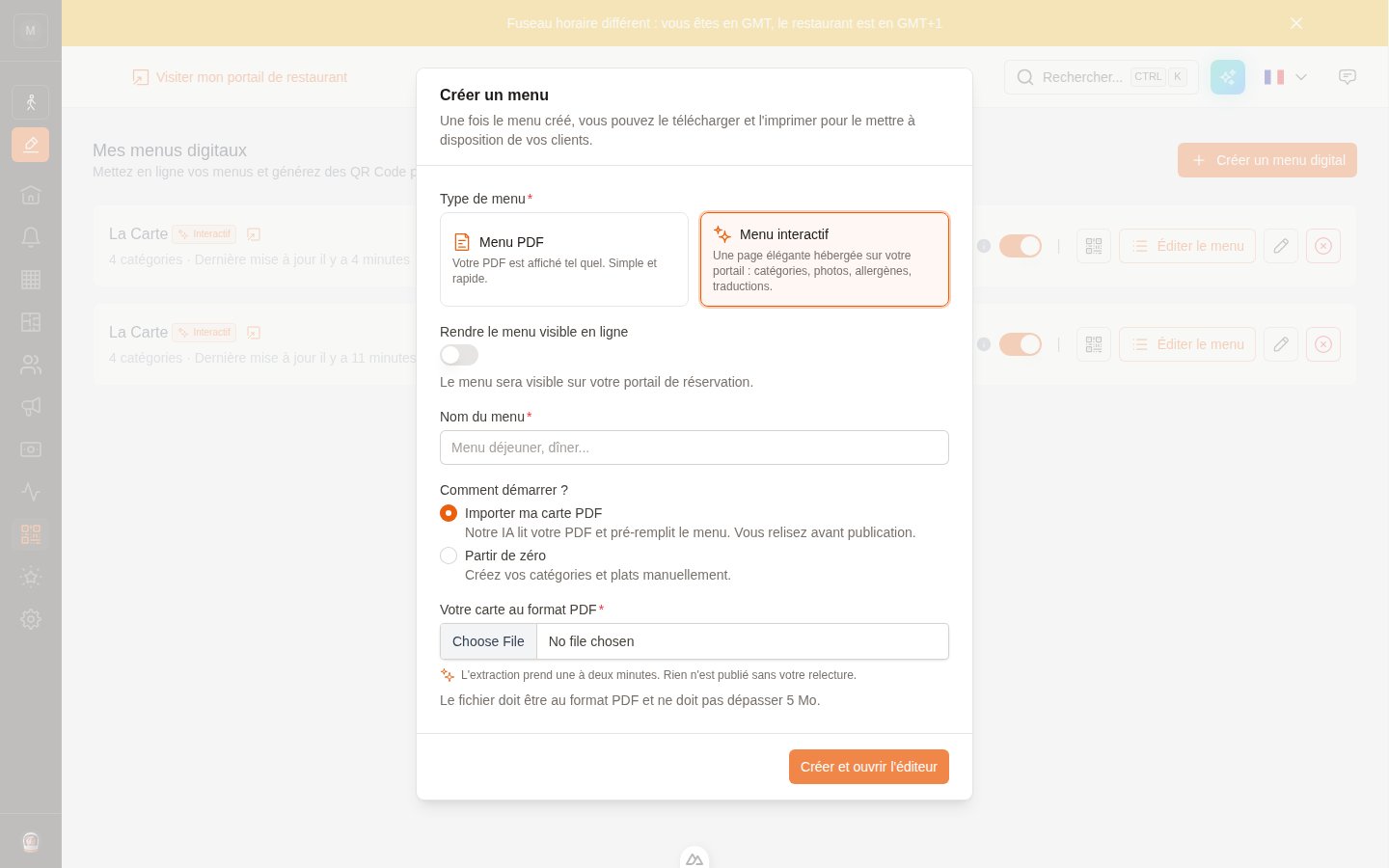 If you already have your menu as a PDF, choose **Import my PDF menu**: our AI reads it and pre-fills your categories and dishes — names, descriptions, prices (including glass/bottle variants), and any allergens, vegetarian/vegan marks or chili icons **explicitly printed** on your menu.
Extraction takes a minute or two. Prefer a blank slate? Choose **Start from scratch**.
The extracted menu is a **draft**: nothing is visible to guests until you turn on **Published**. Read every dish — especially **allergens**, which the AI only picks up when your PDF explicitly declares them. You remain responsible for allergen accuracy.
## Edit your menu
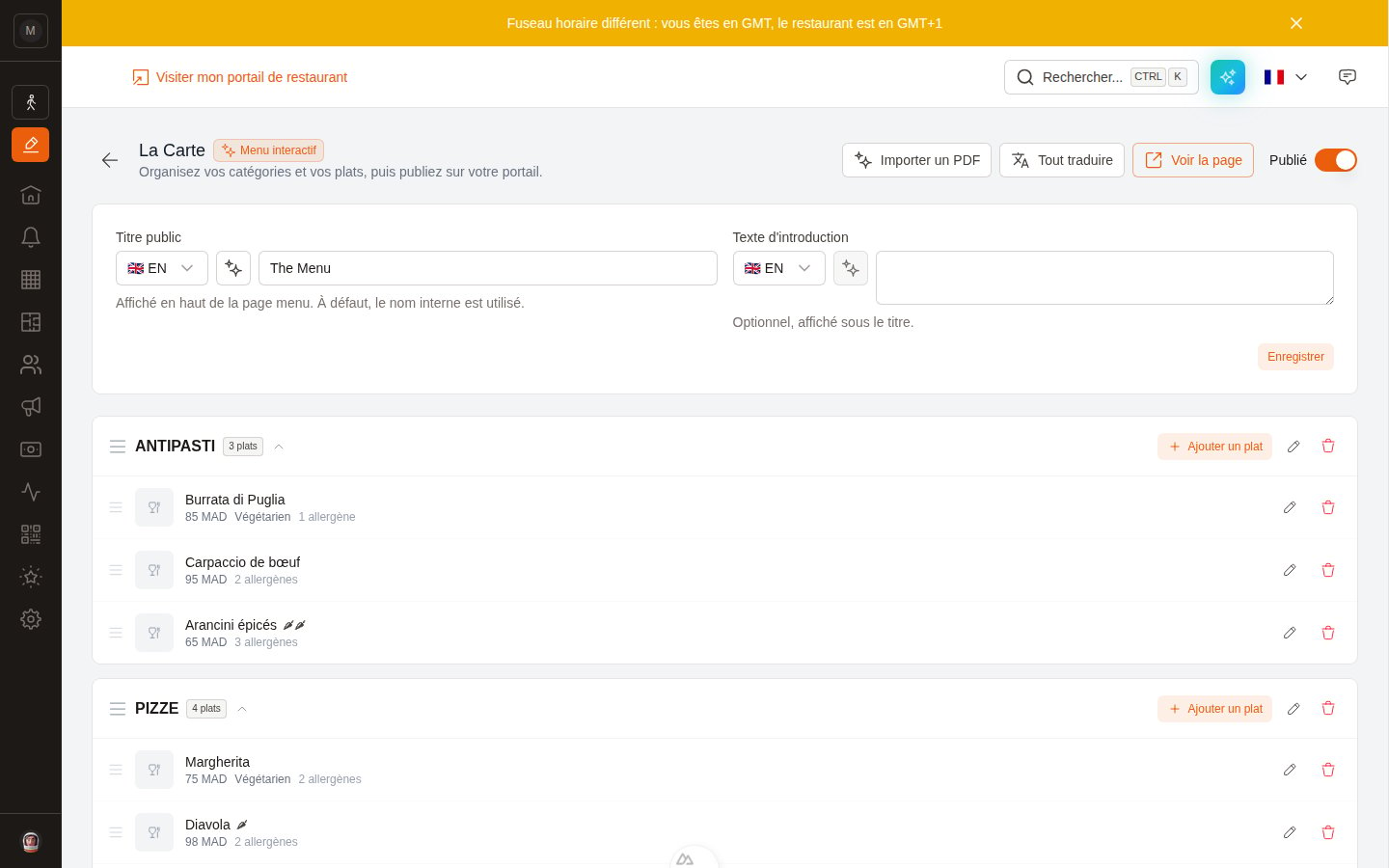
The editor shows your categories (Starters, Mains, Desserts, Drinks…) with their dishes. You can:
* **Reorder anything** by drag & drop — categories and dishes.
* **Add, edit, hide or delete** categories and dishes. Hiding a dish removes it from the portal entirely (off season).
* **Mark a dish unavailable in one tap** (the ⊘ button on its row) when it runs out mid-service: it stays on the menu, greyed out with an "Unavailable today" mention, until you flip it back.
* **Publish** with the switch at the top right — that's what makes the menu visible on your portal.
If you already have your menu as a PDF, choose **Import my PDF menu**: our AI reads it and pre-fills your categories and dishes — names, descriptions, prices (including glass/bottle variants), and any allergens, vegetarian/vegan marks or chili icons **explicitly printed** on your menu.
Extraction takes a minute or two. Prefer a blank slate? Choose **Start from scratch**.
The extracted menu is a **draft**: nothing is visible to guests until you turn on **Published**. Read every dish — especially **allergens**, which the AI only picks up when your PDF explicitly declares them. You remain responsible for allergen accuracy.
## Edit your menu
The editor shows your categories (Starters, Mains, Desserts, Drinks…) with their dishes. You can:
* **Reorder anything** by drag & drop — categories and dishes.
* **Add, edit, hide or delete** categories and dishes. Hiding a dish removes it from the portal entirely (off season).
* **Mark a dish unavailable in one tap** (the ⊘ button on its row) when it runs out mid-service: it stays on the menu, greyed out with an "Unavailable today" mention, until you flip it back.
* **Publish** with the switch at the top right — that's what makes the menu visible on your portal.
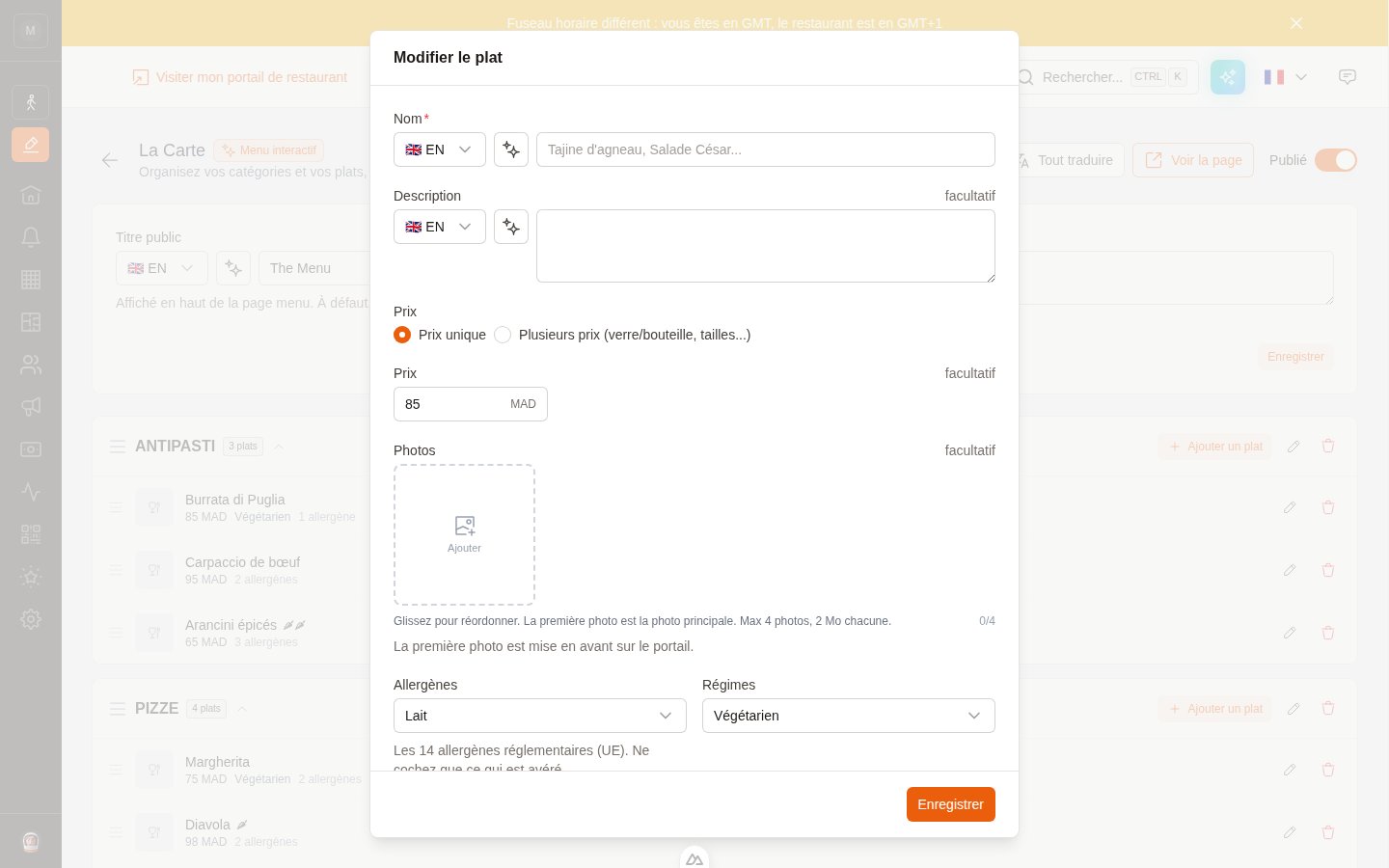
 Each dish can carry:
| Field | Notes |
| ------------------ | ------------------------------------------------------------------------------ |
| Name & description | Translatable into the 6 portal languages |
| Price | A single price, **or** several labeled prices (Glass / Bottle, Small / Large…) |
| Photos | Up to 4 — the first one is shown on the portal |
| Allergens | The 14 regulated EU allergens |
| Dietary tags | Vegetarian, Vegan, Halal, Gluten-free |
| Spice level | 1 to 3 chilies |
| Badge | New, Popular, or Chef's pick — highlight at most one dish per category |
Each dish can carry:
| Field | Notes |
| ------------------ | ------------------------------------------------------------------------------ |
| Name & description | Translatable into the 6 portal languages |
| Price | A single price, **or** several labeled prices (Glass / Bottle, Small / Large…) |
| Photos | Up to 4 — the first one is shown on the portal |
| Allergens | The 14 regulated EU allergens |
| Dietary tags | Vegetarian, Vegan, Halal, Gluten-free |
| Spice level | 1 to 3 chilies |
| Badge | New, Popular, or Chef's pick — highlight at most one dish per category |
 ## Translations
Every text field has the usual language selector and ✨ auto-translate button. For a whole menu, use **Translate all** in the editor's toolbar: it fills the 6 portal languages for every dish in one go.
**Translate all** only fills **empty** languages — it never overwrites a translation you've written or corrected yourself. Run it once after the import, then fix the few wordings you care about.
## What your guests see
On your portal, the *Menus* link now opens the hosted page instead of a PDF. Guests get:
* **Category tabs** that stick to the top while scrolling,
* **Filters**: show only vegan dishes, or hide everything that declares a given allergen,
* Photos (tap to enlarge), prices, badges and spice levels,
* The page in **their language**, with a **Book a table** button that leads straight to your booking flow.
## Translations
Every text field has the usual language selector and ✨ auto-translate button. For a whole menu, use **Translate all** in the editor's toolbar: it fills the 6 portal languages for every dish in one go.
**Translate all** only fills **empty** languages — it never overwrites a translation you've written or corrected yourself. Run it once after the import, then fix the few wordings you care about.
## What your guests see
On your portal, the *Menus* link now opens the hosted page instead of a PDF. Guests get:
* **Category tabs** that stick to the top while scrolling,
* **Filters**: show only vegan dishes, or hide everything that declares a given allergen,
* Photos (tap to enlarge), prices, badges and spice levels,
* The page in **their language**, with a **Book a table** button that leads straight to your booking flow.
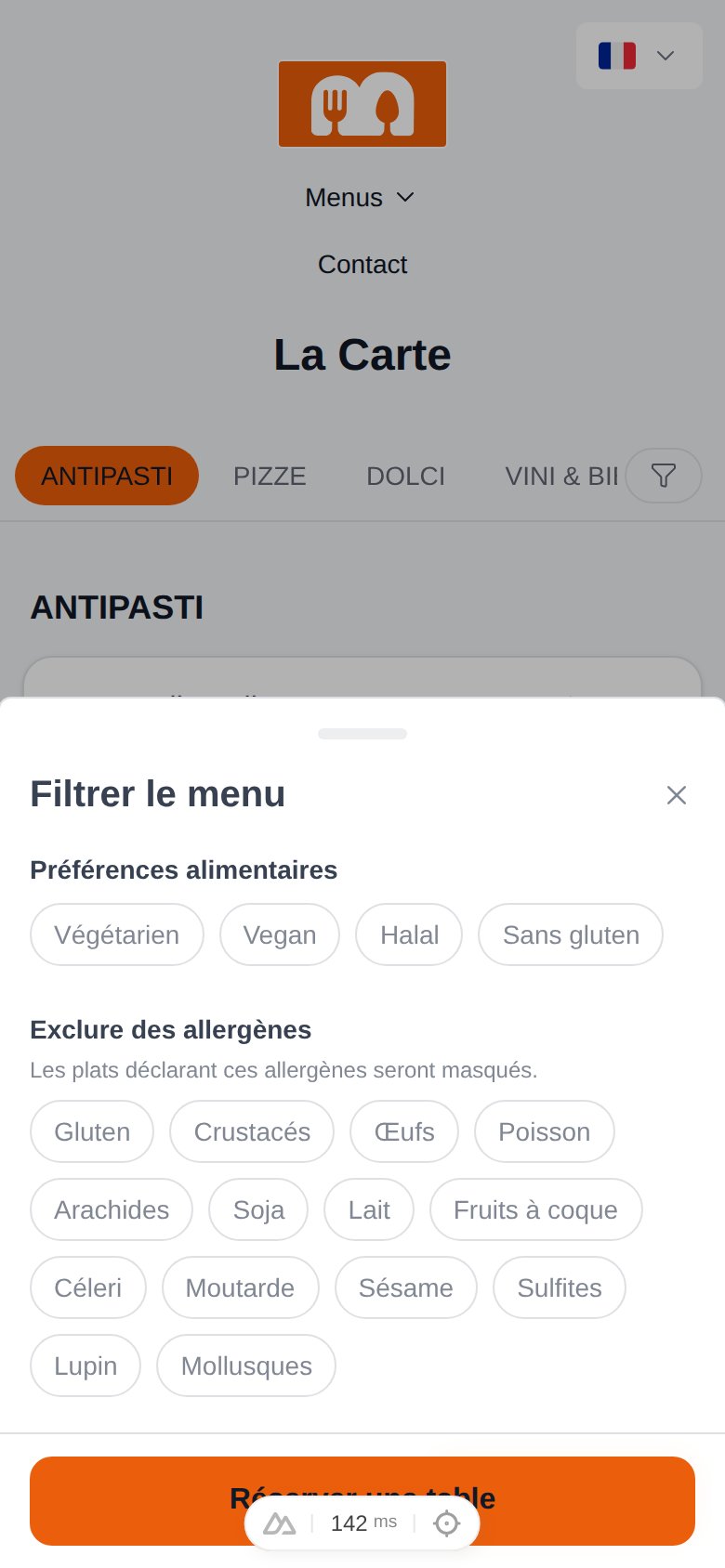 The allergen filter only hides dishes that **declare** the excluded allergen, and the page carries a disclaimer inviting guests to inform your team. It's guidance, not a guarantee.
## QR codes and links
Each menu keeps a **permanent public link and QR code** (from the menu's card in the dashboard). QR codes you've already printed keep working: if you convert to an interactive menu later, the same link now opens the hosted page.
The QR code and the shareable link are subtly different on purpose: a QR code is usually scanned **at the table**, so the page it opens hides the *Book a table* button — your guest is already seated. The link (for your website, Instagram bio…) keeps the booking button visible.
## Search engines & AI assistants
The menu page is built for visibility:
* It's a real web page (not a PDF), server-rendered and **indexable by Google**,
* It embeds **schema.org structured data** (`Restaurant → hasMenu → MenuSection → MenuItem`, with prices and diets) so search engines — and AI assistants recommending restaurants — can actually read your menu.
## Re-importing a PDF
Menu changed? In the editor, click **Import a PDF** at any time. You choose whether the import **replaces** the current content or is **appended** after it. As always, the result is a draft to review.
The allergen filter only hides dishes that **declare** the excluded allergen, and the page carries a disclaimer inviting guests to inform your team. It's guidance, not a guarantee.
## QR codes and links
Each menu keeps a **permanent public link and QR code** (from the menu's card in the dashboard). QR codes you've already printed keep working: if you convert to an interactive menu later, the same link now opens the hosted page.
The QR code and the shareable link are subtly different on purpose: a QR code is usually scanned **at the table**, so the page it opens hides the *Book a table* button — your guest is already seated. The link (for your website, Instagram bio…) keeps the booking button visible.
## Search engines & AI assistants
The menu page is built for visibility:
* It's a real web page (not a PDF), server-rendered and **indexable by Google**,
* It embeds **schema.org structured data** (`Restaurant → hasMenu → MenuSection → MenuItem`, with prices and diets) so search engines — and AI assistants recommending restaurants — can actually read your menu.
## Re-importing a PDF
Menu changed? In the editor, click **Import a PDF** at any time. You choose whether the import **replaces** the current content or is **appended** after it. As always, the result is a draft to review.