> ## Documentation Index
> Fetch the complete documentation index at: https://docs.eat-now.io/llms.txt
> Use this file to discover all available pages before exploring further.
# Segments
> Build the audience you want to talk to — with a rule builder or by simply describing it in your own words — then publish it so campaigns can use it.
A **segment** is a saved list of customers, defined by rules rather than by hand. "Customers with at least 2 visits who haven't come in 3 months" is a segment. Once published, you can reuse it for as many campaigns as you like, and it recalculates itself every time.
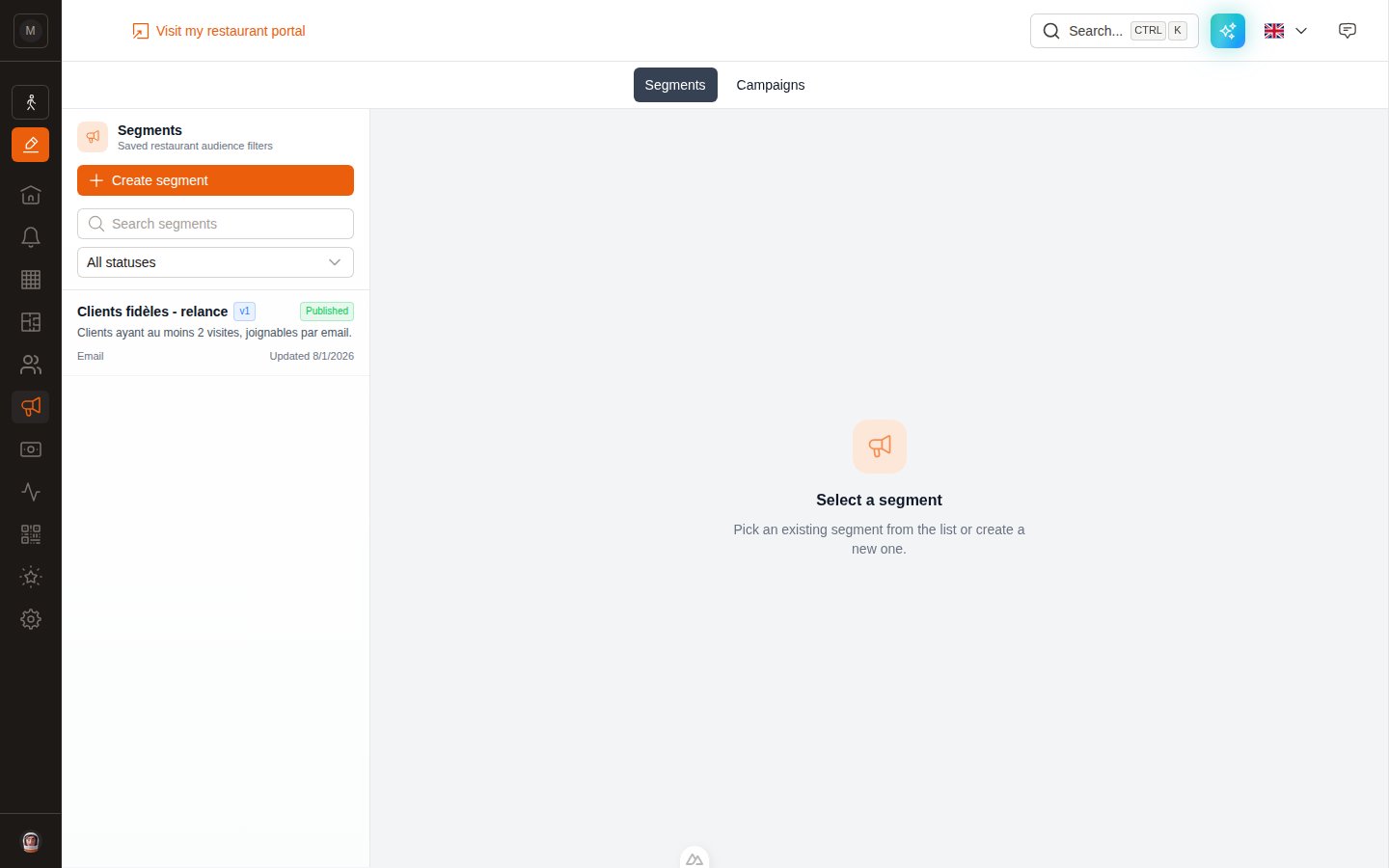
**Where:** left sidebar → **Marketing** → **Segments** tab.
 ## Create a segment
Top-left of the Segments list. The **New segment** editor opens.
In the **Segment settings** card, fill in **Name** (required) and, optionally, **Description**. Then choose the **Channel**:
| Channel | Who ends up in the segment |
| ---------------- | ---------------------------------------------- |
| **All channels** | Everyone matching your rules, reachable or not |
| **Email** | Only customers who have an email address |
| **WhatsApp** | Only customers who have a phone number |
Pick the channel you intend to send on. It keeps the preview count honest — there's nothing worse than an audience of 800 that turns into 210 at launch.
In the **Segment builder** card, use the **Manual Editor** or the **AI Editor** — both are covered below.
On the right, **Live preview** updates as you type: how many contacts match, and a sample of them with their email, phone, language and visit count. If it says 0, your rules are too narrow.
The **Save draft** button appears as soon as you change something. A draft is saved but **not usable by a campaign yet**.
Click **Publish**. This creates version **v1** (then v2, v3… on each republish). Campaigns can only select published segments.
## The manual editor
## Create a segment
Top-left of the Segments list. The **New segment** editor opens.
In the **Segment settings** card, fill in **Name** (required) and, optionally, **Description**. Then choose the **Channel**:
| Channel | Who ends up in the segment |
| ---------------- | ---------------------------------------------- |
| **All channels** | Everyone matching your rules, reachable or not |
| **Email** | Only customers who have an email address |
| **WhatsApp** | Only customers who have a phone number |
Pick the channel you intend to send on. It keeps the preview count honest — there's nothing worse than an audience of 800 that turns into 210 at launch.
In the **Segment builder** card, use the **Manual Editor** or the **AI Editor** — both are covered below.
On the right, **Live preview** updates as you type: how many contacts match, and a sample of them with their email, phone, language and visit count. If it says 0, your rules are too narrow.
The **Save draft** button appears as soon as you change something. A draft is saved but **not usable by a campaign yet**.
Click **Publish**. This creates version **v1** (then v2, v3… on each republish). Campaigns can only select published segments.
## The manual editor
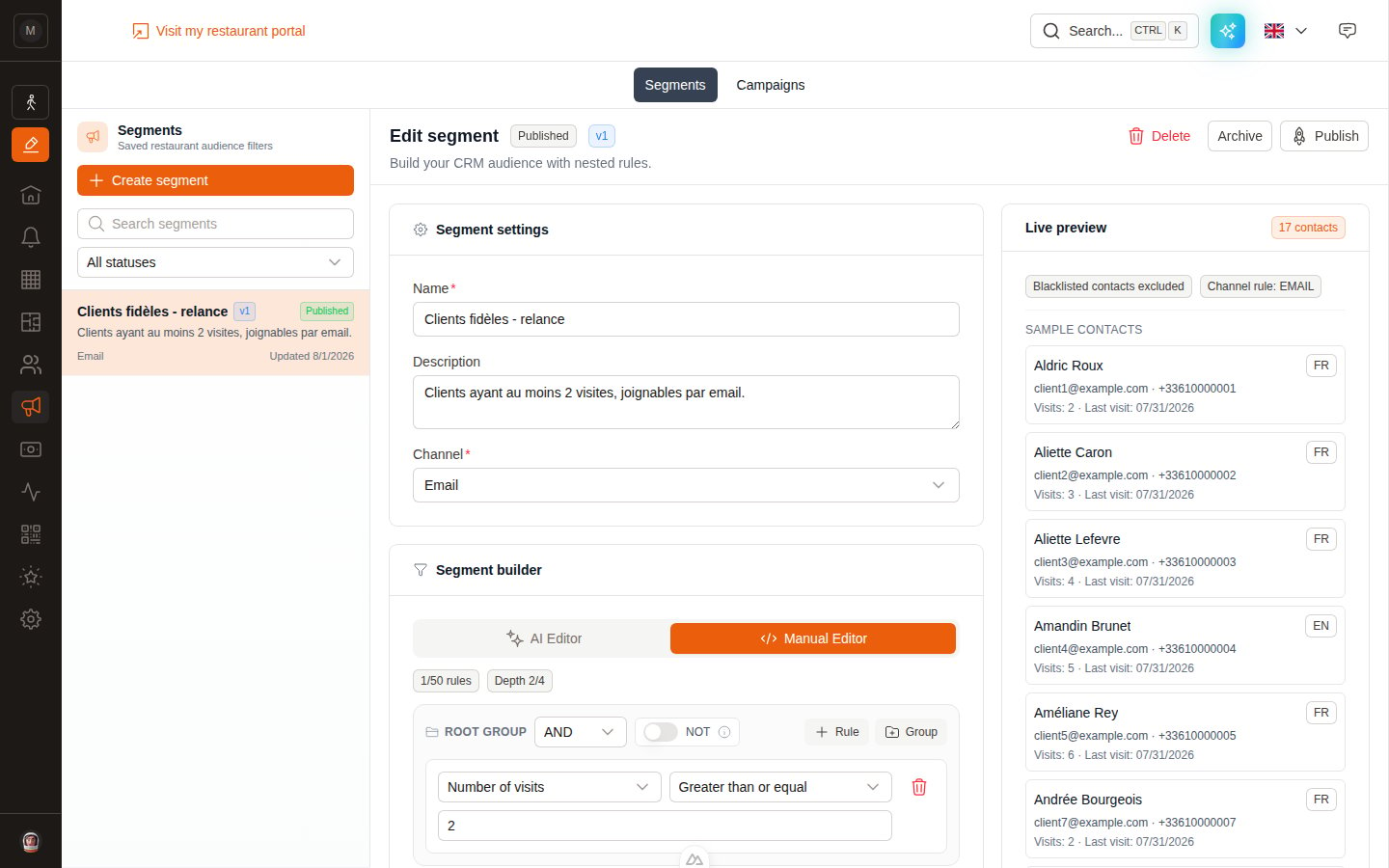 A segment is a tree of **rules** grouped inside **groups**.
* A **rule** is one condition: *field* + *operator* + *value*. Example: `Number of visits` — `Greater than or equal` — `2`.
* A **group** joins its children with **AND** (all conditions must match) or **OR** (any one is enough).
* The **NOT** toggle inverts a whole group: it targets customers who do **not** match what's inside.
* Use **+ Rule** to add a condition to a group, **+ Group** to nest a sub-group.
Limits: **50 rules** maximum and a nesting **depth of 4**. The two grey badges above the builder (`1/50 rules`, `Depth 2/4`) always show where you stand.
### A worked example
Target *regulars who haven't come back recently*:
```
ROOT GROUP — AND
├── Number of visits Greater than or equal 3
└── Last visit date Older than N days 90
```
Now target *regulars who haven't come back recently, and either speak French or booked by phone*:
```
ROOT GROUP — AND
├── Number of visits Greater than or equal 3
├── Last visit date Older than N days 90
└── GROUP — OR
├── Language Equals FR
└── Reservation source Equals Phone
```
## The AI editor
Don't want to assemble rules by hand? Open the **AI Editor** tab, describe your audience in plain language, and click **Generate rules**.
A segment is a tree of **rules** grouped inside **groups**.
* A **rule** is one condition: *field* + *operator* + *value*. Example: `Number of visits` — `Greater than or equal` — `2`.
* A **group** joins its children with **AND** (all conditions must match) or **OR** (any one is enough).
* The **NOT** toggle inverts a whole group: it targets customers who do **not** match what's inside.
* Use **+ Rule** to add a condition to a group, **+ Group** to nest a sub-group.
Limits: **50 rules** maximum and a nesting **depth of 4**. The two grey badges above the builder (`1/50 rules`, `Depth 2/4`) always show where you stand.
### A worked example
Target *regulars who haven't come back recently*:
```
ROOT GROUP — AND
├── Number of visits Greater than or equal 3
└── Last visit date Older than N days 90
```
Now target *regulars who haven't come back recently, and either speak French or booked by phone*:
```
ROOT GROUP — AND
├── Number of visits Greater than or equal 3
├── Last visit date Older than N days 90
└── GROUP — OR
├── Language Equals FR
└── Reservation source Equals Phone
```
## The AI editor
Don't want to assemble rules by hand? Open the **AI Editor** tab, describe your audience in plain language, and click **Generate rules**.
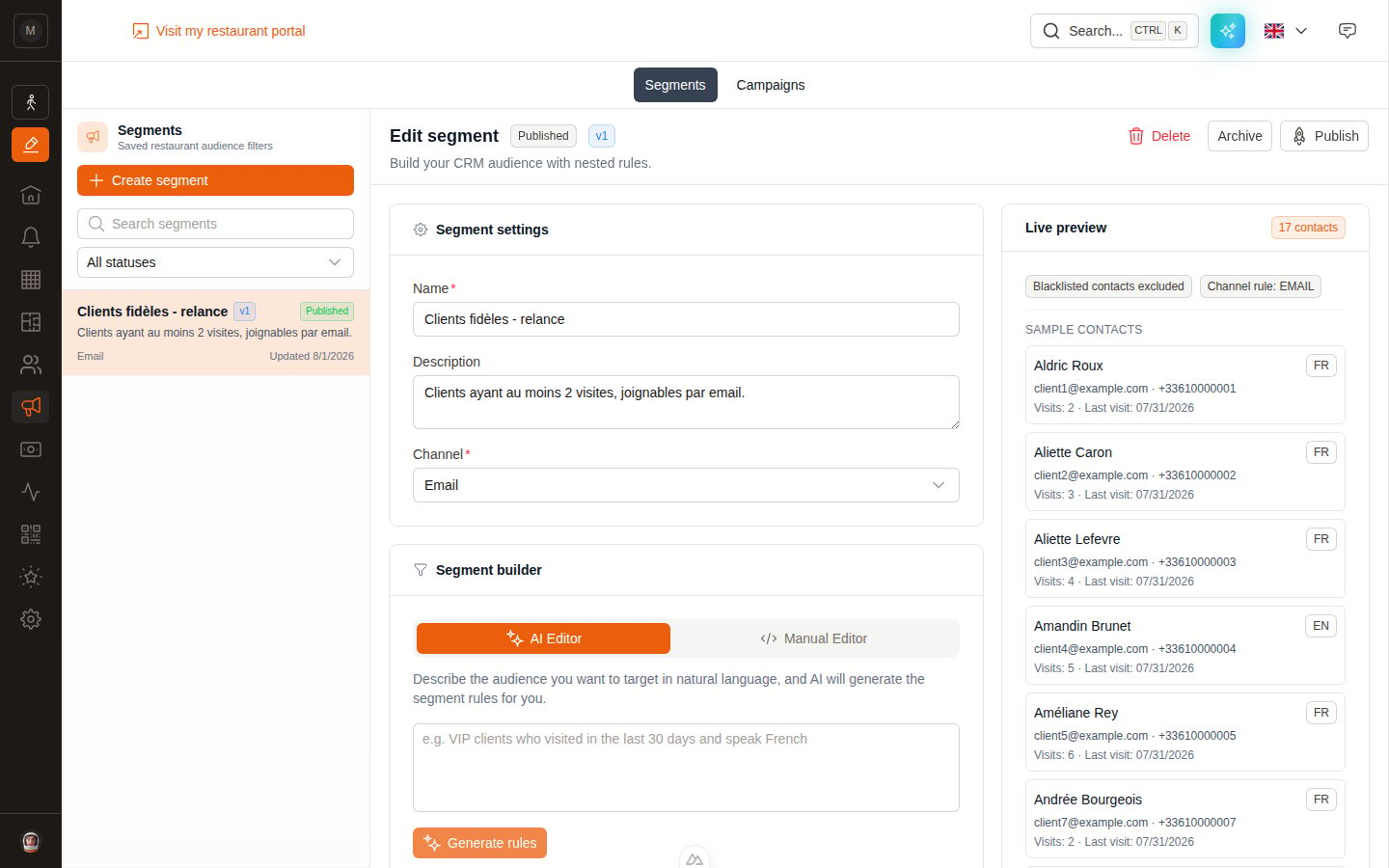 Things that work well:
* *"VIP clients who visited in the last 30 days and speak French"*
* *"Customers with more than 2 no-shows"*
* *"People who have never come but gave us their email"*
* *"Customers who spent more than 500 in total, tagged Birthday"*
Once generated, you land back on the **Manual Editor** with the rules filled in. **Always read them before publishing** — the AI is good, not infallible, and you're the one who knows what you meant.
If your request can't be turned into rules (it asks for data EatNow doesn't have, or it's not about audience selection), you'll get a short message explaining why instead of a broken segment. Rephrase and try again.
## Available fields
| Field | Type | Typical use |
| -------------------------- | ------ | ---------------------------------------------------------- |
| **Name** | Text | Rarely useful on its own |
| **Email** | Text | `Is filled` / `Is empty` to check reachability |
| **Phone number** | Text | Same, for WhatsApp |
| **Country** | List | Target one country or a group of countries |
| **Language** | List | EN, FR, ES, DE, IT, PT |
| **Tags** | List | Your own customer tags (VIP, Allergy, Press…) |
| **Custom note** | Text | The free note on the customer file |
| **Number of visits** | Number | Loyalty |
| **Confirmed reservations** | Number | Reliability |
| **No-shows** | Number | Exclude repeat no-shows |
| **Total amount paid** | Number | Value of the customer |
| **Average basket** | Number | Spend per visit |
| **Last visit date** | Date | Win-backs, "we miss you" |
| **Customer since** | Date | New customers, anniversaries |
| **Reservation source** | List | Website, Phone, Instagram, WhatsApp, Google Business Link… |
| **Reservation status** | List | Arrived, No-show, Seated, Confirmed, Cancelled… |
| **Reservation date** | Date | People who booked a specific period |
Your own **customer custom fields** also appear in the list, below the standard ones, with their own name. If you've created a "Favourite table" or "Wine club" field, you can segment on it.
## Available operators
Which operators you get depends on the field type.
| Operator | Meaning |
| ------------------------------------------ | ------------------------------------------- |
| Equals / Does not equal | Exact match |
| Contains / Does not contain | Text contains the value |
| Starts with / Ends with | Text prefix / suffix |
| Greater than / Less than | Numbers |
| Greater than or equal / Less than or equal | Numbers, inclusive |
| Between | Number range (two values) |
| In list / Not in list | Several accepted values |
| Is empty / Is filled | The field has no value / has one |
| Before date / After date | Dates |
| Between dates | Date range (two values) |
| Within last N days | Rolling window — recalculated at every send |
| Older than N days | The opposite — the win-back operator |
Prefer **Within last N days** and **Older than N days** over fixed dates. A segment written with "last 90 days" stays correct forever; one written with "before 12 March" quietly rots.
## Two exclusions you never have to write
Whatever your rules say, EatNow always removes:
1. **Blacklisted customers** — the preview shows a `Blacklisted contacts excluded` badge to remind you.
2. **Incomplete WhatsApp contacts** (draft records that aren't real customers yet).
Unsubscribes and bounced addresses are removed too, but *at launch time* rather than in the segment — see [Quota & deliverability](/marketing/deliverability).
## Statuses and versions
| Status | Meaning |
| ------------- | ----------------------------------------------------------- |
| **Draft** | Saved, still being worked on. Not selectable in a campaign. |
| **Published** | Has at least one published version. Campaigns can use it. |
| **Archived** | Kept for the record, no longer usable for new campaigns. |
Each **Publish** creates a new version. The **Version history** card at the bottom of the editor lists them with their date and channel.
Editing a published segment changes the **draft** only. The change reaches campaigns when you press **Publish** again — and never touches campaigns that were already launched.
## Archive or delete
Both buttons sit at the top-right of the editor.
* **Archive** keeps the segment and its history, but takes it out of circulation. Reversible in spirit: nothing is lost.
* **Delete** removes it permanently. Use it for mistakes and test segments only.
## Next step
Your segment is ready — now write the message.
Put the segment and the template together and send.
Things that work well:
* *"VIP clients who visited in the last 30 days and speak French"*
* *"Customers with more than 2 no-shows"*
* *"People who have never come but gave us their email"*
* *"Customers who spent more than 500 in total, tagged Birthday"*
Once generated, you land back on the **Manual Editor** with the rules filled in. **Always read them before publishing** — the AI is good, not infallible, and you're the one who knows what you meant.
If your request can't be turned into rules (it asks for data EatNow doesn't have, or it's not about audience selection), you'll get a short message explaining why instead of a broken segment. Rephrase and try again.
## Available fields
| Field | Type | Typical use |
| -------------------------- | ------ | ---------------------------------------------------------- |
| **Name** | Text | Rarely useful on its own |
| **Email** | Text | `Is filled` / `Is empty` to check reachability |
| **Phone number** | Text | Same, for WhatsApp |
| **Country** | List | Target one country or a group of countries |
| **Language** | List | EN, FR, ES, DE, IT, PT |
| **Tags** | List | Your own customer tags (VIP, Allergy, Press…) |
| **Custom note** | Text | The free note on the customer file |
| **Number of visits** | Number | Loyalty |
| **Confirmed reservations** | Number | Reliability |
| **No-shows** | Number | Exclude repeat no-shows |
| **Total amount paid** | Number | Value of the customer |
| **Average basket** | Number | Spend per visit |
| **Last visit date** | Date | Win-backs, "we miss you" |
| **Customer since** | Date | New customers, anniversaries |
| **Reservation source** | List | Website, Phone, Instagram, WhatsApp, Google Business Link… |
| **Reservation status** | List | Arrived, No-show, Seated, Confirmed, Cancelled… |
| **Reservation date** | Date | People who booked a specific period |
Your own **customer custom fields** also appear in the list, below the standard ones, with their own name. If you've created a "Favourite table" or "Wine club" field, you can segment on it.
## Available operators
Which operators you get depends on the field type.
| Operator | Meaning |
| ------------------------------------------ | ------------------------------------------- |
| Equals / Does not equal | Exact match |
| Contains / Does not contain | Text contains the value |
| Starts with / Ends with | Text prefix / suffix |
| Greater than / Less than | Numbers |
| Greater than or equal / Less than or equal | Numbers, inclusive |
| Between | Number range (two values) |
| In list / Not in list | Several accepted values |
| Is empty / Is filled | The field has no value / has one |
| Before date / After date | Dates |
| Between dates | Date range (two values) |
| Within last N days | Rolling window — recalculated at every send |
| Older than N days | The opposite — the win-back operator |
Prefer **Within last N days** and **Older than N days** over fixed dates. A segment written with "last 90 days" stays correct forever; one written with "before 12 March" quietly rots.
## Two exclusions you never have to write
Whatever your rules say, EatNow always removes:
1. **Blacklisted customers** — the preview shows a `Blacklisted contacts excluded` badge to remind you.
2. **Incomplete WhatsApp contacts** (draft records that aren't real customers yet).
Unsubscribes and bounced addresses are removed too, but *at launch time* rather than in the segment — see [Quota & deliverability](/marketing/deliverability).
## Statuses and versions
| Status | Meaning |
| ------------- | ----------------------------------------------------------- |
| **Draft** | Saved, still being worked on. Not selectable in a campaign. |
| **Published** | Has at least one published version. Campaigns can use it. |
| **Archived** | Kept for the record, no longer usable for new campaigns. |
Each **Publish** creates a new version. The **Version history** card at the bottom of the editor lists them with their date and channel.
Editing a published segment changes the **draft** only. The change reaches campaigns when you press **Publish** again — and never touches campaigns that were already launched.
## Archive or delete
Both buttons sit at the top-right of the editor.
* **Archive** keeps the segment and its history, but takes it out of circulation. Reversible in spirit: nothing is lost.
* **Delete** removes it permanently. Use it for mistakes and test segments only.
## Next step
Your segment is ready — now write the message.
Put the segment and the template together and send.