> ## Documentation Index
> Fetch the complete documentation index at: https://docs.eat-now.io/llms.txt
> Use this file to discover all available pages before exploring further.
# Marketing Suite
> Turn your customer database into bookings — build audiences with segments, then send them email or WhatsApp campaigns and measure exactly what they brought back.
Your EatNow database already knows who your regulars are, who hasn't come back in six months, and who spends the most. The **Marketing Suite** lets you use that: pick a group of customers, write them a message, send it, and see how many came back to book.
It works in two steps, and they are always in this order:
A **segment** is a saved list of customers built from rules: "at least 2 visits", "hasn't come in 90 days", "speaks French". You can build it by hand or describe it in plain language and let AI write the rules.
A **campaign** takes one published segment, one message template (email or WhatsApp), and sends it — now or at a scheduled time. Then it reports back on opens, clicks and bookings.
## Where to find it
Open the **Marketing** entry (megaphone icon) in the left sidebar. It opens on two tabs: **Segments** and **Campaigns**.
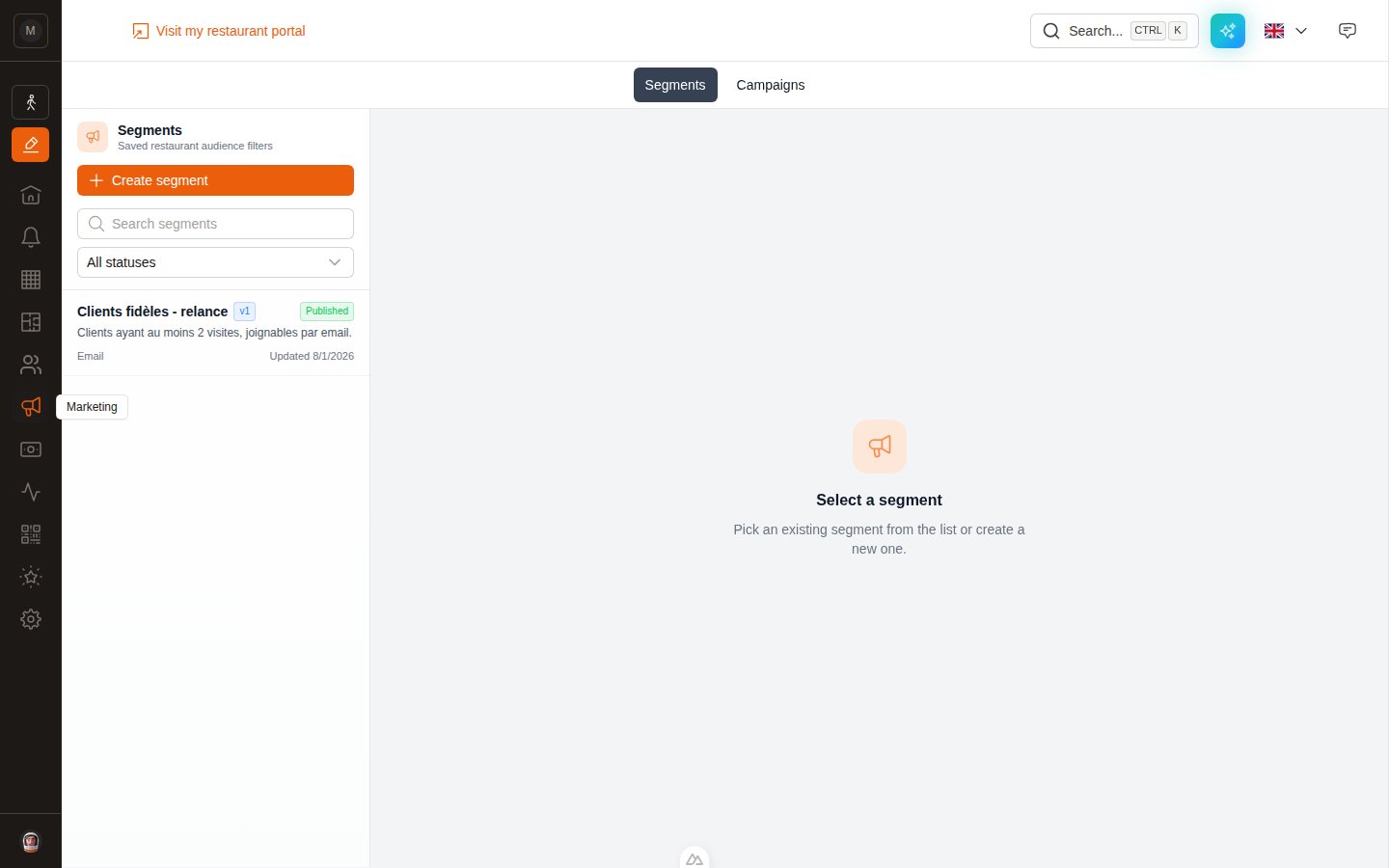 Don't see the Marketing entry? Two possible reasons: the Marketing Suite isn't enabled on your restaurant yet (contact us to activate it), or your user account doesn't have the marketing permissions. See [Who can do what](#who-can-do-what) below.
## What you can send
| Channel | What you need | Good for |
| ------------ | --------------------------------------------------------------------------- | ------------------------------------------------------------------------------------------ |
| **Email** | One marketing email template | Newsletters, seasonal menus, event announcements, long messages with images |
| **WhatsApp** | An active WhatsApp integration and at least one approved marketing template | Short, high-visibility messages — a last-minute offer, a "we're open on the 15th" reminder |
Both channels use the same segments and the same reporting. The difference is only in how the message is written and approved.
## The full journey
Email campaigns need a template of type **Marketing campaign**; WhatsApp campaigns need a template in the **Marketing** stream, approved by Meta. See [Preparing your templates](/marketing/templates).
Define who you're targeting, check the live preview, then **publish**. A campaign can only use a published segment. See [Segments](/marketing/segments).
Pick the channel, the segment and the template. EatNow immediately shows you how many people are actually reachable. See [Campaigns](/marketing/campaigns).
Always. It costs nothing and catches the typo you'd otherwise send to 800 people.
**Launch now** starts sending straight away. **Schedule** picks a date and time. At that moment the audience is *frozen* — see below.
Contacted, opened, clicked, replied, converted. Plus attributed revenue. See [Reading your reports](/marketing/reports).
## Two ideas worth understanding
These two behaviours explain most "why did it do that?" questions.
Every time you click **Publish** on a segment, EatNow saves a numbered version (v1, v2, v3…). When you launch a campaign, it locks onto the segment version that is published at that moment.
That means editing a segment afterwards never changes a campaign that's already running or finished. Your reports stay honest, and you can keep improving the segment for the next send.
At the instant you launch (or at the scheduled send time), EatNow computes the recipient list and freezes it. Customers who match the rules a day later are *not* added mid-flight.
Each frozen recipient is filed as **eligible**, **excluded** (an active unsubscribe or bounce block), or **unreachable** (no email address, or no phone number for WhatsApp). Only eligible recipients are sent to.
## Who can do what
Marketing permissions are granted per collaborator in **Settings → Collaborators**. They are split between segments and campaigns:
| Permission | Lets the collaborator |
| --------------------------------- | --------------------------------------------- |
| Read marketing segments | See the Segments tab and open a segment |
| Create/Update marketing segments | Create a segment and edit its draft |
| Publish marketing segments | Publish a version — the one campaigns can use |
| Delete marketing segments | Archive or delete a segment |
| Read marketing campaigns | See the Campaigns tab and its reports |
| Create/Update marketing campaigns | Create and edit draft campaigns |
| Launch/Pause marketing campaigns | Actually send, schedule, pause or resume |
| Delete marketing campaigns | Delete a draft or cancel a scheduled send |
A common, safe split: give your marketing manager everything, and give the rest of the team read-only access so they can see what customers received without being able to send.
## Keep reading
Build your audience, with rules or with AI.
Prepare the email or WhatsApp message you'll send.
Create, test, launch, schedule, pause.
Understand the funnel and the numbers.
Sending limits, unsubscribes, and safety rails.
Quick answers to the usual questions.
Don't see the Marketing entry? Two possible reasons: the Marketing Suite isn't enabled on your restaurant yet (contact us to activate it), or your user account doesn't have the marketing permissions. See [Who can do what](#who-can-do-what) below.
## What you can send
| Channel | What you need | Good for |
| ------------ | --------------------------------------------------------------------------- | ------------------------------------------------------------------------------------------ |
| **Email** | One marketing email template | Newsletters, seasonal menus, event announcements, long messages with images |
| **WhatsApp** | An active WhatsApp integration and at least one approved marketing template | Short, high-visibility messages — a last-minute offer, a "we're open on the 15th" reminder |
Both channels use the same segments and the same reporting. The difference is only in how the message is written and approved.
## The full journey
Email campaigns need a template of type **Marketing campaign**; WhatsApp campaigns need a template in the **Marketing** stream, approved by Meta. See [Preparing your templates](/marketing/templates).
Define who you're targeting, check the live preview, then **publish**. A campaign can only use a published segment. See [Segments](/marketing/segments).
Pick the channel, the segment and the template. EatNow immediately shows you how many people are actually reachable. See [Campaigns](/marketing/campaigns).
Always. It costs nothing and catches the typo you'd otherwise send to 800 people.
**Launch now** starts sending straight away. **Schedule** picks a date and time. At that moment the audience is *frozen* — see below.
Contacted, opened, clicked, replied, converted. Plus attributed revenue. See [Reading your reports](/marketing/reports).
## Two ideas worth understanding
These two behaviours explain most "why did it do that?" questions.
Every time you click **Publish** on a segment, EatNow saves a numbered version (v1, v2, v3…). When you launch a campaign, it locks onto the segment version that is published at that moment.
That means editing a segment afterwards never changes a campaign that's already running or finished. Your reports stay honest, and you can keep improving the segment for the next send.
At the instant you launch (or at the scheduled send time), EatNow computes the recipient list and freezes it. Customers who match the rules a day later are *not* added mid-flight.
Each frozen recipient is filed as **eligible**, **excluded** (an active unsubscribe or bounce block), or **unreachable** (no email address, or no phone number for WhatsApp). Only eligible recipients are sent to.
## Who can do what
Marketing permissions are granted per collaborator in **Settings → Collaborators**. They are split between segments and campaigns:
| Permission | Lets the collaborator |
| --------------------------------- | --------------------------------------------- |
| Read marketing segments | See the Segments tab and open a segment |
| Create/Update marketing segments | Create a segment and edit its draft |
| Publish marketing segments | Publish a version — the one campaigns can use |
| Delete marketing segments | Archive or delete a segment |
| Read marketing campaigns | See the Campaigns tab and its reports |
| Create/Update marketing campaigns | Create and edit draft campaigns |
| Launch/Pause marketing campaigns | Actually send, schedule, pause or resume |
| Delete marketing campaigns | Delete a draft or cancel a scheduled send |
A common, safe split: give your marketing manager everything, and give the rest of the team read-only access so they can see what customers received without being able to send.
## Keep reading
Build your audience, with rules or with AI.
Prepare the email or WhatsApp message you'll send.
Create, test, launch, schedule, pause.
Understand the funnel and the numbers.
Sending limits, unsubscribes, and safety rails.
Quick answers to the usual questions.