> ## Documentation Index
> Fetch the complete documentation index at: https://docs.eat-now.io/llms.txt
> Use this file to discover all available pages before exploring further.
# Campaigns
> Put a segment and a template together, check who will actually receive it, send yourself a test, then launch now or schedule it for later.
A **campaign** is one send: one channel, one segment, one template. It carries its own status, its own frozen audience, and its own report.
**Where:** left sidebar → **Marketing** → **Campaigns** tab.
 ## Before you start
Drafts don't appear in the dropdown. Publish first.
Email: type *Marketing*. WhatsApp: *Marketing* stream, approved by Meta.
## Create the campaign
Top-left of the campaign list.
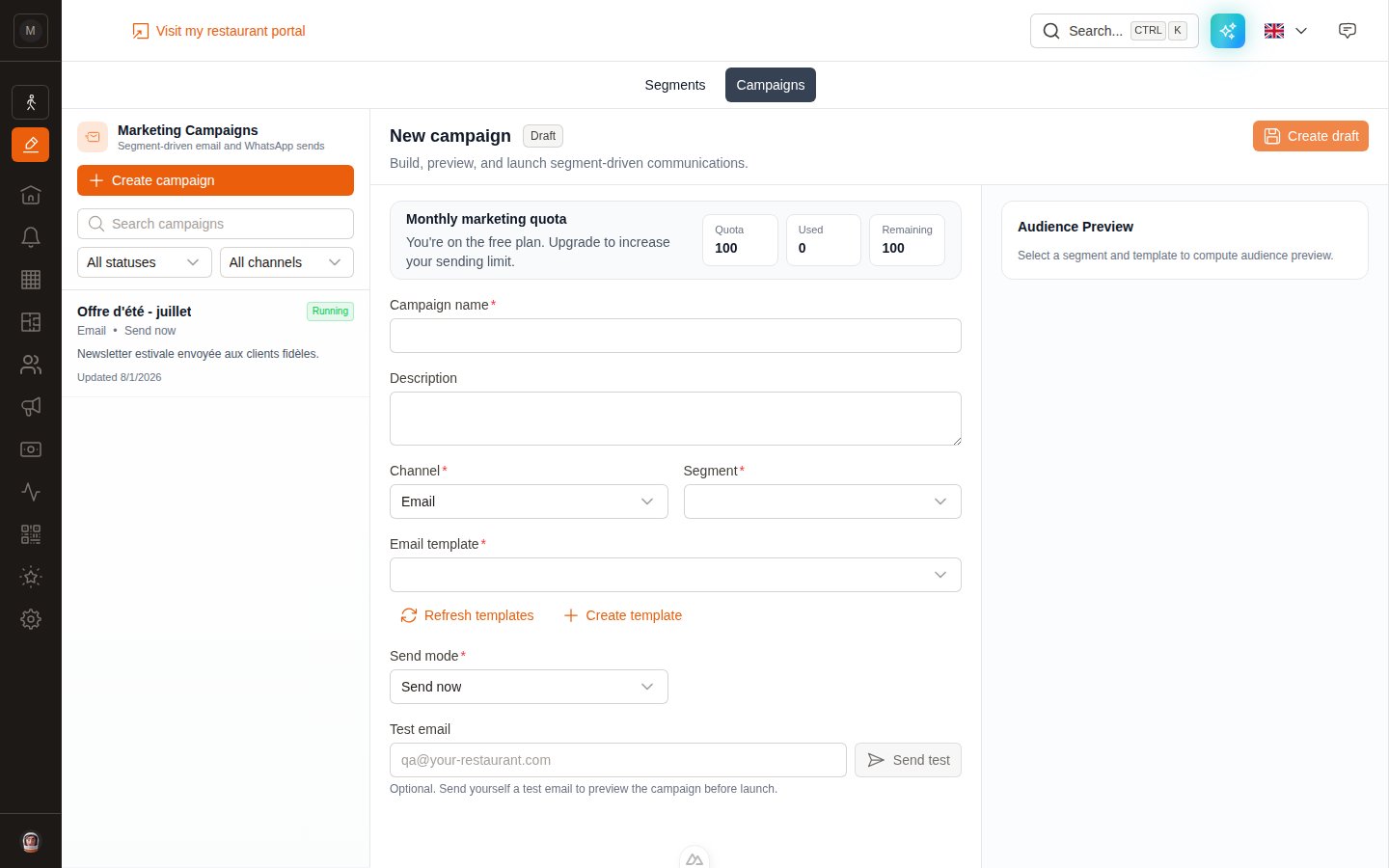
**Campaign name** is required and internal — your customers never see it. The **Description** is a note to your future self ("July newsletter, summer menu launch").
**Email** or **WhatsApp**. Choose carefully: the channel is **locked once the campaign is created** and cannot be changed afterwards.
Only published segments appear, each with its version number — `Loyal customers (v1)`.
* **Email** — a single **Email template** dropdown.
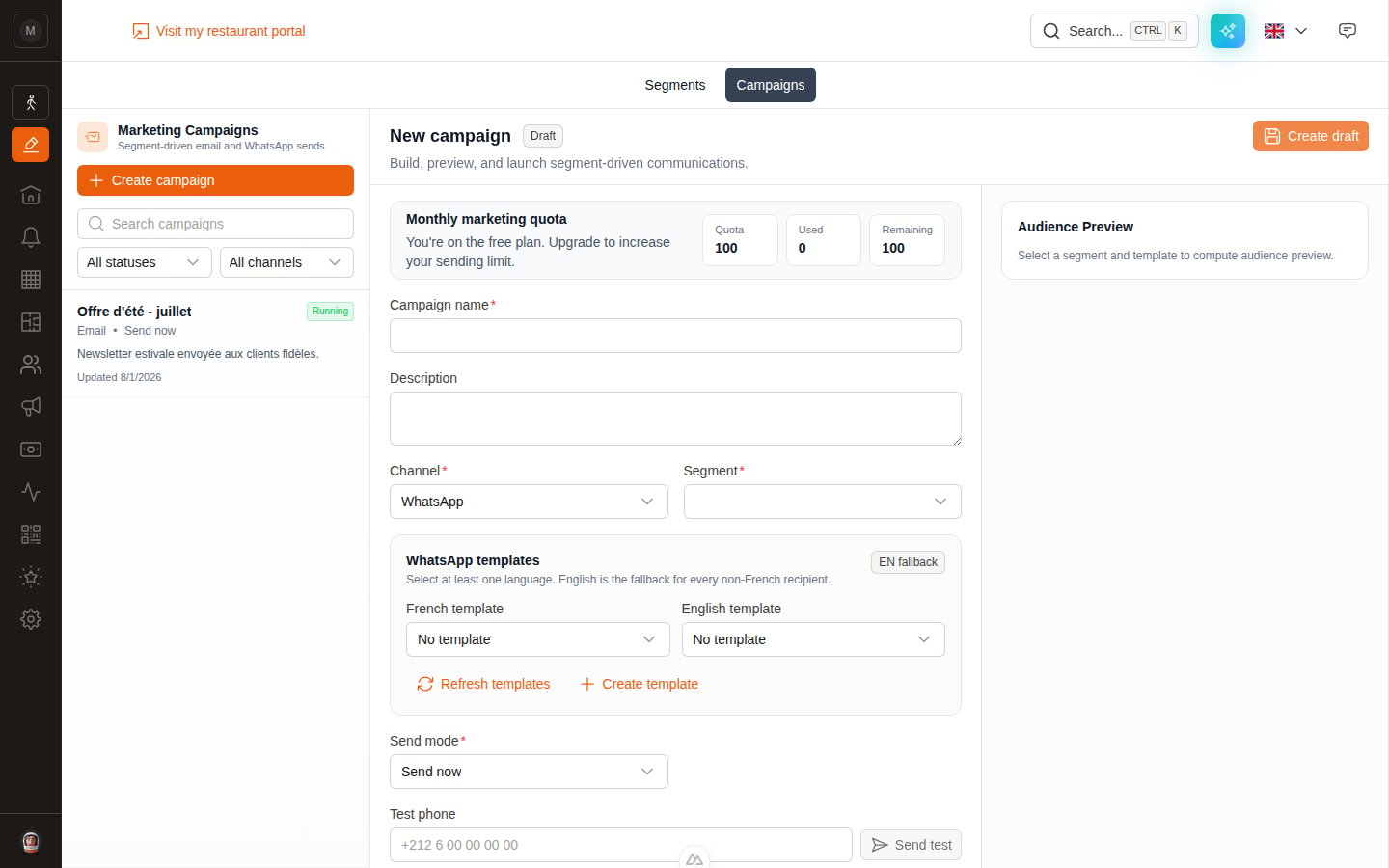
* **WhatsApp** — two dropdowns, **French template** and **English template**. Fill at least one; English acts as the fallback for every non-French recipient.
Two shortcuts sit under the field: **Refresh templates** (if you just created one in another tab) and **Create template** (jumps straight to the right settings page).
**Send now** or **Scheduled**. Picking *Scheduled* reveals a **Scheduled date/time** field.
The campaign is saved with the status **Draft**. Nothing has been sent.
## Read the audience preview
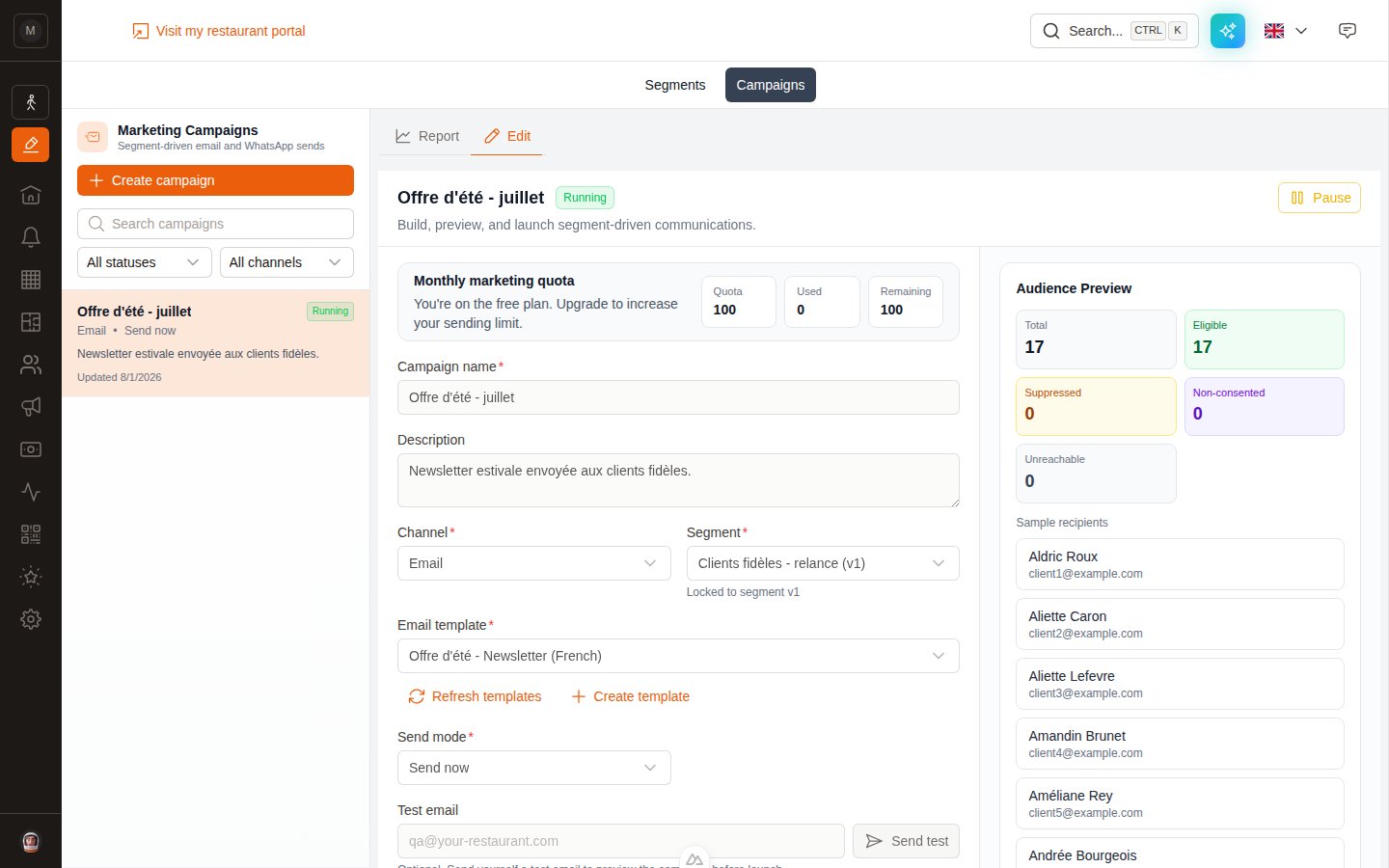
As soon as a segment and template are selected, the right-hand panel fills in. This is the single most useful thing on the page — read it before you launch.
| Figure | What it counts |
| ----------------- | ------------------------------------------------------ |
| **Total** | Everyone the segment matches |
| **Eligible** | Those who will actually be sent to |
| **Suppressed** | Unsubscribed, bounced or blocked on this channel |
| **Non-consented** | Excluded for a consent reason |
| **Unreachable** | No email address (email) or no phone number (WhatsApp) |
Below the figures, **Sample recipients** shows a handful of real contacts so you can sanity-check that the segment is targeting who you think.
For WhatsApp campaigns you also get **Eligible recipient languages** — a FR / EN / Other breakdown that tells you at a glance whether you need that English template.
### The estimated sending cost
Right below the figures, a card tells you what the send will cost.
* **Email campaign** — *Free*. Nothing to pay, however many recipients you have.
* **WhatsApp campaign** — an estimated amount in euros, broken down by country: each recipient is billed at the Meta rate for their country, read from their phone number. A Moroccan customer does not cost the same as a German one.
That amount is **billed by Meta directly** on your WhatsApp Business account — EatNow takes no commission on it.
This is an estimate, not an invoice. The real amount depends on the messages actually delivered, retries of failed sends are billed again, and Meta revises its rate grid from time to time. Recipients whose country could not be read from their phone number are estimated at Meta's "Other" rate.
If your audience contains non-French recipients and no English WhatsApp template is selected, a red alert appears and the launch buttons stay disabled. Add the English template, or narrow the segment to French speakers only.
## Send yourself a test
Do this every single time.
* **Email campaign** — type an address in **Test email** and click **Send test**.
* **WhatsApp campaign** — type a number in **Test phone** and click **Send test**. If you attached both languages, a small selector lets you choose **Test French** or **Test English**.
The test uses the real template with sample values, so you see exactly what your customers will get.
## Launch or schedule
Both buttons live at the top-right of the campaign.
Available when **Send mode** is *Send now* and the campaign is **Draft** or **Paused**.
On click, EatNow freezes the audience, locks onto the current published version of the segment, saves a copy of the template, and starts sending. Status becomes **Running**.
Available when **Send mode** is *Scheduled* and the campaign is **Draft**. Set the date and time, click **Schedule**, and the status becomes **Scheduled**.
The audience is frozen when the send actually begins, not when you press the button — so a customer who becomes eligible in the meantime is still included.
## Before you start
Drafts don't appear in the dropdown. Publish first.
Email: type *Marketing*. WhatsApp: *Marketing* stream, approved by Meta.
## Create the campaign
Top-left of the campaign list.
**Campaign name** is required and internal — your customers never see it. The **Description** is a note to your future self ("July newsletter, summer menu launch").
**Email** or **WhatsApp**. Choose carefully: the channel is **locked once the campaign is created** and cannot be changed afterwards.
Only published segments appear, each with its version number — `Loyal customers (v1)`.
* **Email** — a single **Email template** dropdown.
* **WhatsApp** — two dropdowns, **French template** and **English template**. Fill at least one; English acts as the fallback for every non-French recipient.
Two shortcuts sit under the field: **Refresh templates** (if you just created one in another tab) and **Create template** (jumps straight to the right settings page).
**Send now** or **Scheduled**. Picking *Scheduled* reveals a **Scheduled date/time** field.
The campaign is saved with the status **Draft**. Nothing has been sent.
## Read the audience preview
As soon as a segment and template are selected, the right-hand panel fills in. This is the single most useful thing on the page — read it before you launch.
| Figure | What it counts |
| ----------------- | ------------------------------------------------------ |
| **Total** | Everyone the segment matches |
| **Eligible** | Those who will actually be sent to |
| **Suppressed** | Unsubscribed, bounced or blocked on this channel |
| **Non-consented** | Excluded for a consent reason |
| **Unreachable** | No email address (email) or no phone number (WhatsApp) |
Below the figures, **Sample recipients** shows a handful of real contacts so you can sanity-check that the segment is targeting who you think.
For WhatsApp campaigns you also get **Eligible recipient languages** — a FR / EN / Other breakdown that tells you at a glance whether you need that English template.
### The estimated sending cost
Right below the figures, a card tells you what the send will cost.
* **Email campaign** — *Free*. Nothing to pay, however many recipients you have.
* **WhatsApp campaign** — an estimated amount in euros, broken down by country: each recipient is billed at the Meta rate for their country, read from their phone number. A Moroccan customer does not cost the same as a German one.
That amount is **billed by Meta directly** on your WhatsApp Business account — EatNow takes no commission on it.
This is an estimate, not an invoice. The real amount depends on the messages actually delivered, retries of failed sends are billed again, and Meta revises its rate grid from time to time. Recipients whose country could not be read from their phone number are estimated at Meta's "Other" rate.
If your audience contains non-French recipients and no English WhatsApp template is selected, a red alert appears and the launch buttons stay disabled. Add the English template, or narrow the segment to French speakers only.
## Send yourself a test
Do this every single time.
* **Email campaign** — type an address in **Test email** and click **Send test**.
* **WhatsApp campaign** — type a number in **Test phone** and click **Send test**. If you attached both languages, a small selector lets you choose **Test French** or **Test English**.
The test uses the real template with sample values, so you see exactly what your customers will get.
## Launch or schedule
Both buttons live at the top-right of the campaign.
Available when **Send mode** is *Send now* and the campaign is **Draft** or **Paused**.
On click, EatNow freezes the audience, locks onto the current published version of the segment, saves a copy of the template, and starts sending. Status becomes **Running**.
Available when **Send mode** is *Scheduled* and the campaign is **Draft**. Set the date and time, click **Schedule**, and the status becomes **Scheduled**.
The audience is frozen when the send actually begins, not when you press the button — so a customer who becomes eligible in the meantime is still included.
 ## Statuses
| Status | What it means | What you can do |
| ------------- | -------------------------------------------------------------- | ------------------------------- |
| **Draft** | Being prepared, nothing sent | Edit, delete, launch, schedule |
| **Scheduled** | Waiting for its send time | Edit, pause, cancel schedule |
| **Running** | Sending in progress | Pause |
| **Paused** | Stopped mid-flight (by you, by the quota, or by a safety rail) | Edit, resume, launch again |
| **Completed** | Everyone in the frozen audience has been processed | Read the report, retry failures |
| **Failed** | The send could not complete | Read the report, retry failures |
| **Canceled** | A scheduled send was cancelled before it started | — |
A campaign can only be edited while it is **Draft**, **Scheduled** or **Paused**. Once it's Running or Completed the form is read-only — the message that went out stays exactly as it was sent.
## Pause, resume, cancel, delete
* **Pause** — stops a Running or Scheduled campaign. Recipients already sent to stay sent.
* **Resume** — restarts a Paused campaign where it left off. It does not resend to anyone.
* **Cancel schedule** — turns a Scheduled campaign back into a cancelled one before it ever starts.
* **Delete draft** — only for campaigns that were never launched.
Spotted a typo just after launching? **Pause** immediately. Only the recipients already processed will have received it; you fix the template, then **Resume**.
## WhatsApp campaigns, specifically
## Statuses
| Status | What it means | What you can do |
| ------------- | -------------------------------------------------------------- | ------------------------------- |
| **Draft** | Being prepared, nothing sent | Edit, delete, launch, schedule |
| **Scheduled** | Waiting for its send time | Edit, pause, cancel schedule |
| **Running** | Sending in progress | Pause |
| **Paused** | Stopped mid-flight (by you, by the quota, or by a safety rail) | Edit, resume, launch again |
| **Completed** | Everyone in the frozen audience has been processed | Read the report, retry failures |
| **Failed** | The send could not complete | Read the report, retry failures |
| **Canceled** | A scheduled send was cancelled before it started | — |
A campaign can only be edited while it is **Draft**, **Scheduled** or **Paused**. Once it's Running or Completed the form is read-only — the message that went out stays exactly as it was sent.
## Pause, resume, cancel, delete
* **Pause** — stops a Running or Scheduled campaign. Recipients already sent to stay sent.
* **Resume** — restarts a Paused campaign where it left off. It does not resend to anyone.
* **Cancel schedule** — turns a Scheduled campaign back into a cancelled one before it ever starts.
* **Delete draft** — only for campaigns that were never launched.
Spotted a typo just after launching? **Pause** immediately. Only the recipients already processed will have received it; you fix the template, then **Resume**.
## WhatsApp campaigns, specifically
 Three differences from email:
1. **Two templates, one per language.** The `EN fallback` badge is there to remind you that English covers everyone who isn't French-speaking.
2. **Meta approval is required.** Only templates that are *Approved* and synced with Meta can be selected.
3. **Each message is billed by Meta** as a Marketing conversation, on top of your EatNow quota.
## Next step
Contacted, opened, clicked, converted — and the revenue behind it.
Sending limits, unsubscribes and the automatic safety rails.
Three differences from email:
1. **Two templates, one per language.** The `EN fallback` badge is there to remind you that English covers everyone who isn't French-speaking.
2. **Meta approval is required.** Only templates that are *Approved* and synced with Meta can be selected.
3. **Each message is billed by Meta** as a Marketing conversation, on top of your EatNow quota.
## Next step
Contacted, opened, clicked, converted — and the revenue behind it.
Sending limits, unsubscribes and the automatic safety rails.