> ## Documentation Index
> Fetch the complete documentation index at: https://docs.eat-now.io/llms.txt
> Use this file to discover all available pages before exploring further.
# Reserve with Google
> Put a "Reserve a table" button on your Google listing — either a link to your booking portal (Business Link) or a booking made entirely inside Google (End-to-End).
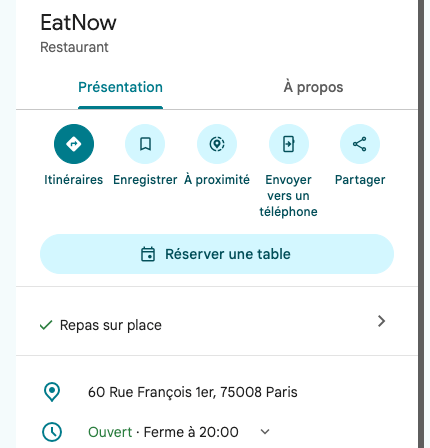
**Reserve with Google** adds a **Reserve a table** button to your restaurant's listing on Google Search and Google Maps. EatNow handles that button in one of two ways: it sends guests to your EatNow booking portal (**Business Link**), or it lets them book without leaving Google (**End-to-End**, or E2E).
 ## The two modes
| | Business Link | End-to-End (E2E) |
| - | - | - |
| **Where the guest books** | On your EatNow booking portal, opened from Google | Inside Google, without leaving Search or Maps |
| **Rules applied** | All portal rules: shifts, payments, products, cancellation and modification settings | Your shifts and their capacity, with the [limits of E2E](/integrations/google-reserve-e2e#what-google-does-not-offer) |
| **Deposits, card imprints, prepayment** | Yes, as on the portal | No: slots that would require a payment are not offered on Google |
| **Availability on Google** | Google only shows the button | Google shows your available times, party sizes and dining areas |
| **Morocco** | Available | Not available |
| **Source recorded** | Reserve with Google | Reserve with Google |
Choose **Business Link** if you take deposits, card imprints or prepayment, if you sell formulas or extras with the booking, or if your restaurant is in Morocco. Choose **E2E** when you want the shortest path for the guest and your shifts can be booked without a payment.
Both modes record **Reserve with Google** as the reservation source, so you can follow Google bookings in your lists, statistics and [segments](/marketing/segments). The source does not tell the two modes apart: only one mode is active at a time.
## Who can use it
Any restaurant with a **Google Business Profile** (the listing that appears on Search and Maps), connected to EatNow.
* **Business Link** works in every country.
* **E2E** is **not available in Morocco**: Google does not offer end-to-end booking there. The option is greyed out for restaurants located in Morocco; use Business Link instead.
## Turn it on
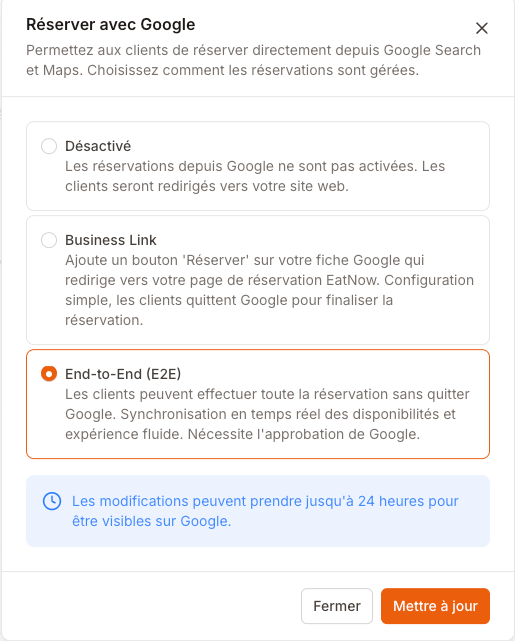
Go to **Settings → Integrations** and connect the **Google My Business** card with the Google account that manages your listing. See [Reputation integrations](/integrations/reputation#google-business-profile) for the details of the connection.
Once connected, the card shows the current Reserve with Google mode. Click **Manage**.
## The two modes
| | Business Link | End-to-End (E2E) |
| - | - | - |
| **Where the guest books** | On your EatNow booking portal, opened from Google | Inside Google, without leaving Search or Maps |
| **Rules applied** | All portal rules: shifts, payments, products, cancellation and modification settings | Your shifts and their capacity, with the [limits of E2E](/integrations/google-reserve-e2e#what-google-does-not-offer) |
| **Deposits, card imprints, prepayment** | Yes, as on the portal | No: slots that would require a payment are not offered on Google |
| **Availability on Google** | Google only shows the button | Google shows your available times, party sizes and dining areas |
| **Morocco** | Available | Not available |
| **Source recorded** | Reserve with Google | Reserve with Google |
Choose **Business Link** if you take deposits, card imprints or prepayment, if you sell formulas or extras with the booking, or if your restaurant is in Morocco. Choose **E2E** when you want the shortest path for the guest and your shifts can be booked without a payment.
Both modes record **Reserve with Google** as the reservation source, so you can follow Google bookings in your lists, statistics and [segments](/marketing/segments). The source does not tell the two modes apart: only one mode is active at a time.
## Who can use it
Any restaurant with a **Google Business Profile** (the listing that appears on Search and Maps), connected to EatNow.
* **Business Link** works in every country.
* **E2E** is **not available in Morocco**: Google does not offer end-to-end booking there. The option is greyed out for restaurants located in Morocco; use Business Link instead.
## Turn it on
Go to **Settings → Integrations** and connect the **Google My Business** card with the Google account that manages your listing. See [Reputation integrations](/integrations/reputation#google-business-profile) for the details of the connection.
Once connected, the card shows the current Reserve with Google mode. Click **Manage**.
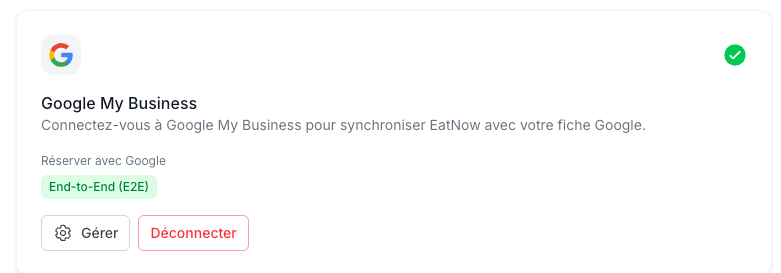 Pick **Disabled**, **Business Link** or **End-to-End (E2E)**, then click **Update**.
 Connecting the card requires the **Create** permission on integrations; opening **Manage** requires the **Delete** permission (see [Permissions](/collaborators/permissions)).
Turning on **E2E** switches off **Free the tables at a fixed time** on every shift, and the option stays hidden while E2E is on. Google sells each slot for the shift's full average duration and cannot learn that a table is freed early. See [Compatibility with Reserve with Google](/shifts/schedule#compatibility-with-reserve-with-google).
## When the button appears
EatNow sends your restaurant to Google every morning, and Google then matches it with your listing using the **name, address, phone number and website** entered in [Settings → Restaurant](/settings/restaurant). Keep them identical to your Google listing.
* A change of mode takes **up to 24 hours** to show on Google. A first activation can take longer, while Google matches the restaurant with its listing.
* **Disabled** removes the EatNow button from your listing within the same delay. The listing keeps its other buttons (website, phone, directions).
* If the button still does not appear after a few days, or appears on the wrong listing, contact EatNow support: the match is checked on Google's side.
## Business Link in practice
The **Reserve a table** button opens your booking portal with the source already set to Reserve with Google. From there, the booking follows exactly the same path as any portal booking: same shifts, same payment rules, same confirmation emails and messages, same cancellation and modification settings. Everything in [Booking rules](/portal/booking-rules) applies.
## E2E in practice
The guest picks a party size, a date, a time and, when the shift allows it, a dining area, all inside Google. The reservation lands in EatNow like any other one. What Google offers, what it does not, and how a guest cancels or changes a booking are covered in [Booking inside Google (E2E)](/integrations/google-reserve-e2e).
This documentation is built and hosted on [Mintlify](https://mintlify.com), a developer documentation platform.
Connecting the card requires the **Create** permission on integrations; opening **Manage** requires the **Delete** permission (see [Permissions](/collaborators/permissions)).
Turning on **E2E** switches off **Free the tables at a fixed time** on every shift, and the option stays hidden while E2E is on. Google sells each slot for the shift's full average duration and cannot learn that a table is freed early. See [Compatibility with Reserve with Google](/shifts/schedule#compatibility-with-reserve-with-google).
## When the button appears
EatNow sends your restaurant to Google every morning, and Google then matches it with your listing using the **name, address, phone number and website** entered in [Settings → Restaurant](/settings/restaurant). Keep them identical to your Google listing.
* A change of mode takes **up to 24 hours** to show on Google. A first activation can take longer, while Google matches the restaurant with its listing.
* **Disabled** removes the EatNow button from your listing within the same delay. The listing keeps its other buttons (website, phone, directions).
* If the button still does not appear after a few days, or appears on the wrong listing, contact EatNow support: the match is checked on Google's side.
## Business Link in practice
The **Reserve a table** button opens your booking portal with the source already set to Reserve with Google. From there, the booking follows exactly the same path as any portal booking: same shifts, same payment rules, same confirmation emails and messages, same cancellation and modification settings. Everything in [Booking rules](/portal/booking-rules) applies.
## E2E in practice
The guest picks a party size, a date, a time and, when the shift allows it, a dining area, all inside Google. The reservation lands in EatNow like any other one. What Google offers, what it does not, and how a guest cancels or changes a booking are covered in [Booking inside Google (E2E)](/integrations/google-reserve-e2e).
This documentation is built and hosted on [Mintlify](https://mintlify.com), a developer documentation platform.