> ## Documentation Index
> Fetch the complete documentation index at: https://docs.eat-now.io/llms.txt
> Use this file to discover all available pages before exploring further.
# Cockpit
> A time-based, at-a-glance dashboard of your service. Use the Flow tab before service to brief your team, and the Turn tab during service to track tables and anticipate the next seatings.
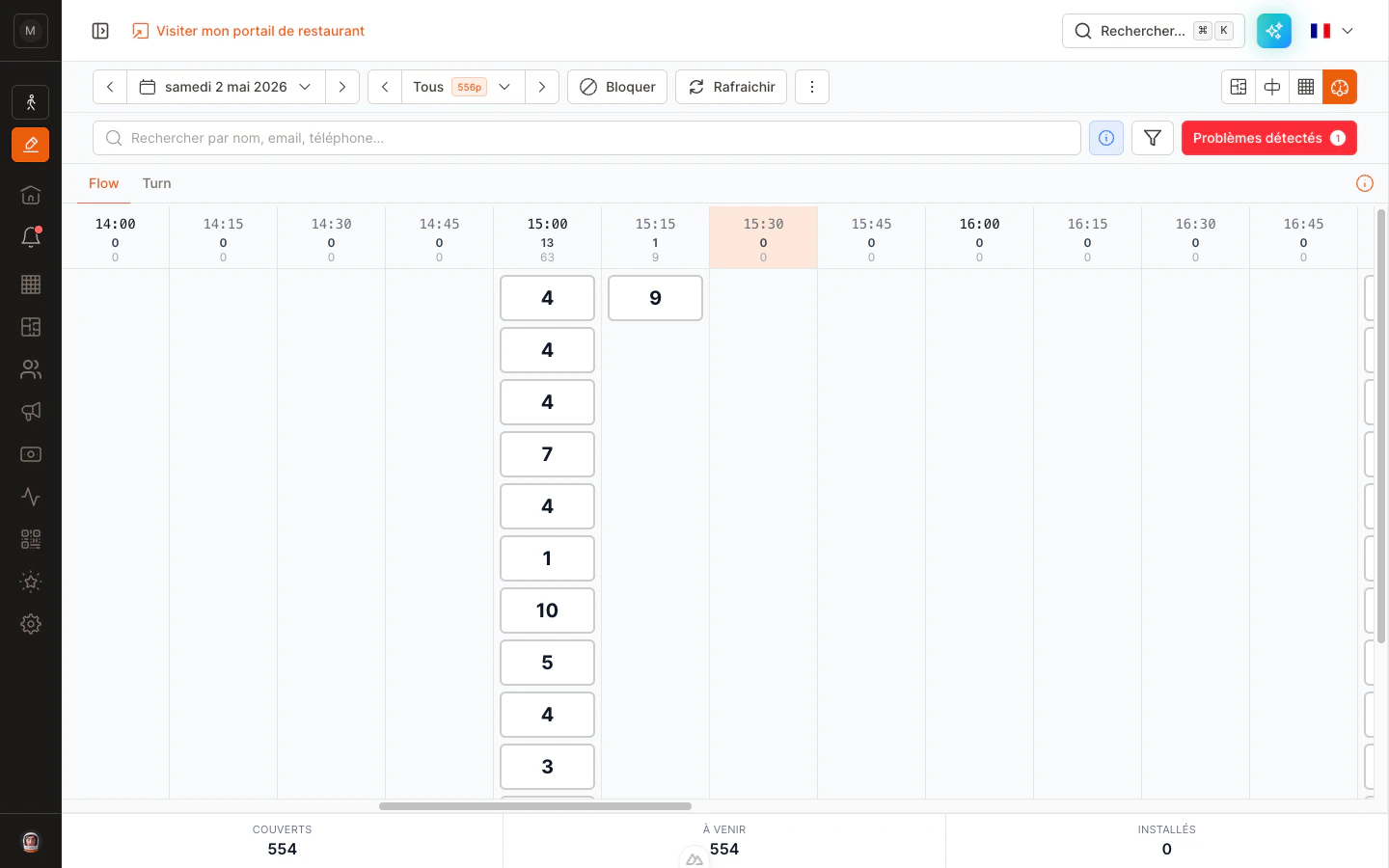
The **Cockpit** is a chronological dashboard of your service, complementary to the floor plan and the reservation list. It splits the day into 15-minute columns so you can immediately see the *shape* of your service — and, once it starts, when each table is expected to free up.
The view has two tabs:
| Tab | When to use it | What you see |
| -------- | ----------------------------------- | ------------------------------------------ |
| **Flow** | Before service / pre-shift briefing | Reservations grouped by booking time |
| **Turn** | During service | Reservations grouped by their expected end |
The Cockpit reads from the same data as your floor plan and list. Any change made elsewhere (status update, table assignment, new booking) updates the grid in real time.
 ***
## Opening the view
1. Open the **Reservations** page.
2. Make sure you are on the right **date** and that the relevant **shifts** are selected.
3. Switch to the Cockpit:
* On **desktop**, click the Cockpit icon in the view selector at the top right of the page (next to floor plan, planning, table).
* On **mobile and tablet**, tap the view dropdown in the header and pick **Cockpit**.
4. Two tabs appear at the top of the panel: **Flow** and **Turn**. Tap the one you need.
The view works on phone, tablet, and desktop. On mobile and tablet the grid scrolls horizontally — swipe left and right to navigate the time slots.
***
## Opening the view
1. Open the **Reservations** page.
2. Make sure you are on the right **date** and that the relevant **shifts** are selected.
3. Switch to the Cockpit:
* On **desktop**, click the Cockpit icon in the view selector at the top right of the page (next to floor plan, planning, table).
* On **mobile and tablet**, tap the view dropdown in the header and pick **Cockpit**.
4. Two tabs appear at the top of the panel: **Flow** and **Turn**. Tap the one you need.
The view works on phone, tablet, and desktop. On mobile and tablet the grid scrolls horizontally — swipe left and right to navigate the time slots.
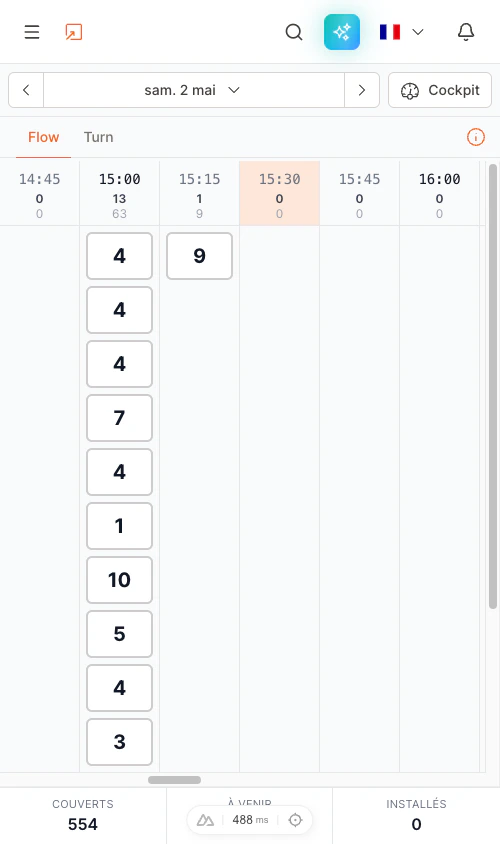 A small **(i) About this view** button sits at the top right, next to the tabs. Tap it any time for a quick reminder of what each color and indicator means, and a link back to this guide.
***
## Flow tab — pre-service briefing
The Flow tab is the one to use **before service starts**, during your pre-shift briefing with the team.
### What you see
Each column is a **15-minute slot**. The header of each column shows two numbers:
* **Top number** — the count of reservations for that slot
* **Bottom number** — the total number of covers for that slot
Below the header, every reservation is rendered as a **card** stacked in the column:
* The big number on the card is the **party size** (e.g. `4` means a party of 4).
* The card's color is the **reservation status** (pending, confirmed, seated, etc.).
* A colored corner on the card means the reservation has at least one **flag**:
| Corner color | Meaning |
| ------------ | -------------------------------- |
| Magenta | VIP customer |
| Yellow | Allergies or dietary preferences |
| Blue | A specific server is assigned |
If a reservation has more than one flag, the corner color shows the highest-priority one (VIP > allergies > server).
A small **(i) About this view** button sits at the top right, next to the tabs. Tap it any time for a quick reminder of what each color and indicator means, and a link back to this guide.
***
## Flow tab — pre-service briefing
The Flow tab is the one to use **before service starts**, during your pre-shift briefing with the team.
### What you see
Each column is a **15-minute slot**. The header of each column shows two numbers:
* **Top number** — the count of reservations for that slot
* **Bottom number** — the total number of covers for that slot
Below the header, every reservation is rendered as a **card** stacked in the column:
* The big number on the card is the **party size** (e.g. `4` means a party of 4).
* The card's color is the **reservation status** (pending, confirmed, seated, etc.).
* A colored corner on the card means the reservation has at least one **flag**:
| Corner color | Meaning |
| ------------ | -------------------------------- |
| Magenta | VIP customer |
| Yellow | Allergies or dietary preferences |
| Blue | A specific server is assigned |
If a reservation has more than one flag, the corner color shows the highest-priority one (VIP > allergies > server).
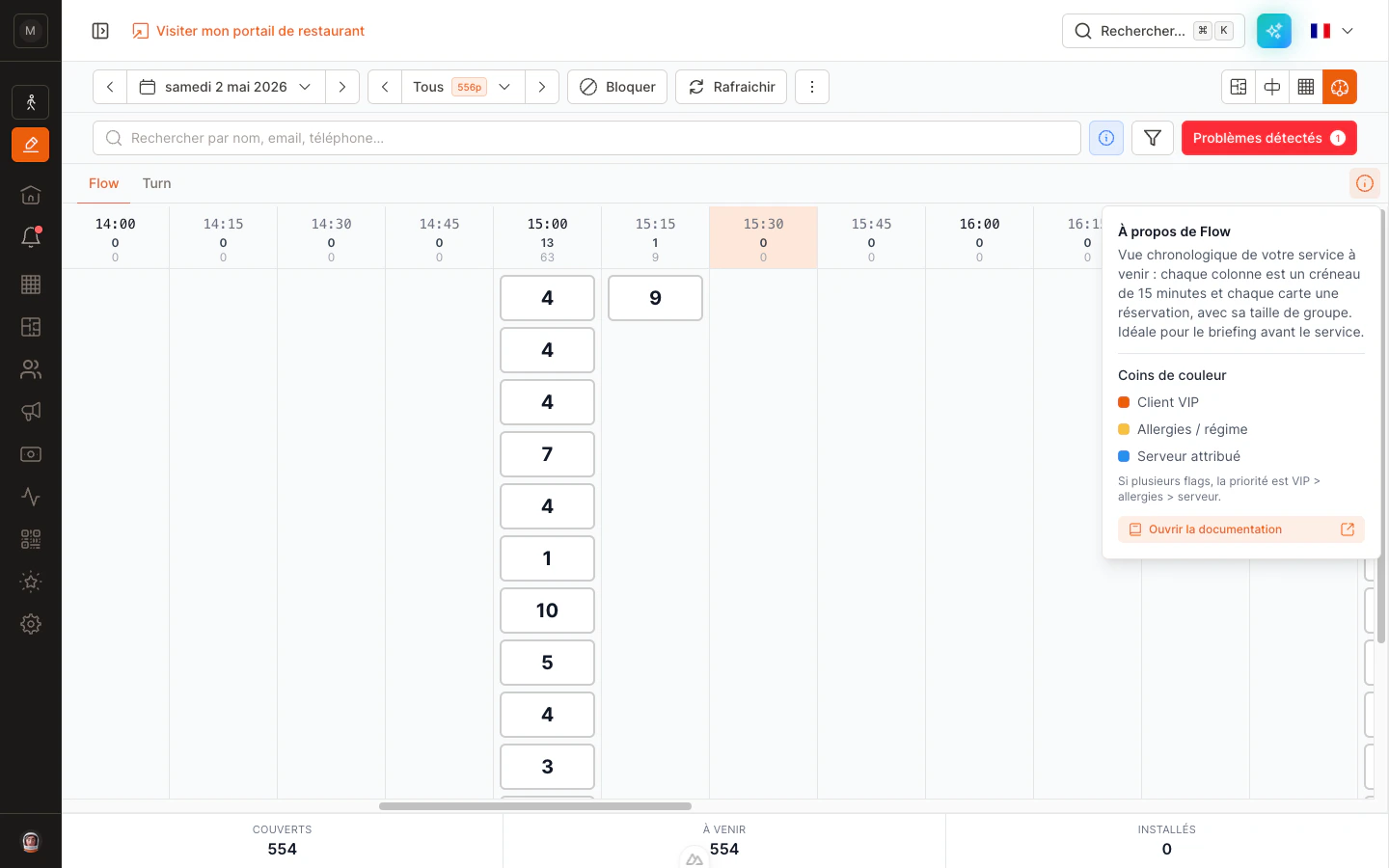 Tap a card to open the reservation details and edit it (status, table, notes…).
### Typical use cases
* 🎯 **Briefing** — In one glance you spot the busiest slots, the big parties, the VIPs and the allergies. No more printed sheets.
* 📊 **Service shape** — See immediately if a slot is over-packed or empty before you open bookings.
* 👀 **Sanity check** — Make sure every reservation has a status before service starts.
Use the shift selector at the top of the page to focus the Flow view on a single service (lunch or dinner), or keep them all visible to see the whole day.
***
## Turn tab — live service view
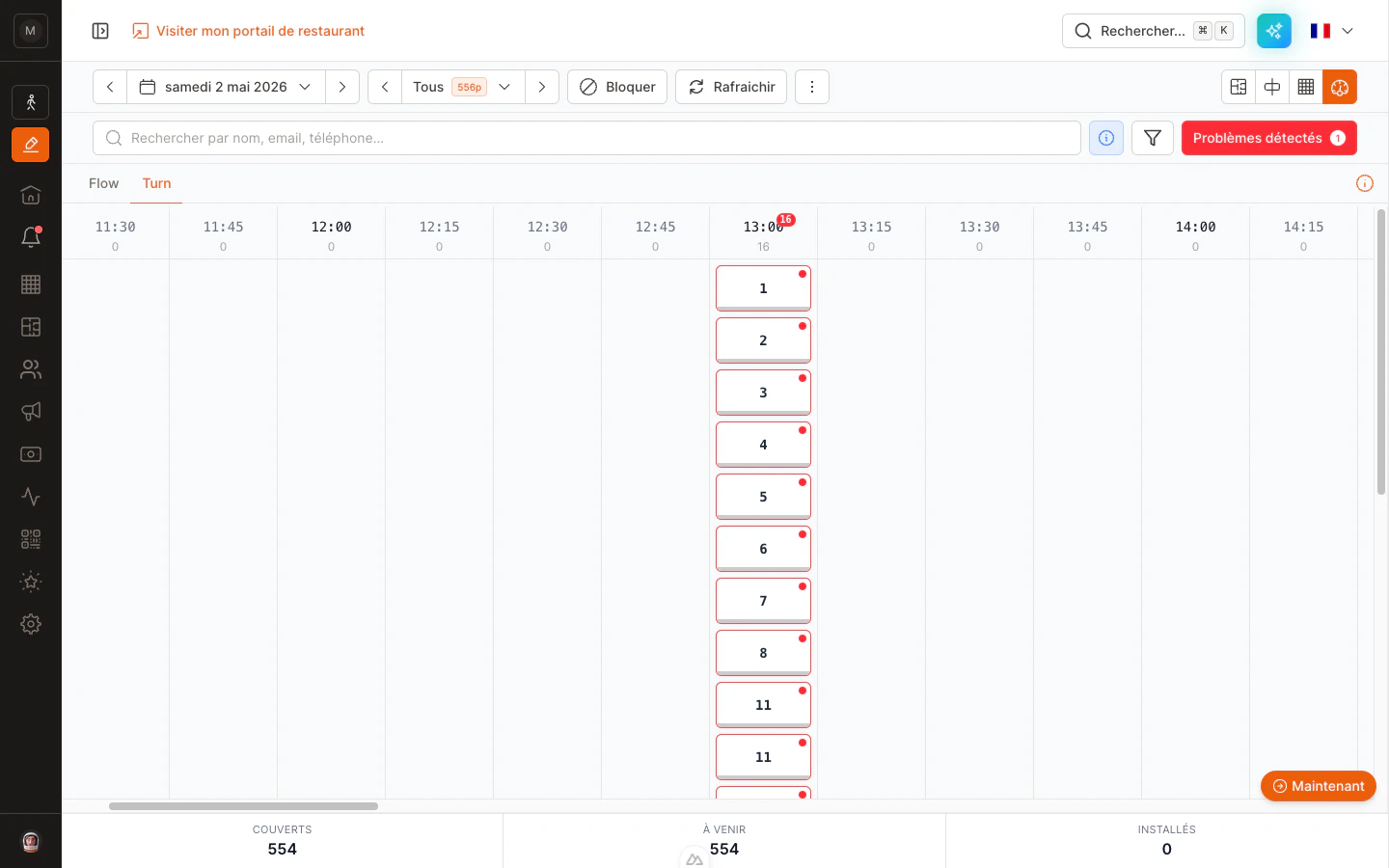
The Turn tab is built for **during service**. It answers a different question than Flow: *when will each table be free?* Each card represents **one reservation** placed in the column matching its **expected end of meal** (booking time + average duration for the party size).
### What you see
Same time-grid layout as Flow. Each card in a column shows a **table number**, not a party size:
* The card shows the **table name** (or number).
* The colored underline matches the **reservation's status** — whether the party is currently seated or expected to arrive.
* The same table can appear in **several slots** during the day — once per booking. A table that's booked at 13:00, 17:00 and 21:00 shows up at 15:00, 19:00 and 23:00 (each end of meal).
A **Now** button appears at the bottom right whenever the current time is scrolled out of view — tap it to jump back to the current moment. When *now* is already visible on screen, the button hides on its own.
### Alerts
When a table needs your attention, two things happen:
* A **red dot** appears in the corner of the card, and the card border turns **red**.
* A **number badge** appears at the top of the column header, telling you how many tables in this slot have an alert.
A card raises an alert in two cases:
* The **seated party is overrunning** — they've been at the table longer than the expected duration.
* **The next party is late** — their booking time is past, but they haven't been seated yet.
Tap a card to open the reservation details and edit it (status, table, notes…).
### Typical use cases
* 🎯 **Briefing** — In one glance you spot the busiest slots, the big parties, the VIPs and the allergies. No more printed sheets.
* 📊 **Service shape** — See immediately if a slot is over-packed or empty before you open bookings.
* 👀 **Sanity check** — Make sure every reservation has a status before service starts.
Use the shift selector at the top of the page to focus the Flow view on a single service (lunch or dinner), or keep them all visible to see the whole day.
***
## Turn tab — live service view
The Turn tab is built for **during service**. It answers a different question than Flow: *when will each table be free?* Each card represents **one reservation** placed in the column matching its **expected end of meal** (booking time + average duration for the party size).
### What you see
Same time-grid layout as Flow. Each card in a column shows a **table number**, not a party size:
* The card shows the **table name** (or number).
* The colored underline matches the **reservation's status** — whether the party is currently seated or expected to arrive.
* The same table can appear in **several slots** during the day — once per booking. A table that's booked at 13:00, 17:00 and 21:00 shows up at 15:00, 19:00 and 23:00 (each end of meal).
A **Now** button appears at the bottom right whenever the current time is scrolled out of view — tap it to jump back to the current moment. When *now* is already visible on screen, the button hides on its own.
### Alerts
When a table needs your attention, two things happen:
* A **red dot** appears in the corner of the card, and the card border turns **red**.
* A **number badge** appears at the top of the column header, telling you how many tables in this slot have an alert.
A card raises an alert in two cases:
* The **seated party is overrunning** — they've been at the table longer than the expected duration.
* **The next party is late** — their booking time is past, but they haven't been seated yet.
 ### Typical use cases
* ⏱ **Anticipate turns** — See in 30 seconds which tables you can promise to walk-ins.
* 🚨 **Spot problem tables** — Red borders and column badges tell you immediately where to follow up to keep service on track.
* 🪑 **Coordinate with the floor** — A second screen for your floor plan: where Flow tells you "who is coming", Turn tells you "what is freeing up".
The Turn tab updates automatically as you change reservation statuses (Seated, Done…) on any device, and it re-evaluates the alert flags every 30 seconds so a late table lights up on its own.
***
## Bottom stats bar
A stats bar pinned at the bottom of the screen gives you the totals at a glance. It stays visible while you scroll the grid.
| Indicator | What it counts |
| ------------ | ------------------------------------------- |
| **Covers** | Total covers booked for the day |
| **Upcoming** | Covers from reservations not yet seated |
| **Seated** | Covers from reservations currently at table |
These three numbers are the same on Flow and Turn — they describe the whole day, not just the active tab.
***
## Tips for mobile and tablet
* **Horizontal swipe** to navigate the time slots — the grid snaps slot by slot.
* **Sticky header** — column counters stay visible while you scroll the cards.
* **Sticky bottom bar** — the Covers / Upcoming / Seated totals stay visible too.
* **Pinch-to-zoom is disabled** intentionally — the layout is sized for fast scanning during service.
***
## FAQ
**Does the Cockpit replace the floor plan?**
No. It complements it. Use the floor plan to *place* people on tables, and the Cockpit to *plan* the service in time.
**Why does the same table appear in several columns on Turn?**
Each booking on a table generates its own turn card. If a table is booked at 13:00, 17:00 and 21:00, you'll see it at 15:00, 19:00 and 23:00 — once per expected end of meal. This lets you anticipate every turn, not just the next one.
**Why doesn't a reservation appear at the slot of its booking time on Turn?**
Turn shows reservations at their **expected end of meal** (booking time + average duration), not at their arrival time. A 12:45 booking with a 2-hour average duration appears at 14:45 on Turn. If you don't see it where you expect, double-check the shift's average duration for that party size — bigger groups often have a longer custom duration.
**Can I edit a reservation directly from the grid?**
Yes — tap any card to open the reservation details, where you can change the status, swap the table, add notes, or cancel.
**The Now button doesn't appear, why?**
It only shows on the **Turn** tab, only when the selected date is **today**, and only when the current-time column is **scrolled out of view**. As soon as you scroll back so that *now* is on screen, the button hides automatically.
**A column shows a red badge but the cards inside look fine — what should I check?**
The badge counts how many cards in this slot have an alert; the cards themselves carry the alert (red dot + red border). Tap each red-bordered card to open it: either the seated party has overrun their expected duration, or the next party is late to be seated.
### Typical use cases
* ⏱ **Anticipate turns** — See in 30 seconds which tables you can promise to walk-ins.
* 🚨 **Spot problem tables** — Red borders and column badges tell you immediately where to follow up to keep service on track.
* 🪑 **Coordinate with the floor** — A second screen for your floor plan: where Flow tells you "who is coming", Turn tells you "what is freeing up".
The Turn tab updates automatically as you change reservation statuses (Seated, Done…) on any device, and it re-evaluates the alert flags every 30 seconds so a late table lights up on its own.
***
## Bottom stats bar
A stats bar pinned at the bottom of the screen gives you the totals at a glance. It stays visible while you scroll the grid.
| Indicator | What it counts |
| ------------ | ------------------------------------------- |
| **Covers** | Total covers booked for the day |
| **Upcoming** | Covers from reservations not yet seated |
| **Seated** | Covers from reservations currently at table |
These three numbers are the same on Flow and Turn — they describe the whole day, not just the active tab.
***
## Tips for mobile and tablet
* **Horizontal swipe** to navigate the time slots — the grid snaps slot by slot.
* **Sticky header** — column counters stay visible while you scroll the cards.
* **Sticky bottom bar** — the Covers / Upcoming / Seated totals stay visible too.
* **Pinch-to-zoom is disabled** intentionally — the layout is sized for fast scanning during service.
***
## FAQ
**Does the Cockpit replace the floor plan?**
No. It complements it. Use the floor plan to *place* people on tables, and the Cockpit to *plan* the service in time.
**Why does the same table appear in several columns on Turn?**
Each booking on a table generates its own turn card. If a table is booked at 13:00, 17:00 and 21:00, you'll see it at 15:00, 19:00 and 23:00 — once per expected end of meal. This lets you anticipate every turn, not just the next one.
**Why doesn't a reservation appear at the slot of its booking time on Turn?**
Turn shows reservations at their **expected end of meal** (booking time + average duration), not at their arrival time. A 12:45 booking with a 2-hour average duration appears at 14:45 on Turn. If you don't see it where you expect, double-check the shift's average duration for that party size — bigger groups often have a longer custom duration.
**Can I edit a reservation directly from the grid?**
Yes — tap any card to open the reservation details, where you can change the status, swap the table, add notes, or cancel.
**The Now button doesn't appear, why?**
It only shows on the **Turn** tab, only when the selected date is **today**, and only when the current-time column is **scrolled out of view**. As soon as you scroll back so that *now* is on screen, the button hides automatically.
**A column shows a red badge but the cards inside look fine — what should I check?**
The badge counts how many cards in this slot have an alert; the cards themselves carry the alert (red dot + red border). Tap each red-bordered card to open it: either the seated party has overrun their expected duration, or the next party is late to be seated.