> ## Documentation Index
> Fetch the complete documentation index at: https://docs.eat-now.io/llms.txt
> Use this file to discover all available pages before exploring further.
# Reviewing Conversations
> How to supervise your AI agent from the inbox — approve or edit its draft replies, follow escalations, and test it safely before it goes live.
Whether the agent drafts replies (shadow mode) or sends them directly, **you're always in the loop**. Everything happens in your normal WhatsApp inbox, with a few extra touches for the agent.
## Approving draft replies (shadow mode)
While [shadow mode](/ai-agent/configuration#shadow-mode) is on, the agent doesn't message customers — it prepares a reply and shows it to you as a **draft** at the bottom of the conversation.
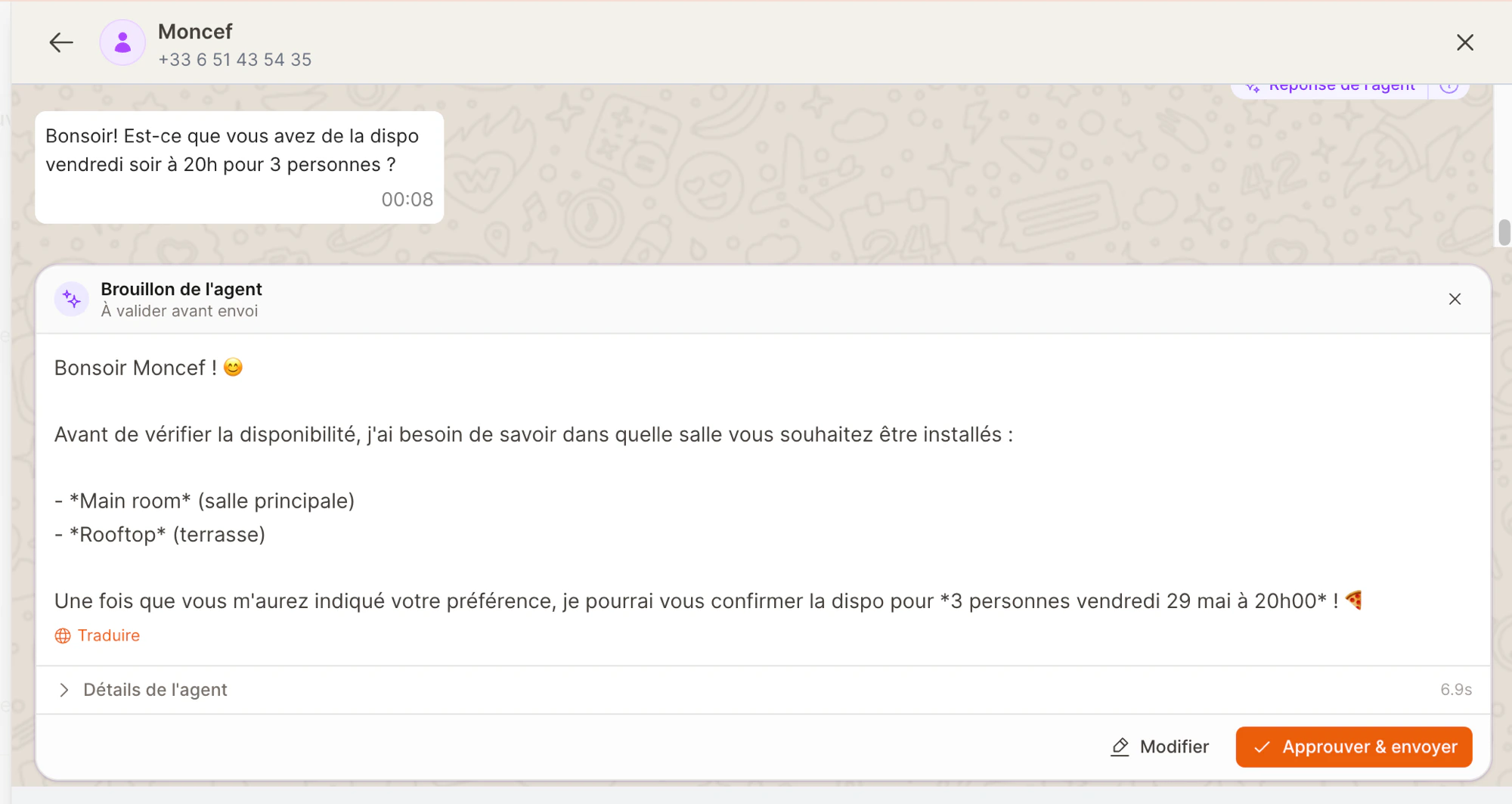 You have three choices:
| Action | What happens |
| ------------------- | ------------------------------------------------------------------------------------------------------------------------- |
| **Approve & send** | The reply is sent to the customer as-is. |
| **Edit** | Tweak the wording first, then send. Your edited version goes out under your name. |
| **Dismiss** (the ✕) | Nothing is sent. Use this when the reply isn't right — over time, dismissed drafts help you spot what to teach the agent. |
### See why it replied that way
Each draft has a **Details** link. Open it to see what the agent did behind the scenes — for example *"searched availability"* and *"found 20:00 free for 4"*. It's a quick way to build trust: you can confirm the agent actually checked the calendar before promising a table.
### Translate a reply
If the agent drafts a reply in a language you don't read, click **Translate** to see it in your own language before approving. This never changes what the customer receives — it's just for you.
Translation is on us — checking a draft in your language **never** costs you any agent credits.
## When the agent hands off
The agent knows its limits. For anything sensitive — an allergy, a complaint, a request for a human — it stops, sends a brief reassuring reply, and flags the conversation for your team. This is called an **escalation**.
You have three choices:
| Action | What happens |
| ------------------- | ------------------------------------------------------------------------------------------------------------------------- |
| **Approve & send** | The reply is sent to the customer as-is. |
| **Edit** | Tweak the wording first, then send. Your edited version goes out under your name. |
| **Dismiss** (the ✕) | Nothing is sent. Use this when the reply isn't right — over time, dismissed drafts help you spot what to teach the agent. |
### See why it replied that way
Each draft has a **Details** link. Open it to see what the agent did behind the scenes — for example *"searched availability"* and *"found 20:00 free for 4"*. It's a quick way to build trust: you can confirm the agent actually checked the calendar before promising a table.
### Translate a reply
If the agent drafts a reply in a language you don't read, click **Translate** to see it in your own language before approving. This never changes what the customer receives — it's just for you.
Translation is on us — checking a draft in your language **never** costs you any agent credits.
## When the agent hands off
The agent knows its limits. For anything sensitive — an allergy, a complaint, a request for a human — it stops, sends a brief reassuring reply, and flags the conversation for your team. This is called an **escalation**.
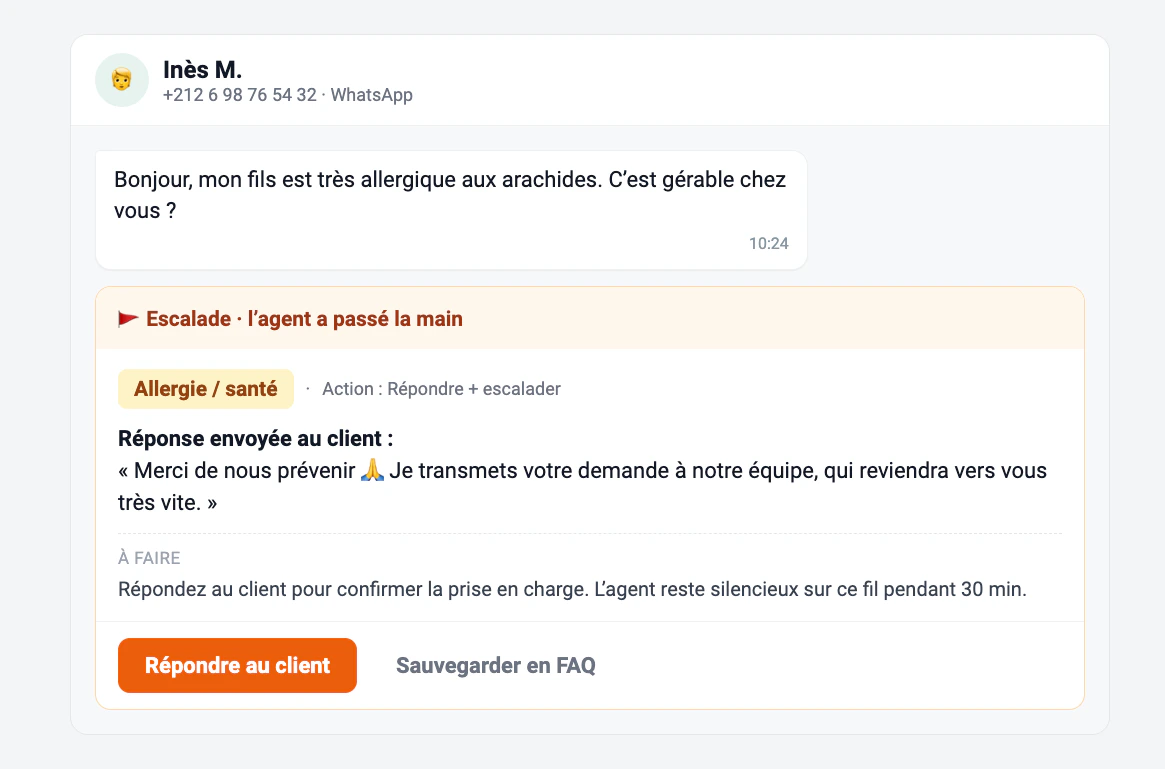 An escalated conversation shows:
* **Why** it was escalated (e.g. *Allergy / health*).
* The **holding reply** the agent already sent the customer.
* A reminder that the agent will **stay silent** on that conversation for a while, so it won't talk over you.
Just reply as you normally would to take over. If the question is a good one to reuse, **Save to FAQ** right there — see [Knowledge base](/ai-agent/knowledge-base#3-save-an-answer-from-a-conversation).
You decide which topics trigger a hand-off in [Safety & controls](/ai-agent/safety-and-controls).
## Spotting what needs you
You don't have to hunt for drafts and escalations. When the agent needs your attention, the **messages icon** in the top bar shows a count, and those conversations are flagged in your notifications so you can jump straight to them.
## Test the agent
Want to see how the agent behaves *before* a real customer does? The AI Agent settings page has a **Test the agent** panel on the right.
Type a fake customer message and the agent responds using your **current** configuration — your persona, your knowledge base, your enabled actions. Change a setting, test again, and see the difference instantly. It's the safest place to experiment: nothing here ever reaches a real customer.
Use the test panel to rehearse tricky cases: a last-minute booking, a customer writing in Darija, a question you're not sure you've taught it yet. If the answer's off, update the [knowledge base](/ai-agent/knowledge-base) and try again.
An escalated conversation shows:
* **Why** it was escalated (e.g. *Allergy / health*).
* The **holding reply** the agent already sent the customer.
* A reminder that the agent will **stay silent** on that conversation for a while, so it won't talk over you.
Just reply as you normally would to take over. If the question is a good one to reuse, **Save to FAQ** right there — see [Knowledge base](/ai-agent/knowledge-base#3-save-an-answer-from-a-conversation).
You decide which topics trigger a hand-off in [Safety & controls](/ai-agent/safety-and-controls).
## Spotting what needs you
You don't have to hunt for drafts and escalations. When the agent needs your attention, the **messages icon** in the top bar shows a count, and those conversations are flagged in your notifications so you can jump straight to them.
## Test the agent
Want to see how the agent behaves *before* a real customer does? The AI Agent settings page has a **Test the agent** panel on the right.
Type a fake customer message and the agent responds using your **current** configuration — your persona, your knowledge base, your enabled actions. Change a setting, test again, and see the difference instantly. It's the safest place to experiment: nothing here ever reaches a real customer.
Use the test panel to rehearse tricky cases: a last-minute booking, a customer writing in Darija, a question you're not sure you've taught it yet. If the answer's off, update the [knowledge base](/ai-agent/knowledge-base) and try again.