> ## Documentation Index
> Fetch the complete documentation index at: https://docs.eat-now.io/llms.txt
> Use this file to discover all available pages before exploring further.
# Knowledge Base
> Teach your AI agent everything it should know about your restaurant — parking, terrace, dietary options, policies — so it answers like a member of your team.
The **knowledge base** is your agent's memory of everything that makes your restaurant *yours*. EatNow already provides the operational facts (hours, capacity, deposit policy); the knowledge base covers the rest — the questions only you can answer.
You'll find it under **Settings → AI Agent → Knowledge base**.
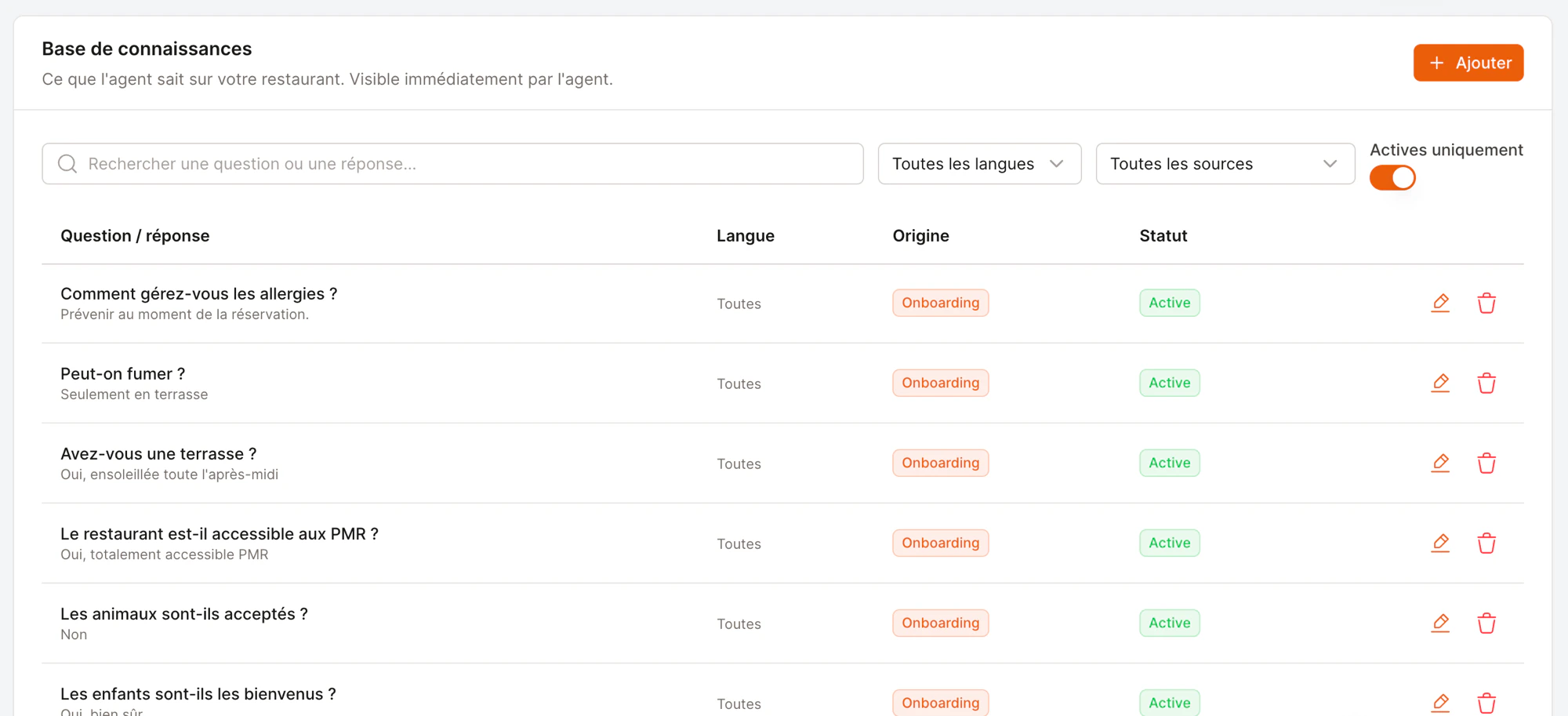 Each entry is a simple **question / answer** pair. The agent reads them in real time, so an edit takes effect on the very next conversation.
## Three ways to fill it
The fastest start — a guided questionnaire covering the common topics.
Write your own question/answer pairs any time.
Turn a reply you wrote in the inbox into a reusable answer in one click.
### 1. The onboarding wizard
The quickest way to teach your agent the basics. Click **Run onboarding** from the AI Agent page and answer \~16 common questions, one screen at a time — parking, dress code, kids, pets, accessibility, terrace, smoking, dietary options, WiFi, and more.
Each entry is a simple **question / answer** pair. The agent reads them in real time, so an edit takes effect on the very next conversation.
## Three ways to fill it
The fastest start — a guided questionnaire covering the common topics.
Write your own question/answer pairs any time.
Turn a reply you wrote in the inbox into a reusable answer in one click.
### 1. The onboarding wizard
The quickest way to teach your agent the basics. Click **Run onboarding** from the AI Agent page and answer \~16 common questions, one screen at a time — parking, dress code, kids, pets, accessibility, terrace, smoking, dietary options, WiFi, and more.
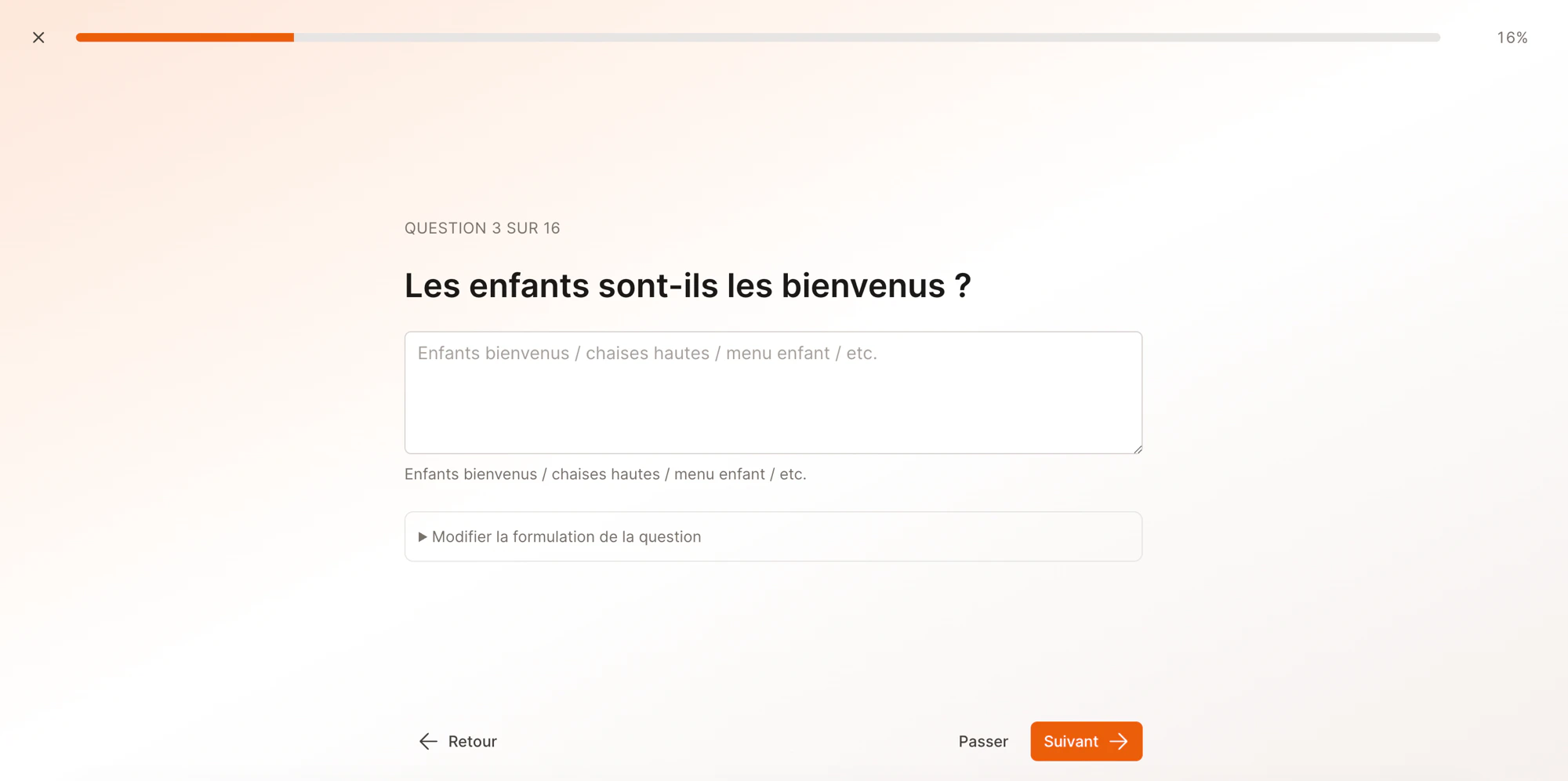 * **Skip** anything that doesn't apply to you.
* Tweak the question wording if you'd phrase it differently.
* Add your own questions at the end.
Running the wizard again later never deletes what's there — it only adds. So you can do a quick first pass and come back.
### 2. Add an entry manually
Click **Add** and fill in:
| Field | What to put |
| ---------------------- | ----------------------------------------------------------------------------------------------------------------------------------------- |
| **Question** | How a customer would naturally ask it (*"Do you have a terrace?"*). |
| **Answer** | The reply the agent should give. Keep it factual and friendly. |
| **Language** | Pick a language, or **Any** if the answer works in every language. |
| **Valid from / until** | Optional. Use it for time-bound facts — *"closed for renovation until March 15"* — and the agent stops using it automatically afterwards. |
### 3. Save an answer from a conversation
This is how your agent gets smarter over time. When a customer asks something the agent didn't know, it hands the conversation to you. After you reply in the inbox, click **Save to FAQ** — EatNow turns your reply into a clean, reusable entry.
* **Skip** anything that doesn't apply to you.
* Tweak the question wording if you'd phrase it differently.
* Add your own questions at the end.
Running the wizard again later never deletes what's there — it only adds. So you can do a quick first pass and come back.
### 2. Add an entry manually
Click **Add** and fill in:
| Field | What to put |
| ---------------------- | ----------------------------------------------------------------------------------------------------------------------------------------- |
| **Question** | How a customer would naturally ask it (*"Do you have a terrace?"*). |
| **Answer** | The reply the agent should give. Keep it factual and friendly. |
| **Language** | Pick a language, or **Any** if the answer works in every language. |
| **Valid from / until** | Optional. Use it for time-bound facts — *"closed for renovation until March 15"* — and the agent stops using it automatically afterwards. |
### 3. Save an answer from a conversation
This is how your agent gets smarter over time. When a customer asks something the agent didn't know, it hands the conversation to you. After you reply in the inbox, click **Save to FAQ** — EatNow turns your reply into a clean, reusable entry.
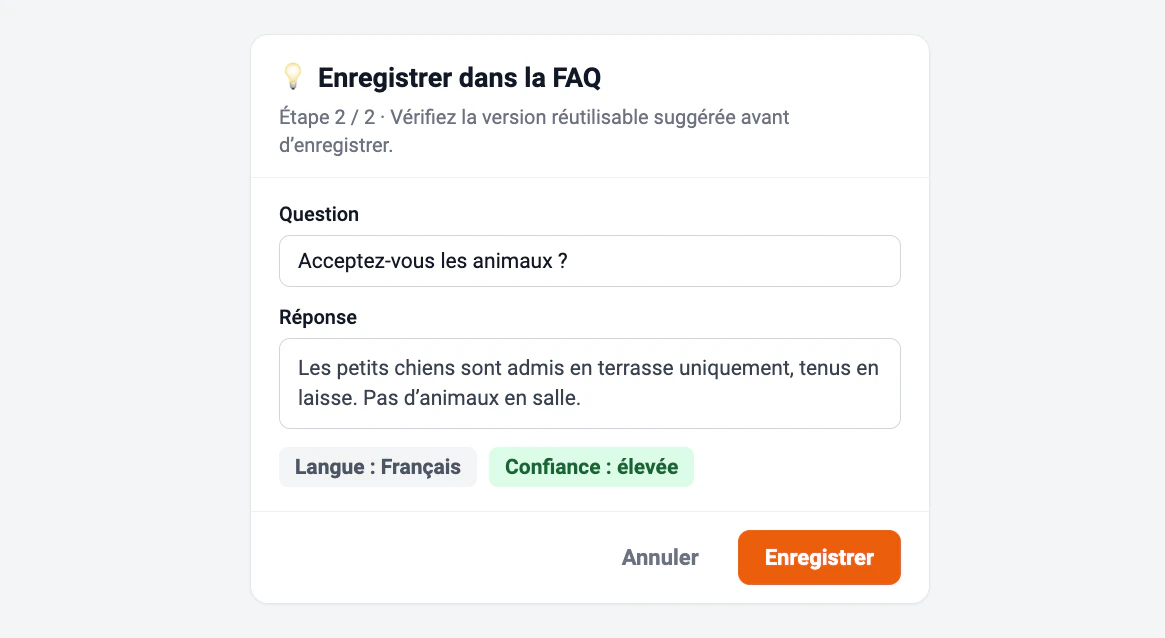 It rewrites your one-off reply into a general question and answer, picks the language, and shows how confident it is. Review the suggestion, edit anything, and **Save** — next time, the agent answers on its own.
## Finding and managing entries
The list has filters to keep things tidy as it grows:
* **Search** by question or answer text.
* Filter by **language** or **source** (*Onboarding*, *Added manually*, *From a conversation*).
* Show **only active** entries.
Every entry shows its **origin** and a **status**. To retire an answer without losing it, deactivate it — the agent stops seeing it, and you can switch it back on any time.
**Quality beats quantity.** A handful of clear, correct answers serve your customers far better than dozens of vague ones. Keep answers specific and up to date — especially prices, hours, and seasonal policies.
Avoid putting things EatNow already manages (opening hours, capacity, deposit amounts) into the knowledge base — the agent reads those live from your settings, so duplicating them risks contradictions.
It rewrites your one-off reply into a general question and answer, picks the language, and shows how confident it is. Review the suggestion, edit anything, and **Save** — next time, the agent answers on its own.
## Finding and managing entries
The list has filters to keep things tidy as it grows:
* **Search** by question or answer text.
* Filter by **language** or **source** (*Onboarding*, *Added manually*, *From a conversation*).
* Show **only active** entries.
Every entry shows its **origin** and a **status**. To retire an answer without losing it, deactivate it — the agent stops seeing it, and you can switch it back on any time.
**Quality beats quantity.** A handful of clear, correct answers serve your customers far better than dozens of vague ones. Keep answers specific and up to date — especially prices, hours, and seasonal policies.
Avoid putting things EatNow already manages (opening hours, capacity, deposit amounts) into the knowledge base — the agent reads those live from your settings, so duplicating them risks contradictions.