> ## Documentation Index
> Fetch the complete documentation index at: https://docs.eat-now.io/llms.txt
> Use this file to discover all available pages before exploring further.
# Interactive replies (buttons)
> Let the agent send tappable WhatsApp buttons — one-tap Confirm/Cancel and quick choice menus — so customers act in a single tap instead of typing.
When **interactive replies** are on, the agent can answer with native WhatsApp **buttons** and **lists** instead of plain text wherever a tap is clearer than typing. The customer taps; the agent picks up the choice and continues — no "type YES to confirm" guesswork.
This is **on by default**. You can turn it off in **Settings → AI Agent**, in the **Trigger** card — with it off, the agent behaves exactly as before (text only).
## Where the agent uses buttons
### Confirming a change or a cancellation
When a customer asks to **modify** or **cancel** a booking, the agent shows a short before→after summary with two buttons:
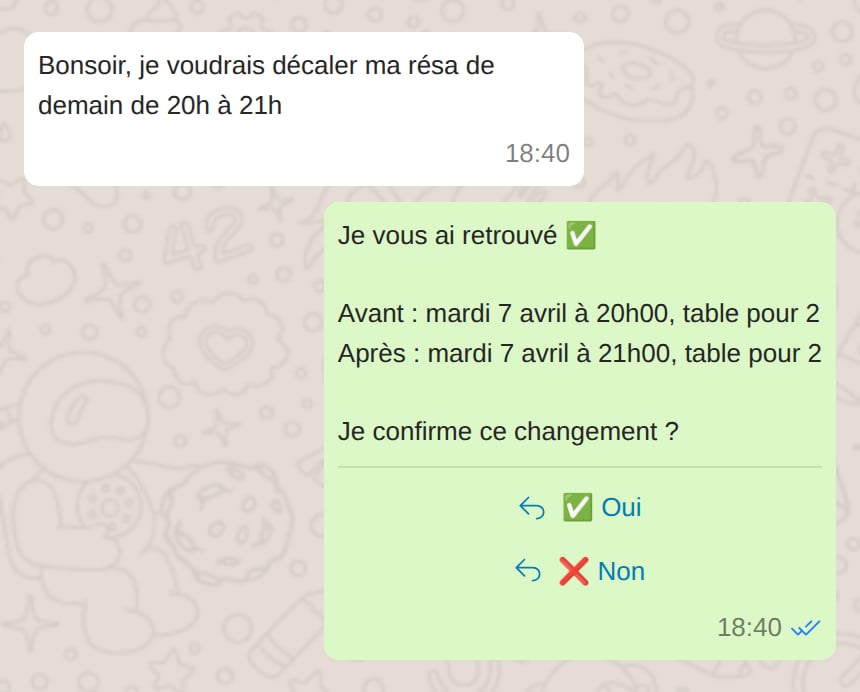 * Tapping **✅ Yes** confirms — the agent re-checks the booking is still valid, then applies the change.
* Tapping **❌ No** leaves everything untouched.
The customer can still just type "yes" / "no" as before — the buttons are a shortcut, never the only way.
### Offering a choice
When the agent needs the customer to pick from a small, concrete set — **which room**, or **which of the available time slots** — it offers them as tappable options:
* **3 or fewer** options → quick-reply buttons.
* **4 to 10** options → a tappable list (a button opens the menu — the agent labels it for the context, e.g. "Voir les créneaux").
* Tapping **✅ Yes** confirms — the agent re-checks the booking is still valid, then applies the change.
* Tapping **❌ No** leaves everything untouched.
The customer can still just type "yes" / "no" as before — the buttons are a shortcut, never the only way.
### Offering a choice
When the agent needs the customer to pick from a small, concrete set — **which room**, or **which of the available time slots** — it offers them as tappable options:
* **3 or fewer** options → quick-reply buttons.
* **4 to 10** options → a tappable list (a button opens the menu — the agent labels it for the context, e.g. "Voir les créneaux").
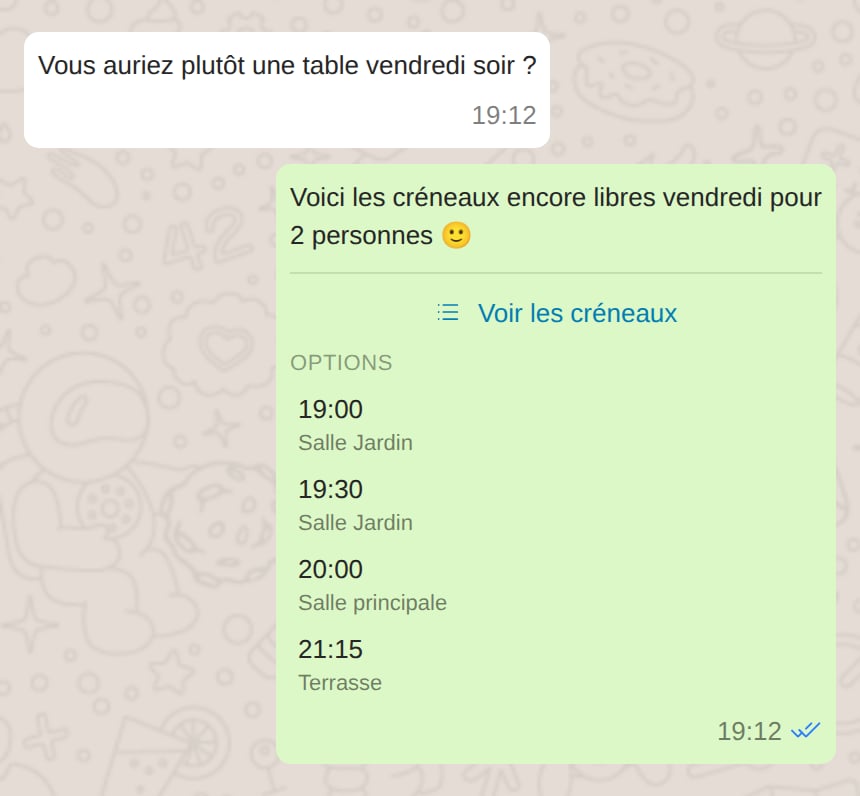 The agent only offers options it actually has in hand (real rooms, real slots returned by the availability check) — it never invents a choice.
## What it changes for you
* **Your inbox** shows exactly what the agent sent — the message body plus the buttons or list — and, for an incoming tap, the option the customer chose.
* **Shadow mode** still applies: if the agent drafts an interactive reply, you approve it like any other draft and the buttons go out on approval. If you **edit** the draft text before approving, it's sent as plain text (the buttons may no longer match your wording).
* **Escalations and error replies** are always sent as plain text — buttons are only added to normal replies.
Buttons shine for confirmations and short either/or choices. For open questions, plain text is still the better experience — the agent decides per message.
## Turning it on or off
It's **on by default**. To change it:
1. Go to **Settings → AI Agent**.
2. In the **Trigger** card, toggle **Interactive replies**.
3. Save. The change applies to new messages immediately.
There's nothing to configure per language — button labels (Yes / No / an agent) are translated automatically to match the customer's language.
The agent only offers options it actually has in hand (real rooms, real slots returned by the availability check) — it never invents a choice.
## What it changes for you
* **Your inbox** shows exactly what the agent sent — the message body plus the buttons or list — and, for an incoming tap, the option the customer chose.
* **Shadow mode** still applies: if the agent drafts an interactive reply, you approve it like any other draft and the buttons go out on approval. If you **edit** the draft text before approving, it's sent as plain text (the buttons may no longer match your wording).
* **Escalations and error replies** are always sent as plain text — buttons are only added to normal replies.
Buttons shine for confirmations and short either/or choices. For open questions, plain text is still the better experience — the agent decides per message.
## Turning it on or off
It's **on by default**. To change it:
1. Go to **Settings → AI Agent**.
2. In the **Trigger** card, toggle **Interactive replies**.
3. Save. The change applies to new messages immediately.
There's nothing to configure per language — button labels (Yes / No / an agent) are translated automatically to match the customer's language.