> ## Documentation Index
> Fetch the complete documentation index at: https://docs.eat-now.io/llms.txt
> Use this file to discover all available pages before exploring further.
# Configuration
> Everything you can tune on your AI agent — when it replies, how it sounds, and exactly what it's allowed to do for your customers.
All of the agent's settings live in **Settings → AI Agent**. The page is split into clear cards, each with its own **Save** button — change one card and save it without touching the rest. On the right, a [test panel](/ai-agent/reviewing-conversations#test-the-agent) lets you try your changes immediately.
This page walks through each card.
## Activation
Controls **whether the agent is allowed to answer at all**.
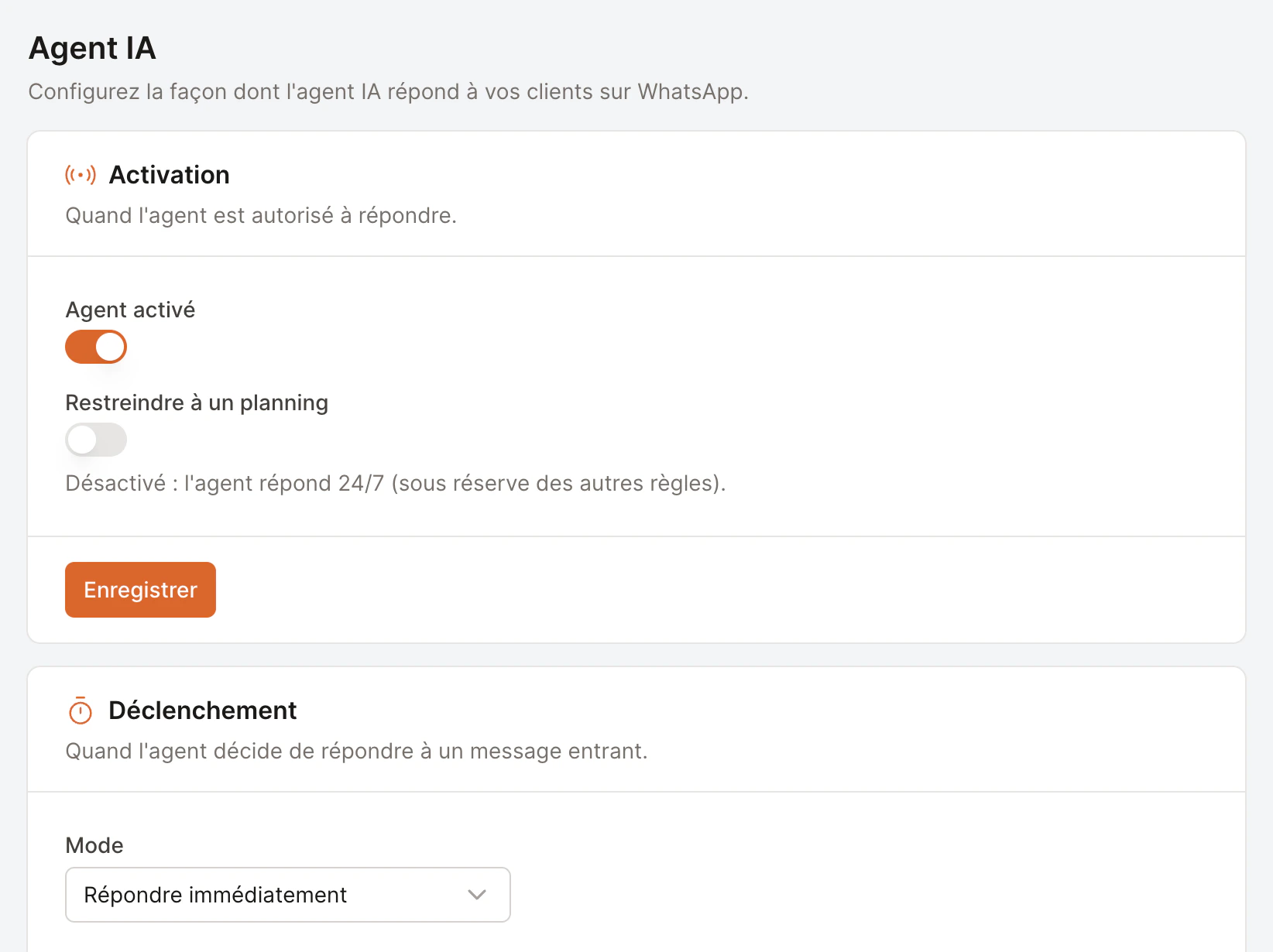 | Setting | What it does |
| -------------------------- | ------------------------------------------------------------------------------------------------------------------------------------------------ |
| **Agent enabled** | The master switch. Off = the agent never replies, whatever else is configured. |
| **Restrict to a schedule** | Off: the agent answers **24/7**. On: it only answers during the time slots you add (e.g. *Friday 12:00 → 23:59*). Add as many slots as you like. |
Most restaurants leave the schedule **off** — replying at 2am is exactly where the agent shines. Use a schedule only if you specifically want the agent quiet outside certain hours.
## Trigger
Controls **when** the agent jumps in once a message arrives.
| Setting | What it does |
| -------------------------- | ------------------------------------------------------------------------------------------------------------------------------------------------ |
| **Agent enabled** | The master switch. Off = the agent never replies, whatever else is configured. |
| **Restrict to a schedule** | Off: the agent answers **24/7**. On: it only answers during the time slots you add (e.g. *Friday 12:00 → 23:59*). Add as many slots as you like. |
Most restaurants leave the schedule **off** — replying at 2am is exactly where the agent shines. Use a schedule only if you specifically want the agent quiet outside certain hours.
## Trigger
Controls **when** the agent jumps in once a message arrives.
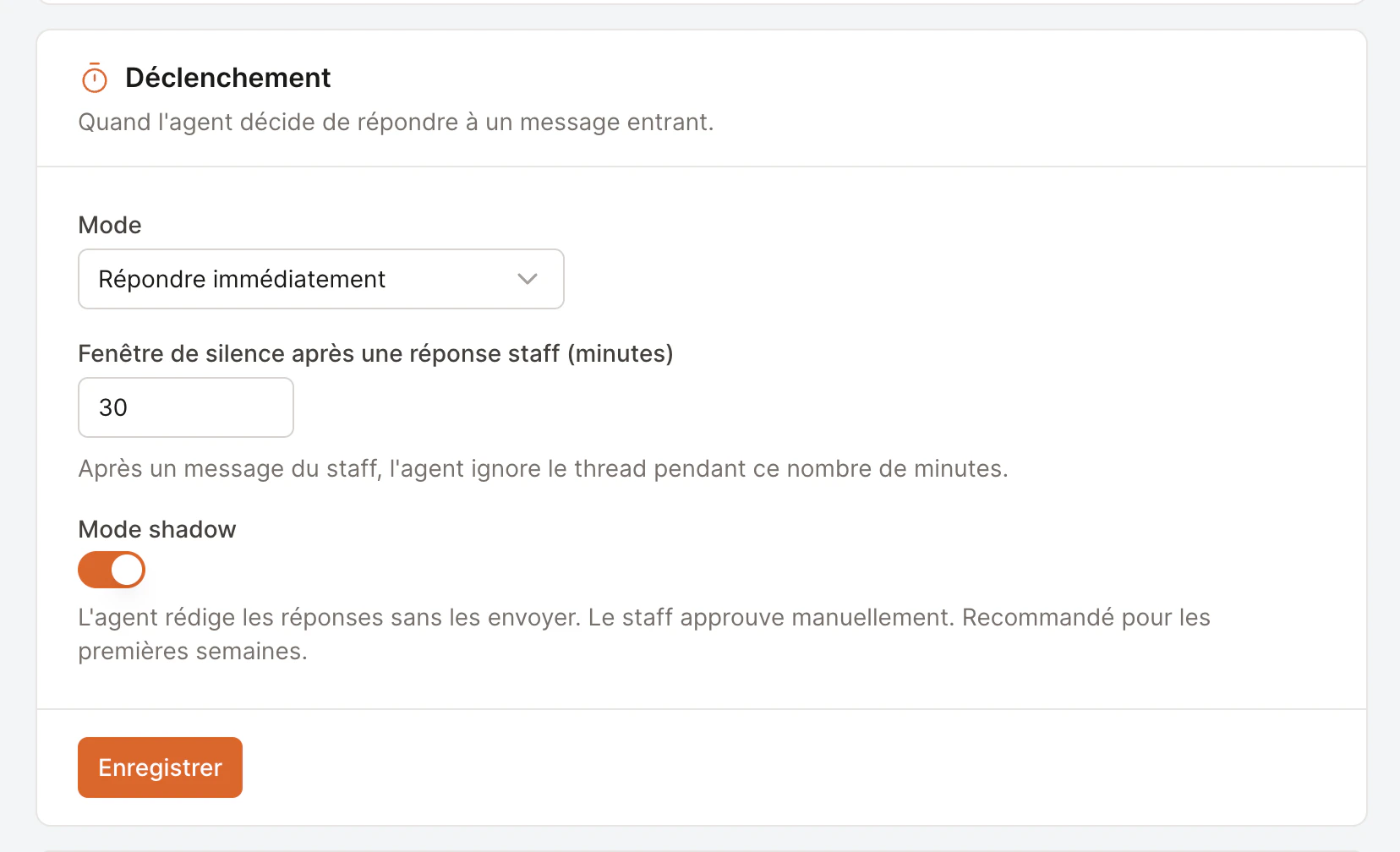 | Setting | What it does |
| ----------------------------------------------------- | ------------------------------------------------------------------------------------------------------------------------------------------------------------------------------------------------------ |
| **Mode → Reply immediately** | The agent answers right away. |
| **Mode → Reply only if staff hasn't replied within…** | The agent waits the number of minutes you set. If a team member replies first, the agent stays quiet. Great if you'd rather answer in person when you can, and only let the agent cover what you miss. |
| **Silence window after staff reply** | After *any* team member sends a message, the agent leaves that conversation alone for this many minutes (default **30**). It won't talk over you. |
| **Shadow mode** | When on, the agent **drafts** replies for you to approve instead of sending them. [More below](#shadow-mode). |
| **Interactive replies** | When on, the agent can reply with tappable WhatsApp buttons — one-tap Confirm/Cancel and quick choice menus — instead of plain text. On by default. [Full guide](/ai-agent/interactive-replies). |
### Shadow mode
This is the single most important setting when you're starting out.
The agent writes a reply but **doesn't send it**. It appears in your inbox as a draft to **approve, edit, or reject**. Nothing reaches a customer without your say-so.
The agent **sends replies directly**. You can still jump into any conversation to take over — the agent steps back as soon as you do.
We recommend keeping shadow mode **on for the first couple of weeks**. It lets you see exactly how the agent handles your real customers before trusting it to reply on its own.
## Persona
Controls **how the agent sounds** to your customers.
| Setting | What it does |
| ----------------------------------------------------- | ------------------------------------------------------------------------------------------------------------------------------------------------------------------------------------------------------ |
| **Mode → Reply immediately** | The agent answers right away. |
| **Mode → Reply only if staff hasn't replied within…** | The agent waits the number of minutes you set. If a team member replies first, the agent stays quiet. Great if you'd rather answer in person when you can, and only let the agent cover what you miss. |
| **Silence window after staff reply** | After *any* team member sends a message, the agent leaves that conversation alone for this many minutes (default **30**). It won't talk over you. |
| **Shadow mode** | When on, the agent **drafts** replies for you to approve instead of sending them. [More below](#shadow-mode). |
| **Interactive replies** | When on, the agent can reply with tappable WhatsApp buttons — one-tap Confirm/Cancel and quick choice menus — instead of plain text. On by default. [Full guide](/ai-agent/interactive-replies). |
### Shadow mode
This is the single most important setting when you're starting out.
The agent writes a reply but **doesn't send it**. It appears in your inbox as a draft to **approve, edit, or reject**. Nothing reaches a customer without your say-so.
The agent **sends replies directly**. You can still jump into any conversation to take over — the agent steps back as soon as you do.
We recommend keeping shadow mode **on for the first couple of weeks**. It lets you see exactly how the agent handles your real customers before trusting it to reply on its own.
## Persona
Controls **how the agent sounds** to your customers.
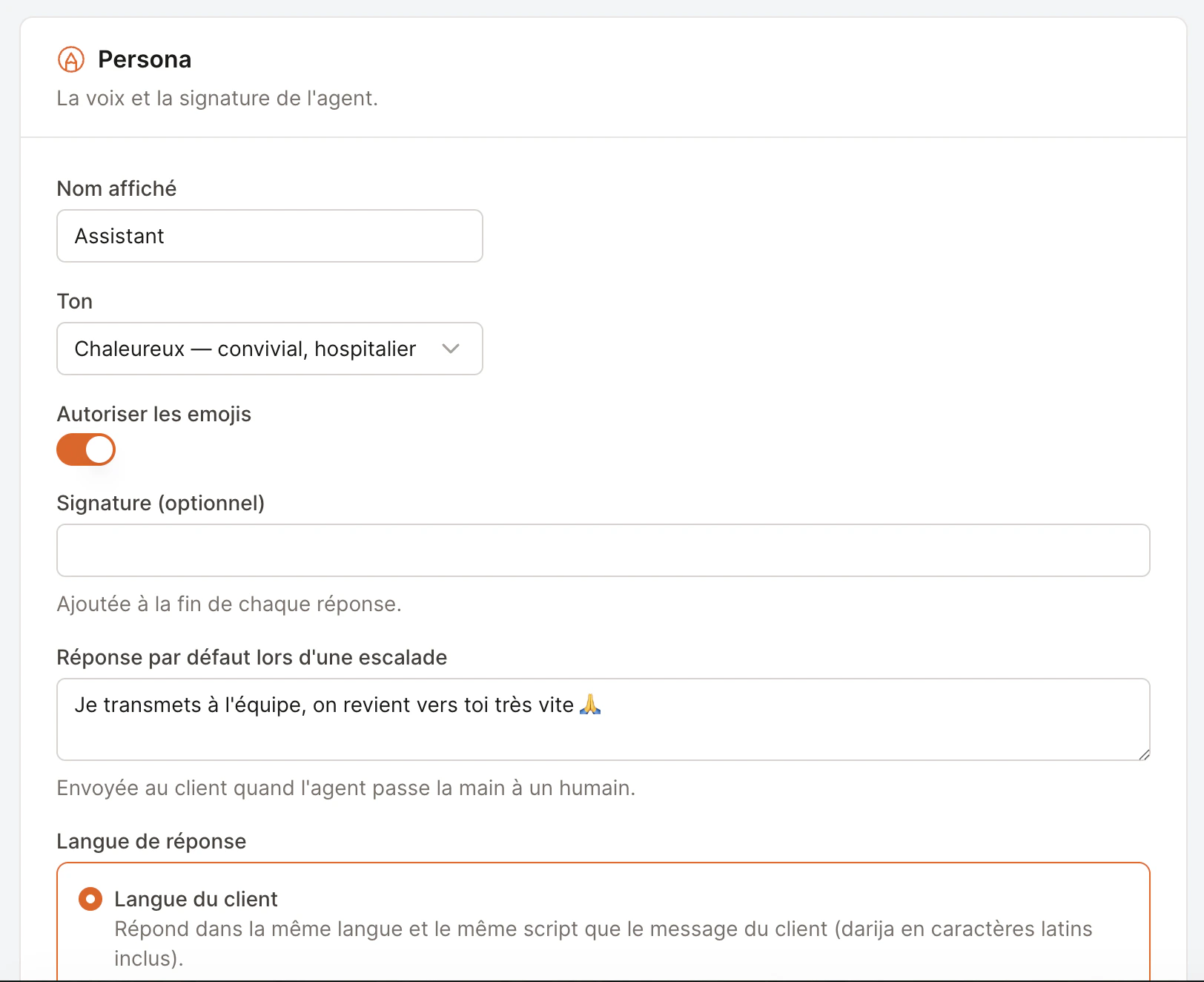 | Setting | What it does |
| --------------------------------- | -------------------------------------------------------------------------------------------------------------- |
| **Display name** | The name the agent uses if it introduces itself (e.g. *"The Petit Jardin assistant"*). |
| **Tone** | **Warm** (conversational, hospitable), **Formal** (respectful, no slang), or **Concise** (efficient, minimal). |
| **Allow emojis** | Whether replies can include emojis. Turn off for a more buttoned-up style. |
| **Signature** | Optional text added to the end of every reply, e.g. *"— Le Petit Jardin 🌿"*. |
| **Default reply when escalating** | What the agent says to the customer when it hands off to your team. Keep it warm and reassuring. |
| **Reply language** | How the agent picks a language — see below. |
### Reply language
**Recommended.** The agent replies in the same language *and script* as the customer — including Darija written in Latin letters. If they switch languages mid-chat, the agent follows.
You write your own policy in plain language, e.g. *"If the customer writes in Darija or French, reply in French. Otherwise reply in English."* The agent follows it on every reply.
## What the agent can do
Each toggle gives the agent permission for **one type of action**. Anything you turn off is completely invisible to the agent — it can't do it and won't mention it.
| Setting | What it does |
| --------------------------------- | -------------------------------------------------------------------------------------------------------------- |
| **Display name** | The name the agent uses if it introduces itself (e.g. *"The Petit Jardin assistant"*). |
| **Tone** | **Warm** (conversational, hospitable), **Formal** (respectful, no slang), or **Concise** (efficient, minimal). |
| **Allow emojis** | Whether replies can include emojis. Turn off for a more buttoned-up style. |
| **Signature** | Optional text added to the end of every reply, e.g. *"— Le Petit Jardin 🌿"*. |
| **Default reply when escalating** | What the agent says to the customer when it hands off to your team. Keep it warm and reassuring. |
| **Reply language** | How the agent picks a language — see below. |
### Reply language
**Recommended.** The agent replies in the same language *and script* as the customer — including Darija written in Latin letters. If they switch languages mid-chat, the agent follows.
You write your own policy in plain language, e.g. *"If the customer writes in Darija or French, reply in French. Otherwise reply in English."* The agent follows it on every reply.
## What the agent can do
Each toggle gives the agent permission for **one type of action**. Anything you turn off is completely invisible to the agent — it can't do it and won't mention it.
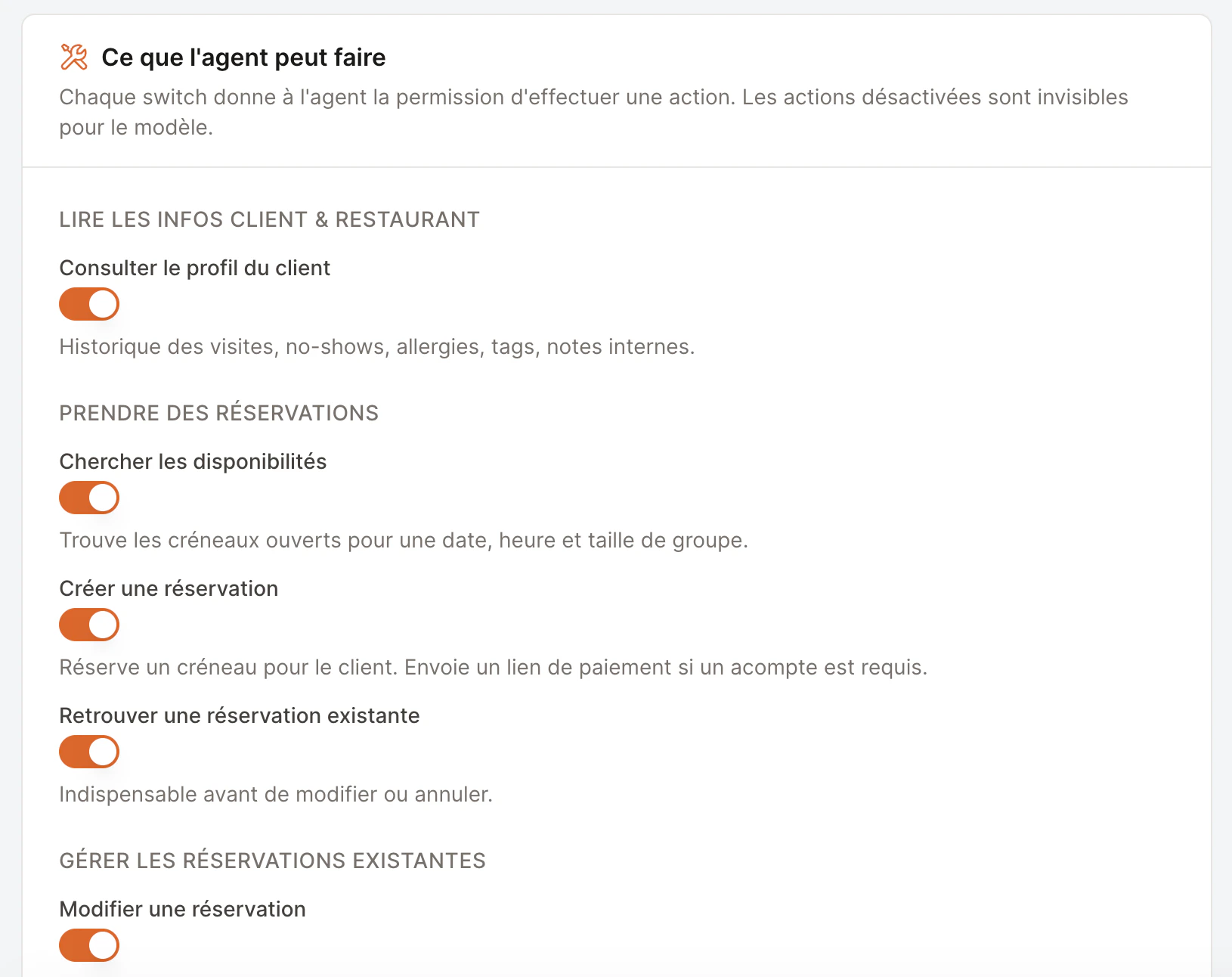 **Read customer & restaurant info**
* **Look up the customer's profile** — past visits, no-shows, allergies, tags, internal notes, so it can greet regulars properly.
**Take new reservations**
* **Search availability** — find open slots for a date, time, and party size.
* **Create a reservation** — book a confirmed slot. Sends your payment link automatically if a deposit is required.
* **Find an existing reservation** — required before it can modify or cancel anything.
**Update existing reservations**
* **Modify a reservation** — proposes the change, asks the customer to confirm, then applies it.
* **Cancel a reservation** — confirms with the customer first, then cancels.
* **Append a note to a reservation** — adds a table preference, occasion, or late-arrival heads-up for your team (never overwrites existing notes).
**Conversation flow**
* **Hand off to staff** — lets the agent bow out gracefully when unsure. **Always recommended.**
* **End the conversation silently** — for when a customer just says *"thanks, bye"*.
Keep **Hand off to staff** enabled. It's the agent's safety valve — without it, an unsure agent has no clean way to step back and bring in a human.
## Credits
In the top-right of the page you'll see your **credit balance** (e.g. *240 credits left*). Credits are how agent usage is metered — each reply uses a small amount. The badge turns orange when you're running low and red at zero. Learn more in [Safety & controls → Credits](/ai-agent/safety-and-controls#credits).
**Read customer & restaurant info**
* **Look up the customer's profile** — past visits, no-shows, allergies, tags, internal notes, so it can greet regulars properly.
**Take new reservations**
* **Search availability** — find open slots for a date, time, and party size.
* **Create a reservation** — book a confirmed slot. Sends your payment link automatically if a deposit is required.
* **Find an existing reservation** — required before it can modify or cancel anything.
**Update existing reservations**
* **Modify a reservation** — proposes the change, asks the customer to confirm, then applies it.
* **Cancel a reservation** — confirms with the customer first, then cancels.
* **Append a note to a reservation** — adds a table preference, occasion, or late-arrival heads-up for your team (never overwrites existing notes).
**Conversation flow**
* **Hand off to staff** — lets the agent bow out gracefully when unsure. **Always recommended.**
* **End the conversation silently** — for when a customer just says *"thanks, bye"*.
Keep **Hand off to staff** enabled. It's the agent's safety valve — without it, an unsure agent has no clean way to step back and bring in a human.
## Credits
In the top-right of the page you'll see your **credit balance** (e.g. *240 credits left*). Credits are how agent usage is metered — each reply uses a small amount. The badge turns orange when you're running low and red at zero. Learn more in [Safety & controls → Credits](/ai-agent/safety-and-controls#credits).